Author Archives: iBoysoft

Get Your Mac Ready for macOS Ventura: Top 10 Issues, Solutions and Reasons

CHENGDU, China /ScoopCloud/ -- iBoysoft, a software and utility development company, presents a roundup list of the most common macOS Ventura problems and fixes. They investigate every Ventura problem that users have previously reported, and so far there is nothing major and all the issues can be fixed.

The new Ventura operating system will undoubtedly delight Mac users when it launches this fall. But technological problems are almost always present, especially when it comes to software. You could experience problems with the macOS Ventura update, such as Ventura update not found, Ventura stuck download, Ventura installation failed, Ventura not booting, and more. Most often, your Mac is just not ready for the macOS Ventura update.

Before macOS Ventura update

It will go a long way to ensuring that your system upgrade goes smoothly and successfully if your Mac is well-prepared in advance. Avoid letting minor errors cause large system update obstacles; doing so takes a lot of time, as does diagnosing the issue and restarting the system update.

These articles will help you decide if you want to install the new macOS 13 on your Mac and prepare your Mac for a successful Ventura update:

Should I update to macOS Ventura?

A Detailed Guide on How to Clean Install macOS Ventura

How to Prepare Mac to Upgrade to macOS Ventura?

[Step-by-Step] Uninstall macOS Ventura Beta on Intel & M1 Mac

Not Enough Space to Install macOS Ventura? Try These Fixes

How to Use Time Machine on Mac: Backup and Restore Tutorials

Top 10 macOS Ventura Issues, Fixes, and Reasons

Take a look at some common macOS Ventura issues individually:

1. macOS Ventura update not found
2. macOS Ventura stuck checking for updates
3. macOS Ventura download stuck
4. macOS Ventura installation failed
5. Can't bypass setup page
6. Ventura won't boot
7. More limited NTFS file system support
8. Wi-Fi or Bluetooth not working
9. Battery drain problem
10. macOS Ventura performance issues

Issue 1: macOS Ventura update not found

Before installing the macOS Ventura on your Mac, you must first download it. Even while there is a slim chance you encounter the issue "Update not found. The Requested Version of macOS Is Not Available", if you do, you can quickly fix it by checking for compatibility.

* iMac 2017 edition or later

* iMac Pro 2017 edition or later

* MacBook Air 2018 edition or later

* MacBook Pro 2017 edition or later

* Mac Pro 2019 edition or later

* Mac Studio 2022 edition

* Mac mini 2018 edition or later

* MacBook 2017 edition

Here is what else you can do to work around the error:

* Sync date and time with Apple server

* Boot your Mac into macOS Recovery Mode and use Reinstall macOS feature

* Request macOS Ventura update through Terminal

* Install macOS Ventura on your Mac using a USB bootable installer

Read more:

[2022] Fixed! The Requested Version of macOS Is Not Available: https://iboysoft.com/news/the-requested-version-of-macos-is-not-available.html

Issue 2: macOS Ventura stuck checking for updates

After you click the Update Now button in Software Update, Apple server will automatically look for available update to download and install on your Mac. This usually takes a few minutes, but your Mac may be stuck on checking for updates for hours.

There are a few quick methods you may do to repair this problem:

* Make sure you have a robust and reliable internet connection for an OS upgrade

* Make more room for macOS Ventura update

* Restart your Mac

Read more:

Ventura Software Update 'Checking for updates' Stuck on Mac? Proven Fixes! https://iboysoft.com/howto/mac-stuck-on-checking-for-updates.html

Issue 3: macOS Ventura download stuck

Since Apple now requires each user to download the entire system update installer, macOS Ventura itself is over 12 GB in size. unsurprisingly, it will take longer to download. However, you find that the download bar moves slowly, or it freezes.

You can try the following solutions to solve Ventura download stuck problem:

* Check Apple servers status to know if macOS Software Update is available

* Free up more storage space (24GB+) for macOS Ventura update

* Restart Mac to refresh the update

* Disable FileVault to let it not encrypt your new macOS

* Reset NVRAM

Read more:

Ventura Update Stuck on Downloading/Installing? Here Are Fixes! https://iboysoft.com/howto/fix-macos-update-stuck.html

Issue 4: macOS Ventura installation failed

Certain third-party software, drivers, or malware could stop macOS 13 Ventura from installing on your Mac. To eliminate the their effect, you can try to update macOS Ventura in Safe Mode.

Read more:

How to Boot Your Mac in Safe Mode to Diagnose & Fix Issues: https://iboysoft.com/wiki/mac-safe-mode.html

Issue 5: Can't bypass setup page

Setup Assistant will help you get your Mac ready with your preferences shortly. It is definetely abnormal that your Mac is frozen in "Setting Up Your Mac" screen.

Here is how to solve your Mac stuck on setting up process:

* Force restart your Mac to make the new operating system to reload again

* Click Set Up Later to skip the prompt to sign in with your Apple ID

* Boot your Mac into Safe Mode and then restart your Mac in Safe Mode

Read more:

[Fixed] Mac Stuck on Setting Up Your Mac After Ventura Update: https://iboysoft.com/howto/mac-stuck-on-setting-up-your-mac.html

Issue 6: Mac won't boot after macOS Ventura update

In the event of macOS update going wrong, your Mac will not load up the new macOS Ventura because of a variety of reasons from a minor display issue or device bricking. So far a bricked Mac has not been reported after macOS Ventura update.

Using the troubleshooting methods outlined below, you may be able to get your Mac to boot up. If they don't, we suggest scheduling a visit at the Genius Bar so that the experts can handle it.

* Disconnect all peripherals including keyboard, mouse, speaker, headphone, external display, USB drive, etc.

* Check if the Mac is getting the power

* Check your display setup

* Boot into macOS Recovery Mode to repair the startup volume

* Reset System Management Controller (SMC) to refresh the power supply for booting

* Log in with another user account

Read more:

What To Do When My MacBook Won't Turn on or Boot up (Intel & M1): https://iboysoft.com/howto/macbook-wont-turn-on.html

Issue 7: More Limited NTFS support in macOS Ventura

Apple replaced the prior kernel-based architecture for the entire mount procedure with one that runs in user space in macOS Ventura. It was only included in the NTFS kext to enable the BootCamp setup process. It means the ability to mount NTFS file systems in read/write mode was never supported for end users in the latest macOS 13.

Read more:

NTFS for macOS Ventura: 3 Ways to Read/Write NTFS Drive in macOS 13: https://iboysoft.com/ntfs-for-mac/ntfs-write-access-on-macos-ventura.html

Issue 8: Wi-Fi or Bluetooth not working

Fix Wi-Fi connection not working:

* Turn off Wi-Fi in the menu bar and after 10 seconds turn it on

* Uninstall VPNs and any apps that might affect your network

* Forget a Wi-Fi network and reconnect to it with correct password

* Create a new network location and join this newly created connection

Fix Bluetooth not working:

* Turn off Bluetooth in the Control Center and turn it on after 10 seconds

* Disconnect and reconnect all Bluetooth-enabled devices

* Restart your Mac computer

* Go to /Library/Preferences folder using the Go To Folder in Finder, find the file com.apple.Bluetooth.plist, cut it to another location, and restart your Mac.

Issue 9: Battery drain problem

Battery usage will be high while Ventura is being installed, but after everything has been properly merged, it should go down.

Follow the methods below to return your battery performance to normal:

* Quit top power consumers that overuse your Mac's energy

* Disable High Power Mode on MacBook Pro with an M1 Mac processor

* Reset Energy Saver preferences to reduce the time before the display falls asleep

* Disable keyboard backlight on your Mac laptop

* Unplug any idle external devices

Read more:

(M1) MacBook Pro Battery Draining Fast, Why & How to Fix? https://iboysoft.com/news/macbook-pro-battery-draining-fast.html

Issue 10: Performance issues after Ventura update

There is no worry if your Mac crashes frequently and runs slowly after macOS Ventura update. After a few days, your Mac will get used to the new system and start to perform as it is supposed to.

* You can use the methods below to speed up your Mac:

* Update apps to be compatible with macOS Ventura

* Close processes with high CPU usage

Read more:

How to Downgrade macOS Ventura to Monterey without Data Loss? - https://iboysoft.com/howto/downgrade-macos-ventura-to-monterey.html

News from IBoysoft

iBoysoft, a software and utility development company, presents a roundup list of the most common macOS Ventura problems and fixes. They investigate every Ventura problem that users have previously reported, and so far there is nothing major and all the issues can be fixed.

Related link: https://iboysoft.com/

This version of news story was published on ScoopCloud™ (ScoopCloud.com) - part of and © the Neotrope® News Network - all rights reserved.
Solved! NTFS Hard Drive Won’t Mount on macOS 10.15.7 After Security Update

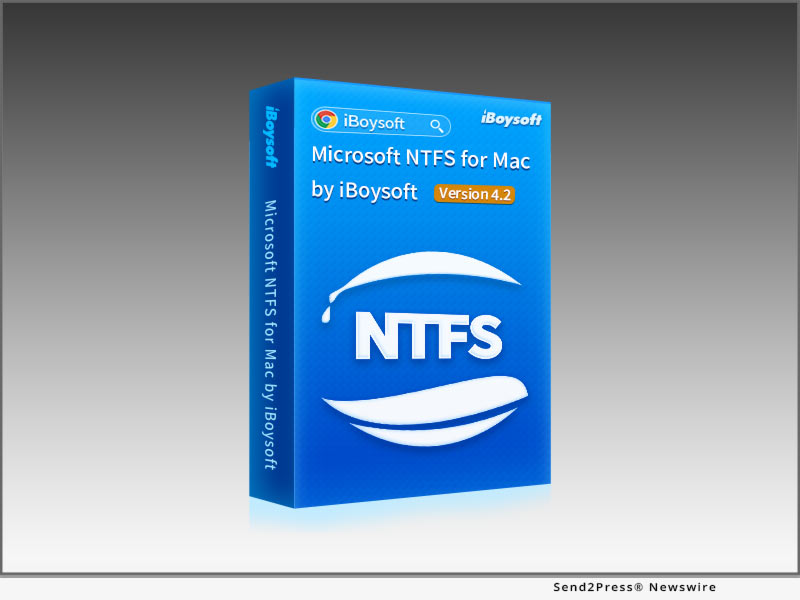
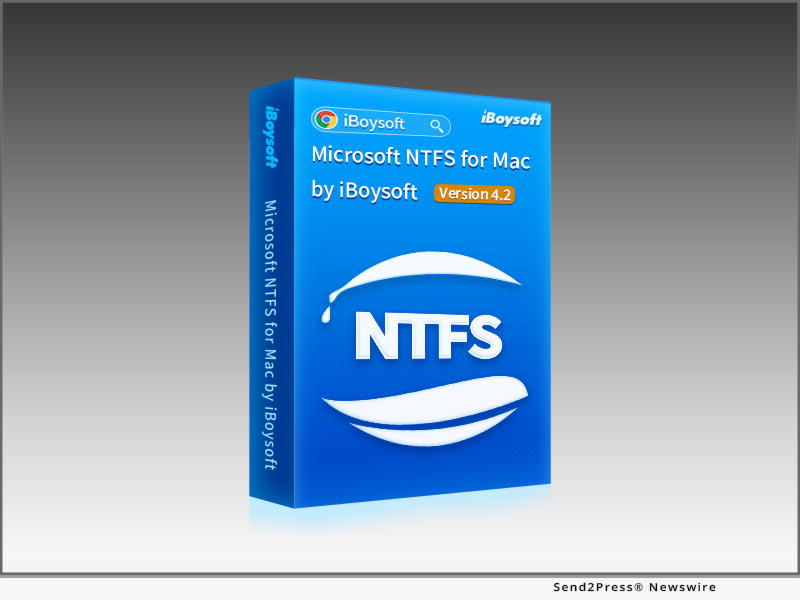
CHENGDU, China /ScoopCloud/ -- iBoysoft (https://iboysoft.com), a professional and innovative software developer, upgrades one of its flagship products - iBoysoft NTFS for Mac - to Version 4.2 as the first solution worldwide to the issue that NTFS-formatted external storage devices will not mount after the latest Security Update 2022-003 on macOS Catalina 10.15.7 on March 16, 2022.

There are many scattered reports that Microsoft NTFS external hard drive will not mount on macOS Catalina after macOS Security Updates. This issue seems to be recursive as it happened in 2021 after the Security Update 2021-003, and NTFS drives fail to mount again on macOS 10.15.7 after the new Security Update 2022-003, even with a third-party NTFS for Mac driver installed.

Users try to uninstall and reinstall the NTFS driver, but the NTFS external hard drive still does not work. An error feedback "com.apple.diskManagement.disenter error 49221" occurs when users mount the NTFS drive manually in Disk Utility. Obviously, the security update has created a glitch in drive management. iBoysoft immediately updates its NTFS for Mac software to specifically address the NTFS external hard drive not mounting on macOS 10.15.7 after security update.

iBoysoft NTFS for Mac helps mount Windows NTFS drives in read and write mode automatically after the storage devices are recognized by Mac. Then users can open the NTFS drives as they did before the security update. All NTFS are fully adapted for macOS and become editable.

This powerful NTFS for Mac by iBoysoft continues delivering fast and secure NTFS support with its stable self-developed file system driver. In addition to NTFS mounting capability, this utility comes with basic disk management functionalities such as open, eject, repair, format NTFS formatted HDDs, SSDs, USB flash drives, Memory Cards, etc.

More information:

https://iboysoft.com/ntfs-for-mac/

https://iboysoft.com/mac-data-recovery/com-apple-disk-management-disenter-error.html

Pricing and Availability

iBoysoft NTFS for Mac v4.2 is ready for macOS 12/11/, 10.15/10.14/10.13 and supports both Intel Macs and Apple Silicon Macs. The installer for macOS 10.12 or earlier is available through support email. It costs $19.95 per license for a yearly subscription. Learn more: https://iboysoft.com/

News from IBoysoft

iBoysoft, a professional and innovative software developer, upgrades one of its flagship products - iBoysoft NTFS for Mac - to Version 4.2 as the first solution worldwide to the issue that NTFS-formatted external storage devices will not mount after the latest Security Update 2022-003 on macOS Catalina 10.15.7 on March 16, 2022.

Related link: https://iboysoft.com/

This version of news story was published on ScoopCloud™ (ScoopCloud.com) - part of and © the Neotrope® News Network - all rights reserved.
Apple’s New macOS Monterey Disappoints Mac Users with Paralyzed Macs, Update failure, and Unavailable NTFS Write Support

CHENGDU, China /ScoopCloud/ -- Apple's macOS 12 Monterey has been officially released to the general public on October 25, 2021. This update brings a refined macOS Big Sur experience and new features including Live Text, AirPlay, SharePlay, and Shortcuts app. The top-end 2021 MacBook Pros with M1 Pro or M1 Max chips are shipped with macOS Monterey. But macOS Monterey users are reportedly facing problems, says iBoysoft.

Many Mac users who upgraded to macOS 12 Monterey are experiencing serious problems ( https://iboysoft.com/mac-data-recovery/macos-monterey-problems-and-fixes.html ), ranging from minor software malfunctions, upgrade failures, to major nightmares like a bricked Mac.

With scattered online reports, the newest macOS Monterey update completely killed some older MacBook Pro, MacBook Air, Mac mini, and iMac models. User are finding their Mac's screen suddenly turned black and subsequently won't turn on again. In Apple Support document, it committed that in very rare circumstances an macOS update might paralyze a Mac with a power failure.

This issue seems not to be impacting newer Mac devices with an Apple Silicon. A bricked Mac after installing macOS Monterey might be related to damaged or outdated firmware, which requires an additional Mac and DFU mode to be restored or revived.

macOS Monterey update failures appear frequently when your Mac doesn't meet the empty space requirements or underperformed Internet connection. Smaller than macOS Big Sur, macOS 12 updater is still around 12GB in size and needs 26GB to 44GB storage to upgrade.

On a Mac with a 128GB hard drive or solid-state drive, it is essential to clean up unnecessary files to avoid insufficient space before attempting the upgrade. A slow and unstable home Wi-Fi usually leaves a Mac hanging at downloading or installing process for good.

Apple hasn't joined hands with Microsoft for native NTFS write support on macOS 12 Monterey yet. Mac users find their hard drives formatted previously for Windows still read only unless they reformat the drives with a Mac-compatible FAT, HFS+, or APFS file system.

The long-anticipated NTFS write feature can be easily accomplished on macOS Monterey with a cross-platform NTFS for Mac ( https://iboysoft.com/ntfs-for-mac/ ) utility. It enables macOS Monterey to have a native and secure engagement with Microsoft NTFS.

Apple's new macOS 12 update has reportedly been associated with a significant number of issues. Complaints regarding malfunctioning USB ports, Safari crash, memory leak, are wide spreading on all Mac devices. Apple experts warn users to hold the horse for the second or later version of macOS Monterey to fix the constantly emerging bugs.

Learn more: https://iboysoft.com/

News from IBoysoft

Apple's macOS 12 Monterey has been officially released to the general public on October 25, 2021. This update brings a refined macOS Big Sur experience and new features including Live Text, AirPlay, SharePlay, and Shortcuts app. The top-end 2021 MacBook Pros with M1 Pro or M1 Max chips are shipped with macOS Monterey. But macOS Monterey users are reportedly facing problems, says iBoysoft.

Related link: https://iboysoft.com/

This version of news story was published on ScoopCloud™ (ScoopCloud.com) - part of and © the Neotrope® News Network - all rights reserved.
iBoysoft Kicks off Thanksgiving and Black Friday Promotion with Up to 50-percent Discount

CHENGDU, China /ScoopCloud/ -- iBoysoft (iboysoft.com), a world-class developer of data recovery and disk management applications, announces its Thanksgiving and Black Friday special offer today. From November 25 to December 3, 2019, every visitor can enjoy a 50% discount on iBoysoft NTFS for Mac. What's more, with a purchase of iBoysoft Data Recovery for Mac, users can get this NTFS driver absolutely for free.

iBoysoft holiday sales: https://iboysoft.com/offer/holiday-sales.html

The grand shopping season is around the corner, so many customers can't wait to cash deals. In order to celebrate the holiday and thank millions of customers all over the world, iBoysoft launches this big Thanksgiving and Black Friday special offer with its best sellers.

50% Off on iBoysoft NTFS for Mac

iBoysoft NTFS for Mac is a handy NTFS driver which allows users to read and write to NTFS drives on macOS Catalina and earlier. Using this utility, people can modify existing files, delete files, and transfer files between NTFS drives and Macs without any hassle. In addition, the software has also been built with disk management features to help users view disk details, unmount a disk, check disk errors, and erase disk data through one-click. iBoysoft NTFS for Mac was originally at $29.95, but now users can get 50% off, for incredible $14.97 per copy.

Buy One Get One for Free

iBoysoft Data Recovery for Mac is professional and safe data recovery software for macOS and OS X, which can scan and recover data from any storage device, including internal and external hard drives, USB flash drives, SD cards. Designed with powerful scanning algorithm, this Mac data recovery software can help users recover files even when the disk is failing, unmountable, formatted, or the Mac computer is unbootable. It recovers documents, pictures, music files, videos, emails as well as many other file types. During this holiday promotion, users who purchase a copy of iBoysoft Data Recovery for Mac Pro edition can get iBoysoft NTFS for Mac for free, which is a saving of $29.95 in total.

When talking about this Thanksgiving and Black Friday deal, its Marketing Manager, Mr. Cheng commented, "We offer this big deal to express sincere appreciation to those who support iBoysoft all the way. Hope customers enjoy more benefits when using our products."

iBoysoft Thanksgiving and Black Friday deal will end on December 3, 2019. Hurry up and don't miss this money-saving chance.

About iBoysoft:

Founded in early 2017, iBoysoft is an innovative and fast-growing software company that provides users with solutions to data recovery for Windows, data recovery for Mac, APFS data recovery, NTFS read/write support on Mac, Mac drive management, and file protection. It has been well-recognized by millions of happy users all over the world.

For more information, please visit the official site: https://iboysoft.com/

News from iBoysoft

iBoysoft (iboysoft.com), a world-class developer of data recovery and disk management applications, announces its Thanksgiving and Black Friday special offer today. From November 25 to December 3, 2019, every visitor can enjoy a 50% discount on iBoysoft NTFS for Mac. What's more, with a purchase of iBoysoft Data Recovery for Mac, users can get this NTFS driver absolutely for free.

Related link:

This version of news story was published on ScoopCloud™ (ScoopCloud.com) - part of and © the Neotrope® News Network - all rights reserved.

iBoysoft Announces 4 Ways to Recover Data After macOS Catalina Update

CHENGDU, China /ScoopCloud/ -- iBoysoft (iboysoft.com), a dedicated Mac and Windows software developing company since 2017, lately unveils a series of solutions to fix Mac not booting issue after the recent macOS 10.15 Catalina update is published. It aims to help users enjoy new features of the latest macOS while keeping their data safe and intact.

Apple has released macOS Catalina for a while and now macOS 10.15.1 is available in the App Store to update. However, many users run into troubles after or during the period of macOS Catalina update, and one of the most serious problems is that Mac won't start after macOS update.

To help users solve those macOS booting problems, iBoysoft conducts a tutorial article and guide users to recover data from unbootable Mac computers. 4 different ways, including utilizing its flagship Mac data recovery software - iBoysoft Data Recovery for Mac, are mentioned according to different situations.

According to iBoysoft, the easiest method of recovering data from unbootable Macs is to run iBoysoft Data Recovery for Mac in Recovery Mode. This solution is extremely helpful if users only have one Mac that is not booting up after macOS update. The only requirement is that the Internet access is available for this Mac.

In addition, iBoysoft also offers another solution to recover data from crashed Mac: creating a bootable recovery drive. iBoysoft Data Recovery for Mac is built with a bootable drive creator so that users can create a recovery drive to get data off the crashed Mac. This solution requires another working Mac and a usable external hard drive or USB flash drive to create the iBoysoft Data Recovery for Mac bootable drive.

"We know how much data matters when a computer refuses to boot, so we strongly recommend users to recover data with iBoysoft Data Recovery for Mac before repair their Mac. iBoysoft Data Recovery applies advanced data recovery technology, and it can help users recover data even when Mac is stuck on loading, cashed, dead, etc.," said Tim Luo, the CEO of iBoysoft.

Besides that, iBoysoft also lists a series of solutions to fix the unbootable Mac after macOS update, including booting up in Safe mode, repairing startup disk in Recovery Mode, re-installing the macOS, or downgrading macOS Catalina to a stable system.

More Key Features of iBoysoft Data Recovery for Mac
1. Recover documents, photos, videos, emails, etc. from Mac.
2. Recover deleted and lost data from emptied Trash.
3. Recover data from formatted/corrupted/unmountable drives.
4. Recover files from external hard drives, USB flash drives, SD cards, memory cards, and many other storage devices.

Price and Availability

iBoysoft Data Recovery for Mac is compatible with macOS 10.15 (Catalina), macOS 10.14 (Mojave), macOS 10.13 (High Sierra), macOS 10.12 (Sierra) and Mac OS X 10.11 (El Capitan), 10.10 (Yosemite), 10.9 (Mavericks), 10.8 (Mountain Lion), 10.7 (Lion).

Users can free download iBoysoft Data Recovery for Mac at https://iboysoft.com/mac-data-recovery/free-mac-data-recovery.html and enjoy 1 GB free data recovery. For more features, the cost will be varied from $69.95 to $299 according to different features.

About iBoysoft

Founded in early 2017, iBoysoft is an innovative and fast-growing software company that provides users with solutions to data recovery for Windows, data recovery for Mac, APFS data recovery, NTFS read/write support on Mac, Mac drive management, and file protection. It has been well-recognized by millions of happy users all over the world.

VIDEO (YouTube): https://youtu.be/cxz_suPLqn8

News from iBoysoft

iBoysoft, a dedicated Mac and Windows software developing company since 2017, lately unveils a series of solutions to fix Mac not booting issue after the recent macOS 10.15 Catalina update is published. It aims to help users enjoy new features of the latest macOS while keeping their data safe and intact.

Related link:

This version of news story was published on ScoopCloud™ (ScoopCloud.com) - part of and © the Neotrope® News Network - all rights reserved.

Brand-new iBoysoft NTFS for Mac Supports Microsoft NTFS Read-write in macOS Catalina

CHENGDU, China /ScoopCloud/ -- iBoysoft (https://iboysoft.com/), a leading provider of data security and drive management software, recently releases a brand-new product, iBoysoft NTFS for Mac. Fully compatible with macOS Catalina, the software is designed to help users read, write to, check, repair, and format NTFS drives on Mac seamlessly.

Mac operating systems always have very limited support for Microsoft NTFS formatted drives out of the box. By default, Macs can only open and view files from NTFS formatted hard drives, leaving people unable to edit, copy, or delete anything. Even though users can format the external drive to be compatible with both Windows and Mac, it would lead to severe data loss problems. To help users solve such an incompatibility issue, iBoysoft unveils a brand-new iBoysoft NTFS for Mac, a full-featured NTFS driver for macOS and OS X.

iBoysoft NTFS for Mac delivers full read and write access for NTFS-formatted drives on Mac. It's able to automatically mount NTFS drives in read-write mode, allowing people to modify existing files, to delete files, and to copy new files from NTFS drives to Mac without any hassle. Besides, it features extensive compatibility with all kinds of external storage devices, such as external hard drives, SD cards, memory cards, USB flash drives, and CF cards, etc.

"iBoysoft NTFS for Mac aims to eliminate boundaries between Mac and Windows operating systems. This tool provides fast, sustained file transfer speed with advanced algorithm, so that users don't even notice on which platform their files are", said Tim Luo, the chief executive of iBoysoft.

Besides enabling NTFS write support on Mac, iBoysoft NTFS for Mac is equipped with disk management features. It allows users to view disk details, open a disk, unmount a disk, check disk errors, and erase disk data through one-click. What's more, it also supports erasing FAT32/exFAT/HFS+ disks to NTFS on Mac directly.

iBoysoft NTFS for Mac is the first product that gives full read and write capability for Windows NTFS-formatted drives on the latest macOS Catalina.

In addition, this tool comes up with a simple and intuitive interface which makes disk management easier.

Price and Availability:

iBoysoft NTFS for Mac runs under macOS 10.15 Catalina, macOS 10.14 Mojave, macOS 10.13 High Sierra, macOS 10.12 Sierra, Mac OS X 10.11, OS X 10.10, OS X 10.9, OS X 10.8.

Users can free download the trial version with full features and mount disks 3 times in total. To purchase a lifetime license, users can grab the present offer and enjoy 50% off (list price US$29.95) at https://iboysoft.com/ntfs-for-mac/.

About iBoysoft:
Founded in early 2017, iBoysoft is an innovative and fast-growing software company that provides users with solutions to data recovery for Windows, data recovery for Mac, APFS data recovery, NTFS read/write support on Mac, Mac drive management, and file protection. It has been well-recognized by millions of happy users all over the world.

For more information, please visit the official site: https://iboysoft.com/

VIDEO (YouTube): https://youtu.be/CQ_28iE6pao

News from iBoysoft

iBoysoft, a leading provider of data security and drive management software, recently releases a brand-new product, iBoysoft NTFS for Mac. Fully compatible with macOS Catalina, the software is designed to help users read, write to, check, repair, and format NTFS drives on Mac seamlessly.

Related link:

This version of news story was published on ScoopCloud™ (ScoopCloud.com) - part of and © the Neotrope® News Network - all rights reserved.