Tag Archives: Tenorshare ReiBoot

Guide: How to Remove iOS 26 From My iPhone to a Stable Version? [Free]

NEW YORK, N.Y., Sept. 17, 2025 (SEND2PRESS NEWSWIRE) — Tired of iOS 26 on your iPhone, which makes your iPhone laggy or overheat? You may want to return to a stable version. In this guide from Tenorshare, we explain how to remove iOS 26 from your iPhone and install a stable version without data loss.
Tenorshare Guide: How to Remove iOS 26 From My iPhone to a Stable Version
Image caption: Tenorshare Guide: How to Remove iOS 26 From My iPhone to a Stable Version.

“My iPhone 13 battery is draining fast after updating to iOS 26 beta. How can I remove it and install a stable version?” – iPhone 13 user.

CAN I REMOVE IOS 26 FROM MY IPHONE?

Yes, you can remove iOS 26 from your iPhone, whether you’re running the developer beta or the public beta.

Upgrading to the final official version of iOS 26 is the easiest way to remove the iOS 26 beta. Or use a trusted third-party tool, such as Tenorshare ReiBoot can downgrade from iOS 26 to 18 in just minutes.

Before starting, ensure you back up data to iCloud/iTunes and disable Find My iPhone.

HOW TO REMOVE IOS 26 FROM YOUR IPHONE WITHOUT DATA LOSS?

Method 1. Wireless Update to iOS 26 Stable Version.

Now, upgrading to the iOS 26 stable version is a free method to remove the iOS 26 Beta ithout a computer. Supported models include iPhone 11/12/13/14/15/16/17.

Steps to update the final iOS 26 version:

Step 1. Open Settings > General > Software Update.

Step 2. Turn off Beta Updates

Step 3. Return to the Software Update screen and install the iOS 26.0.

Note: It’s crucial to disable beta updates. It can stop your device may installing future betas (such as iOS 26.1 beta), moving to the stable release.

Method 2: Auto-Delete iOS 26 via Tenorshare ReiBoot (Best Recommended for Everyone, 100% Working)

If you want to remove iOS 26 without updating, let’s try downgrading your iPhone from iOS 26 to iOS 18. Tenorshare ReiBoot is an iOS system repair software that lets you uninstall iOS 26 and auto-install the stable iOS version on your iPhone without any data loss.

Steps to remove iOS 26 with Tenorshare ReiBoot:

Step 1. Free install Tenorshare ReiBoot on your computer and connect your iPhone.

Step 2. Select “Downgrade from iOS 26 to 18” or “Upgrade to Stable iOS 26.” ReiBoot will auto-download the right firmware.

Step 3. Wait while the software completes the process.

WHY REMOVE IOS 26 VIA REIBOOT IS BEST:

  • 100% Protects your iPhone data.
  • Fix 150+ iOS 26 Problems, like iOS 26 overheat,iOS 26 not working.
  • Downgrade iOS 26 to 18 within 20 minutes.

Note: If the iOS 26 update is stuck on ‘Update Requested,’ Tenorshare ReiBoot can also resolve the issue quickly.

ABOUT TENORSHARE:

Removing iOS 26 can be risky and may result in data loss. Tenorshare ReiBoot provides a safe and reliable way without losing any data. Founded in 2007, Tenorshare is a reputable software company known for creating intuitive iOS and Android solutions, earning widespread recognition and multiple industry awards.

NEWS SOURCE: Tenorshare Co. Ltd.


This press release was issued on behalf of the news source (Tenorshare Co. Ltd.), who is solely responsible for its accuracy, by Send2Press Newswire. Image, if any, was provided by the news source and not this website or the wire service. Information is believed accurate, as provided by the news source, but is not guaranteed.

To view the original story, visit: https://www.send2press.com/wire/guide-how-to-remove-ios-26-from-my-iphone-to-a-stable-version-free/

Copr. © 2025 Send2Press® Newswire, Calif., USA. -- REF: S2P STORY ID: S2P129355 NOREL-3B
 

[Free] iPhone Stuck in Recovery Mode? Get Your iPhone Out of Recovery Mode in 2025

NEW YORK, N.Y., July 1, 2025 (SEND2PRESS NEWSWIRE) — “My iPhone 14 is stuck in recovery mode after updating to iOS 26. How can I fix it without losing data?”-Users reported. The reason that your iPhone 14 may get stuck in recovery mode is failed iOS 26 updates, iOS 26 corrupted system files, or an interrupted app process. Thankfully, it can be fixed with Tenorshare ReiBoot (no data loss) or iTunes/DFU Mode (data loss).

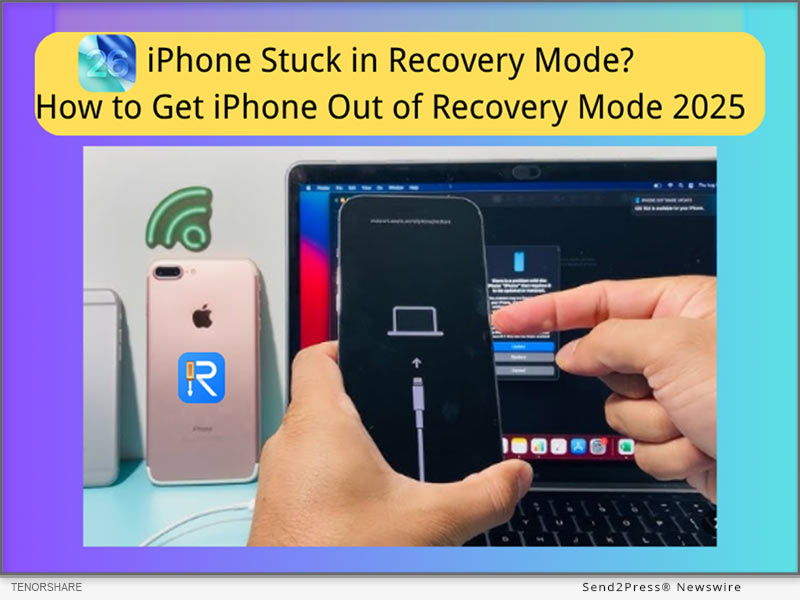
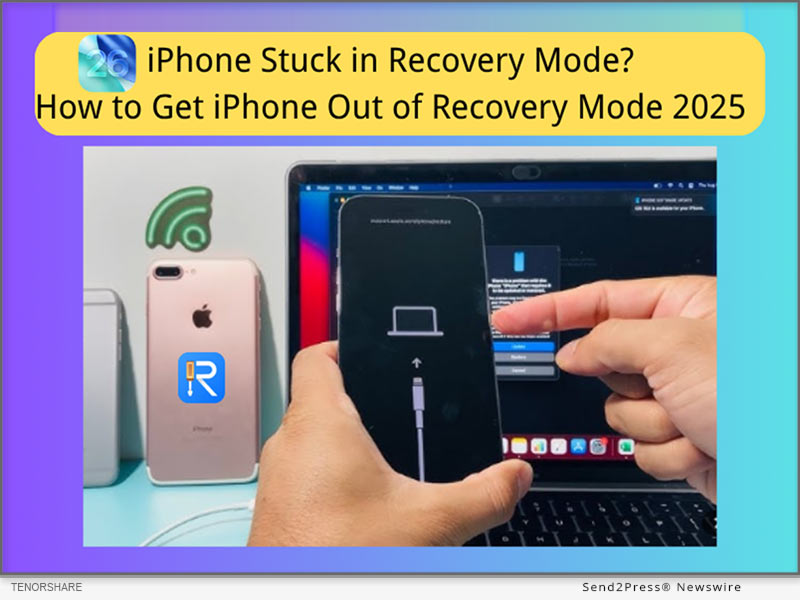
iPhone Stuck in Recovery Mode? Get iPhone Out of Recovery Mode 2025
Image caption: iPhone Stuck in Recovery Mode? Get iPhone Out of Recovery Mode 2025 with Tenorshare ReiBoot.

5 ways to fix iphone stuck in recovery mode 2025 – no data loss!

SOLUTION 1: EXIT ‘IPHONE STUCK IN RECOVERY MODE’ WITHOUT ITUNES – TENORSHARE REIBOOT (NO DATA LOSS)

How to exit iPhone’s Recovery Mode without iTunes?

Tenorshare ReiBoot provides a 5-minute resolution to the issue of an iPhone stuck in recovery mode. It can also help with 150+ iOS/iPad/tvOS-related issues, including iOS 26 boot loops, iPhone stuck in Apple Logo, and iPhone frozen screens.

How do you take your iPhone out of Recovery Mode for free with Tenorshare ReiBoot?

Step 1: Free download Tenorshare ReiBoot on your PC.

Step 2: Connect your iPhone to your PC, then launch ReiBoot.

Step 3: One-click the ‘Exit Recovery Mode’ option, and it will get your iPhone out of Recovery Mode without data loss.

SOLUTION 2: FORCE RESTART TO EXIT RECOVERY MODE WITHOUT A COMPUTER (NO DATA LOSS)

How to get an iPhone out of Recovery Mode without a computer?

If your iPhone gets stuck, the simplest solution is to restart your iPhone, which often brings your iPhone back to the home screen without a computer.

For iPhone 8/X/XR/11/12/13/14/15/16 to exit iPhone Stuck in Recovery Mode:

  1. Quickly press Volume Up and Down.
  2. Hold the Side button until you see the Apple logo.

Note: How to put an iPhone into Recovery Mode to fix another problem- iPhone Stuck on Apple Logo, here are the steps for iPhone 8/XR later:

  1. Connect to the computer, press volume up, down.
  2. Hold the side button until the Recovery screen appears.

SOLUTION 3: USE ITUNES OR FINDER TO PUT IPHONE IN RESTORE MODE (MAY CAUSE DATA LOSS)

How long does it take to enter recovery mode?

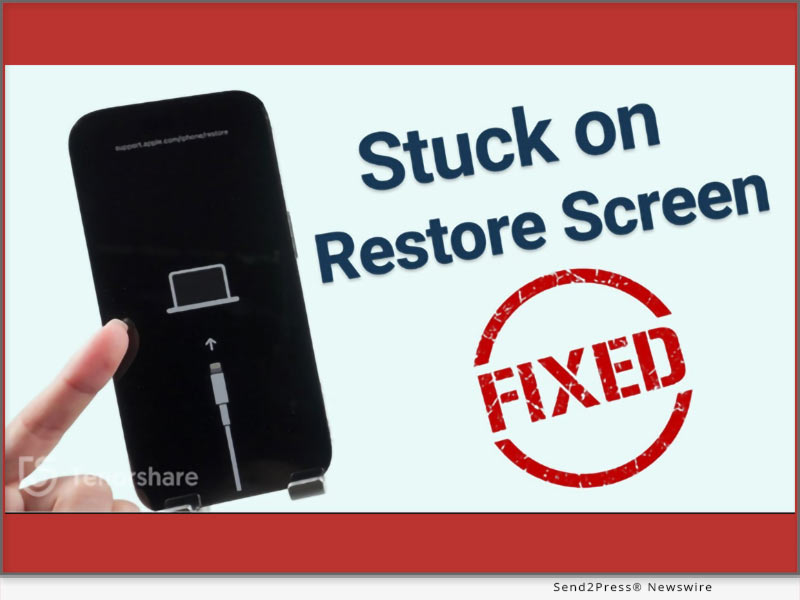
It usually takes 10–20 minutes. If your iPhone won’t enter Recovery Mode and shows the ‘support.apple.com/iphone/restore’ on screen, you need to get your iPhone into iTunes or Finder to restore.

How to fix iPhone stuck on support.apple.com/iphone/restore issue?

Step 1: Connect your iPhone to the Computer, Launch Finder (Mac) or iTunes (Windows or macOS Mojave and earlier).

Step 2: Choose ‘Update.’ If it does not exist, select ‘Restore’ (lose data).

Step 3: Then get your iPhone out of restore mode and restore your backup.

TIPS:

  1. Always try “Update” before “Restore” in iTunes/Finder.
  2. Make regular backups using iCloud or iTunes before restoring.
  3. Use Safe Tools if you are tech-novice: Simple Tools like ReiBoot iOS Repair can exit Recovery Mode without erasing data—no iTunes required.

ABOUT TENORSHARE:

Tenorshare is a trusted software company focusing on iOS device repair. ReiBoot is designed for users who prefer a faster, more user-friendly solution than iTunes or Finder, especially when trying to avoid data loss.

More information: https://www.tenorshare.com/

Follow on social:

https://x.com/Tenorshare_Inc

https://www.youtube.com/user/TenorshareOfficial/videos

NEWS SOURCE: Tenorshare Co. Ltd.


This press release was issued on behalf of the news source (Tenorshare Co. Ltd.), who is solely responsible for its accuracy, by Send2Press Newswire. Image, if any, was provided by the news source and not this website or the wire service. Information is believed accurate, as provided by the news source, but is not guaranteed.

To view the original story, visit: https://www.send2press.com/wire/free-iphone-stuck-in-recovery-mode-get-your-iphone-out-of-recovery-mode-in-2025/

Copr. © 2025 Send2Press® Newswire, Calif., USA. -- REF: S2P STORY ID: S2P127335 NOREL-3B


Fix iPhone Keeps Showing Apple Logo and Turning Off Error in 3 Steps

Tenorshare ReiBoot can automatically find why your iPhone is constantly restarting and will repair the issue

NEW YORK, N.Y., Nov. 26, 2024 (SEND2PRESS NEWSWIRE) — “My iPhone keeps showing the apple logo and turning off,” many iPhone users have asked this question. If you’re also harassed by same issue, then it could happen due to a software or hardware glitch caused by some issue. But what issue exactly? “You don’t have to find which iOS issue is causing ‘iPhone keeps turning on and off’ error or try to manually fix it. ReiBoot iOS repair software can automatically find and repair a wide range of iOS malfunctions in 3 clicks,” says a Tenorshare spokesperson.

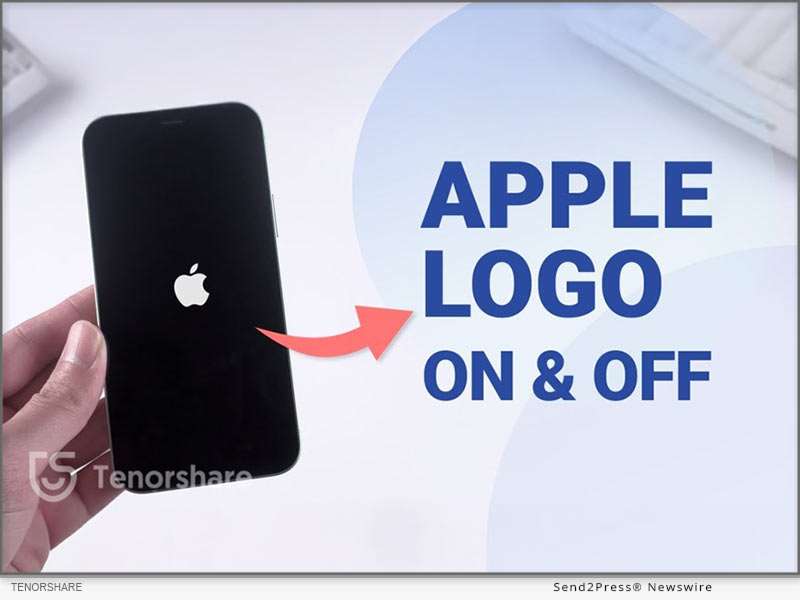
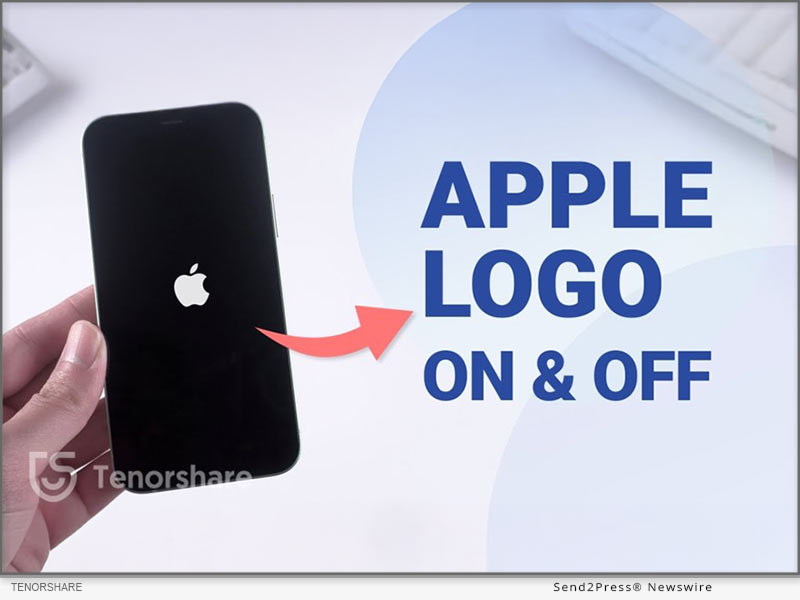
Fix iPhone Keeps Showing Apple Logo and Turning Off Error in 3 Steps
Image caption: Fix iPhone Keeps Showing Apple Logo and Turning Off Error in 3 Steps.

WHY DOES MY IPHONE KEEP SHOWING THE APPLE LOGO AND TURNING OFF?

If you’re wondering, “Why my iPhone keeps showing the Apple logo and turning off” we’ve already established this could be because of a software or hardware glitch. But this glitch could be caused because of reasons such as:

  • Jailbreaking your iPhone.
  • Incorrect restoration of your iPhone from iTunes.
  • iOS update has bugs.
  • iPhone has physical damage.

HOW TO FIX MY IPHONE KEEPS SHOWING THE APPLE LOGO AND TURNING OFF?

Tenorshare ReiBoot can automatically find why your iPhone is constantly restarting and will repair the issue. The tool can, in fact, repair 150+ iOS issues including iPhone stuck in a boot loop, Recovery Mode, or on Apple logo, etc. Here are this tool’s key features:

  • Fix white or black screen of death and iTunes errors.
  • Upgrade/downgrade iDevices including Betas without jailbreak or iTunes.
  • Reset devices without a passcode, and permanently erase data before selling or trading in your iPhone.
  • Enter and exit Recovery Mode with a single click.

HERE’S HOW TO USE TENORSHARE REIBOOT TO FIX “IPHONE BLINKING APPLE LOGO” ISSUE:

Step 1: Execute ReiBoot on your computer. Then, plug in your iPhone with “iPhone blinking Apple logo” issue to same PC.

Step 2: Hit “Start Repair” on ReiBoot. Then, press “Download” to get latest firmware package.

Step 3: Next, choose “Standard Repair.” Afterward, your iPhone will reboot normally.

Video Guide : https://www.youtube.com/watch?v=iSAASCX9gI8

HOW TO PREVENT IPHONE SHOWING APPLE LOGO THEN TURNING OFF?

After you fix “iPhone flashing Apple logo then turning off” with Tenorshare ReiBoot successfully, you must also take care that this issue doesn’t appear in future. Here’s what you can do:

  • Regularly update your iPhone to prevent bugs that may cause Apple logo issues.
  • Restart your iPhone often to make sure it runs smoothly and avoid glitches.
  • Handle your iPhone carefully to avoid dropping it or from water damage.
  • Only jailbreak if necessary for specific apps, as it can cause instability.

About Tenorshare:

If you’re thinking, “Why does my iPhone keep rebooting,” Tenorshare ReiBoot can repair “iPhone died and now turns on then back off” issue among other iOS problems. The smartphone solutions provider, Tenorshare values innovation, and creativity and aims to create software that helps people and businesses solve iOS & Android issues in their daily lives.

More information: https://www.tenorshare.com/

Learn more: https://www.tenorshare.com/iphone-tips/fix-iphone-keeps-showing-the-apple-logo-and-turning-off.html

Social sites:

https://www.facebook.com/TenorshareOfficial/

https://twitter.com/Tenorshare_Inc

https://www.youtube.com/user/TenorshareOfficial/videos

https://www.tiktok.com/@tenorshare_tech_tips

NEWS SOURCE: Tenorshare Co. Ltd.


This press release was issued on behalf of the news source (Tenorshare Co. Ltd.), who is solely responsible for its accuracy, by Send2Press Newswire. Image, if any, was provided by the news source and not this website or the wire service. Information is believed accurate, as provided by the news source, but is not guaranteed.

To view the original story, visit: https://www.send2press.com/wire/fix-iphone-keeps-showing-apple-logo-and-turning-off-error-in-3-steps/

Copr. © 2024 Send2Press® Newswire, Calif., USA. -- REF: S2P STORY ID: S2P122527 NOREL-3B


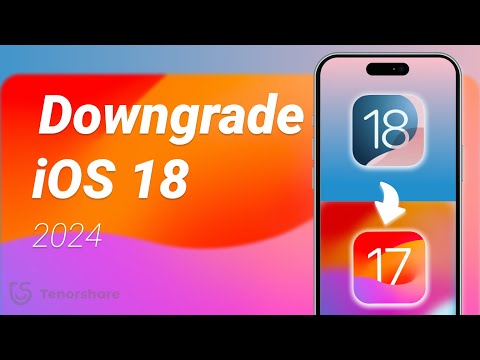
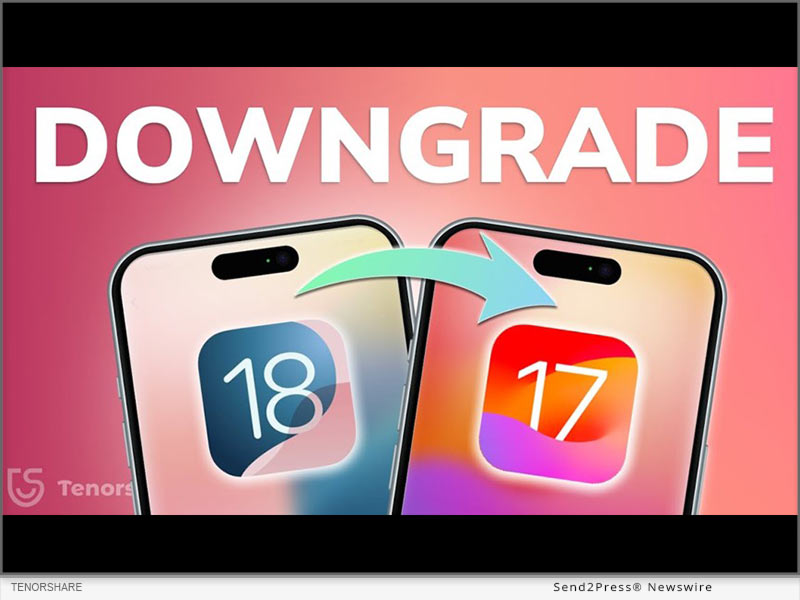
How to Downgrade from iOS 18 to iOS 17? Full Guide 2024

NEW YORK, N.Y. /ScoopCloud/ -- After the initial release of iOS 18, upgrading has been received with a mix of excitement and exasperation. Many iOS users face issues like battery drain and software glitches like stuck on Recovery Mode while updating. Those unhappy with iOS 18, are now asking, "How to downgrade from iOS 18 to 17." "First of all it's no easy feat; secondly it can risk losing data. Rather than taking risks, Tenorshare ReiBoot can help you safely downgrade iOS 18 to iOS 17 without losing your valuable data," says a Tenorshare spokesperson.

CAN YOU DOWNGRADE IOS 18 TO IOS 17 ON IPHONE/IPAD?

So, if you're thinking, "Can I go back to iOS 17 from 18," it depends on certain factors. Apple usually discourages downgrading to older iOS versions and often removes older firmware files, making them hard to find.

But if it still supports the version you want, you'll need an IPSW file for iOS 17. You can also use iTunes to restore your iDevice if you've got an old iOS 17 backup. Be aware this process will erase your data. Thus, if you want to learn how to go back to iOS 17 from 18 without data loss, Tenorshare ReiBoot is your best bet.

HOW TO DOWNGRADE IOS 18 TO 17 FOR IPHONE & IPAD IN 5 MINUTES?

ReiBoot iOS repair is an iOS management and repair tool that can not only downgrade iOS but can also upgrade, including Beta versions without data loss.

Here's what it offers:
* Fix 150+ iOS issues like being stuck on Recovery Mode, restart loop, Apple logo, white & black screen of death, and many more.
* Repair iTunes errors such as 1110, 4013, etc.
* Reset iDevices without passcode & iTunes.
* Erase iDevices permanently for giving them away.
* Enables you to enter/exit Recovery Mode with a click.
* Supports latest iOS versions and iDevices.

HERE'S HOW TO REVERT IPHONE BACK TO IOS 17 WITH HELP OF REIBOOT:

Step 1: Install ReiBoot on your computer then, attach your iDevice to same PC. Press "iOS Upgrade/Downgrade."

Step 2: Tap "Downgrade." Then, click "Download" to get latest firmware package.

Step 3: Afterward, ReiBoot will start downgrading your iDevice from iOS 18 to iOS 17.

Video Guide (YouTube): https://www.youtube.com/watch?v=RWnearLqwBs

BIG TENORSHARE DEALS ON IOS 18 & IPHONE 16!

Tenorshare is holding a Giveaway Event to celebrate release of iOS 18. Users will get a huge chance at winning shiny new iPhone 16, Amazon gift cards, and more than 70% discount on 6 helping products to make your iOS 18 journey easier.

About Tenorshare:

Learning how to downgrade from iOS 18 to iOS 17 is a risky process that comes with potential data loss. However, Tenorshare ReiBoot offers a safe way to downgrade without losing your data. Founded in 2007, Tenorshare is a well-known software company with a strong reputation for creating user-friendly solutions for iOS and Android that has earned them various accolades.

News from Tenorshare Co. Ltd.

After the initial release of iOS 18, upgrading has been received with a mix of excitement and exasperation. Those unhappy with iOS 18, are now asking, "How to downgrade from iOS 18 to 17." "First of all it's no easy feat; secondly it can risk losing data. Rather than taking risks, Tenorshare ReiBoot can help you safely downgrade iOS 18 to iOS 17 without losing your valuable data," says a Tenorshare spokesperson.

Related link: https://www.tenorshare.com/

This version of news story was published on ScoopCloud™ (ScoopCloud.com) - part of and © the Neotrope® News Network - all rights reserved.

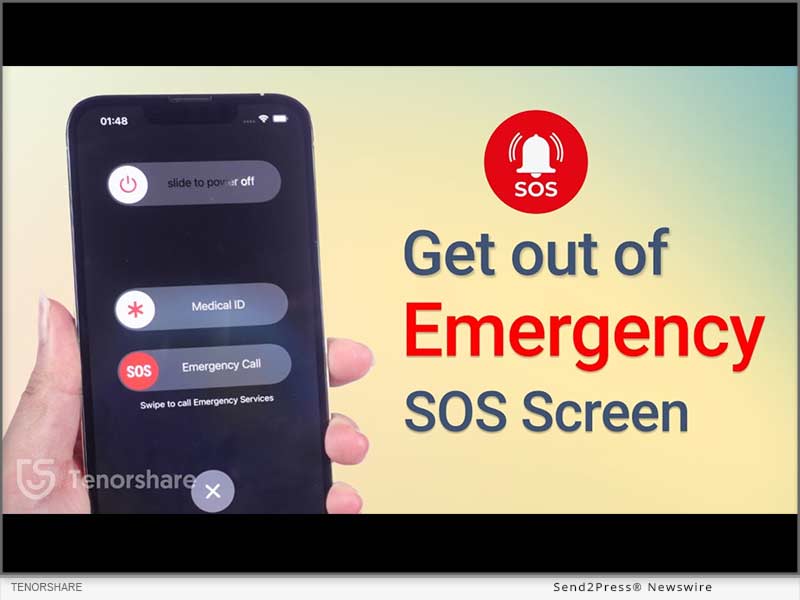
[2024] How to Fix an Apple iPhone Stuck in SOS Mode

NEW YORK, N.Y. /ScoopCloud/ -- Why does my iPhone keep going into SOS mode? How to get out of it? The Emergency SOS mode on iPhones is quite useful for emergencies.. It can quickly call your emergency contacts and share your exact location. But the same mode can become a pain in the neck, leaving the iPhone stuck in SOS mode which prevents many users from accessing their phones, says Tenorshare.

"There are some fixes out there, that teach you how to get iPhone out of SOS mode. But most of them might make you lose your data. However, that's not the case with Tenorshare ReiBoot. First of all, it's automatic, so you don't have to do manual tweaking. Secondly, it can fix your iPhone stuck on SOS mode without wiping out your data," says a Tenorshare spokesperson.

So, how to turn off SOS on iPhone with Tenorshare ReiBoot? Let's find out!

Why Does My iPhone Say SOS Only?

There are many reasons why you are left with an iPhone stuck on Emergency SOS such as following:

1. You may have pressed wrong key combination while pressing Volume up, down, and power buttons.

2. Rooting or freshening the iPhone can sometimes cause this issue.

3. There's a glitch in your iPhone's system. https://www.youtube.com/watch?v=Jhm37Qy6dXU&t=6s

Full Guide to Fix iPhone Stuck on Emergency SOS Mode Without Data Loss

Whatever the reason might be behind your iPhone getting stuck in Emergency mode, ReiBoot iOS Repair tool can fix it. It's a powerful tool designed specifically to repair iOS issues. But there's more to this tool. Check out its bombastic key features:

* Fix 150+ iOS issues like black screen of death, stuck on SOS mode, recovery mode, Apple logo, or boot loop, etc without data loss.
* Fix error codes like 4013, 2008, 4000, 4005, 3014,2009.
* It can upgrade and downgrade iOS.
* Enables you to enter/exit Recovery or DFU mode with one click.
* Reset iPhone without passcode, iTunes, Apple ID, or iCloud.
* Compatible with older and latest iOS 17.

Here's how to get iPhone out of SOS mode with Tenorshare ReiBoot:

Step 1: Download, install, and open ReiBoot on your computer.

Step 2: Plug your iPhone into your computer, and hit "Start Repair" on the tool's interface.

Step 3: Download the firmware package and click "Standard Repair." Once it's finished fixing, your iPhone will reboot automatically without data loss.

Learn more at: https://www.tenorshare.com/products/reiboot.html

About Tenorshare

If you want to know how to fix SOS on iPhone without data loss, Tenorshare ReiBoot can help. It's a powerful system repair tool that can fix 150+ iOS issues including bailing you out of Emergency screen without wiping your data clean.

Moreover, Tenorshare isn't like other tech companies. They're pioneers in fixing smartphone problems and always coming up with new ideas. The company cares about customer satisfaction and making sure their products work well for their users. So, if you're stuck with a phone problem, you know whose solutions you need to use! Learn more at: https://www.tenorshare.com/

News from Tenorshare Co. Ltd.

Why does my iPhone keep going into SOS mode? How to get out of it? The Emergency SOS mode on iPhones is quite useful for emergencies.. It can quickly call your emergency contacts and share your exact location. But the same mode can become a pain in the neck, leaving the iPhone stuck in SOS mode which prevents many users from accessing their phones, says Tenorshare.

Related link: https://www.tenorshare.com/

This version of news story was published on ScoopCloud™ (ScoopCloud.com) - part of and © the Neotrope® News Network - all rights reserved.

How to Fix an Apple iPhone Stuck on Restore Screen (iOS 17/16 Supported)?

NEW YORK, N.Y. /ScoopCloud/ -- Is your iPhone stuck on the restore screen? Yeah, we get it. It's a real headache, as anything you'll do to escape this situation can result in data loss. So, what can you do? "Users have their iPhones stuck on the iPhone support.apple.com/iPhone/restore screen due to software conflicts, incomplete updates, or corrupted firmware. "However, there's a solution to this problem. Tenorshare Reiboot offers a reliable way to fix iPhones stuck on the Restore screen by repairing the iOS system without data loss," says a Tenorshare spokesperson. Want to know how Tenorshare Reiboot works? Keep reading to learn more!

VIDEO: https://youtu.be/qgHj0riNboM

Why Is My iPhone Stuck on the Restore Screen?

Your iPhone may get stuck on the "support.apple.com/iphone/restore" screen due to issues with the device's firmware, iOS downgrade, incomplete updates, or hardware problems. But what does the support.apple.com/iPhone/restore mean?

The support.apple.com/iPhone/restore is a webpage where users can find guidance on restoring their iPhone 17/16 to its factory settings using iTunes or Finder. It's important to note that resetting your phone means erasing all data and device settings.

How to Fix iPhone Stuck on the Restore Screen Without Losing Data?

The optimal solution to getting rid of the stuck restore screen on iPhone is Tenorshare ReiBoot. It can help with any iOS issues you're facing, and that too with no data loss. Here's what you'll get with this iOS repair tool:

1 - Get rid of iPhone 17, 16, and iPhone 15 stuck on the restore screen with just one click at no cost.

2 - If restoring from iCloud takes forever, reinstall, upgrade, or downgrade iOS without losing data.

3 - Offers a 100% success rate.

Here are the steps to use ReiBoot to get rid of the restore screen on your iPhone:

* Link your iPhone to your PC.

* Open ReiBoot on the PC, select "iOS Upgrade/Downgrade," and opt for "Upgrade."

* Download the required firmware online, then initiate the iOS reinstallation.

More Than iPhone Stuck on Restore Screen - ReiBoot Review

* Tenorshare Reiboot offers more than just fixing iPhone restore screen issues. Here's what else it can do:

* Repair 150+ iOS problems like Apple logo freeze, unresponsive screen, recovery loop, etc.

* Update to the latest iOS 17 beta, including developer and public betas.

* Downgrade iOS 17 beta to earlier versions without the need for jailbreaking.

* Reset iOS devices without iTunes/Finder and repair the macOS system swiftly.

* Fix iPhone/iTunes errors like 4013/4005 conveniently.

* Compatible with all iOS versions and devices, including iOS 17/16 and iPhone 15/14 models.

LEARN MORE: https://www.tenorshare.com/tech-spec/reiboot-ios-system-repair.html

About Tenorshare

If your iPhone 16/17 is stuck on the restore screen, Tenorshare ReiBoot offers a simple and effective way to fix the "iPhone stuck on the restore screen" problem without data loss. Tenorshare, the brains behind this iOS repair tool, is dedicated to providing reliable solutions for iOS and iPhone users.

INFORMATION: https://www.tenorshare.com/

Facebook: https://www.facebook.com/TenorshareOfficial/

X/Twitter: https://twitter.com/Tenorshare_Inc

YouTube: https://www.youtube.com/user/TenorshareOfficial/videos

TikTok: https://www.tiktok.com/@tenorshare_tech_tips

News from Tenorshare Co. Ltd.

Is your iPhone stuck on the restore screen? Yeah, we get it. It's a real headache, as anything you'll do to escape this situation can result in data loss. So, what can you do? "Users have their iPhones stuck on the iPhone support.apple.com/iPhone/restore screen due to software conflicts, incomplete updates, or corrupted firmware. "However, there's a solution to this problem. Tenorshare Reiboot offers a reliable way to fix iPhones stuck on the Restore screen.

Related link: https://www.tenorshare.com/

This version of news story was published on ScoopCloud™ (ScoopCloud.com) - part of and © the Neotrope® News Network - all rights reserved.

How to Download Apple’s iOS 17 Beta Without Apple Developer?

NEW YORK, N.Y. /ScoopCloud/ -- When iOS 16.6 beta was released, it created quite a buzz, and people eagerly anticipate when is iOS 17 beta coming out and what are the new features. It is great news for iOS users because iOS 17 Beta is out today, says Tenorshare. To start, it's essential to learn how to download iOS 17 Beta and also how to fix iOS 17 Beta issues if they may arise. So, let's dive into the process without any delay!

Video Guide: https://youtu.be/gqSex8VDSqI

How to Download and Install iOS 17 Beta on iPhone?

If your software update failed and you're eager to know how to download iOS 17 Beta officially, below is how to update to iOS 17 Beta by enrolling Apple Developer Program. Keep in mind that you will need to pay an annual fee of $99 to acquire the iOS 17 beta profile for download.

* Access the Apple public beta website and register using your Apple ID.

* Afterward, log in with your Apple ID and select "Install Profile" on your iOS device.

* Restart your iPhone and navigate to "Settings"> "General"> "Software Update."

* In the Beta Update section, choose "iOS 17 Beta Software Profile." Tap Install, and voila! The update installation will commence. Please be patient during the installation process.

* Once installed, your iPhone will automatically restart, and you'll update to iOS 17 Beta.

How to Download iOS 17 Beta Without Apple Developer?

Seeking a budget-friendly alternative to Apple Developer for iOS 17 beta download? Look no further! With Tenorshare iOS Downgrade Software, you can download the iOS 17 beta without Apple developer account.

* Launch Tenorshare ReiBoot by connecting your iPhone. Then click on "iOS Upgrade/Downgrade."

* When prompted, select the Upgrade option.

* Click on "Download" to acquire the latest firmware package and patiently wait for the download to complete.

* The upgrade process will automatically initiate and typically takes a few minutes to finish.

iOS 17 Beta Tips & Tricks with Tenorshare ReiBoot

Swift: ReiBoot provides the fastest method for the iOS 17 beta download, but offers instructions on how to remove iOS 17 beta from iPhone or how to downgrade to iOS 16.

Comprehensive: Tenorshare ReiBoot can fix iOS 17 beta issues without losing data while coming across challenges like stability issues, poor performance, and other system-related problems.

User-friendly: Clear and concise iOS 17 beta download instructions, no technical expertise needed.

Budget-friendly: No need to invest in an expensive Apple Developer Profile.

Learn more:

* https://www.tenorshare.com/products/reiboot.html

* https://youtu.be/x2r8m3rxGAw

* https://www.tenorshare.com/ios-17/

* https://www.tenorshare.com/ios-17/ios-17-beta-download-and-install.html

* https://www.tenorshare.com/ios-17/ios-beta-not-showing-up-fixed.html

About Tenorshare:

While iOS 17 Beta offers thrilling features, it's frustrating if iOS 17 Beta Not Showing up or the software update failed. Luckily, Tenorshare ReiBoot is highly recommended for iOS 17 beta download and common Beta issues fixed. As a trusted smartphone software brand, Tenorshare always offers reliable tools to address iOS problems for iPhone users.

More information: https://www.tenorshare.com/

Facebook: https://www.facebook.com/TenorshareOfficial/

Twitter: https://twitter.com/Tenorshare_Inc

YouTube: https://www.youtube.com/user/TenorshareOfficial/videos

TikTok: https://www.tiktok.com/@tenorshare_tech_tips

News from Tenorshare Co. Ltd.

When iOS 16.6 beta was released, it created quite a buzz, and people eagerly anticipate when is iOS 17 beta coming out and what are the new features. It is great news for iOS users because iOS 17 Beta is out today, says Tenorshare. To start, it's essential to learn how to download iOS 17 Beta and also how to fix iOS 17 Beta issues if they may arise. So, let's dive into the process without any delay!

Related link: https://www.tenorshare.com/

This version of news story was published on ScoopCloud™ (ScoopCloud.com) - part of and © the Neotrope® News Network - all rights reserved.

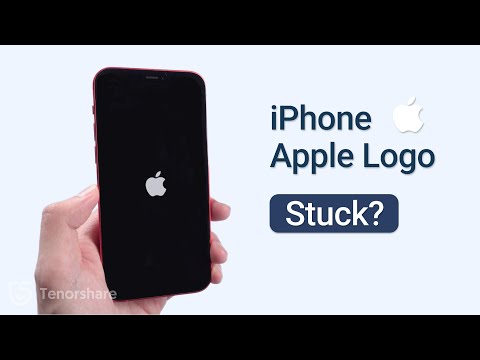
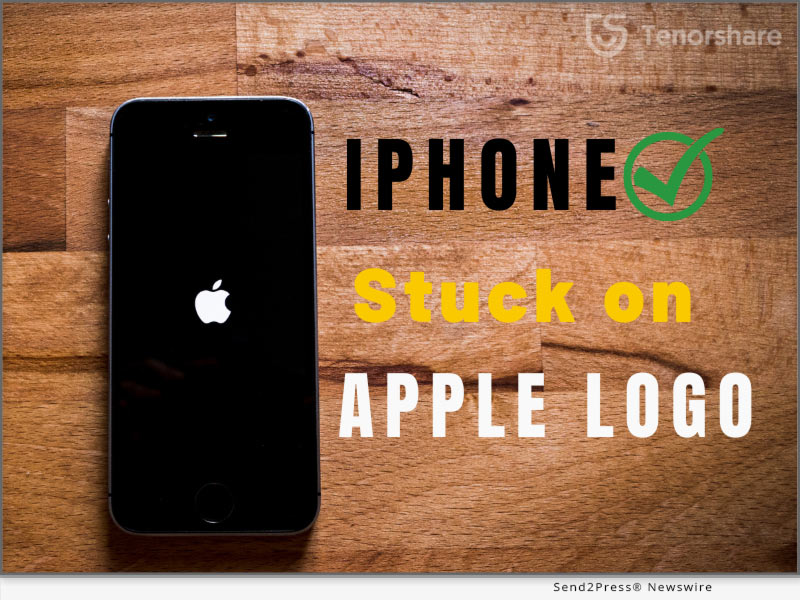
iPhone Stuck On The Apple Logo? Here is why and how to unfreeze it!

NEW YORK, N.Y. /ScoopCloud/ -- It is universal but terrible for most iPhone devices that iPhone stuck on Apple logo screen. If your iPhone is frozen on Apple screen and you are worried about what to do next to handle Apple logo, don't need to panic as Tenorshare is here to provide its expert repairing services with Tenorshare ReiBoot to unfreeze your frozen screen. What a coincidence that up to 70% off is offered for its iPhone repair software before December 9, 2022. Avail this discount if you are confused to repair your Apple logo screen.

Video Tutorial: https://www.youtube.com/watch?v=aYnIugz5cvI

What would cause my iPhone stuck on Apple Logo?

Many iPhone users complained that iPhone stays on Apple logo screen, but they didn't catch the root of Apple logo.

Restoring data from backup, transferring data, installing and updating the software, jailbreaking iPhone, and degrading version are possible reasons for a frozen iPhone screen.

"iPhone stuck on the Apple logo can be caused causally. Fortunately, it can be fixed by Tenorshare ReiBoot when your iPhone is stuck on the Apple logo," said Tenorshare's spokesperson. "When compared to the conventional methods for fixing iPhone Stuck on the Apple logo, Tenorshare ReiBoot has its magic to repair Apple logo in a hassle-free way."

How to Fix iPhone Stuck On Apple Logo Without Data Loss?

After figuring out the cause of the Apple logo, let's move forward toward its solution with the best repair software:

* Install the latest version of Tenorshare ReiBoot on your PC and click "START" on the main interface.

* Click on the "Standard repair" button. Then download the firmware package by clicking on "Download".

* For fixing Apple Logo Loop, click on "Start Standard Repair" after completing the download.

* Finally, the Apple logo stuck would be resolved to a normal state.

Additionally, Tenorshare ReiBoot can fix various iOS problems, such as device bugs, screen stuck, iPhone errors, and update problems, etc.

What are you waiting for Tenorshare Black Friday?

Hence, why not get your iPhone free again with Tenorsahre ReiBoot if your iPhone is stuck on Apple logo screen? Catch these mind-blowing Tenorshare Black Friday Amazing Deals for a better software experience to unfreeze iPhone. Once you join in Tenorshare Black-Friday Sales, you can enjoy up to 70% off, Amazon gift cards, discount vouchers, and more discounts. For more details, visit the link mentioned below:

https://www.tenorshare.com/sales-promotion.html

https://www.tenorshare.com/products/reiboot.html

https://www.tenorshare.com/iphone-fix/fix-iphone-stuck-on-apple-logo.html

About Tenorshare

Other than iPhone stuck on Apple screen, ReiBoot can resolve any iOS issues with expert repairing software like iOS Update Stuck, White Screen, Boot Loop Screen, Black Screen, Recovery Mode Stuck, and Won't Restore e.t.c. Just rest assured to unfreeze Apple logo without hassle with ReiBoot. And Tenorshare has established trustworthy relationships with its customers for years thanks to the best quality to solve all types of software problems.

More information: https://www.tenorshare.com/

Facebook: https://www.facebook.com/TenorshareOfficial/

Twitter: https://twitter.com/Tenorshare_Inc

YouTube: https://www.youtube.com/user/TenorshareOfficial/videos

TikTok: https://www.tiktok.com/@tenorshare_tech_tips

News from Tenorshare Co. Ltd.

It is universal but terrible for most iPhone devices that iPhone stuck on Apple logo screen. If your iPhone is frozen on Apple screen and you are worried about what to do next to handle Apple logo, don't need to panic as Tenorshare is here to provide its expert repairing services with Tenorshare ReiBoot to unfreeze your frozen screen.

Related link: https://www.tenorshare.com/

This version of news story was published on ScoopCloud™ (ScoopCloud.com) - part of and © the Neotrope® News Network - all rights reserved.

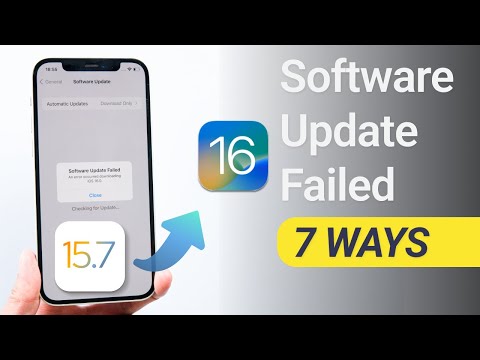
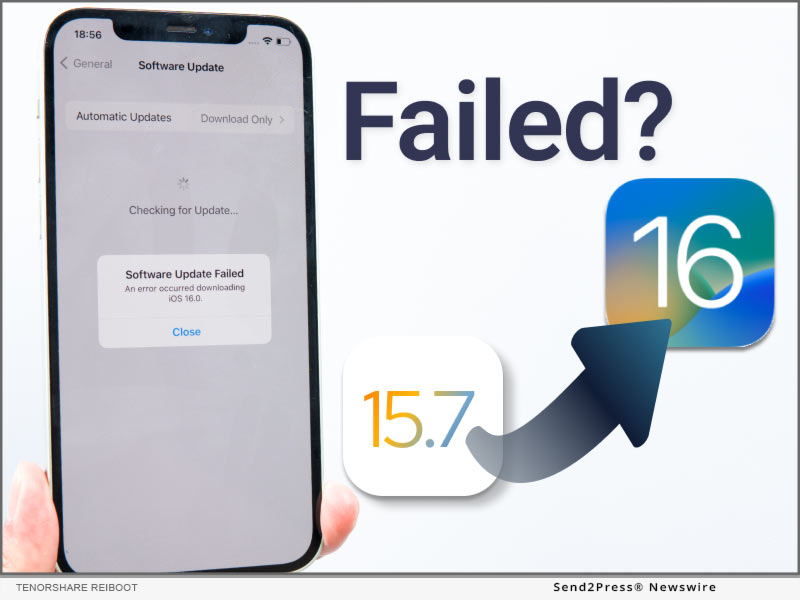
Cannot Update from iOS 15.7 to iOS 16? Software Update Failed? Solved By Tenorshare ReiBoot!

NEW YORK, N.Y. /ScoopCloud/ -- If you recently have tried to update iOS 16 from iOS 15.7 but failed, Tenorshare, a prominent software provider, is ensuring that iOS customers don't experience any issues when updating to iOS 16. Tenorshare ReiBoot may let you update from iOS 15.7 to iOS 16 by fixing Software Updated Failed. Tenorshare ReiBoot makes it simple to update to iOS 16 without losing any data.

"With the launching of iOS 15.7 and iOS 16, You might be impatient to update to iOS 16. However, some iPhone owners unintentionally updated to iOS 15.7, and they are instances when their device fails to update to iOS 16. With Tenorshare ReiBoot, you can upgrade iOS 16 from iOS 15.7 to fix Software Update Failed without losing any data," said Tenorshare's CEO while introducing the advanced repairing feature.

How to Update to iOS 16 from iOS 15.7?

If you are eager to update iOS 16, quite a few users would download the iOS 16 profile from the Apple Software Program page first. But it would encounter Software Update Failed. iOS 16 update may be failed for a number of reasons. There is no need to be anxious because Tenorshare can solve "Cannot update to iOS 16" in the direction of Tenorshare ReiBoot. Here is how to upgrade from iOS 15.7 to iOS 16.

Step 1: Install Tenorshare ReiBoot on your computer first. Then connect your iPhone to your PC.

Step 2: Click "Start" and choose the "Standard Repair" mode.

Step 3: After a little wait, you will discover that the upgrade was successful. Tenorshare ReiBoot will immediately fetch the iOS 16 firmware for you. Data loss wouldn't occur during the entire process.

Video Tutorial: https://www.youtube.com/watch?v=rhZQdubmkYg

iOS 16 Tips & Tricks

If you're having trouble updating to iOS 16, ReiBoot is without a doubt the best option. Many typical iOS 16 issues may be resolved using Tenorshare ReiBoot without any data loss, such as can't update from iOS 15.7 to iOS 16. Tenorshare ReiBoot, the best tool for recovering an iOS system, can repair 150+ iOS system problems.

LEARN MORE

https://www.tenorshare.com/products/reiboot.html

https://www.tenorshare.com/ios-update.html

https://www.tenorshare.com/ios-update-problems.html

About Tenorshare

Tenorshare, a highly regarded, and award-winning software company, serves millions of customers worldwide with the most cutting-edge and feature-rich software solutions, including system repair, data recovery, password unlock, data transfer, and more.

More information: https://www.tenorshare.com/

Facebook: https://www.facebook.com/TenorshareOfficial/

Twitter: https://twitter.com/Tenorshare_Inc

YouTube: https://www.youtube.com/user/TenorshareOfficial/videos

News from Tenorshare Co. Ltd.

If you recently have tried to update iOS 16 from iOS 15.7 but failed, Tenorshare, a prominent software provider, is ensuring that iOS customers don't experience any issues when updating to iOS 16. Tenorshare ReiBoot may let you update from iOS 15.7 to iOS 16 by fixing Software Updated Failed. Tenorshare ReiBoot makes it simple to update to iOS 16 without losing any data.

Related link: https://www.tenorshare.com/

This version of news story was published on ScoopCloud™ (ScoopCloud.com) - part of and © the Neotrope® News Network - all rights reserved.