Tag Archives: Apple iOS 17

2024 The Best Pokemon Go Spoofer for iOS 17

NEW YORK, N.Y. /ScoopCloud/ -- MocPOGO for iOS now supports iOS 17! This means you no longer need to use a computer to change your location on your iPhone or inside an AR game, such as Pokemon Go and Monster Hunter Now. As one of the first apps to support iOS 17, MocPOGO is always innovating!

Supporting iOS 17 was not an easy task, and the MocPOGO team spent an extraordinary amount of time researching it. And finally brought a brand new version." We put our users' needs first, and after months of research and development we finally brought them satisfaction. But it was all worth it!" says a MocPOGO spokesperson.

Pokemon Go as the most popular AR game in the world, there are many players are facing a problem which is there are many situations that can prevent players from getting out and playing Pokemon. That's where MocPOGO comes in. This amazing Pokemon Go spoofing app allows you to change location in seconds. You can catch more rare Pokemon at home!

Best Pokemon Go Spoofing App for iOS 17

MocPOGO for iOS is the best choice when you need to change location in Pokemon Go. Here are the full features you can use:

1. Change GPS location: Teleport to anywhere with just one click, no jailbreak and no complicated steps.
2. Simulate GPS Movement: Fake GPS movements like a real man, you can also customize the walking speed.
3. Display Cooldown Timer: After each teleport, MocPOGO gives you a cooldown corresponding to the distance you teleported to avoid breaking the cooldown rules.
4. GPS Joystick: By using the GPS Joystick, you can accurately capture the rare Pokemon.

3 Steps to Use MocPOGO for iOS

No complicated steps, only a few steps you can effortlessly spoof Pokemon Go on iOS 17.

1. Download and install MocPOGO for iOS on your iOS device, and launch it.
2. Select the location on the map or search the destination, then confirm it.
3. Now, you will see the "Go" option on the map, click on it and your location will be teleported to this place.


Get MocPOGO for iOS with 20% OFF! To give back to new and existing customers, as well as to celebrate the release of the new version. Buy MocPOGO for iOS now and enjoy 20% OFF! Don't miss the best Pokemon Go Spoofer for iOS 17!

Learn More about MocPOGO for iOS: https://mocpogo.com/iphone-location-changer-app/

About MocPOGO:

MocPOGO is a software company specializing in location change, created this powerful location changer after an in-depth study of users' location change needs. You can always trust MocPOGO for iOS to spoof Pokemon Go without any hassle! Also, MocPOGO has helped more than 100,000 users in 100+ countries.

For more details: https://mocpogo.com/

News from MocPOGO Studio

MocPOGO for iOS now supports iOS 17! This means you no longer need to use a computer to change your location on your iPhone or inside an AR game, such as Pokemon Go and Monster Hunter Now. As one of the first apps to support iOS 17, MocPOGO is always innovating! Supporting iOS 17 was not an easy task, and the MocPOGO team spent an extraordinary amount of time researching it.

Related link: https://mocpogo.com/

This version of news story was published on ScoopCloud™ (ScoopCloud.com) - part of and © the Neotrope® News Network - all rights reserved.
iToolab AnyGo – The Best GPS Location Changer App for iOS 17

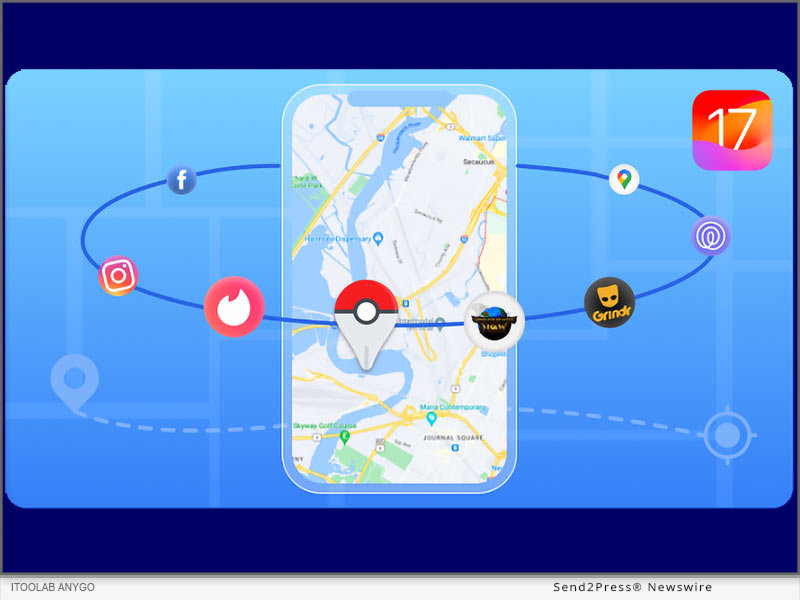
NEW YORK, N.Y. /ScoopCloud/ -- Many iOS 17 users are facing the problem that there is no working iOS location changer app that compatible with iOS 17! You must use a computer, but not directly on your iPhone. The good news is that iToolab AnyGo launched the latest version of the app today! It allows you to change your location at any time on your iOS phone without the need for a computer!

"A lot of time has been put into overcoming this technical challenge over the past few months! We always put the needs of our users first and are always on the road to innovation. In order to help users to solve the problem," says the iToolab spokesperson.

Why You Need A iPhone Location Changer App

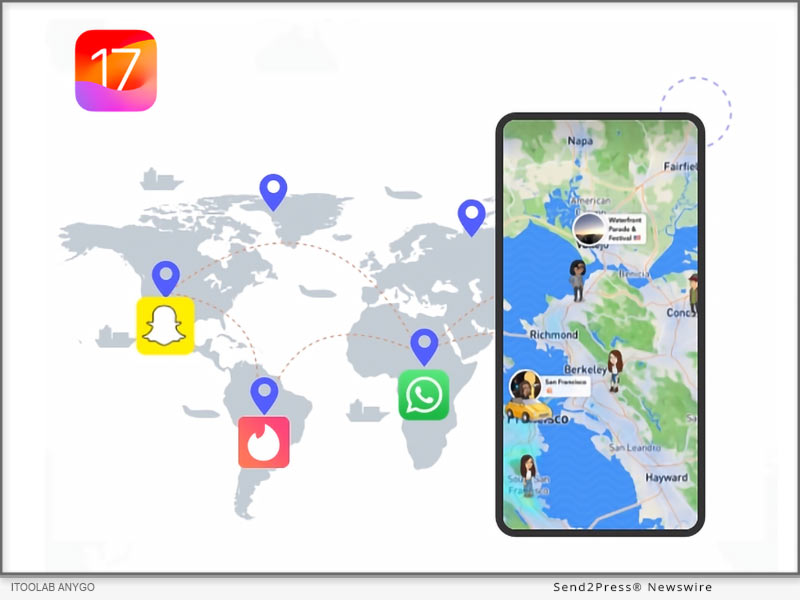
In many cases you may need to change iPhone location to protect your privacy. Especially when you want to fake location on social apps. So, a good iOS location changer app is all you need. With iToolab AnyGo for iOS App, you can fake GPS location on iPhone anywhere or anytime without limitation.

Outstanding features of iToolab AnyGo for iOS

* No Jailbreak Requires: Without jailbreaking your iPhone, it changes iOS GPS location in an effortless manner.

* One-Click to Change GPS Location: With only 3 steps you can easily change iPhone location whenever you need it.

* Customized Route & Speed: Using this iOS location changer app, you can customize your routes, speed just like you are walking.

* Wide Compatibility: It is compatible with iOS 13 to iOS 17.

* Free Trial Version: You can try the iToolab AnyGo for iOS for free at the first time. Buy or not, depending on how you feel about using it.

You can now buy AnyGo for iOS with 20% OFF, here is more details:
https://itoolab.com/buy/anygo-for-ios/

How to Change iPhone Location without Computer [iOS 17 Supported]

iToolab AnyGo for iOS is the best location changer for iPhone user, it supports the latest iOS 17 and there is no jailbreak required or complicated steps.

* Install AnyGo for iOS app on your iOS device, and launch the app.

* Select the location on the map or search the location in the search box.

* Tap the "Go" option on the map and your iPhone GPS location will change to the specified location.

About iToolab:

iToolab is a famous software company in Hong Kong, it has helped more than 100,000 users in 100+ countries. iToolab AnyGo is a stellar product that solves location change problems perfectly. For now, the app version of iToolab AnyGo has become one of the most popular location change apps for iOS and supported by hundreds of thousands of users. iToolab AnyGo for iOS will always be the first choice! Don't miss this amazing iOS 17 location changer app and try it today!

For more details, please visit:

Official Website: https://itoolab.com/

Facebook: https://www.facebook.com/itoolab

X/Twitter: https://twitter.com/IToolab

YouTube: https://www.youtube.com/@iToolab

News from IToolab Co Ltd

Many iOS 17 users are facing the problem that there is no working iOS location changer app that compatible with iOS 17! You must use a computer, but not directly on your iPhone. The good news is that iToolab AnyGo launched the latest version of the app today! It allows you to change your location at any time on your iOS phone without the need for a computer!

Related link: https://itoolab.com/

This version of news story was published on ScoopCloud™ (ScoopCloud.com) - part of and © the Neotrope® News Network - all rights reserved.
How to Change Location on an iPhone without a Computer (iOS 17 Supported)

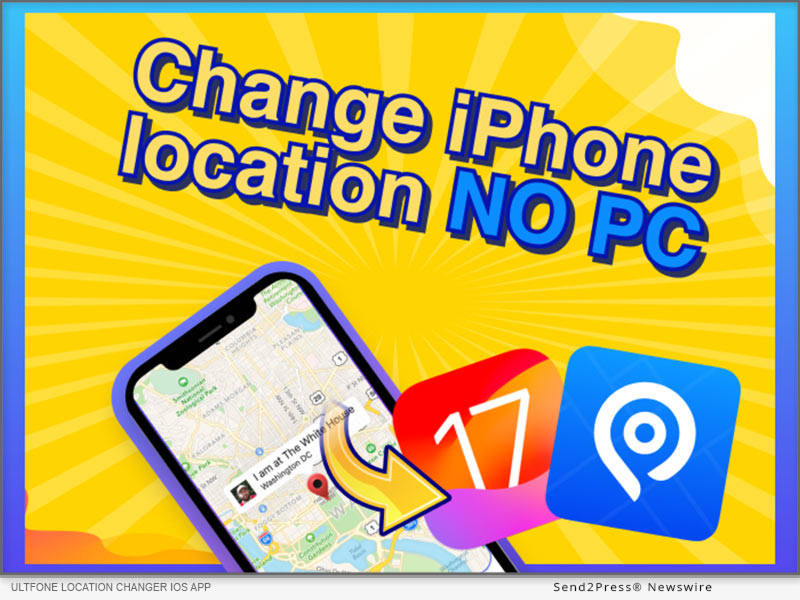
NEW YORK, N.Y. /ScoopCloud/ -- For iOS 17 users, are you looking for a reliable way to change iPhone location without a computer? The good news is that UltFone released UltFone location changer iOS App recently! No computer is required after you install the app. So excited!

"To enhance users' experience, we launched UltFone location changer iOS App on 3rd April. The iOS 17 users can easily change location on iPhone without a computer," says the UltFone spokesperson.

So, how to fake location on iPhone with UltFone location changer iOS App? Let's dive in!

The recently launched UltFone Location Changer iOS App ensures a better experience and features, including:

* Change GPS location instantly with one click

* Single-spot movement

* Multi-spot movement for a guided route

* GPS joystick control to change direction at any time

* Collect some favorited routes

* Location HistoryHistorical records

* Styled Map Selection

How to Install UltFone Location Changer iOS App:

Step 1: Please download UltFone iOS Assistant on your computer first. Connect your iPhone to the computer, launch UltFone iOS Assistant, and sign in to your Apple account.

Step 2: Click the "Install UltFone Location Changer" button. Wait for the app installation.

Step 3: You need to configure the VPN using the IP Finder App

How to Change Location on iPhone without Computer:

The recently launched iOS app requires no computer or Mac to use the location spoofing features. Users can use different features of the app. Here is how to use it.

Step 1: Open the UltFone Location Changer iOS App on your iPhone and enter the destination coordinates or drop the pin on the map. And click the first button on the right - Change Location, your location is instantly changed!

Step 2: Use different movement options or joystick movement options for more flexible movement control.

Learn more: https://www.ultfone.com/ios-location-changer.html

Price of UltFone Location Changer iOS App:

UltFone offers licenses for 1 device and 5 devices. You can choose the license you need by clicking here - https://www.ultfone.com/buy/buy-ios-location-changer-app.html

* 1 Month/1 Device: $14.99

* 1 Quarter/1 Device: $39.99

* 1 Year/1 Device: $79.99

* Lifetime/1 Device: $99.99

About UltFone

Changing the location on your iPhone without a PC has never been so easy. UltFone Location Changer iOS App is exclusively developed to support 17.2 and later. UltFone is an industry-leading software developer of PC utility technologies and applications, offering fully integrated solutions for iOS data recovery, Android data recovery, data transfer, iOS system repair, etc.

More information: https://www.ultfone.com/

Facebook: https://www.facebook.com/ultfone/

YouTube: https://www.youtube.com/@UltFoneOfficial/videos

News from UltFone

For iOS 17 users, are you looking for a reliable way to change iPhone location without a computer? The good news is that UltFone released UltFone location changer iOS App recently! No computer is required after you install the app. So excited!

Related link: https://www.ultfone.com/

This version of news story was published on ScoopCloud™ (ScoopCloud.com) - part of and © the Neotrope® News Network - all rights reserved.
The Best Pokemon Go PC Spoofer Download for iOS 17 and Android

NEW YORK, N.Y. /ScoopCloud/ -- Pokemon Go is one of the most famous location-based games, with over 82 million players worldwide. This game involves players walking around in search of different Pokemon. However, says UltFone, many Pokemon Go players on Reddit mentioned that they love playing the game but don't like walking around all the time.

"Is there a Pokemon Go GPS spoof?" they ask.

So, worry not! We have a Pokemon Go PC spoofer for you to change your location from the comfort of your home.

Can I Spoof Pokemon Go on PC without Getting Banned?

Yes, it is possible to spoof your location on Pokemon Go without getting banned by using any of the Pokemon Go spoofer PC apps available online. However, if you want to play it safe, we suggest taking care of a few things.

For instance, always use a cooldown timer when mocking your location to avoid the risk of getting detected or banned. Secondly, never use a modified spoofing app, as it may pose security risks. And lastly, use a tool that doesn't jailbreak or root your device.

How to Spoof Pokemon Go on PC?

If you are looking for a Pokemon Go spoofing PC app, we hands-down recommend using UltFone Location Changer.

It is a Pokemon Go spoofer PC free tool that changes your location in just a few clicks.

Here are some notable features of UltFone Location Changer:

* Built-In Anti-Detection Feature: This Pokemon Go PC spoofer app comes with a built-in cooldown timer that minimizes the risk of getting detected and banned.

* Doesn't Jailbreak or Root Your Device: It seamlessly changes your location without rooting or jailbreaking your device.

* Free Trial Version: It has a free trial version, to try all the features before purchasing the premium version.

* Joystick Feature: It comes in handy to teleport to the best place in just one click.

* Customized Route & Speed: Using this Pokemon Go spoofer for PC, you can customize your routes, speed and import/export the GPX file when required.

* Wide Compatibility: It is compatible with iOS, Android, Windows and Mac.

To realize Pokemon Go spoofing using PC, follow these simple steps:

* The first step requires Pokemon Go spoofer PC download from the official website.

* Launch UltFone Location Changer and select the "GPS Change" icon from the options on the left.

* Connect your device to your PC and click "Next."

* On the map displayed on the screen, move your mouse to the desired location or enter the location manually.

* Your device's location will change to the location you entered.

About UltFone

UltFone is a software company that deals in data management and system repair tools for iOS or Android devices. It also offers a Pokemon Go Spoofer PC to help play the game without walking. It is also safe and reliable for Pokemon Go Spoofing iOS and Android.

Learn more: https://www.ultfone.com/virtual-location/pokemon-go-spoofer-on-pc.html

YouTube: https://www.youtube.com/@UltFoneOfficial/videos

Facebook: https://www.facebook.com/ultfone/

News from UltFone

Pokemon Go is one of the most famous location-based games, with over 82 million players worldwide. This game involves players walking around in search of different Pokemon. However, says UltFone, many Pokemon Go players on Reddit mentioned that they love playing the game but don't like walking around all the time.

Related link: https://www.ultfone.com/

This version of news story was published on ScoopCloud™ (ScoopCloud.com) - part of and © the Neotrope® News Network - all rights reserved.

iAnyGo iOS App Upgraded: Now iOS 17 Supported

NEW YORK, N.Y. /ScoopCloud/ -- Do you want to know how to change location on iOS 17 to play location-based games? The exciting news is that Tenorshare iAnyGo App just got a major update and now fully supports iOS 17.

"Besides the latest iAnyGo update, Tenorshare also launched the iAnyGo iOS App on January 2, 2024. The iOS 17 users will now be able to easily switch locations from their iPhones without their computer," says a Tenorshare spokesperson. So, how can the Tenorshare iAny Go iOS app fake GPS on iOS 17 without a computer? Let's find out!

VIDEO (YouTube): https://www.youtube.com/watch?v=v0I-CJDwZM0

Must Do Things Before Change Location

Before you use the Tenorshare iAnyGo app to iOS 17 spoof location, make sure to prep quickly. Without these preparations, you won't be able to change your location. Here's what you need to do:

1. CONFIGURE VPN

Step 1: Connect to the internet and launch the iAnyGo app.

Step 2: Press any location button on the map and tap the location modification button.

Step 3: Tap "One-click configuration." Hit "Start."

2. INSTALL RESOURCES

Step 1: Install iAnyGo desktop on your PC, launch it, and connect your iPhone to your computer.

Step 2: Press the toolbox icon in the upper-right corner and choose "Install Resources." Hit "Yes."

3. INSTALL IOS COMPONENTS

Launch the iAnyGo app on your iPhone, and let it download and install iOS components automatically.

How to Install iAnyGo iOS App?

To install the Tenorshare iAnyGo app on your iOS17 iPhone, follow the instructions below:

Step 1: Tap the download button on your iPhone or use the camera to scan the QR code.

Step 2: Follow the link/QR code to "Apple TestFlight" and click "View in App Store" to install "TestFlight."

Step 3: Press "Start Testing" to install iAnyGo and launch it.

How to Use iAnyGo iOS App to Change Location Without Computer?

Here's how to use the Location Changer app to change location on your iOS 17 device:

Step 1: Open iAnyGo on your iPhone, pick a spot on the map, or use the search bar to find where you want to go.

Step 2: Tap "Change Location" at the bottom, and your location will be changed successfully.

Price of Tenorshare iAnyGo iOS App

* 1 Quarter License: $39.99/Quarter, $0.44/ Day.

* 1 Month License: $14.99/Month, $0.50/Day.

* 1 Year License: $79.99/Year, $0.22/Day.

About Tenorshare:

If you're looking for a way to explore how to change location on iOS 17, the Tenorshare iAnyGo iOS app now supports this iOS version. There's no need for a computer. Simply change your location without jailbreak/root. With a superior track record since 2007, Tenorshare, serving ten million+ users worldwide, focuses on crafting repair, transfer, and recovery tools for various platforms.

More information: https://www.tenorshare.com/

Facebook: https://www.facebook.com/TenorshareOfficial/

X/Twitter: https://twitter.com/Tenorshare_Inc

YouTube: https://www.youtube.com/user/TenorshareOfficial/videos

TikTok: https://www.tiktok.com/@tenorshare_tech_tips

News from Tenorshare Co. Ltd.

Do you want to know how to change location on iOS 17 to play location-based games? The exciting news is that Tenorshare iAnyGo App just got a major update and now fully supports iOS 17.

Related link: https://www.tenorshare.com/

This version of news story was published on ScoopCloud™ (ScoopCloud.com) - part of and © the Neotrope® News Network - all rights reserved.

Foneazy MockGo Now Fully Supports Changing Apple iPhone GPS Location on iOS 17

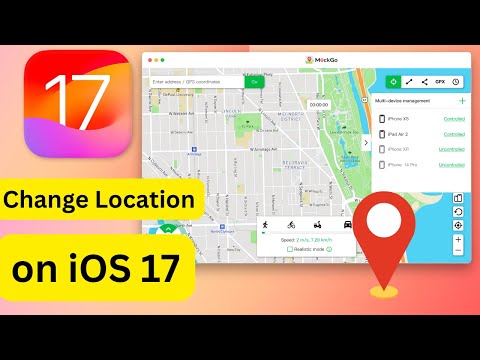
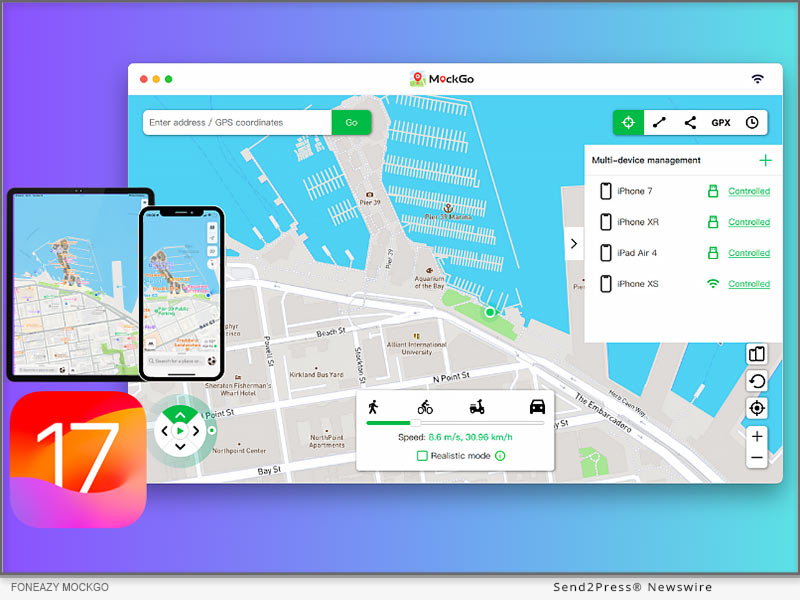
NEW YORK, N.Y. /ScoopCloud/ -- Foneazy, a leading software company that provides practical and easy-to-use solutions for mobile users, has announced that its popular iOS location spoofer, MockGo, now fully supports changing iPhone GPS location on iOS 17 for both Windows and Mac versions.

"We are very excited to announce that MockGo now fully supports iOS 17. We always strive to provide the best user experience and quality products for our customers. Changing iPhone location on iOS 17 requires a different approach than previous versions," said Carter Land, the CEO of Foneazy.

"We've spent months researching and testing various methods to ensure that Foneazy MockGo can work smoothly and safely on iOS 17 devices. Now that we have made it, users who have upgraded their devices to iOS 17 or bought new iPhone 15 models can still use MockGo to change their GPS location without any issues."

Foneazy MockGo is a powerful tool that allows users to change their iPhone location to anywhere in the world with just one click. Users can also simulate GPS movement along a customized route, or pause and resume the movement at any time. This feature is especially useful for playing location-based games like Pokemon Go, Monster Hunter Now, Harry Potter: Wizards Unite, and Ingress.

How to Change Location on iOS 17 with Foneazy MockGo:

* Download and install Foneazy MockGo from the official website of Foneazy.

* Launch MockGo and connect the iOS device to the computer via a USB cable or Wi-Fi connection.

* Start teleporting or simulating GPS movement on your iOS devices.

VIDEO TUTORIAL: https://youtu.be/F1eyNL64GGM?si=TMh7-kDgjjW79vCv

MAIN FEATURES OF FONEAZY MOCKGO:

* Change your location to anywhere in the world with a single tap.

* Fake your movement along a custom route with three different speed options.

* Use a virtual joystick to control your game character easily.

* Work with 100+ apps, including social, dating and gaming ones.

* Simultaneous GPS spoofing on 5 devices.

* Wireless connectivity.

* Compatible with the newest iOS 17.

Learn more: https://www.foneazy.com/mockgo-iphone-gps-changer/

Availability and Price:

MockGo works on Mac 10.12 and later, and Windows 7/8/8.1/10/11. It is compatible with all iPhone/iPad/iPod with the latest iOS 17.2 version.

Moreover, MockGo is a budget-friendly option compared to its competitors, and you can also get exclusive discounts on the tool.

Here is a detailed overview of the prices of MockGo:

* Month plan: $9.95

* 1-Quarter plan: $19.95

* 1-Year plan: $39.95

* Lifetime Plan: $59.95

Visit this link to get the latest MockGo Coupon Codes: https://www.foneazy.com/tips/foneazy-mockgo-coupon-code/

About Foneazy:

Foneazy is a leading software company that specializes in developing innovative solutions for mobile devices. Founded in 2019, Foneazy has launched several successful products, such as Unlockit iPhone, a tool to bypass MDM lock and screen passcode, and Unlockit iCloud Remover, a tool to bypass activation lock.

Learn more: https://www.foneazy.com/

Facebook: https://www.facebook.com/foneazy/

YouTube: https://www.youtube.com/@foneazy

RELATED LINKS:

https://www.foneazy.com/iphone/how-to-change-iphone-location-without-jailbreak/

News from Foneazy Studio

Foneazy, a leading software company that provides practical and easy-to-use solutions for mobile users, has announced that its popular iOS location spoofer, MockGo, now fully supports changing iPhone GPS location on iOS 17 for both Windows and Mac versions.

Related link: https://www.foneazy.com/

This version of news story was published on ScoopCloud™ (ScoopCloud.com) - part of and © the Neotrope® News Network - all rights reserved.

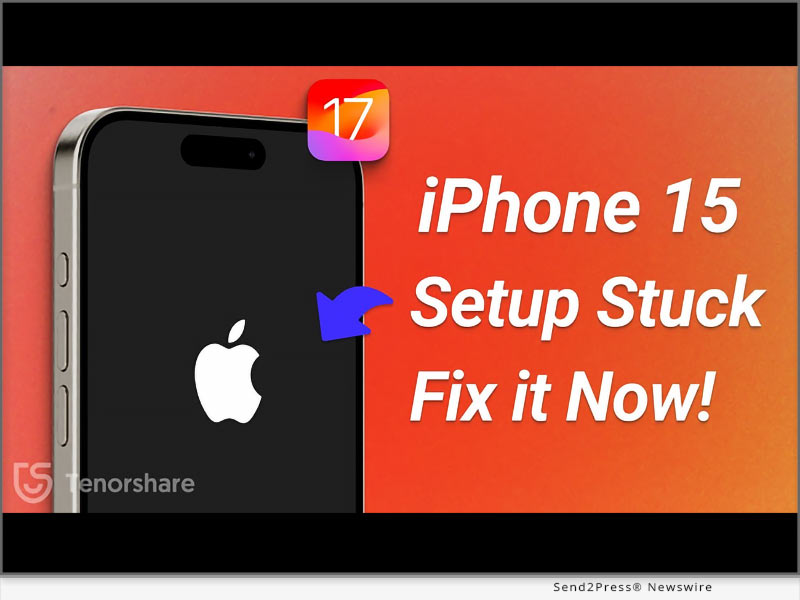
How to Fix a New iPhone 15 Stuck on Apple Logo During Setup

NEW YORK, N.Y. /ScoopCloud/ -- The recent release of the iPhone 15 has been met with much excitement. However, some users encountered a frustrating issue: Many iOS users have reported that their iPhone 15 stuck on the Apple logo during setup and searching for how to fix it. Tenorshare spokesperson explains, "iPhone stuck on Apple logo during setup. Compared to traditional approaches for resolving the iPhone Stuck on the Apple logo, Tenorshare ReiBoot performs its magic, offering a hassle-free logo repair solution."

Why is My iPhone 15 stuck on Apple Logo?

Software Glitches: iOS software bugs can lead to the Apple logo issue during boot.

Incomplete Updates: Interrupted or incorrect iOS updates can result in instability and logo freezing.

Corrupted Files: Restoring or transferring corrupted files from backups can trigger this problem.

Jailbroken Device: Jailbreaking your iPhone might cause software issues, including boot loops.

How to Fix iPhone 15 stuck on the Apple logo Without Data Loss? [All iPhone Support]

To fix the iPhone 15 Stuck On Apple Logo during setup. Tenorshare ReiBoot is a professional iOS system recovery tool that offers a range of features to help fix these issues.

Dedicated features of ReiBoot:

* Fix 150+ iOS/iPadOS/tvOS System Problems, like Boot Loop, Apple Logo, Stuck, Update and more.

* Enter and exit recovery mode with a single click.

* Downgrade iOS to the previous version without iTunes/Finder.

* Repair iTunes backup and restore errors.

* Supports all iOS versions and iPhone models.

Steps to Use ReiBoot and Fix iPhone 15 Stuck on Apple Logo:

1 - Start by downloading and running Tenorshare ReiBoot on your PC and click "START".

2 - Now, click on the "Standard Repair" button. ReiBoot will then download the necessary firmware package for your device.

3 - Now click "Start Standard Repair" again and Enjoy your iPhone.

Get started here: https://www.tenorshare.com/products/reiboot.html

iPhone 15 Giveaway&iOS 17 Sales

Great news! Tenorshare is hosting iPhone 15 & iOS 17 Sales, offering discounts on Tenorshare ReiBoot and vital iOS 17 tools. Here's what you can enjoy:

$8 Off iOS 17 Tools: Get an exclusive $8 discount on essential iOS 17 tools like Tenorshare ReiBoot, UltData, iCareFone, 4uKey and more.

Buy One, Get One Free: Buy ReiBoot and receive the iCareFone absolutely free.

$5 Coupon Gift: Select any iOS 17 must-have tool, and receive a $5 Coupon Gift that you can use on any product in our lineup.

Discover more by visiting our Sales Promotion

https://www.tenorshare.com/sales-promotion.html

About Tenorshare:

Beyond fixing the iPhone is frozen on Apple logo, ReiBoot expertly handles various iOS issues-like update glitches, white and black screens, boot loops, and more. Trust ReiBoot to effortlessly resolve the Apple logo freeze. Tenorshare's consistent quality has fostered long-standing trust among its customers in addressing diverse software issues.

More information: https://www.tenorshare.com/

Facebook: https://www.facebook.com/TenorshareOfficial/

X/Twitter: https://twitter.com/Tenorshare_Inc

YouTube: https://www.youtube.com/user/TenorshareOfficial/videos

TikTok: https://www.tiktok.com/@tenorshare_tech_tips

News from Tenorshare Co. Ltd.

The recent release of the iPhone 15 has been met with much excitement. However, some users encountered a frustrating issue: Many iOS users have reported that their iPhone 15 stuck on the Apple logo during setup and searching for how to fix it. Tenorshare spokesperson explains, "iPhone stuck on Apple logo during setup. Compared to traditional approaches for resolving the iPhone Stuck on the Apple logo, Tenorshare ReiBoot performs its magic, offering a hassle-free logo repair solution."

Related link: https://www.tenorshare.com/

This version of news story was published on ScoopCloud™ (ScoopCloud.com) - part of and © the Neotrope® News Network - all rights reserved.

How to Transfer Data from Android to iPhone 15 without Resetting Simply

NEW YORK, N.Y. /ScoopCloud/ -- Apple has finally unveiled the iPhone 15, and people can't wait to get these titanium beauties. However, users switching from Android to iPhone for the first time might face some inconveniences in transferring data from their old devices to the new iPhone 15, says UltFone.

If you're wondering how to transfer data from Android to iPhone 15, read on.

How to Transfer Data From Android to iPhone 15 After Setup?

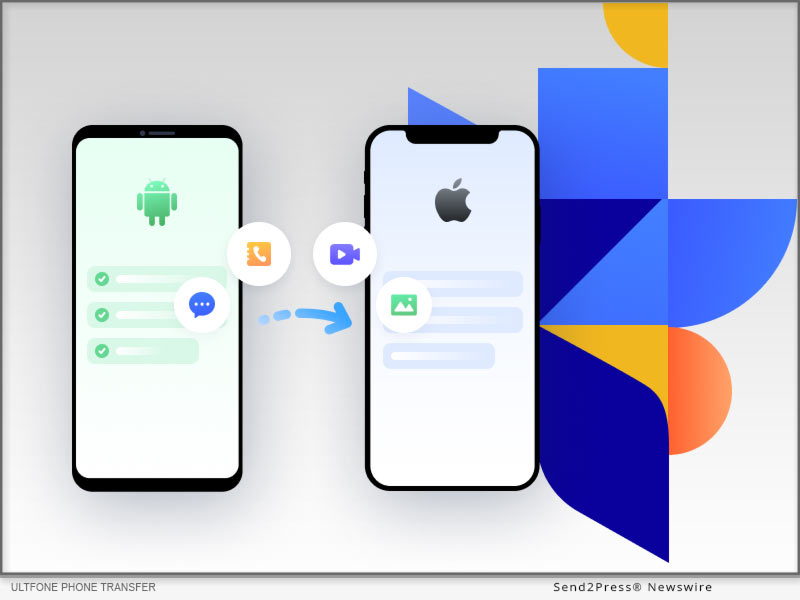
UltFone Phone Transfer has made the process that transfer data to iPhone 15 from Android a breeze!

It is safe and reliable and helps you transfer your contacts, messages, photos, videos, music, and other files from Android to iPhone without data loss.

UltFone Phone Transfer Top Features:

* It has a user-friendly interface and lets you transfer to new iPhone 15 with just a single click.

* It carries out iPhone 15 data transfer almost 20 to 30% faster than similar tools.

* It keeps your data safe and does not require rebooting your device to transfer to iPhone 15.

* Compatible with Android version 5 and later, Windows, Mac, and iOS.

How to Use UltFone Phone Transfer to Transfer Data From Android to iPhone 15 Without Resetting?

If you're wondering how to transfer data from Android to iPhone 15 pro/plus/pro max, follow these simple steps:

* Download and install UltFone Phone Transfer on your PC.

* Connect your Android device to your PC, and transfer all the data to your PC.

* Connect your iPhone to your PC, and launch UltFone Phone Transfer.

* Go to "File Manager "and select all the data you want to transfer to iPhone 15.

* Click "Import" for the iPhone 15 transfer data process to complete.

How to Transfer Data From Android to New iPhone 15 without Computer

If you don't have a PC, you can still transfer data to iPhone 15 using the "Move to iOS" app.

It is a free and easy-to-use app that helps you move important data from Android to iPhone in just a few taps.

How to transfer contacts, photo from Android to iPhone 15 using Move to iOS:

* Install "Move to iOS" on your Android device and follow the on-screen instructions to complete the setup process.

* Set up your iPhone 15 and tap "Move Data from Android."

* It will give you a code to enter on your Android device.

* This will connect both devices and transfer data to iPhone 15.

While this is the official method to transfer data from Android to iPhone, it is slow and can duplicate content.

Learn more:

https://www.ultfone.com/phone-transfer.html

About UltFone:

UltFone is a software company that develops tools to help you fix common problems with iOS and Android devices. And if you're stuck wondering how to transfer data from Android phone to new iPhone 15, UltFone Phone Transfer will work its magic to seamlessly move your data!

YouTube: https://www.youtube.com/@UltFoneOfficial/videos

Facebook: https://www.facebook.com/ultfone/

News from UltFone

Apple has finally unveiled the iPhone 15, and people can't wait to get these titanium beauties. However, users switching from Android to iPhone for the first time might face some inconveniences in transferring data from their old devices to the new iPhone 15, says UltFone.

Related link: https://www.ultfone.com/

This version of news story was published on ScoopCloud™ (ScoopCloud.com) - part of and © the Neotrope® News Network - all rights reserved.
Is Tenorshare Software Fully Compatible and Updated for iPhone 15 Now? A Full List of Tenorshare Compatibility

NEW YORK, N.Y. /ScoopCloud/ -- When is iPhone 15 launching? The exciting news is that the iPhone 15 was launched at an Apple event on September 15, and many people are excited to grab one. Wondering if Tenorshare Software works with iPhone 15 series? Good news again: Tenorshare has updated its software to be fully compatible with iPhone 15.

"Whenever a new iPhone is launched, we test our software thoroughly to ensure compatibility. Right now, we've got everything set up to run perfectly with the new iPhone 15 models," says Tenorshare CEO. "Meanwhile, Tenorshare iOS 17& iPhone 15 Sale has been released to show that Tenorshare is committed to staying on top of tech and market shifts, and will keep updating our software to meet user demands."

What Products Are Compatible With iPhone 15? Products You Should Know!

* Tenorshare iCareFone

iCareFone transfer data from android to iPhonw 15. You can restore data, export photos, handle contacts, audio, and videos, and craft AI wallpapers. It can download region-restricted apps, smart backups, and seamless media transfers with iTunes. You can also access developer mode and diagnostics.

* Tenorshare iCareFone Transfer

iCareFone can help selectively transfer WhatsApp data between Android and iPhone 15 without reset. Moreover, it can restore backups from Google Drive to iPhone 15 and easily export backup data to HTML.

* Tenorshare iCareFone for LINE

iCareFone for LINE effortlessly transfers and restores LINE data between Android and iPhone. It is fully compatible with the iPhone 15 series.

* Tenorshare iCareFone iTransGo

iCareFone iTransGo can selectively transfer data from Android to iPhone 15 after setup after setup without resetting and overwriting.

* Tenorshare ReiBoot - iOS System Repair

Tenorshare ReiBoot simplifies various iOS 17 issues on iPhone with a one-click enter/exit recovery mode. It resolves problems like Apple logo screen hang-ups and iPhone 15 update issues. Plus, it can update or downgrade iPhone 15 to Beta iOS 17 without jailbreak.

* Tenorshare 4uKey

Tenorshare 4uKey unlocks disabled iOS devices without iTunes. It can also remove passcodes, Face ID, Touch ID, MDM Profile, screen time passcode, and Apple ID from iPhone 15.

* Tenorshare UltData

UltData is a handy iPhone data recovery tool that retrieves lost or deleted data from iOS devices, iTunes, and iCloud backups. It covers over 35 data types.

* Tenorshare iAnyGo

iAnyGo lets you change GPS location without root on iPhone in a single click with no jailbreak. It's perfect for gaming, GPS joystick adjustments, and social media location changes. You can also create custom routes by importing/exporting GPX files.

https://www.tenorshare.com/iphone-15/

https://www.tenorshare.com/sales-promotion.html

About Tenorshare: More Products You Would Like!

Don't worry if you face data transfer and recovery issues or a disabled or locked iPhone 15 screen. Tenorshare Software is now fully compatible and updated for iPhone 15. Rest easy with Tenorshare's comprehensive compatibility and support!

More information: https://www.tenorshare.com/

Facebook: https://www.facebook.com/TenorshareOfficial/

X (Twitter): https://twitter.com/Tenorshare_Inc

YouTube: https://www.youtube.com/user/TenorshareOfficial/videos

TikTok: https://www.tiktok.com/@tenorshare_tech_tips

News from Tenorshare Co. Ltd.

When is iPhone 15 launching? The exciting news is that the iPhone 15 was launched at an Apple event on September 15, and many people are excited to grab one. Wondering if Tenorshare Software works with iPhone 15 series? Good news again: Tenorshare has updated its software to be fully compatible with iPhone 15.

Related link: https://www.tenorshare.com/

This version of news story was published on ScoopCloud™ (ScoopCloud.com) - part of and © the Neotrope® News Network - all rights reserved.
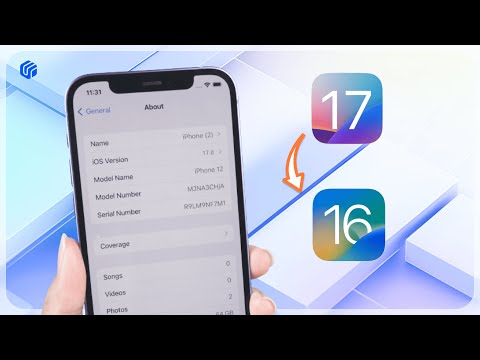
How to Remove iOS 17 from iPhone? Downgrade iPhone from iOS 17 with Tenorshare ReiBoot

NEW YORK, N.Y. /ScoopCloud/ -- Apple has already rolled out iOS 17, packed with exciting features like a revamped Control Center and advanced privacy measures. However, many users have complained iOS 17 bugs, such as Apple Maps Offline not displaying, the disappearance of personalized Siri voices, iPhone Battery Drain and iPhone Overheating. To address these concerns, Tenorshare, a top software provider, has updated its solutions to remove iOS 17 or downgrade from iOS 17 if needed.

VIDEO: https://www.youtube.com/watch?v=TXjrbnfBaFc

"There are many issues associated with iOS 17, such as abnormal battery drain, app crashes, Face ID problems, installation and download glitches, etc. But Tenorshare ReiBoot can help remove/uninstall iOS 17 from iPhone within a few clicks," says a Tenorshare spokesperson. Let's find out how to remove iOS 17 from iPhone or downgrade iOS 17 with ReiBoot.

What Software can be chosen to Remove/Uninstall iOS 17 from iPhone?

Tenorshare ReiBoot truly simplifies the process of removing iOS 17 from your iPhone. Additionally, it can fix iOS 17 Updated problems, It can not only downgrade the iOS 17 version but also resolve other issues that go hand in hand with downgrading. Here are the key features of this Tenorshare ReiBoot:

* Easily downgrade from iOS 17 to iOS 16 without the need for iTunes.

* One-click solution to download and install iOS/iPadOS IPSW files, even without a Developer account.

* Fix any issues you might encounter during the iOS 17 downgrade, like being stuck on the Apple logo, unresponsive screen, or recovery mode loops.

* Fully compatible with the latest iOS 17 and all iPhone 15 models.

How to Downgrade from iOS 17 to iOS 16 Without iTunes & Data Loss?

You don't need iTunes if you want to learn how to downgrade from iOS 17 to iOS 16 without data loss. Tenorshare ReiBoot can remove the version and install the stable version of iOS. Here's how to go back to iOS 16 from 17 with this tool:

* Download and install Tenorshare ReiBoot on your computer, and connect your iPhone.

* Click "iOS Upgrade/Downgrade," select "Downgrade."

* Download the firmware, and ReiBoot will automatically downgrade iOS 17 to 16.

Learn more: https://www.tenorshare.com/products/reiboot.html

More iOS 17 Tips You Should Know!

To learn how to remove iOS 17 without a computer or how to uninstall iOS 17, you can find comprehensive information right through Tenorshare iOS 17 tips. You can also check for details regarding the latest iOS 17 features, tips, shortcuts, installation, jailbreak guidance, and troubleshooting common upgrade errors.

Learn more: https://www.tenorshare.com/ios-17/

About Tenorshare:

Are you looking to learn how to downgrade iOS 17 to 16? Tenorshare ReiBoot is your ultimate solution to remove/uninstall iOS 17 from your iPhone. It can help you revert to a stable iOS 16 without risking data loss. As a leading software provider, Tenorshare ensures compatibility with the latest innovations, making your transition to a stable iOS version seamless and worry-free.

Information: https://www.tenorshare.com/

Facebook: https://www.facebook.com/TenorshareOfficial/

Twitter: https://twitter.com/Tenorshare_Inc

YouTube: https://www.youtube.com/user/TenorshareOfficial/videos

TikTok: https://www.tiktok.com/@tenorshare_tech_tips

News from Tenorshare Co. Ltd.

Apple has already rolled out iOS 17, packed with exciting features like a revamped Control Center and advanced privacy measures. However, many users have complained iOS 17 bugs, such as Apple Maps Offline not displaying, the disappearance of personalized Siri voices, iPhone Battery Drain and iPhone Overheating. To address these concerns, Tenorshare, a top software provider, has updated its solutions to remove iOS 17 or downgrade from iOS 17 if needed.

Related link: https://www.tenorshare.com/

This version of news story was published on ScoopCloud™ (ScoopCloud.com) - part of and © the Neotrope® News Network - all rights reserved.
Foneazy MockGo Brings Location Spoofing to Apple’s iOS 17 Devices

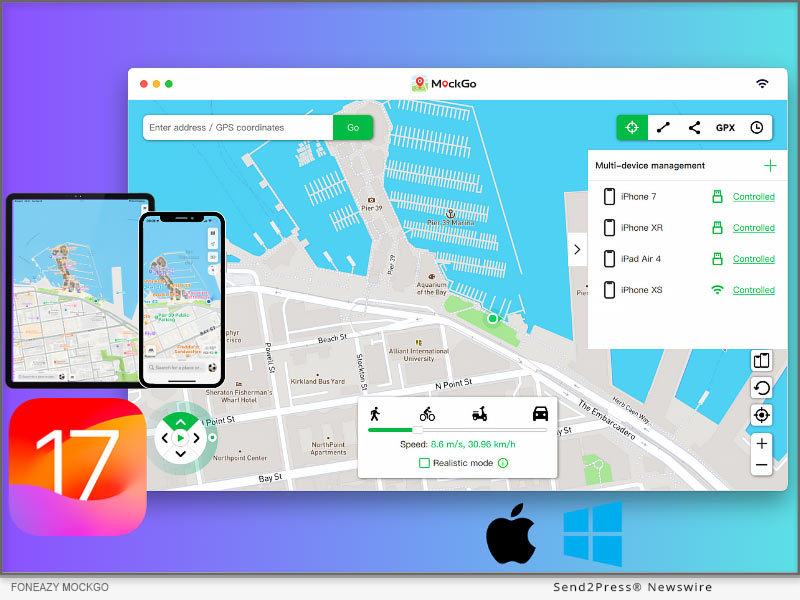
NEW YORK, N.Y. /ScoopCloud/ -- Foneazy is thrilled to announce that MockGo for Mac is fully compatible with the latest iOS 17 update. Foneazy MockGo is a powerful iPhone location changer app that is trusted by millions of users worldwide. To keep up with the latest user needs for changing location on iOS 17, Foneazy delivers the most up-to-date solution in a timely manner.

"Our company prioritizes the needs of our customers and acts swiftly to meet all new demands. Foneazy MockGo for Windows and Mac satisfies all location change needs. For users who value their privacy, it is very risky to reveal their personal location to social networks. We can change location whenever we need to," said Carter Land, the CEO of Foneazy.

How to Change Location on iOS 17 with Foneazy MockGo (Mac)?

With Foneazy MockGo, you can change your iPhone's GPS location on iOS without jailbreaking. MockGo is designed to help users access geo-restricted content, protect their privacy, and have more fun with location-based apps. It works with all popular apps that use location services, such as Pokémon GO, WhatsApp, Tinder, Snapchat, Life360, and more.

Users can now enjoy all the benefits of MockGo on their iOS 17 devices, such as spoofing their location to anywhere in the world, simulating natural movement along real roads and paths, creating custom stickers from their own photos, and changing the location of up to five devices simultaneously.

1 - Download MockGo on your Mac and finish the installation.

2 - Connect your iPhone to your computer via a USB cable or Wi-Fi network.

3 - Launch MockGo and choose the "Teleport Mode" option on the top right corner of the interface.

4 - Enter address or c ordinates to change location with a single click.

VIDEO TUTORIAL:

https://youtu.be/F1eyNL64GGM?si=TMh7-kDgjjW79vCv

Highlight Features of Foneazy MockGo

1 - Spoof your GPS location in one click.

2 - Create realistic GPS movement with three different walking modes.

3 - MockGo GPS with Joystick control.

4 - Display cooldown timer for specific games.

5 - Change the location of up to five devices simultaneously.

6 - Spoof GPS location over a Wi-Fi connection.

7 - Compatible with the latest iOS 17 and iPadOS 17.

Availability and Price:

MockGo is available for Windows and Mac computers and supports all iOS versions and devices, including the latest iOS 17 and iPhone 15 models. Windows version will supports iOS 17 soon. Users can download MockGo for free from here - https://www.foneazy.com/mockgo-iphone-gps-changer/

The Premium version is available starting from $9.95. The lifetime version is the best value price: $59.95. Select Foneazy MockGo plan here: https://www.foneazy.com/pricing/mockgo-iphone-gps-spoofer/

About Foneazy:

Foneazy is a professional software company that provides innovative solutions for iOS. Foneazy aims to help iOS users solve various problems and enhance their digital life with ease and efficiency.

For more information, please visit https://www.foneazy.com/.

Support/Contact email: support@foneazy.com

Facebook: https://www.facebook.com/foneazy/

X/Twitter: https://twitter.com/foneazy

YouTube: https://www.youtube.com/@foneazy

News from Foneazy Studio

Foneazy is thrilled to announce that MockGo for Mac is fully compatible with the latest iOS 17 update. Foneazy MockGo is a powerful iPhone location changer app that is trusted by millions of users worldwide. To keep up with the latest user needs for changing location on iOS 17, Foneazy delivers the most up-to-date solution in a timely manner.

Related link: https://www.foneazy.com/

This version of news story was published on ScoopCloud™ (ScoopCloud.com) - part of and © the Neotrope® News Network - all rights reserved.
Worried About iOS 17 Compatibility? Tenorshare Software Is Now Compatible with iOS 17

NEW YORK, N.Y. /ScoopCloud/ -- Apple recently launched the latest iOS 17 with several new features. But users are concerned about iOS 17 compatibility, management, and repair. Tenorshare, as an updated smartphone solutions provider, offers a range of iOS 17 compatible solutions.

Tenorshare Has Updated All Its Software to Be Fully Compatible With iOS 17

"Does Tenorshare work with iOS 17? To answer this question, Tenorshare software has been updated to ensure full compatibility with iOS 17. Moreover, Tenorshare iOS 17 & iPhone 15 Sale has been launched," says Mike Lee, CEO of Tenorshare. These include ReiBoot, UltData, 4uKey, iCareFone, WhatsApp Transfer, and iAnyGo, aimed at assisting users in managing and resolving various iOS-related issues. Let's check out what more iOS 17 compatible products Tenorshare offers!

What Products Have Updated to Be Compatible With iOS 17?

* Tenorshare ReiBoot - Reliable iOS 17 System Repair Tool

ReiBoot fixes various iOS issues, updates iOS 17 Beta and downgrades it without jailbreaking. It also repairs macOS, resets iOS devices, and resolves iTunes errors.

* Tenorshare UltData - iPhone 15 Data Recovery Software

UltData can retrieve deleted data from iOS devices, iTunes backups, and iCloud. It works with 35+ file types and supports backup and restore of WhatsApp, LINE, Viber, WeChat, and Kik.

* Tenorshare 4uKey - Unlock Screen Lock/MDM/Screen Time

4uKey can remove the screen lock, passcodes, Touch ID, Face ID, and Screen Time passcodes from iOS devices. It can help bypass MDM screen and remove MDM profile.

* Tenorshare iAnyGo - Change GPS Location without Root

iAnyGo helps spoof your iOS or Android device location with one click and controls movement using a GPS joystick. It can create custom routes by importing/exporting GPX files, works with all location-based apps.

* Tenorshare iCareFone - Manage Your iOS Devices Easier Than Ever

iCareFone can manage content on your iOS device, download region-locked apps, and perform smart data backups for free. It can transfer media between your device and iTunes, and can restore backups anytime.

* Tenorshare iCareFone Transfer - Best WhatsApp Transfer/Backup/Restore

iCareFone Transfer can selectively move WhatsApp data between Android and iOS 17, including iOS 17 devices, without data loss. It can also restore WhatsApp backup from Google Drive and iCloud.

* Tenorshare 4MeKey - Remove iCloud Activation Lock Easily

4MeKey can bypass iCloud activation lock on iOS 17 without a password or Apple ID. After bypassing the activation lock, it can remove your iCloud account, Apple ID, Find My device, and sign in with a new Apple ID.

SPECIAL SALE OFFERS:

https://www.tenorshare.com/sales-promotion.html?linksource=header-iphone150912

About Tenorshare:

With the launch of iOS 17, concerns about compatible software for device management and issue resolution arise. Fortunately, Tenorshare offers a range of iOS 17-compatible software to address these concerns. As a dedicated smartphone solution provider, Tenorshare keeps its solutions up-to-date, ensuring iOS and Android users can seamlessly navigate the latest operating systems worry-free.

More information: https://www.tenorshare.com/

Facebook: https://www.facebook.com/TenorshareOfficial/

YouTube: https://www.youtube.com/user/TenorshareOfficial/videos

TikTok: https://www.tiktok.com/@tenorshare_tech_tips

X/Twitter: https://twitter.com/Tenorshare_Inc

News from Tenorshare Co. Ltd.

Apple recently launched the latest iOS 17 with several new features. But users are concerned about iOS 17 compatibility, management, and repair. Tenorshare, as an updated smartphone solutions provider, offers a range of iOS 17 compatible solutions.

Related link: https://www.tenorshare.com/

This version of news story was published on ScoopCloud™ (ScoopCloud.com) - part of and © the Neotrope® News Network - all rights reserved.
How to Change iPhone Location on iOS 17? Using iToolab AnyGo Location Changer Solution!

NEW YORK, N.Y. /ScoopCloud/ -- iToolab has announced that AnyGo - Location Changer Mac version is now available for the latest iOS 17. iToolab AnyGo is a powerful iPhone location changer app that is supported by millions of users worldwide. In order to fulfill the latest needs of users to change location on iOS 17, iToolab provides the latest solution as fast as possible.

Mia Garcia, the CEO of iToolab stated, "As a company that puts the needs of our customers first, we respond to all new demands as quickly as possible. iToolab AnyGo for Mac meets all location change needs. Especially for users concerned about their privacy, exposing your personal location to social networks is a very unsafe thing to do. We need to change location if it's necessary."

HOW TO CHANGE LOCATION ON IOS 17 WITH ITOOLAB ANYGO FOR MAC?

With iToolab AnyGo for Mac, you can easily change GPS location on iOS devices. You don't have to jailbreak the device and there are no complex steps. You can change GPS location on Pokemon Go, Tinder, Facebook, WhatsApp, Snapchat, Instagram, and other apps.

* Download iToolab AnyGo on your Mac and finish the installation.

* Connect your device to your Mac via a USB cable and change location in a click.

Video Guide: https://www.youtube.com/watch?v=6HMaEAYa3t4

HIGHLIGHT FEATURES OF ITOOLAB ANYGO

1 - Change GPS location with one click.

2 - Simulate GPS movement with 3 walking modes.

3 - Support joystick mode to control the game character better.

4 - Support importing GPX files.

5 - Display cooldown timer for specific games.

6 - Support more than 100+ apps, including social, dating and games.

7 - Available for the latest iOS 17.

More info: https://itoolab.com/gps-location-changer/

Price: https://itoolab.com/buy/anygo-for-mac

IOS 17 TIPS AND TRICKS

If you want to know more about iOS 17 news, such as how to upgrade to iOS 17 or some solutions to iOS 17 bugs, here are the tips and solutions for you. Also, iToolab has software that applies to iOS system issues, which is iToolab FixGo - iOS System Repair.

Learn more: https://itoolab.com/ios-update/

About iToolab:

iToolab is a Hong Kong-based leading iOS and Android solution provider with a vision to help smartphone users solve various technical issues. Over the years, the company has helped millions of users fix iOS issues and regain access to their iPhones and iPads. Currently, iToolab provides its services in more than 130 countries and has an extensive user base. The creative approach of the developers is the main reason for the high success rate of all iToolab products.

For more details, please visit:

Official Website: https://itoolab.com/

Facebook: https://www.facebook.com/itoolab

X/Twitter: https://twitter.com/IToolab

YouTube: https://www.youtube.com/@iToolab

News from IToolab Co Ltd

iToolab has announced that AnyGo - Location Changer Mac version is now available for the latest iOS 17. iToolab AnyGo is a powerful iPhone location changer app that is supported by millions of users worldwide. In order to fulfill the latest needs of users to change location on iOS 17, iToolab provides the latest solution as fast as possible.

Related link: https://itoolab.com/

This version of news story was published on ScoopCloud™ (ScoopCloud.com) - part of and © the Neotrope® News Network - all rights reserved.
How to Easily Go Back to iOS 16 from iOS 17 in a Few Minutes without Losing Data

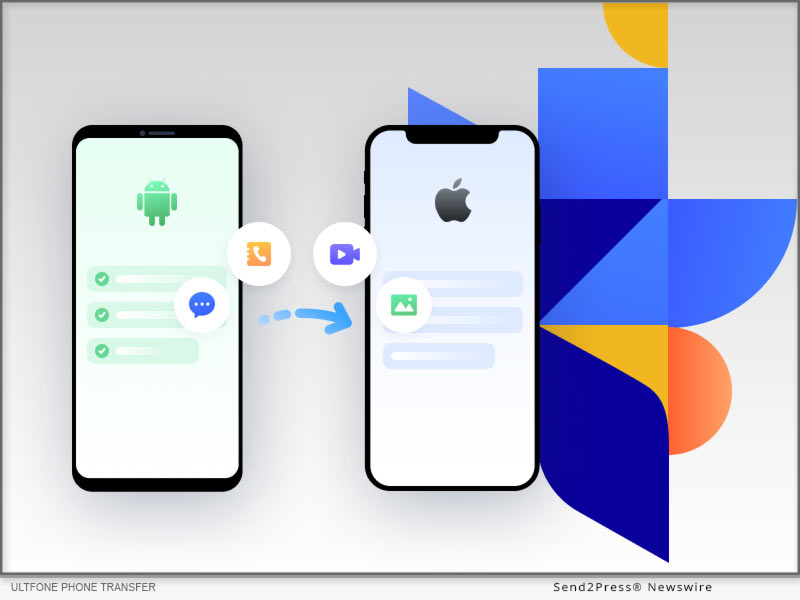
NEW YORK, N.Y. /ScoopCloud/ -- The final version of iOS 17 will be out in just a few days. Many users have already installed its beta version and tried out some of its features, says software company, UltFone.

While most of the iOS 17 features are great, some users faced many technical issues, including their iPhones freezing during the update or being stuck in a boot loop or Apple logo. Due to these issues, many Apple users decided to go back to iOS 16.

So, how to go back to iOS 16 from 17? Using the UltFone iOS Downgrade tool, of course!

What You Need to Know Before Going Back to iOS 16 from iOS 17?

To revert back to iOS 16, the process is not difficult, but there are several things to keep in mind before you uninstall iOS 17.

* Create a backup of your device using iTunes, iCloud or UltFone iOS Data Manager in case of losing data when you downgrade from iOS 17 to iOS 16.

* iOS 17 is only compatible with iPhone XS and later versions.

* You need to prepare a Mac or Windows computer, and a suitable cable (lightning) to complete the procedure of rollback from iOS 17.

How to Go Back to iOS 16 From iOS 17 Without Losing Data?

When you are ready, the UltFone Downgrade Tool is here to help you no longer be confused about "How do I go back to iOS 16?"!

It is a reliable tool that can help remove iOS 17 in just a few steps.

Key Features of UltFone iOS Downgrade Tool

* Super Easy to Use - It is easier than iTunes or Finder that downgrade iOS 17 in just one click automatically.

* Safe and Trustworthy - It processes without jailbreaking your device or losing data.

* Wide Compatibility - It is compatible with Windows, Mac, and all iPhone and iPad models.

* 100 % Success Rate - Compared to iPhone settings(a method for how to go back to iOS 16 without a computer), it has excellent performance

* A One-stop iOS Solution Tool - Fix more than 150 iOS update or downgrade issues.

How to use UltFone Downgrade Tool to Go Back to iOS 16 From iOS 17 in Few Minutes?

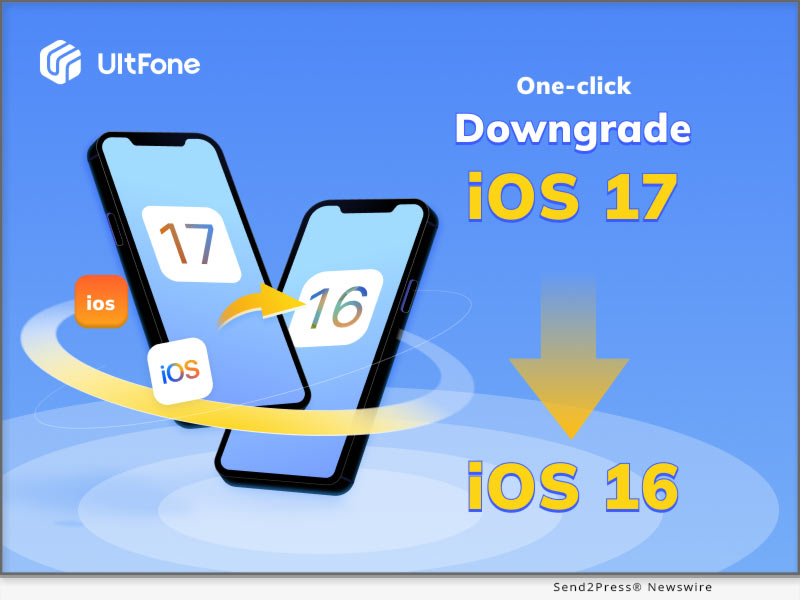
* Launch the UltFone Downgrade Tool, connect your iPhone or iPad to your PC, and click "iOS Upgrade/Downgrade."

* Click "Downgrade" and wait for the tool to download the firmware.

* Once downloaded, it will automatically downgrade your device to iOS 16. Now, you get rid of iOS 17.

Video Guide: https://www.youtube.com/watch?v=HXFjJEiqF-E

LEARN MORE: https://bit.ly/3sKG7nz

About UltFone

UltFone is a software developer that helps you manage data on your iOS or Android devices and fix multiple iOS system issues. Plus, if you want to go back to iOS 16 without putting your device at risk, UltFone can help with that, too.

YouTube: https://www.youtube.com/@UltFoneOfficial/videos

Facebook: https://www.facebook.com/ultfone/

News from UltFone

The final version of iOS 17 will be out in just a few days. Many users have already installed its beta version and tried out some of its features, says software company, UltFone. So, how to go back to iOS 16 from 17? Using the UltFone iOS Downgrade tool, of course!

Related link: https://www.ultfone.com/

This version of news story was published on ScoopCloud™ (ScoopCloud.com) - part of and © the Neotrope® News Network - all rights reserved.
[Fast] Downgrade or Remove iOS 17 to 16 with Downgrader Tool 2023

NEW YORK, N.Y. /ScoopCloud/ -- iOS systems occasionally bring new software and system updates, making users excited to install them on their iOS devices. Sometimes, these updates come with technical problems. UltFone wishes to prevent users from undergoing these problems with its iPhone downgrade tool to downgrade iOS 17 with a single click without iTunes.

Things to Know Before Using iOS Downgrade Tool:

Downgrading iOS means re-installing an old OS on your iPhone/iPad and will wipe your device to the factory settings. So it would be better if you backup before downgrading with iTunes or iCloud or data management tools like UltFone iOS Data Manager, keeping your important data from loss.

Remove iOS 17 to iOS 16 from iPhone with iTunes:

It is the official way to downgrade iOS 17 to iOS 16 with iTunes by putting device in recovery mode. Here is how to use it: Choose the correct IPSW file at ipsw.me> Connect the device and boot into Recovery Mode>Click "Restore."

However, using iTunes to remove iOS 17 to iOS 16 has risks. You will need to select and download the IPSW file for your phone, and put your device into recovery mode manually, which may brick your iPhone or get your iPhone stuck in recovery mode, or arise other iOS issues.

There are lots of posts on Reddit that users don't know how to set phones to recovery mode or complain about iPhones stuck on the Apple logo or iPhone bricked in the process.

That's the reason why UltFone iOS Downgrade Tool comes,an easy and safe iOS downgrade tool to uninstall iOS 17 to iOS 16 in one click.

Downgrade iOS 17 to iOS 16 without iTunes for Windows and Mac [Free Download]:

Compared with iTunes, UltFone iOS Downgrade Tool can be the easiest iOS downgrader to downgrade iOS 17 to iOS 16 safely and automatically. You don't need to put device to recovery mode manually or select IPSW file, so no worries about any iPhone system issues.

Moreover, it is 100% working for downgrading iOS fast and without losing data.

Video guide: https://youtu.be/v6TCjZ01RnE

Quickly follow the below guide for iOS downgrading:

* Run the program and click on "iOS Upgrade/Downgrade" to start.

* Choose "Downgrade System" and click "Download."

* Once it's downloaded, click on "Initiating Downgrade" to start. It will roll back to a lower system within a few minutes.

Top Features of UltFone Downgrade Tool to Downgrade iOS 17 to iOS 16:

The UltFone iOS Downgrade Tool offers a plethora of incredible features that provide users with an enjoyable experience:

* Easiest iOS 17 Downgrader: The iOS downgrader tool requires no technical knowledge and downgrades iOS systems with just few clicks.

* Downgrade iOS 17 to iOS 16 Automatically:This iOS downgrader automatically removes iOS 17 in seconds.

* Safe and No jailbreak : Uninstall iOS without fear of losing important data and jailbreak with maximum data security.

* Wide compatibility: As a good alternative of iPSW downgrade tool, it is compatible with all iPhone and iPad models, including the latest iPhone 14 series and iOS/ iPadOS 16.

* Support to remove iOS 17 :Revert back to iOS 16 OFFICIAL.

* Fix any iOS 17/16 downgrade issue: Say goodbye to any iOS 17/16 downgrade issues, such as iPhone stuck on recovery mode or iOS update, etc.

About UltFone:

UltFone, a leading expert of mobile utility technologies and applications in the software industry, offers fully integrated solutions for data backup, data recovery, system repair etc.

YouTube: https://www.youtube.com/@UltFoneOfficial/videos

Facebook: https://www.facebook.com/ultfone/

News from UltFone

iOS systems occasionally bring new software and system updates, making users excited to install them on their iOS devices. Sometimes, these updates come with technical problems. UltFone wishes to prevent users from undergoing these problems with its iPhone downgrade tool to downgrade iOS 17 with a single click without iTunes.

Related link: https://www.ultfone.com/

This version of news story was published on ScoopCloud™ (ScoopCloud.com) - part of and © the Neotrope® News Network - all rights reserved.
How to Download Apple’s iOS 17 Beta Without Apple Developer?

NEW YORK, N.Y. /ScoopCloud/ -- When iOS 16.6 beta was released, it created quite a buzz, and people eagerly anticipate when is iOS 17 beta coming out and what are the new features. It is great news for iOS users because iOS 17 Beta is out today, says Tenorshare. To start, it's essential to learn how to download iOS 17 Beta and also how to fix iOS 17 Beta issues if they may arise. So, let's dive into the process without any delay!

Video Guide: https://youtu.be/gqSex8VDSqI

How to Download and Install iOS 17 Beta on iPhone?

If your software update failed and you're eager to know how to download iOS 17 Beta officially, below is how to update to iOS 17 Beta by enrolling Apple Developer Program. Keep in mind that you will need to pay an annual fee of $99 to acquire the iOS 17 beta profile for download.

* Access the Apple public beta website and register using your Apple ID.

* Afterward, log in with your Apple ID and select "Install Profile" on your iOS device.

* Restart your iPhone and navigate to "Settings"> "General"> "Software Update."

* In the Beta Update section, choose "iOS 17 Beta Software Profile." Tap Install, and voila! The update installation will commence. Please be patient during the installation process.

* Once installed, your iPhone will automatically restart, and you'll update to iOS 17 Beta.

How to Download iOS 17 Beta Without Apple Developer?

Seeking a budget-friendly alternative to Apple Developer for iOS 17 beta download? Look no further! With Tenorshare iOS Downgrade Software, you can download the iOS 17 beta without Apple developer account.

* Launch Tenorshare ReiBoot by connecting your iPhone. Then click on "iOS Upgrade/Downgrade."

* When prompted, select the Upgrade option.

* Click on "Download" to acquire the latest firmware package and patiently wait for the download to complete.

* The upgrade process will automatically initiate and typically takes a few minutes to finish.

iOS 17 Beta Tips & Tricks with Tenorshare ReiBoot

Swift: ReiBoot provides the fastest method for the iOS 17 beta download, but offers instructions on how to remove iOS 17 beta from iPhone or how to downgrade to iOS 16.

Comprehensive: Tenorshare ReiBoot can fix iOS 17 beta issues without losing data while coming across challenges like stability issues, poor performance, and other system-related problems.

User-friendly: Clear and concise iOS 17 beta download instructions, no technical expertise needed.

Budget-friendly: No need to invest in an expensive Apple Developer Profile.

Learn more:

* https://www.tenorshare.com/products/reiboot.html

* https://youtu.be/x2r8m3rxGAw

* https://www.tenorshare.com/ios-17/

* https://www.tenorshare.com/ios-17/ios-17-beta-download-and-install.html

* https://www.tenorshare.com/ios-17/ios-beta-not-showing-up-fixed.html

About Tenorshare:

While iOS 17 Beta offers thrilling features, it's frustrating if iOS 17 Beta Not Showing up or the software update failed. Luckily, Tenorshare ReiBoot is highly recommended for iOS 17 beta download and common Beta issues fixed. As a trusted smartphone software brand, Tenorshare always offers reliable tools to address iOS problems for iPhone users.

More information: https://www.tenorshare.com/

Facebook: https://www.facebook.com/TenorshareOfficial/

Twitter: https://twitter.com/Tenorshare_Inc

YouTube: https://www.youtube.com/user/TenorshareOfficial/videos

TikTok: https://www.tiktok.com/@tenorshare_tech_tips

News from Tenorshare Co. Ltd.

When iOS 16.6 beta was released, it created quite a buzz, and people eagerly anticipate when is iOS 17 beta coming out and what are the new features. It is great news for iOS users because iOS 17 Beta is out today, says Tenorshare. To start, it's essential to learn how to download iOS 17 Beta and also how to fix iOS 17 Beta issues if they may arise. So, let's dive into the process without any delay!

Related link: https://www.tenorshare.com/

This version of news story was published on ScoopCloud™ (ScoopCloud.com) - part of and © the Neotrope® News Network - all rights reserved.