Author Archives: Tenorshare Co. Ltd.

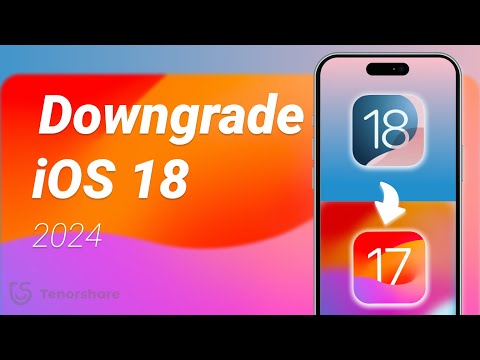
How to Downgrade from iOS 18 to iOS 17? Full Guide 2024

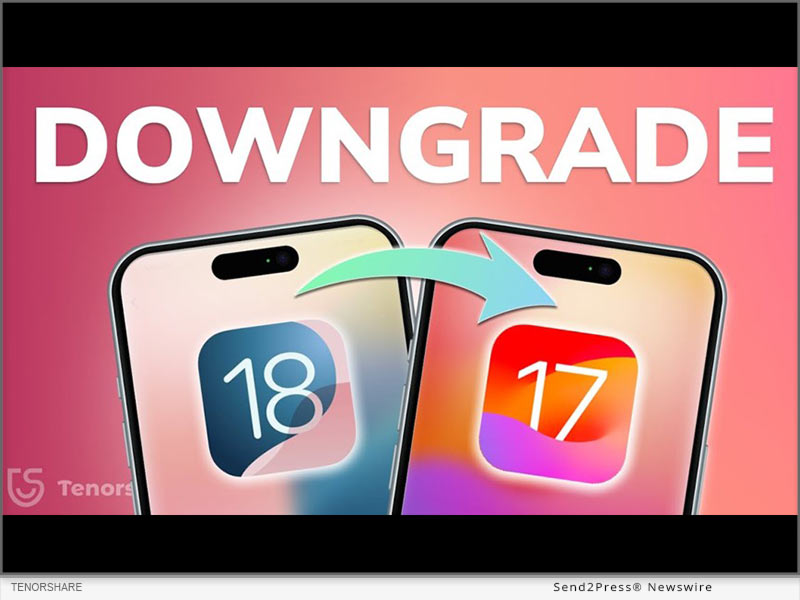
NEW YORK, N.Y. /ScoopCloud/ -- After the initial release of iOS 18, upgrading has been received with a mix of excitement and exasperation. Many iOS users face issues like battery drain and software glitches like stuck on Recovery Mode while updating. Those unhappy with iOS 18, are now asking, "How to downgrade from iOS 18 to 17." "First of all it's no easy feat; secondly it can risk losing data. Rather than taking risks, Tenorshare ReiBoot can help you safely downgrade iOS 18 to iOS 17 without losing your valuable data," says a Tenorshare spokesperson.

CAN YOU DOWNGRADE IOS 18 TO IOS 17 ON IPHONE/IPAD?

So, if you're thinking, "Can I go back to iOS 17 from 18," it depends on certain factors. Apple usually discourages downgrading to older iOS versions and often removes older firmware files, making them hard to find.

But if it still supports the version you want, you'll need an IPSW file for iOS 17. You can also use iTunes to restore your iDevice if you've got an old iOS 17 backup. Be aware this process will erase your data. Thus, if you want to learn how to go back to iOS 17 from 18 without data loss, Tenorshare ReiBoot is your best bet.

HOW TO DOWNGRADE IOS 18 TO 17 FOR IPHONE & IPAD IN 5 MINUTES?

ReiBoot iOS repair is an iOS management and repair tool that can not only downgrade iOS but can also upgrade, including Beta versions without data loss.

Here's what it offers:
* Fix 150+ iOS issues like being stuck on Recovery Mode, restart loop, Apple logo, white & black screen of death, and many more.
* Repair iTunes errors such as 1110, 4013, etc.
* Reset iDevices without passcode & iTunes.
* Erase iDevices permanently for giving them away.
* Enables you to enter/exit Recovery Mode with a click.
* Supports latest iOS versions and iDevices.

HERE'S HOW TO REVERT IPHONE BACK TO IOS 17 WITH HELP OF REIBOOT:

Step 1: Install ReiBoot on your computer then, attach your iDevice to same PC. Press "iOS Upgrade/Downgrade."

Step 2: Tap "Downgrade." Then, click "Download" to get latest firmware package.

Step 3: Afterward, ReiBoot will start downgrading your iDevice from iOS 18 to iOS 17.

Video Guide (YouTube): https://www.youtube.com/watch?v=RWnearLqwBs

BIG TENORSHARE DEALS ON IOS 18 & IPHONE 16!

Tenorshare is holding a Giveaway Event to celebrate release of iOS 18. Users will get a huge chance at winning shiny new iPhone 16, Amazon gift cards, and more than 70% discount on 6 helping products to make your iOS 18 journey easier.

About Tenorshare:

Learning how to downgrade from iOS 18 to iOS 17 is a risky process that comes with potential data loss. However, Tenorshare ReiBoot offers a safe way to downgrade without losing your data. Founded in 2007, Tenorshare is a well-known software company with a strong reputation for creating user-friendly solutions for iOS and Android that has earned them various accolades.
News from Tenorshare Co. Ltd.

After the initial release of iOS 18, upgrading has been received with a mix of excitement and exasperation. Those unhappy with iOS 18, are now asking, "How to downgrade from iOS 18 to 17." "First of all it's no easy feat; secondly it can risk losing data. Rather than taking risks, Tenorshare ReiBoot can help you safely downgrade iOS 18 to iOS 17 without losing your valuable data," says a Tenorshare spokesperson.

Related link: https://www.tenorshare.com/

This version of news story was published on ScoopCloud™ (ScoopCloud.com) - part of and © the Neotrope® News Network - all rights reserved.
How to Fix an iPad Stuck on the Apple Logo? New 2024 Full Guide

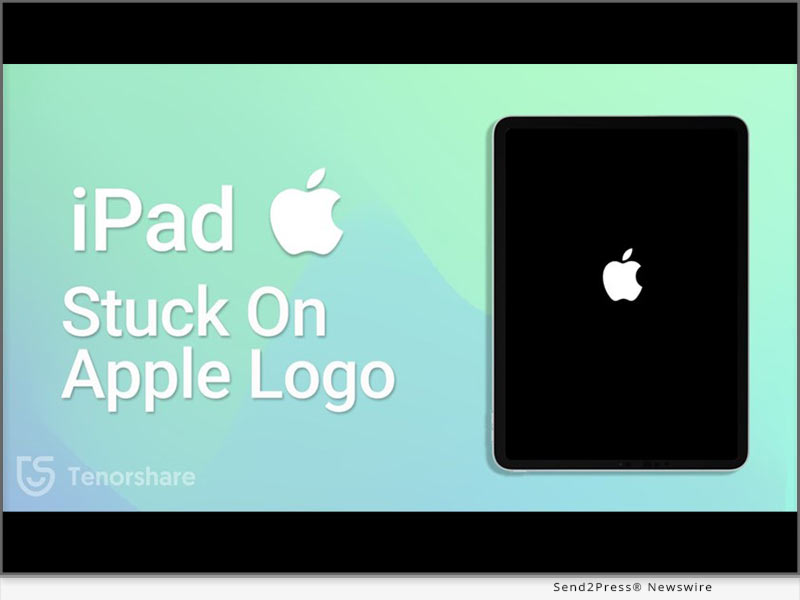
NEW YORK, N.Y. /ScoopCloud/ -- If your mind is whirring with the thought, "Why is my iPad stuck on Apple logo," it could be due to a software or hardware issue. But you'll never be sure which problem out of these two could be the culprit because there are so many types of software and hardware problems. "But rather than resolving 'iPad stuck on Apple logo' yourself with methods that might lead to data loss, why not try Tenorshare ReiBoot. It can fix 150+ iOS issues including 'iPad frozen on Apple logo' problem without data loss," says a Tenorshare spokesperson.

What Causes Your iPad to Get Stuck on the Apple Logo?

As we mentioned before "iPad Apple logo blinking" glitch on your iPad could be divided into software and hardware problems. If your "iPad freezes on Apple logo," here's a list of what types of software and hardware problems might be causing it:

* Software Issues - A damaged iOS system can stop your iPad from booting, incomplete iOS updates can freeze your iPad, and faulty apps or jailbreaking may block startup.
* Hardware Issues - A weak or faulty battery can prevent proper power-up, nearly full storage can slow down startup or any physical damage to iPad or its component can affect hardware.

How to Fix iPad Stuck on Apple Logo in 5 Minutes?

Tenorshare ReiBoot can fix your "iPad stuck on Apple logo" in 5 minutes with high success and without data loss. But that's not all that tool offers. In fact, you get a comprehensive iOS repair and management toolkit in form of ReiBoot which offers following features:

* Fix 150+ iOS issues like iOS devices stuck in a boot loop, Recovery Mode, iPad white screen & black screen, and many more.
* Can upgrade and downgrade iOS including Betas.
* Can factory reset, fix iTunes errors, and erase data permanently before giving away any iDevice.
* Support latest iPadOS 18 and all iPad, iPad Mini, iPad Air, and iPad Pro models.

Here are steps to use Tenorshare ReiBoot to fix "iPad frozen on Apple logo" issue:

Step 1: Download, install, and execute ReiBoot on your computer and choose "Start Repair." Then, attach your iPad which is stuck on Apple logo to same computer and once it's detected choose "Standard Repair."

Step 2: Tap "Download" to get latest firmware and after it's downloaded, select "Standard Repair" again.

Step 3: Wait for ReiBoot to fix your iPad stuck on Apple logo. Afterward, it will reboot normally.

Video Guide: https://www.youtube.com/watch?v=gIRqD8-KDjw

About Tenorshare:

The "iPad stuck on Apple logo" issue can be caused by either software or hardware problems. Rather than trying expensive solutions to fix it consider Tenorshare ReiBoot which can resolve 150+ iOS issues without data loss. The Tenorshare brand focuses on innovation and customer satisfaction all the while making life easier for businesses and individuals alike. https://www.tenorshare.com/

https://www.facebook.com/TenorshareOfficial/

https://x.com/Tenorshare_Inc

https://www.youtube.com/user/TenorshareOfficial/videos

https://www.tiktok.com/@tenorshare_tech_tips

News from Tenorshare Co. Ltd.

If your mind is whirring with the thought, "Why is my iPad stuck on Apple logo," it could be due to a software or hardware issue. "But rather than resolving 'iPad stuck on Apple logo' yourself with methods that might lead to data loss, why not try Tenorshare ReiBoot. It can fix 150+ iOS issues including 'iPad frozen on Apple logo' problem without data loss," says a Tenorshare spokesperson.

Related link: https://www.tenorshare.com/

This version of news story was published on ScoopCloud™ (ScoopCloud.com) - part of and © the Neotrope® News Network - all rights reserved.
Tenorshare Unveils Exclusive iOS 18 and iPhone 16 Special Offers

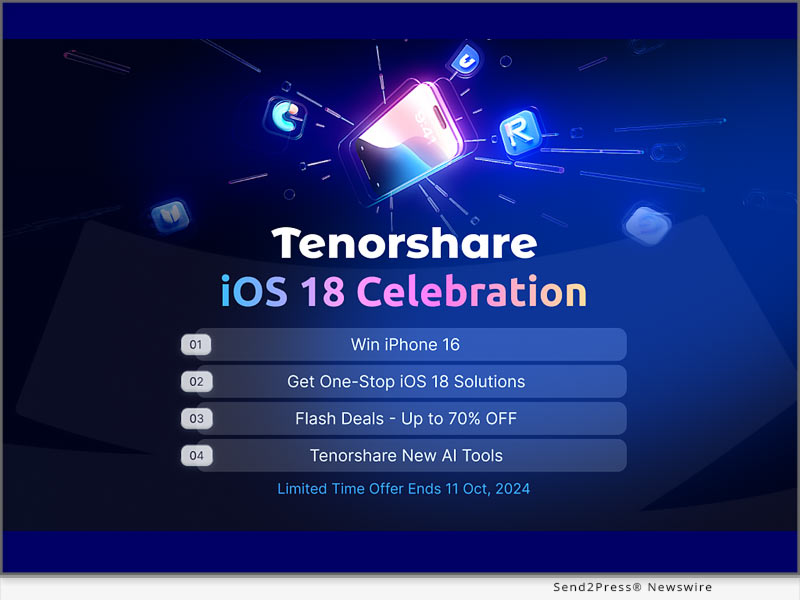
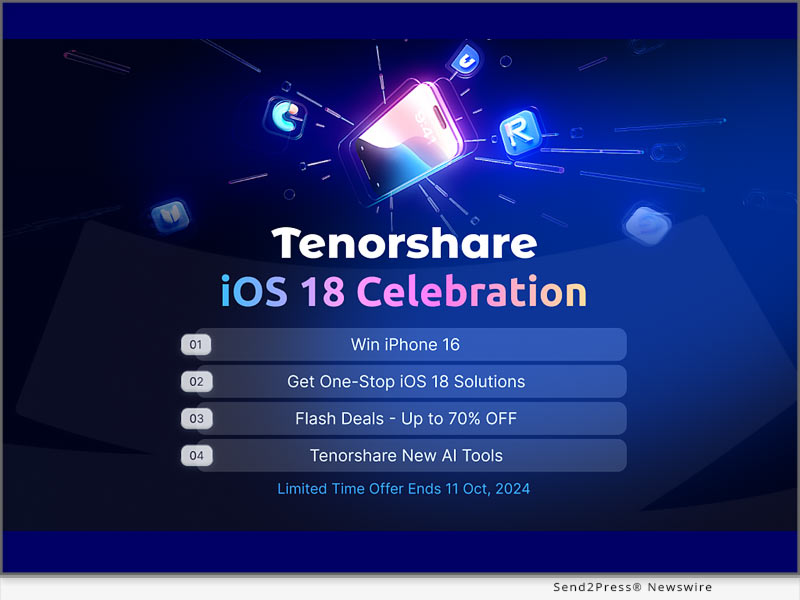
NEW YORK, N.Y. /ScoopCloud/ -- Tenorshare is holding a giveaway to celebrate the upcoming release of iOS 18 and iPhone 16. The new iOS 18 will have features like Apple Intelligence, redesigned control center, customized Home screen, and many more exciting functions. "Not only do you get to enjoy these features but you also earn a huge chance to win an iPhone 16, great prizes, and significant discounts on Tenorshare's iOS 18 Giveaway Event," says a Tenorshare spokesperson.

Discover the Exciting Ways to Engage With the Event!

By participating in Tenorshare's iOS 18 & iPhone 16 Giveaway Event you'll get an exclusive chance to win an iPhone 16 (128GB), and a $20 Amazon Gift Card X5. Not to mention receiving a 70% discount on 6 popular tools that can help you troubleshoot potential iOS 18 issues and transfer your data to iPhone 16.

To enter the event follow these steps:

1. Follow Tenorshare on Facebook.

2. Share your favorite iOS 18 features using #TenorshareAI.

3. Tag @Tenorshare and two friends.

4. Make your post public.

Giveaway winners will be announced October 15, 2024. Afterward, you'll need to respond within 7 business days to claim your prize.

Learn more: https://www.tenorshare.com/ios18-iphone16-giveaway.html?type=4&sid=137

Tenorshare's Top-Notch Software

Although you'll receive up to 70% Flash Deals for 6 iOS 18 useful tools there are two more that are must-haves to improve your iOS 18 and iPhone 16 experience. Tenorshare is providing discount on monthly registration:

1. Tenorshare ReiBoot For iOS - No.1 Free iOS System Repair & Recovery Software

Tenorshare ReiBoot is an iOS repair tool that makes upgrading and downgrading iOS 18 safer and more efficient. It can also repair iOS issues that come with new iOS updates. For instance, being stuck in a boot loop, or not being able to enter/exit Recovery Mode, etc. Available for as low as $19.95 for monthly registration in this event.

2. iCareFone - All-in-One Free iOS Backup Tool

iCareFone makes it easy to transfer data like photos to your new iPhone 16, convert Apple Music, and manage contacts. It can back up/restore your iPhone, including WhatsApp chats, and help download region-restricted apps. Available for $29.95 for monthly registration in this event.

Explore more AI Tools with Tenorshare

While a complete set of features for Apple Intelligence will be available next year, what's to stop you from enjoying AI-powered tools by Tenorshare for free? The Tenorshare AI Writer features 120+ writing tools to generate unique content. While Tenorshare AI PDF summarizes PDF documents and allows you to chat with them to extract useful content.

About Tenorshare

Tenorshare is celebrating iOS 18 with a giveaway for an iPhone 16, Amazon gift cards, and free AI tools. You'll also get 70% off on useful software to improve your iOS 18 experience. The company is dedicated to creating solutions that adapt well to newer iOS versions and devices and help you manage and troubleshoot them.

More information: https://www.tenorshare.com/

Facebook: https://www.facebook.com/TenorshareOfficial/

X/Twitter: https://x.com/Tenorshare_Inc

YouTube: https://www.youtube.com/user/TenorshareOfficial/videos

TikTok: https://www.tiktok.com/@tenorshare_tech_tips

News from Tenorshare Co. Ltd.

Tenorshare is holding a giveaway to celebrate the upcoming release of iOS 18 and iPhone 16. The new iOS 18 will have features like Apple Intelligence, redesigned control center, customized Home screen, and many more exciting functions. "Not only do you get to enjoy these features but you also earn a huge chance to win an iPhone 16, great prizes, and significant discounts on Tenorshare's iOS 18 Giveaway Event," says a Tenorshare spokesperson.

Related link: https://www.tenorshare.com/

This version of news story was published on ScoopCloud™ (ScoopCloud.com) - part of and © the Neotrope® News Network - all rights reserved.
UltData for iOS V10 Released: Redefining the Standard in iPhone Data Recovery

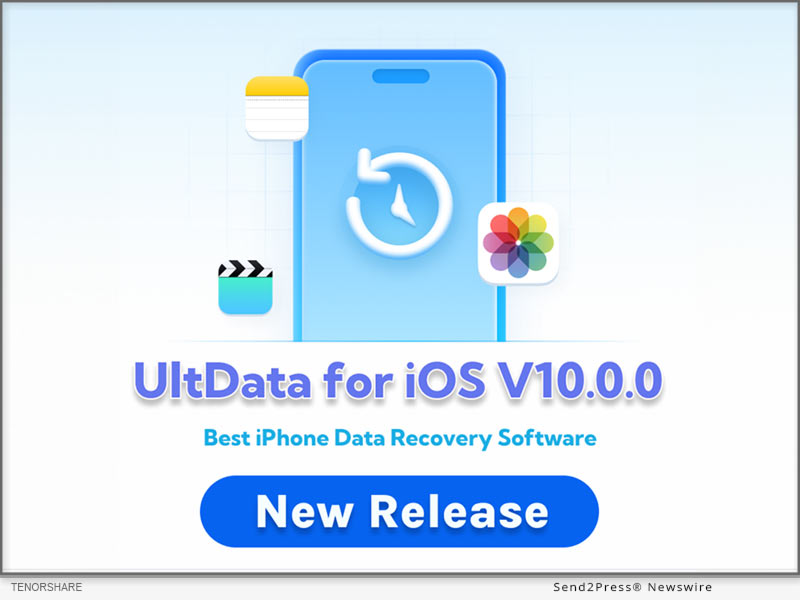
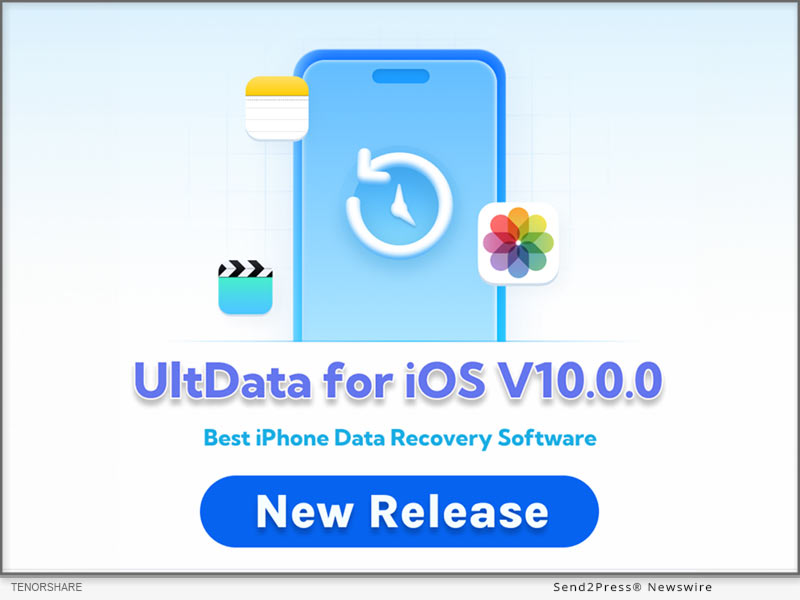
NEW YORK, N.Y. /ScoopCloud/ -- Tenorshare, a leading software provider, is proud to announce the release of the brand new UltData for iOS V10. This update not only solidifies Tenorshare's leadership in the iPhone data recovery field but also sets a new industry standard.

WHAT'S NEW IN TENORSHARE ULTDATA FOR IOS V10?

One of the most notable improvements in this iPhone data recovery software is its completely redesigned user interface. The design team divide the interface into distinct modules for different recovery options. For instance, have a dedicated area for retrieving files from native apps and another for recovering data from third-party apps like Instagram, with clear descriptions for each section. This is why UltData is easier to navigate compared to other alternatives. You can access and use the features you need with just one click. Once a specific recovery option is selected, the tool provides detailed guidance to help users smoothly complete the data recovery process.

"Our goal with UltData for iOS V10 was to create a tool that not only provide high-quality iPhone data recovery but also exceeds our users' expectations in terms of usability," said Daniel, marketing director at Tenorshare. "We listened to our customers, and their feedback was instrumental in shaping this new version."

KEY FEATURES OF TENORSHARE ULTDATA FOR IOS V10

There are many data recovery software for iPhone in the market, but UltData for iOS is clearly the winner.

Now, let's take a closer look at the highlights of this best iPhone data recovery software:

* Recovers files directly from iOS devices without any backup.

* Selectively restores data from iCloud and iTunes backups without needing to reset your iPhone.

* Supports recovery of over 35 data types, such as photos, messages, contacts, notes, and more.

* Regains lost data from third-party apps, including WhatsApp, Messenger, Instagram, LINE, etc.

* Provides a preview feature to help users verify data Integrity.

* No technical knowledge required; a user-friendly tool for everyone.

* Offers advanced features like system repair and backup & restore.

With a 98% success rate, UltData can be your go-to choice when choosing data recovery software for iPhone.

COMPATIBILITY AND PRICING

Tenorshare UltData for iOS V10 is fully compatible with Windows and macOS. There are three pricing available, with prices ranging from $45.95 to $65.95. Currently, Tenorshare is offering a 20% discount, allowing home users to purchase this iPhone data recovery software at a more affordable price.

For more price checking and information, you can visit: https://www.tenorshare.com/purchase/buy-iphone-data-recovery-win.html

About Tenorshare:

Over the past decade, Ultdata for iOS has consistently been recognized as one of the best iPhone data recovery software in the industry. Tenorshare, the creator behind this powerful tool, has garnered widespread acclaim from millions of users across 150 countries. Apart from iPhone data recovery, Tenorshare also offers a variety of innovative software solutions, including system repair, password recovery, data transfer, and more.

More information: https://www.tenorshare.com/

Facebook: https://www.facebook.com/TenorshareOfficial/

X/Twitter: https://x.com/Tenorshare_Inc

YouTube: https://www.youtube.com/user/TenorshareOfficial/videos

TikTok: https://www.tiktok.com/@tenorshare_tech_tips

News from Tenorshare Co. Ltd.

Tenorshare, a leading software provider, is proud to announce the release of the brand new UltData for iOS V10. This update not only solidifies Tenorshare's leadership in the iPhone data recovery field but also sets a new industry standard.

Related link: https://www.tenorshare.com/

This version of news story was published on ScoopCloud™ (ScoopCloud.com) - part of and © the Neotrope® News Network - all rights reserved.
Tenorshare AI Officially Launched: Discover Your Potential with the Ultimate AI

NEW YORK, N.Y. /ScoopCloud/ -- Tenorshare, a leader in digital device solutions, has launched its AI tools website, staying true to its motto "Better Software, Better Life." Tenorshare AI focuses on creating the Best AI Tools to simplify and boost efficiency in daily tasks.

"Our one-click AI tools help everyone-from writers to researchers, students, professionals, and e-commerce businesses-create personalized content effortlessly," says a Tenorshare AI spokesperson.

What One-Click Tools Can You Discover on Tenorshare AI?

Tenorshare AI provides advanced tools like AI Writer, ChatPDF, ChatDOC, AI Translator and AI Slides that can generate content in one click. These tools, built on models like GPT, are trained on vast amounts of text data, enabling them to generate human-like content. Tenorshare AI focuses on refining these models to improve their performance over time.

Here's a closer look at what these AI tools offer:

1. AI Writer - The best AI tool out of all Tenroshare AI tools it offers 120+ apps for creating content across social media, emails, and more. AI Writer includes features like AI translators, grammar checkers, and content generators, with tools organized by task. Users can also save outputs. The tool supports ChatGPT-4o and ChatGPT-4o Mini.

2. ChatPDF - The Chat PDF tool summarizes long PDFs, answers specific questions, supports multiple file uploads, and protects user data with SSL encryption without collecting or sharing content.

3. ChatDOC - The ChatDOC AI tool can get quick answers, simplify charts, and use ChatGPT to summarize DOCX files. It can also analyze and chat in any language with secure, encrypted protection.

4. AI Slides - Users can create presentations using AI Slides by starting with a prompt or using existing notes. They can generate up to 30 slides at once, choose from 32 languages, and input themes to get a customized outline. The AI Slides tool simplifies slide creation, making it easy to produce professional presentations quickly.

Why Choose Tenorshare AI?

There are numerous reasons for choosing Tenorshare AI such as following:

* Quickly generate high-quality content with one click. Save time by creating content 3x faster.

* Summarize documents, extract key info, and get answers to specific questions. Cut costs and reduce errors by 70%.

* Generate professional presentations with customizable outlines and themes. Boost traffic by 88% with quality content.

Learn more: https://ai.tenorshare.com/

About Tenorshare AI

Tenorshare AI provides a vast range of advanced AI tools to make your daily content generation tasks easier and more efficient. Used by over 70,000 teams and 35 million writers, the company focuses on creating AI tools that greatly reduce human errors. TenorshareAI's goal is to help users extract key info, and create high-quality content, and customized presentations in minutes, thus saving time and cutting costs.

Website: https://www.tenorshare.com/

Facebook: https://www.facebook.com/TenorshareOfficial/

X/Twitter: https://x.com/Tenorshare_Inc

YouTube: https://www.youtube.com/user/TenorshareOfficial/videos

TikTok: https://www.tiktok.com/@tenorshare_tech_tips

News from Tenorshare Co. Ltd.

Tenorshare, a leader in digital device solutions, has launched its AI tools website, staying true to its motto "Better Software, Better Life." Tenorshare AI focuses on creating the Best AI Tools to simplify and boost efficiency in daily tasks. Tenorshare AI provides advanced tools like AI Writer, ChatPDF, ChatDOC, AI Translator and AI Slides that can generate content in one click.

Related link: https://www.tenorshare.com/

This version of news story was published on ScoopCloud™ (ScoopCloud.com) - part of and © the Neotrope® News Network - all rights reserved.
Tenorshare AI Writer Release: Boost Your Writing Efficiency and Content Creation

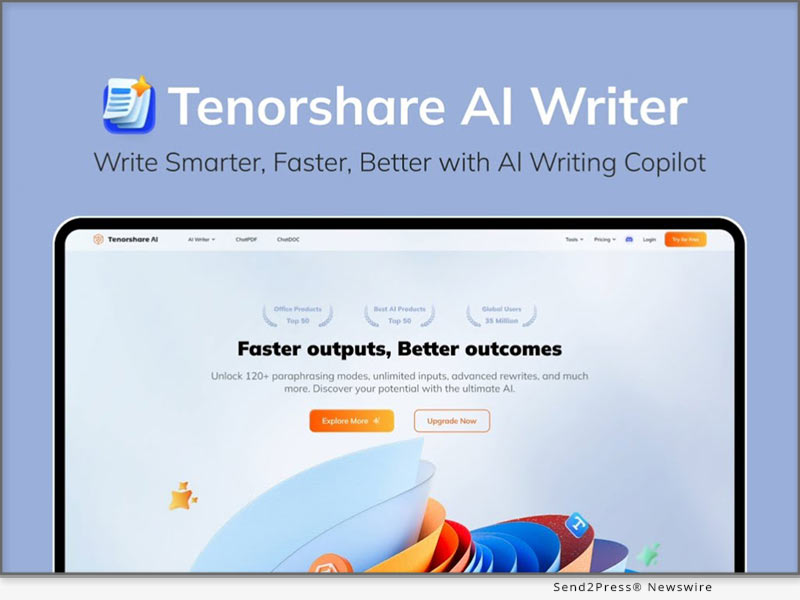
NEW YORK, N.Y. /ScoopCloud/ -- Tenorshare has announced its release of a free AI Writer to 2x your writing efficiency. With numerous features tailored to unique and quality content creation, you no longer have to worry your head about typing long emails or crafting articles. The AI Copywriting Assistant offers 10x faster generation, more words, and personalization options and also unlocks ChatGPT-4o.

VIDEO (YouTube):https://youtu.be/Z2jLJs2859g

WHAT IS TENORSHARE AI WRITER?

1. Provide 40+ AI Tools

The Tenorshare AI Writer Generator offers 40+ tools to help you create fresh and engaging content for social media & ads, emails, and articles. You'll also get a wide collection of tools to create slogans, e-commerce brands, website SEO ranking, and much more in seconds.

2. Support AI Tool Collection

This AI Writer comes with a vast array of AI tools that are sentient enough to help you create engaging content. These AI tools include AI Translator, Reworder, Email, Resume, and Letter Generators, Social Media Hashtags Generators, Quilbot Paraphraser, Grammar Checker, ChatPDF, etc.

3. Support Generation Result Archiving

The Tenorshare Text Generator lets users save AI-generated outputs, which is important for tracking content changes, improving results, sharing with team members, and keeping records.

4. Support AI Tool Scene Classification and Search

The free AI Writer categorizes AI tools into different "scenes" or contexts. This helps users find right tool for a specific task more quickly. For example, AI essay Writer and AI story Writer are grouped into separate scenes.

5. Support the Use of Two Large Models, ChatGPT-4O and ChatGPT-4O Mini

The Tenorshare AI Writer platform uses two powerful language models:

1. ChatGPT-4o - An advanced model delivering high-quality outputs and complex reasoning.

2. ChatGPT-4O Mini - A lighter version for simpler tasks, ideal for users with limited resources.

WHY CHOOSE THE TENORSHARE AI WRITER?

Overall, Tenorshare AI Copywriting Assistant emerges as best AI Writer because of its vast collection of AI tools for content creation.

Moreover, it stores your generated results and makes it easy to choose a specific AI tool for your specific writing task. It also offers grammar, and paraphrasing tools and can extract important info or create a summary by communicating with a PDF document.

HOW TO USE TENORSHARE AI WRITER?

How to use Tenorshare AI Writer to boost efficiency of your writing task:

Step 1: Choose an AI writing tool and then provide tone, keywords, and specific info for tool to generate content around it.

Step 2: Hit "Generate" and within seconds AI Writer tool will generate content tailored to your preferences. You can also rewrite or edit content as per your need.

Learn more: https://ai.tenorshare.com/products/ai-writer

About Tenorshare:

Founded in 2007, Tenorshare is a global software company known for its award-winning products. The company boosts creativity, productivity, and personalization through AI-driven technology. With many tools that simplify content creation, Tenorshare makes it easier to succeed in today's fast-paced digital world.

Website: https://www.tenorshare.com/

Facebook: https://www.facebook.com/TenorshareOfficial/

X/Twitter: https://x.com/Tenorshare_Inc

YouTube: https://www.youtube.com/user/TenorshareOfficial/videos

TikTok: https://www.tiktok.com/@tenorshare_tech_tips

News from Tenorshare Co. Ltd.

Tenorshare has announced its release of a free AI Writer to 2x your writing efficiency. With numerous features tailored to unique and quality content creation, you no longer have to worry your head about typing long emails or crafting articles. The AI Copywriting Assistant offers 10x faster generation, more words, and personalization options and also unlocks ChatGPT-4o.

Related link: https://www.tenorshare.com/

This version of news story was published on ScoopCloud™ (ScoopCloud.com) - part of and © the Neotrope® News Network - all rights reserved.

[No Computer] Most Advanced Pokemon Go Spoofing Apps on iOS and Android

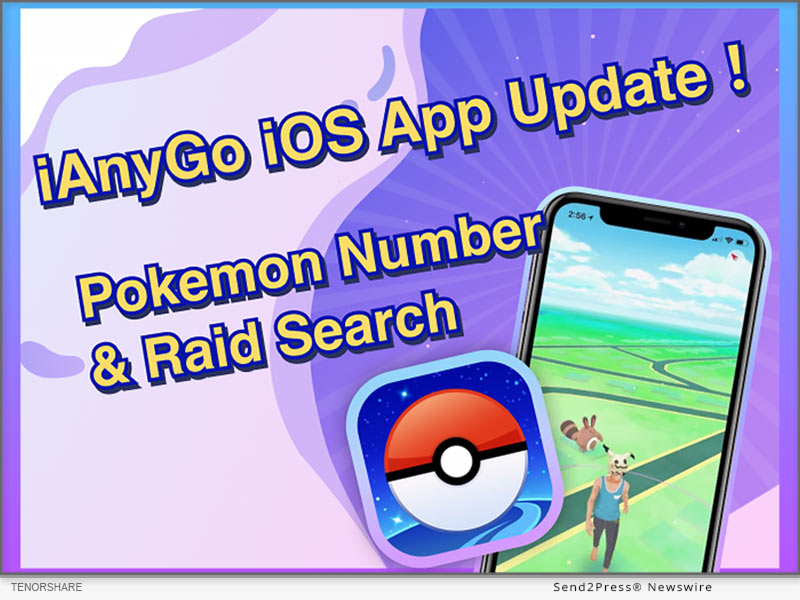
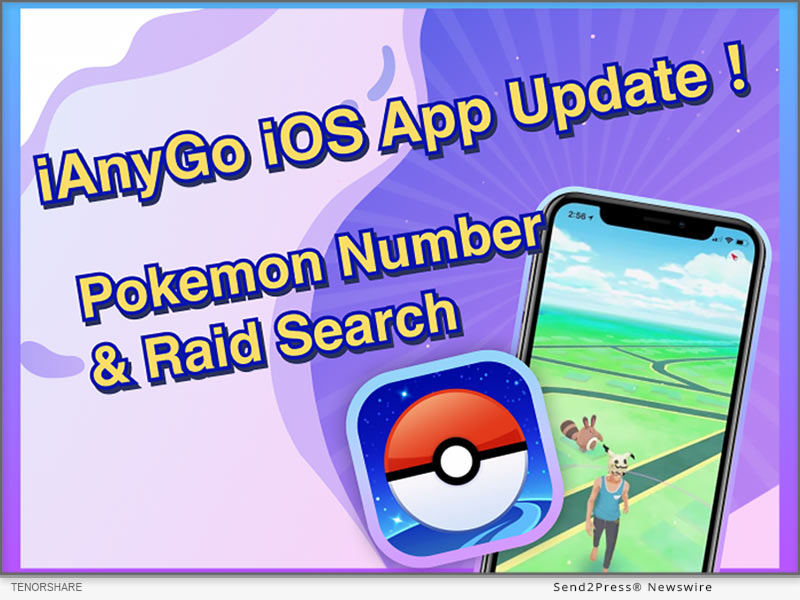
NEW YORK, N.Y. /ScoopCloud/ -- Tenorshare, a leading software solution provider, is delighted to unveil version 2.9.0 of their popular iAnyGo iOS App. This upgrade introduces key improvements that enhance user experiences. Now users can share routes and coordinates and follow others' favorites!

"With iAnyGo iOS App version 2.9.0, two major updates provide increased flexibility and community interaction. Now, the users can share favorite locations, follow other players' favorite spots, personalize profiles with custom avatars or nicknames, and join our Discord channel, where sharing routes or coordinates could win free licenses!" said Tenorshare's CEO, while introducing the new features.

WHAT'S NEW IN IANYGO 2.9.0?

* Support for Sharing Favorite Locations: Users now have an easier time sharing favorite spots with their fellow players in the Pokemon Go spoofing app - making collaboration and exploring new areas even simpler than before!

* Track Others' Favorite Locations: With this update, users can follow others' favorite spots more closely for an engaging, community-driven experience.

* Custom Avatar and Nickname Creation: Players can now personalize their iAnyGo profiles by setting custom avatars and nicknames - adding more of their personality into their gaming experience!

* Join Our Discord Server and Unlock Exclusive Rewards: join iAnyGo Discord community and share routes and coordinates. If your post gets more than 10 likes, you will get 3-day free license for iAnyGo!

HOW TO SPOOF POKEMON GO ON IPHONE

Using the iAnyGo iOS App is straightforward for newcomers. Follow these three easy steps.

Step 1: Download the iAnyGo iOS App. If you use the app for the first time, you need a computer to install the app. And you can reset the app's validity every seven days. The computer will no longer be needed.

Step 2: Launching the iAnyGo app, selecting "Change Location," inputting desired coordinates, and then using the joystick movement simulation feature allows users to explore various areas without physically moving around in the game world.

Step 3: Launch Pokemon Go on your device and locate your character within its new environment after downloading and installing it. Now, you can catch rare Pokemon, visit nearby PokeStops, and participate in raids without leaving home!

HOW TO SPOOF POKEMON GO ON ANDROID

The iAnyGo also supports Pokemon Go spoofing on Android devices. Here's how you can get started:

Step 1: Download and open the iAnyGo Android app from the Play Store.

Step 2: Use the map or search bar to select the location you want to teleport to, then tap the "change-location" icon to instantly change your GPS location.

About Tenorshare:

Tenorshare specializes in iOS, Android, Windows, and Mac platforms, focusing on core technology research. It is a highly-reputed and leading software provider with millions of users that use its tools and services related to data transfer, data recovery, system repair, unlocking phones, and many more.

More information: https://www.tenorshare.com/

Facebook: https://www.facebook.com/TenorshareOfficial/

X/Twitter: https://x.com/Tenorshare_Inc

YouTube: https://www.youtube.com/user/TenorshareOfficial/videos

TikTok: https://www.tiktok.com/@tenorshare_tech_tips

News from Tenorshare Co. Ltd.

Tenorshare, a leading software solution provider, is delighted to unveil version 2.9.0 of their popular iAnyGo iOS App. This upgrade introduces key improvements that enhance user experiences. Now users can share routes and coordinates and follow others' favorites!

Related link: https://www.tenorshare.com/

This version of news story was published on ScoopCloud™ (ScoopCloud.com) - part of and © the Neotrope® News Network - all rights reserved.

[No Computer] How to Easily Find PokéStops Near Me in Minutes

NEW YORK, N.Y. /ScoopCloud/ -- The iAnyGo iOS App 2.8.0 has been released, and Tenorshare, a top software provider, is excited to offer this news. One-click Pokémon capture and a PokéStop mode are just two of the exciting new features.

"After the release of the new features in the iAnyGo iOS App, Pokémon GO fans can easily find PokéStops near them in minutes. Whether you're wondering how to find PokéStops or seeking the best PokéStops near you, this feature has you covered, making your Pokémon GO adventures smoother and more enjoyable," said Tenorshare's CEO, while introducing the new features.

WHAT'S NEW IN IANYGO IOS APP 2.8.0?

Now that version 2.8.0 has been released, iAnyGo has extended the possibilities available to Pokémon GO gamers. Here is a closer look at the new features:

ONE-CLICK TO CAPTURE POKÉMON AND JOIN RAID BATTLES

One of the most anticipated updates in version 2.8.0 is the ability to capture Pokémon and join raid battles with just one click. This feature is specifically available to display Pokémon and raids on the Taiwan map. Gamers can now engage with Pokémon more efficiently and participate in battles, enhancing their overall gameplay experience.

POKÉSTOP MODE: FIND POKÉSTOPS NEAR ME IN MINUTES

Another significant addition is the new PokéStop mode, which allows players to easily find PokéStops near them in just a few minutes. This mode is perfect for gamers looking to locate PokéStops and quickly gather essential items and rewards.

SUPPORT FOR MODIFYING LOCATION ON IOS 18 BETA

The iAnyGo iOS App now supports modifying location on iOS 18 beta to keep up with the latest technology.

HOW TO INSTALL IANYGO IOS APP?

Installing the iAnyGo iOS App is simple. Here's a quick guide to get you started:

* Download and install iAnyGo iOS Assistant on your computer.

* Launch iAnyGo iOS Assistant and install the iAnyGo iOS App.

* Once the installation is done, open the iAnyGo iOS App and start exploring its features.

Learn more: https://www.tenorshare.com/products/ianygo-change-gps-location-iphone.html

HOW TO EASILY FIND POKÉSTOPS NEAR ME IN MINUTES?

Using the new PokéStop mode to find PokéStops near me is straightforward:

1. Open the iAnyGo iOS App and click the PokéStop mode.

2. Choose fast mode or full mode. Then a route will be generated. You can set your speed and start moving to collect items and rewards efficiently.

PRICING

iAnyGo iOS App is available at competitive prices:

* 1 Month/1 Device: $14.99

* 1 Quarter/1 Device: $39.99

* 1 Year/1 Device: $79.99

* Lifetime/1 Device: $99.99

For more information on purchasing the iAnyGo iOS App, please visit our purchase page - https://www.tenorshare.com/purchase/buy-ianygo-ios-app.html

About Tenorshare:

Tenorshare specializes in iOS, Android, Windows, and Mac platforms, focusing on core technology research. It is a highly-reputed and leading software provider with millions of users that use its tools and services related to data transfer, data recovery, system repair, unlocking phones, and many more.

More information: https://www.tenorshare.com/

Facebook: https://www.facebook.com/TenorshareOfficial/

X/Twitter: https://x.com/Tenorshare_Inc

YouTube: https://www.youtube.com/user/TenorshareOfficial/videos

TikTok: https://www.tiktok.com/@tenorshare_tech_tips

News from Tenorshare Co. Ltd.

The iAnyGo iOS App 2.8.0 has been released, and Tenorshare, a top software provider, is excited to offer this news. One-click Pokémon capture and a PokéStop mode are just two of the exciting new features. Now that version 2.8.0 has been released, iAnyGo has extended the possibilities available to Pokémon GO gamers.

Related link: https://www.tenorshare.com/

This version of news story was published on ScoopCloud™ (ScoopCloud.com) - part of and © the Neotrope® News Network - all rights reserved.

Fix Support Apple Com/iPhone/Restore in 5 Minutes – iOS 18 Supported

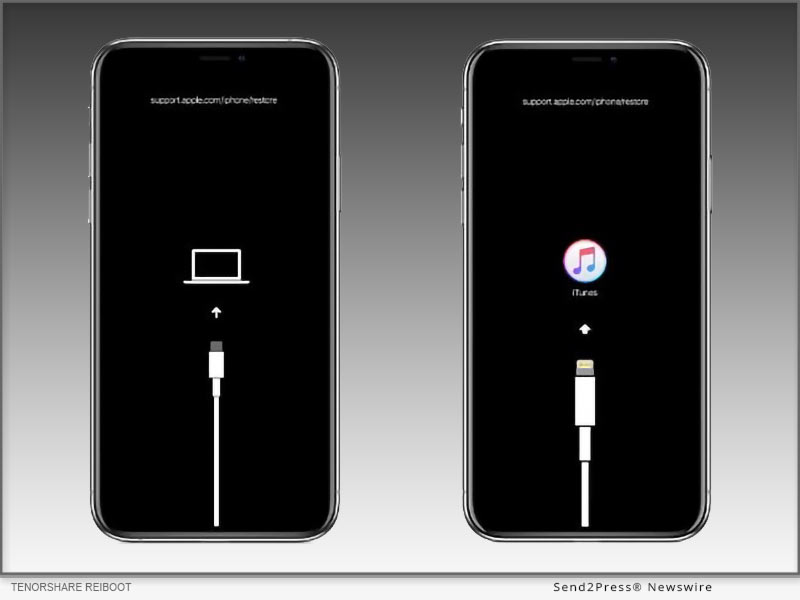
NEW YORK, N.Y. /ScoopCloud/ -- If a "support.apple.com/iphone/restore" message pops up on your iPhone, you'll need to restore your device using a computer. While restarting or doing a hard reset, sometimes, might fix this issue, they don't guarantee success if problem is complex. So, you're left with no alternative except to restore your iOS via iTunes, which can lead to data loss. "However, an iOS repair and management tool like Tenorshare ReiBoot provides a safe and effective way to fix an iPhone stuck on 'support.apple.com/iphone/restore' screen in less time than any other method. Besides, it can do this without data loss, and manual steps," says a Tenorshare spokesperson.

VIDEO (YouTube): https://www.youtube.com/watch?v=SfnIbJBCvhU&t=6s

Why Does My iPhone Say Support.Apple.Com/iPhone/Restore?

If you're speculating about "Why does my iPhone say support.apple.com/iphone/restore," it's because it's in Recovery Mode due to software issues. But the real problem arises when your iPhone gets stuck in Recovery Mode. This can happen because of failed updates, software bugs, a failed iOS upgrade/ downgrade, improper actions like attempting to jailbreak, or, rarely, hardware damage.

How to Fix Support.Apple.Com/iPhone/Restore in 5 Minutes?

ReiBoot iOS Repair tool is a professional tool for repairing iOS issues including your iPhone stuck on "support.apple.com/iphone/restore" screen in 5 minutes. It can fix 150+ iOS issues without jailbreak, iTunes, and data loss.

Here are this tool's main functionalities:

* Repair System Issues - Fix a wide range of iOS problems like being stuck on Apple logo or black screen, or unresponsive or frozen iOS devices without losing data.

* Safe Downgrade/Upgrade - It doesn't require jailbreak or iTunes to upgrade or downgrade iOS.

* Easy Recovery Mode Management - You can enter and exit Recovery Mode with one click.

* iOS 18 Beta Support - It supports all current iOS versions including iOS 17 and iOS 18 Beta.

* Device Reset - Reset iOS devices without a passcode, iTunes, or Finder.

* Data Erasure - Wipes data permanently before selling or gifting your iOS device.

* Fix Errors - Resolve common iTunes errors like 4013 and 1110 easily.

To repair your iPhone stuck on 'support.apple.com/iphone/restore" screen with assistance of Tenorshare Reiboot, follow instructions below:

Step 1: Launch ReiBoot on your computer and connect your iPhone to same PC. Hit "Start Repair."

Step 2: Pick "Standard Repair." Next, press "Download" to get latest firmware package.

Step 3: Then, choose "Standard Repair" again and allow ReiBoot to fix your iPhone stuck on Apple restore screen. Afterward, it will reboot normally.

Learn more: https://www.tenorshare.com/products/reiboot.html

About Tenorshare:

When your iPhone gets stuck on "support.apple.com/iphone/restore" screen this is often because of software issues and fixing them might result in data loss. However, Tenorshare ReiBoot offers a quick solution to repair this problem without jailbreak and data loss in just 5 minutes. Trusted by 142+ million users, Tenorshare, an innovative smartphone solutions provider focuses on safety and quality of its solutions for an improved user experience.

Learn more: https://www.tenorshare.com/

News from Tenorshare Co. Ltd.

If a "support.apple.com/iphone/restore" message pops up on your iPhone, you'll need to restore your device using a computer. "However, an iOS repair and management tool like Tenorshare ReiBoot provides a safe and effective way to fix an iPhone stuck on 'support.apple.com/iphone/restore' screen in less time than any other method. Besides, it can do this without data loss, and manual steps," says a Tenorshare spokesperson.

Related link: https://www.tenorshare.com/

This version of news story was published on ScoopCloud™ (ScoopCloud.com) - part of and © the Neotrope® News Network - all rights reserved.
[NEW] The 2024 Best Pokémon GO Spoofer for iPhone and Android | Tenorshare iAnyGo

NEW YORK, N.Y. /ScoopCloud/ -- Tenorshare is excited to announce the launch of the 2024 edition of iAnyGo, acclaimed as the best Pokémon GO spoofer for both iPhone and Android users. This latest update ensures that iAnyGo remains at the forefront of location spoofing technology, providing users with a safe, reliable, and effective app for enjoying Pokémon GO without geographical limitations. So, if you're looking for a Pokémon GO spoofer, here it is!

According to a Tenorshare spokesperson, "iAnyGo continues to be the safest and most dependable Pokémon GO spoofer available, offering a 100% success rate for all users."

This highlighted the tool's cutting-edge features, which set it apart from competitors in the market. With its user-friendly interface and strong security measures, iAnyGo ensures that users can enjoy their Pokémon GO experience without any risk of bans or technical issues. The positive feedback from users reinforces iAnyGo's position as the leading choice for location spoofing.

FULL GUIDE TO SPOOF IN POKÉMON GO WITH TENORSHARE IANYGO

iAnyGo's new features are designed to improve user experience and ensure smooth gameplay. The Pokémon GO spoofer allows users to change their location effortlessly, making it easier to catch region-specific Pokémon, access gyms, and participate in events that would otherwise be out of reach.

Tenorshare has provided a comprehensive guide to help users get started with iAnyGo. This step-by-step guide guarantees that even those new to spoofing can easily manage the process. Just look at how you can work this Pokémon GO spoofer free.

Step-by-Step Guide:

1. Download and install iAnyGo on your device.

2. Open the application and connect your device.

3. Choose your desired location on the map.

4. Confirm the location change and start playing Pokémon GO with your new coordinates.

Key features include:

1. Navigation and Straight Modes for realistic or precise movements.

2. Speed Justify to mimic natural movement and avoid bans.

3. History Collection for quick access to past locations.

4. Keyboard Control Direction for enhanced gaming control.

Try the infinite trial for 60 minutes for Pokemon Go spoofer iOS, Mac and Windows. Perfect for exploring iAnyGo's capabilities and improving your experience by being the best Pokémon GO spoofer.

For a visual demonstration, watch the tutorial video here - https://www.youtube.com/watch?v=Coc0a7szWds

Enjoy Tenorshare iAnyGo Spoofer 20% Off!

To celebrate the launch, Tenorshare iAnyGo is offering a special promotion. With the code TSWOW20OFF, users can enjoy a 20% discount on iAnyGo. Visit the official Tenorshare website to take advantage of this limited-time offer.

Learn more: https://www.tenorshare.com/products/ianygo-change-gps-location-iphone.html

About Tenorshare:

Tenorshare iAnyGo is a leading software provider dedicated to developing high-quality utility software. Focusing on data recovery, system repair, and iOS/Android solutions, Tenorshare continues to deliver innovative products that simplify and enhance digital life for users worldwide.

For more information about Tenorshare and their range of products, visit: https://www.tenorshare.com/

Stay connected with Tenorshare on social media for more Pokémon GO spoofer news:

Facebook: Tenorshare Official - https://www.facebook.com/TenorshareOfficial/

X/Twitter: @Tenorshare_Inc - https://x.com/Tenorshare_Inc

YouTube: Tenorshare Official YouTube Channel - https://www.youtube.com/user/TenorshareOfficial/videos

News from Tenorshare Co. Ltd.

Tenorshare is excited to announce the launch of the 2024 edition of iAnyGo, acclaimed as the best Pokémon GO spoofer for both iPhone and Android users. This latest update ensures that iAnyGo remains at the forefront of location spoofing technology, providing users with a safe, reliable, and effective app for enjoying Pokémon GO without geographical limitations. So, if you're looking for a Pokémon GO spoofer, here it is!

Related link: https://www.tenorshare.com/

This version of news story was published on ScoopCloud™ (ScoopCloud.com) - part of and © the Neotrope® News Network - all rights reserved.
[Updated!] Pokemon GO Failed to Detect Location 12 Fixed by using Tenorshare iAnyGo

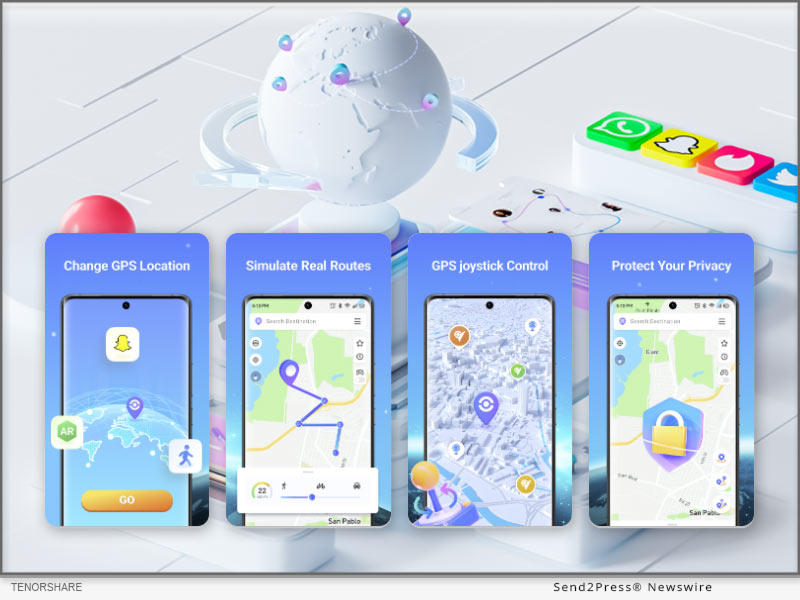
NEW YORK, N.Y. /ScoopCloud/ -- Early on June 7, Pokemon GO released an update to version 315.2, which led to widespread location detection issues, notably Error 12. Many users encountered a 'failed to detect location 12 Pokemon GO' error when attempting to spoof their location. The good news is that the iAnyGo team at Tenorshare has actively developed a solution that effectively resolves this problem!

"iAnyGo and PoGoSkill were the first to fix failed to detect location 12. We made 4 Betas in a week. The newest one, Beta 4, works perfectly for changing locations in the game, and no one has been banned from using it," says a Tenorshare spokesperson.

EASY TUTORIAL: FIX FAILED TO DETECT LOCATION 12 BY USING TENORSHARE IANYGO + POGO WIZARD

You're also the one facing the "failed to detect location 12 Pokémon GO" error when trying to change your location. Fortunately, the iAnyGo team has found a solution. Tenorshare iAnyGo, combined with PoGo Wizard, can bypass location monitoring and spoof your location on iOS and Android devices without the need for jailbreaking or rooting.

First, the necessary tools are:

* Tenorshare iAnyGo

* PoGo Wizard

Let's see How iAnyGo and PoGo Wizard work together to fix the failed to detect location 12 error

Step 1: On your computer, download and install iAnyGo.

Step 2: Install PoGo Wizard on your PC - Log in using your Apple ID (you can use a different ID if you don't want to use the one that's currently associated with your device) - After selecting "Install PoGo," your device will install Pokemon GO (beta 1). Hold off until the installation is finished.

Step 3: Next, sign in to your device's cracked copy of Pokémon. Launch iAnyGo on your PC. Now that problem 12 has been resolved, you can properly switch the Pokémon GO location.

Video Tutorial:https://www.youtube.com/watch?v=aFaYZ3GeVqA

Get started at: https://www.tenorshare.com/products/ianygo-change-gps-location-iphone.html

Part 3: What is PoGo Wizard?

PoGo Wizard has evolved into a more stable tool after several updates. With the release of PoGo Wizard Beta 4 on June 21, users can enjoy a secure and reliable location spoofing experience without the risk of account bans. They are making PoGo Wizard better and more stable with future updates to fix failed to detect location 12.

About Tenorshare:

Tenorshare is a trusted provider of iOS and Android software solutions. They are dedicated to creating new and improved software that makes its customers around the world happy. They focus on making sure their products are top-notch and keep up with what their users need. They help fix issues like ianygo failed to detect location 12. With Tenorshare iAnyGo, iOS users can easily change their GPS location. This means gamers can now enjoy Pokemon Go without the annoying location error.

More information: https://www.tenorshare.com/

Facebook: https://www.facebook.com/TenorshareOfficial/

X/Twitter: https://x.com/Tenorshare_Inc

YouTube: https://www.youtube.com/user/TenorshareOfficial/videos

News from Tenorshare Co. Ltd.

arly on June 7, Pokemon GO released an update to version 315.2, which led to widespread location detection issues, notably Error 12. Many users encountered a 'failed to detect location 12 Pokemon GO' error when attempting to spoof their location. The good news is that the iAnyGo team at Tenorshare has actively developed a solution that effectively resolves this problem!

Related link: https://www.tenorshare.com/

This version of news story was published on ScoopCloud™ (ScoopCloud.com) - part of and © the Neotrope® News Network - all rights reserved.
How to Unlock a Disabled iPhone without iTunes? Easy Tips from Tenorshare

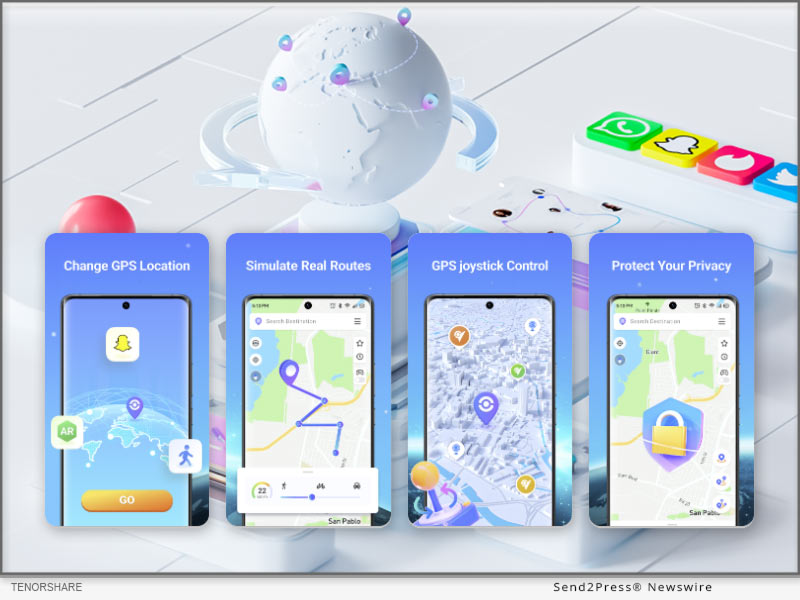
NEW YORK, N.Y. /ScoopCloud/ -- "An iPhone becomes disabled when the wrong passcode is entered multiple times in a row," explains Tenorshare. "This security feature helps protect your data, but it can also lock you out of your own device." In this guide we will provide a comprehensive how-to on how to unlock a disabled iPhone without using iTunes or iCloud.

This is crucial for users who forget their passcode, have children who enter the wrong code repeatedly, inherit a locked device, etc.

How to Unlock a Disabled iPhone without iTunes or Wi-Fi?

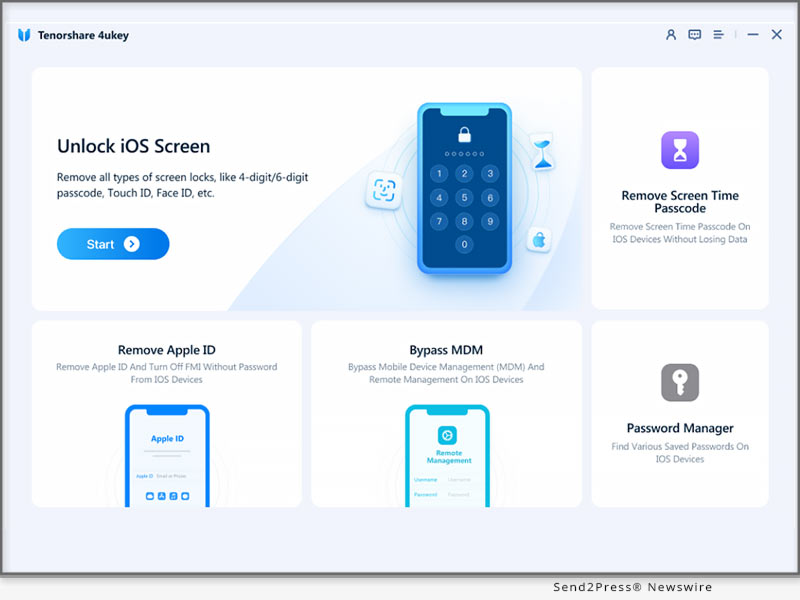
If you don't have access to the internet, you can unlock a disabled iPhone without Wi-Fi via Tenorshare 4uKey.

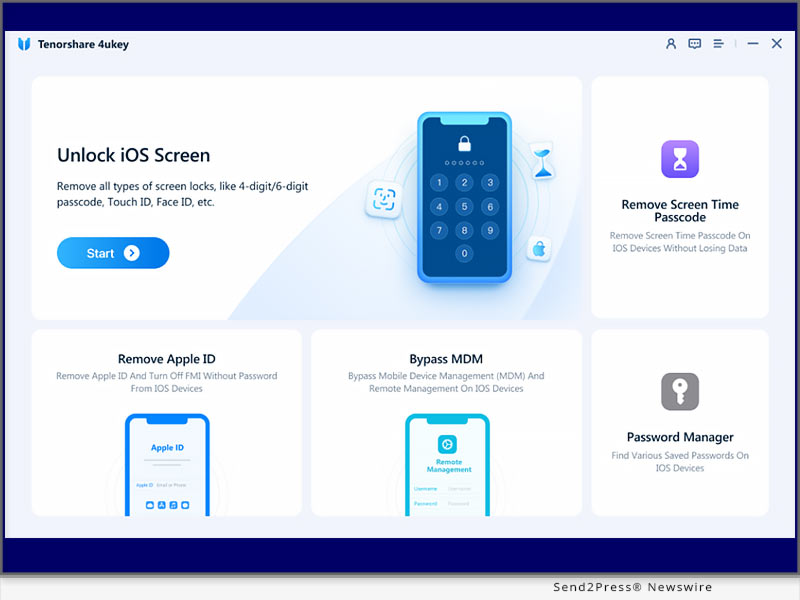
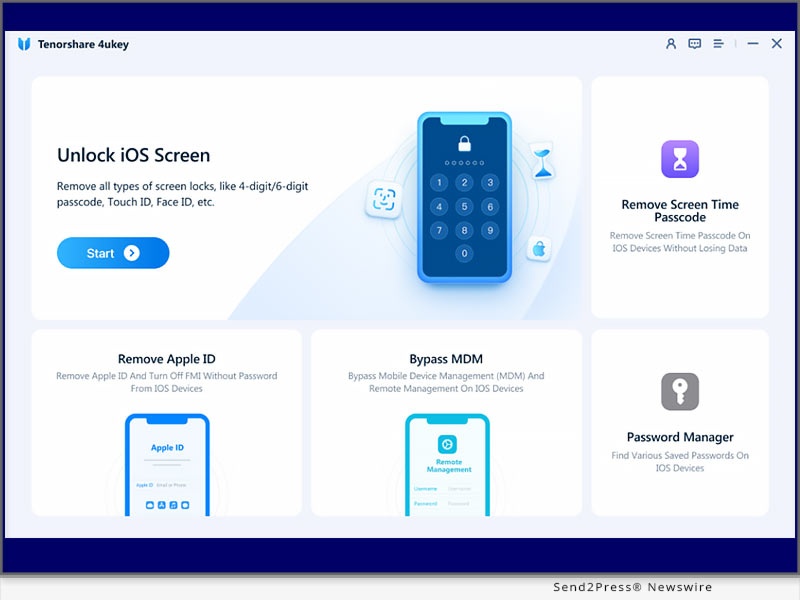
It is an iOS unlocker tool that helps you bypass screen locks, Apple IDs, MDM locks, and iCloud Activation locks.

Features of Tenorshare 4uKey

* Unlocks All Types of Screen Locks: Whether you have a passcode, face ID, or fingerprint ID, 4uKey can unlock all.

* 100% Success Rate: It unlocks your device with guaranteed success. Typically faster than iCloud's erase.

* No Experience Required: You can unlock your device with no prior experience.

* Wide Compatibility: 4uKey works on all iPhone models.

Here are the steps on how to unlock iPhone is disabled without iTunes via 4uKey:

* Download and launch 4uKey.Connect your iPhone to your PC.

* Click "Start" in the "Unlock iOS Screen" tab, after which 4uKey will download the required firmware.

* Click "Start to Remove" to unlock disabled iPhone without restoring it.

How to Unlock a Disabled iPhone Without iTunes or Computer?

Another way to reset passcode on iPhone without iTunes is via iCloud. For this, you need to use another iPhone or iPad to sign into iCloud and erase your device remotely.

However, this method erases all data and settings from your device. To mitigate this, ensure you have backed up your data before proceeding.

Here is how to unlock disabled iPhone without iTunes free via iCloud:

* Use another device to log in to iCloud using your Apple ID and password.

* Click "Find iPhone," and when your disabled iPhone shows up, click "Erase Device."

How to Unlock a Disabled iPhone without iTunes or iCloud or Computer?

If you don't have access to iTunes, iCloud, or a PC, you can use the "Erase iPhone" option directly on your device, provided you remember your Apple ID and password.

This method will reset your device to factory settings, erasing all data, and allows for immediate reset without needing another device.

* On your disabled iPhone, tap "Erase iPhone" at bottom of the screen.

* Enter your Apple ID and password to confirm selection.

About Tenorshare:

Tenorshare is a tech company that offers tools for addressing all issues related to iOS, Android, Windows, and Mac devices.

If your iPhone is disabled, and you're wondering how to unlock a disabled iPhone without iTunes, Tenorshare 4uKey is here to help.

YouTube: https://www.youtube.com/@TenorshareOfficial

Facebook: https://www.facebook.com/TenorshareOfficial/

News from Tenorshare Co. Ltd.

"An iPhone becomes disabled when the wrong passcode is entered multiple times in a row," explains Tenorshare. "This security feature helps protect your data, but it can also lock you out of your own device." In this guide we will provide comprehensive tips on how to unlock a disabled iPhone without using iTunes or iCloud.

Related link: https://www.tenorshare.com/

This version of news story was published on ScoopCloud™ (ScoopCloud.com) - part of and © the Neotrope® News Network - all rights reserved.

4DDiG Video Enhancer Release: AI Enhance, Upscale, Sharpen Video All in One Place

NEW YORK, N.Y. /ScoopCloud/ -- Tenorshare 4DDiG is excited to announce its latest AI-powered video enhancer tool that will enhance, upscale as well as sharpen videos, all in one place. Harnessing the features of the user-friendly software, convert your videos into professional-looking exceptional pieces in no time.

4DDiG Video Enhancer is different from all others in the market. It is a top-notch multi-tasker - AI video Enhancer, AI Video Upscaler, AI Video Sharpener, AI video Restorer, and AI Video Colorizer.

What Can 4DDiG Video Enhancer Do For You

4DDiG Video Enhancer can assist in enhancing your video quality under 3AI models: General Model, Anime Mode, and Face Model.

General Model: Under this model, the overall quality of videos like animal, landscape, events, travel, and others can be improved. The model works to reduce the noise and improve the overall clarity.

Face Model: This model is apt for videos having faces like interviews, vlogs, and similar others. The facial details, skin texture, and others are taken care of to make videos clearer and more detailed.

Anime Model: This model especially works for videos featuring anime and cartoon characters. Under this model, the anime looks bright, smooth, and vibrant by enhancing colors and sharpening lines.

Using the 4DDiG Video Enhancer the videos are automatically enhanced based on the model selected. The software allows you to choose the resolution of the output file and also select if you want to improve based on Quality First or Speed First. Multiple videos can be selected and enhanced at the same time. There is also an option for auto-saving the enhanced files. Before you save the processed files, you can also preview the changes and compare them with the original ones.

Why Choose 4DDiG Video Enhancer?

There are several reasons to choose 4DDiG Video Enhancer over other available similar tools in the market.

* The software works seamlessly on all your popular and latest Windows and Mac systems.

* The interface is user-friendly and self-explanatory.

* Batch processing supported

* Pocket friendly pricing available in monthly, yearly, and lifetime license plans.

About 4DdiG:

Tenorshare 4DDiG is among the top and the best-rated companies when it comes to file repair and enhancement tools. Working relentlessly in the field for years, the company believes in studying and coming out with the most innovative and latest technologies that offer the best to its customers. Meeting your demands with better experiences is the agenda of 4DDiG. The company is trusted by its loyal users and has received accolades from trusted and popular media across the globe including big names like MakeUseOf, AppleInsider, Pocketlint, and more.

For more information, visit: https://4ddig.tenorshare.com/video-enhancer.html

Follow on Social:

Official Website: https://4ddig.tenorshare.com/

Facebook: https://www.facebook.com/4DDiG/

X/Twitter: https://x.com/Tenorshare4DDiG

YouTube: https://www.youtube.com/@Tenorshare4DDiGDataRecovery/featured

News from Tenorshare Co. Ltd.

Tenorshare 4DDiG is excited to announce its latest AI-powered video enhancer tool that will enhance, upscale as well as sharpen videos, all in one place. Harnessing the features of the user-friendly software, convert your videos into professional-looking exceptional pieces in no time.

Related link: https://www.tenorshare.com/

This version of news story was published on ScoopCloud™ (ScoopCloud.com) - part of and © the Neotrope® News Network - all rights reserved.

iPhone is Disabled Connect to iTunes Error – How to Unlock? Here is the Fix!

NEW YORK, N.Y. /ScoopCloud/ -- "If you get the 'iPhone is disabled connect to iTunes' message, it indicates that your device has been locked for security reasons," says Tenorshare. But don't worry, there are several ways to resolve this issue. In this guide, we have discussed 3 ways to do so.

Why My iPhone Says Disabled Connect to iTunes?

Before diving into the solutions, it's important to understand why this issue occurs.

When you see the "iPhone deactivated connect to iTunes" message, it is usually when you enter the incorrect passcode too many times on your iPhone. This Apple security feature helps prevent unauthorized access to device.

iPhone is Disabled Connect to iTunes How to Unlock in Seconds?

If you're looking for a safe and reliable iPhone disabled connect to iTunes fix, we recommend using a third-party iOS unlocker tool, Tenorshare 4uKey. It unlocks iPhone/iPad screen locks, and bypasses Apple IDs and MDM locks.

Key features of Tenorshare 4uKey:

* Unlocks Screen Locks: It is great for unlocking iPhone passcodes, face IDs, and fingerprint IDs.

* Easy Steps with Guaranteed Success: You can unlock your iPhone with a 100% success rate in just a few steps.

* No Technical Skills Required: You can use it without any experience or tech skills.

* Compatibility: It is compatible with all iPhone models and iOS versions.

iPhone is Disabled Connect to iTunes How to Unlock with Tenorshare 4uKey:

* Launch 4uKey and click the "Start" button in "Unlock iOS Screen" tab.

* Connect iPhone to the PC, then the tool will download required firmware.

* Click "Start to Remove" to remove the lock screen. And you will resolve the "iPhone locked connect to iTunes" issue

How to Fix iPhone is Disabled Connect to iTunes without Losing Data?

Another way for iPhone is disabled how to unlock it quickly is to use iTunes backup. This method only works if you have a recent backup of your device.

Here's how it works:

* Connect your iPhone to your PC and launch iTunes.

* You will see a message saying "Update" or "Restore" your iPhone.

* Click on "Restore" to restore the last working backup.

How to Fix iPhone is Disabled Connect to iTunes without Computer?

If you're wondering why my iPhone is disabled and won't connect to iTunes, you can fix the issue without a PC, using iCloud. However, this may erase all data from your device and requires stable internet connection.

Here's how:

* When your iPhone says disabled connect to iTunes, use another device to log in to iCloud using your Apple ID and password.

* Click "Find iPhone," and when your locked device shows up, click "Erase Device."

Learn more: https://www.tenorshare.com/products/4ukey-unlocker.html

About Tenorshare

Tenorshare offers data recovery and system repair software for iPhones, Androids, Windows, and Macs. If you're facing the iPhone disabled connect to iTunes not working issue, 4uKey can help you unlock it.

Learn more: https://www.tenorshare.com/iphone-tips/fix-iphone-is-disabled-connect-to-itunes.html

YouTube: https://www.youtube.com/@TenorshareOfficial

Facebook: https://www.facebook.com/TenorshareOfficial/

News from Tenorshare Co. Ltd.

"If you get the 'iPhone is disabled connect to iTunes' message, it indicates that your device has been locked for security reasons," says Tenorshare. But don't worry, there are several ways to resolve this issue. In this guide, we have discussed 3 ways to do so. If you're looking for a safe and reliable iPhone disabled connect to iTunes fix, we recommend using a third-party iOS unlocker tool, Tenorshare 4uKey.

Related link: https://www.tenorshare.com/

This version of news story was published on ScoopCloud™ (ScoopCloud.com) - part of and © the Neotrope® News Network - all rights reserved.
Best Way to Hatch Eggs without Moving or Walking at Pokemon GO Fest 2024

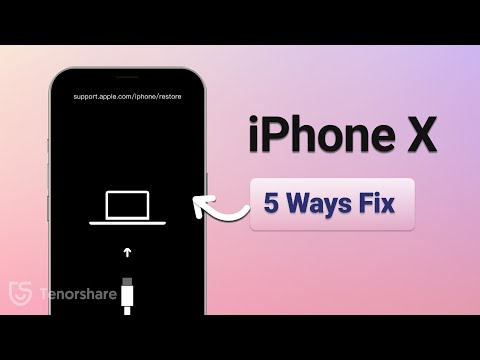
NEW YORK, N.Y. /ScoopCloud/ -- Tenorshare has released a new version of its iAnyGo iOS App just in time to capture the Pokemon GO Fest 2024 event. The new version, 2.7.0, enable players auto walk, so they can effortlessly hatch eggs without walking or moving at Pokemon GO Fest 2024.

"After the release of the new features in the iAnyGo iOS App, Pokemon GO fans can easily hatch eggs in Pokemon GO without walking. Users can play Pokemon Go Fest 2024 without physically moving. And no computer is required," said Tenorshare's CEO, while introducing the new features.

What's New in iAnyGo iOS App 2.7.0?

The iAnyGo iOS App has received significant updates, making it an indispensable tool for Pokemon GO enthusiasts. The new features include:

1. Installation Made Easier: First-time users must install the iAnyGo iOS Assistant on their computer and use it to install the iAnyGo iOS App. After installation, users can log in using their Apple ID to reset the app's validity for seven days. This step is only required once, and the iAnyGo iOS Assistant or computer will not be needed again.

2. Returns or Loops Movement: This feature allows gamers to enable auto walk, so they can effortlessly hatch eggs in Pokemon GO without physically walking. With Returns Movement, players can create a path for their avatar to follow repeatedly, simulating walking without manual effort.

How to Hatch Eggs without Walking or Moving at Pokemon GO Fest 2024

Users can play Pokemon Go Fest 2024 without computer, just use these iAnyGo iOS App features during Pokemon GO Fest 2024:

1. Change Location: Use the change location feature to virtually travel to Pokemon GO Fest 2024 and catch Pokemon without being there physically.

2. Single or Multi-Point Movement: Employ the Returns Movement feature for single or multi-point paths, allowing your avatar to move continuously in a loop.

3. Loop Movement: Create a loop movement path to hatch special 7 km eggs efficiently, saving time and effort while still achieving your goals at Pokemon GO Fest 2024.

For a complete guide on using these features, visit the user guide - https://www.tenorshare.com/ianygo-ios-app-users-guide.html

Pricing

iAnyGo iOS App is available at competitive prices:

* 1 Month/1 Device: $14.99

* 1 Quarter/1 Device: $39.99

* 1 Year/1 Device: $79.99

* Lifetime/1 Device: $99.99

For more information on purchasing the iAnyGo iOS App, please visit our purchase page - https://www.tenorshare.com/purchase/buy-ianygo-ios-app.html

About Tenorshare

Tenorshare specializes in iOS, Android, Windows, and Mac platforms, focusing on core technology research. It is a highly-reputed and leading software provider with millions of users that use its tools and services related to data transfer, data recovery, system repair, unlocking phones, and many more.

More information: https://www.tenorshare.com/

Facebook: https://www.facebook.com/TenorshareOfficial/

X/Twitter: https://twitter.com/Tenorshare_Inc

YouTube: https://www.youtube.com/user/TenorshareOfficial/videos

TikTok: https://www.tiktok.com/@tenorshare_tech_tips

News from Tenorshare Co. Ltd.

Tenorshare has released a new version of its iAnyGo iOS App just in time to capture the Pokemon GO Fest 2024 event. The new version, 2.7.0, enable players auto walk, so they can effortlessly hatch eggs without walking or moving at Pokemon GO Fest 2024.

Related link: https://www.tenorshare.com/

This version of news story was published on ScoopCloud™ (ScoopCloud.com) - part of and © the Neotrope® News Network - all rights reserved.
[Fixed!] Failed to Detect Location 12 on Pokémon GO While Spoofing GPS

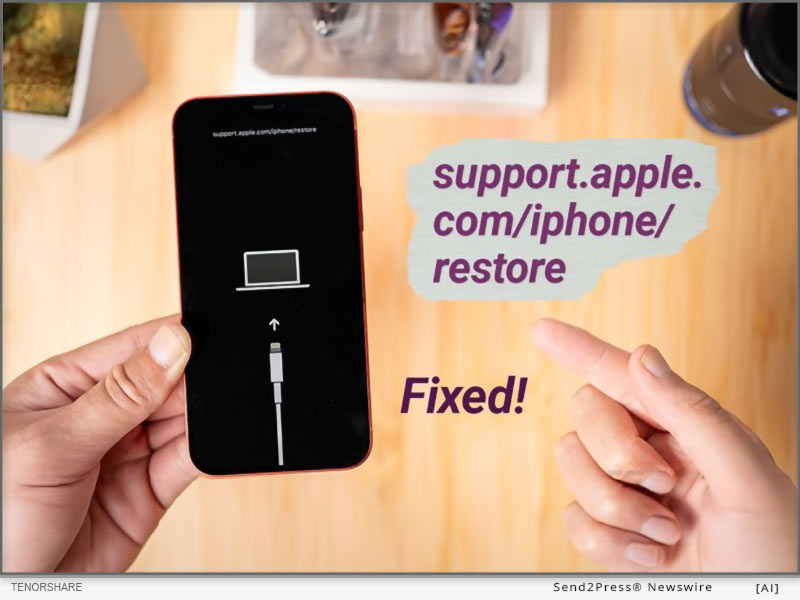
NEW YORK, N.Y. /ScoopCloud/ -- On June 7, Pokémon GO updated to version 315.2, likely adding advanced location monitoring that disrupts current location spoofing tools. Many gamers now see a "failed to detect location 12 Pokémon GO" error when trying to change their location. However, iAnyGo team has finally found a resolution for this error. Tenorshare iAnyGo used in conjunction with PoGo Wizard can now bypass location monitoring to spoof location on iOS and Android devices without jailbreaking/rooting.

But how does iAnyGo and PoGo Wizard work to fix "failed to detect location 12" error. Let's find out!

PART 1: IANYGO AND POGO WIZARD PARTNERSHIP PLEDGES TO SOLVE POKÉMON GO LOCATION SPOOFING ERRORS

The combo of Tenorshare iAnyGo and PoGo Wizard now allows you to fix "failed to detect location 12" error for a smooth Pokémon GO gameplay. PoGo Wizard used to have instability issues, causing some Pokémon GO accounts to be locked.

After four improvements, the latest version, PoGo Wizard Beta 4, released on June 21, is much more stable with no reported account bans.

"We're concerned about your account safety and this is currently the most stable and safe solution available in the market," says a Tenorshare spokesperson.

PART 2: FULL GUIDE: FIX FAILED TO DETECT LOCATION 12 BY USING TENORSHARE IANYGO + POGO WIZARD

For iAnyGo to fix "failed to detect location 12" error, you'll need to download it as well as PoGo Wizard on your computer, then follow instructions below:

Step 1: Install iAnyGo on your computer. Then, join PoGo Club Discord group to get PoGo Wizard for free and install it as well.

Step 2: Next, log in with a secondary Apple ID or Google account, and click "Install PoGo" to install Pokemon GO (beta 4) on your device.

Step 3: Next, log in to cracked version of Pokémon GO, open iAnyGo, and change location. You will be able to fix "Pokémon GO error 12" successfully.

Check out full guide to fix "failed to detect location 12 Pokémon GO" error with Tenorshare iAnyGo:

(VIDEO): https://www.youtube.com/watch?v=Coc0a7szWds

Learn more at: https://www.tenorshare.com/products/ianygo-change-gps-location-iphone.html

PART 3: ENJOY TENORSHARE IANYGO GO FEST 2024 GIVEAWAY

You can now fix "failed to detect location 12" error with iAnyGo at a far lower cost than before. Tenorshare has introduced a "Pokémon GO Fest 2024 Giveaway" with discounts for you and your team and deals like buy one, get three free. You also get exclusive chances to win tickets, and learn top tricks and tips for catching more Pokémon. Learn more at: https://www.tenorshare.com/pokemon-go-fest-giveaway.html

About Tenorshare:

The "failed to detect location 12 Pokémon GO" error is the major woe for gamers wishing to play Pokémon GO from comfort of their home. However, Tenorshare iAnyGo and PoGo Wizard offers a lethal solution to fix this error, preventing account ban. With 85,482,249 satisfied customers worldwide, Tenorshare has long established itself as a leading provider of smartphone solutions to address user problems effectively.

More information: https://www.tenorshare.com/

Facebook: https://www.facebook.com/TenorshareOfficial/

X/Twitter: https://twitter.com/Tenorshare_Inc

YouTube: https://www.youtube.com/user/TenorshareOfficial/videos

News from Tenorshare Co. Ltd.

On June 7, Pokémon GO updated to version 315.2, likely adding advanced location monitoring that disrupts current location spoofing tools. Many gamers now see a "failed to detect location 12 Pokémon GO" error when trying to change their location. Tenorshare iAnyGo used in conjunction with PoGo Wizard can now bypass location monitoring to spoof location on iOS and Android devices without jailbreaking/rooting.

Related link: https://www.tenorshare.com/

This version of news story was published on ScoopCloud™ (ScoopCloud.com) - part of and © the Neotrope® News Network - all rights reserved.

How to Record Phone Calls on iPhone in 2024? – iCarefone Recorder iOS APP

NEW YORK, N.Y. /ScoopCloud/ -- Tenorshare, a renowned leader in software solutions, proudly announces the launch of iCareFone Recorder: Call Record, a groundbreaking iOS app designed to transform how users record and manage phone calls. Available in multiple languages, iCareFone Recorder is poised to become an indispensable tool for professionals and everyday users alike.

iCareFone Recorder: Call Record stands out by offering a discreet and seamless call recording experience, enabling users to record both incoming and outgoing calls without notifying the other party. This feature is invaluable for journalists, legal professionals, customer service agents, and anyone needing to maintain precise records of their conversations.

Key Features:

* Versatile Recording Options: The app supports recording incoming and outgoing calls, making it a versatile tool for various scenarios.

* Voice Recording: Record audio with clarity and ease.

* Customizable Labels: To enhance organization, the iCareFone Recorder App incorporates the ability to create and assign custom labels to recordings. This feature simplifies file management, making it easy to categorize and locate specific recordings as needed.

* Multi-Language Support: Catering to a global audience, iCareFone Recorder App is available in multiple languages, ensuring accessibility for users worldwide.

Unlock all premium features with a 3-day free trial. Experience enhanced functionality and exclusive content - all at no cost. Tap here to start your free trial now: iCareFone Recorder: Call Record - https://apps.apple.com/us/app/icarefone-recorder-call-record/id6502814868?mt=8

In short, iCareFone Recorder: Call Record is set to redefine how users manage their call recordings and audio files, combining simplicity with powerful functionality.

OTHER POPULAR APPS IN TENORSHARE

Tenorshare iCareFone iOS App

Tenorshare iCareFone: Phone Transfer&Clean can transfer data between iPhone and PC wirelessly. And smart cleaning, one-tap quick scan of your phone to help quickly clean up your iPhone.

Tenorshare iAnyGo App

Tenorshare iAnyGo App is a free virtual location changer for iOS and Android. It can change the GPS location anywhere without jailbreak/root and provides the GPS joystick to control the direction of movement in games.

Tenorshare UltData Android App

Tenorshare UltData Android App is an Android data recovery app that can recover deleted photos, videos, documents, audio, and WhatsApp files from internal and SD card storage. It can conduct deep scans and then provide preview-based data recovery.

Tenorshare iCareFone for LINE App

Tenorshare iCareFone for LINE App can transfer LINE between Android and iPhone using a USB-C to lightning cable. It can transfer text, photos, documents, audio, and more with high speed and data security.

About Tenorshare:

Tenorshare is a leading software development company specializing in data recovery, system repair, and mobile solutions. With a commitment to innovation and user satisfaction, Tenorshare delivers high-quality software products designed to meet the evolving needs of its global customer base.

More information: https://www.tenorshare.com/

Facebook: https://www.facebook.com/TenorshareOfficial/

X/Twitter: https://twitter.com/Tenorshare_Inc

YouTube: https://www.youtube.com/user/TenorshareOfficial/videos

News from Tenorshare Co. Ltd.

Tenorshare, a renowned leader in software solutions, proudly announces the launch of iCareFone Recorder: Call Record, a groundbreaking iOS app designed to transform how users record and manage phone calls. Available in multiple languages, iCareFone Recorder is poised to become an indispensable tool for professionals and everyday users alike.

Related link: https://www.tenorshare.com/

This version of news story was published on ScoopCloud™ (ScoopCloud.com) - part of and © the Neotrope® News Network - all rights reserved.
How to Download and Install the iOS 18 Beta for Free in 2024

NEW YORK, N.Y. /ScoopCloud/ -- Don't know how to get iOS 18 Beta profile download for free? Apple released iOS 18 Beta on June 10, 2024, featuring updates to Photos app, more customization options, and generative AI features. "But you might feel left out if you're unable to download and install iOS 18 Beta on your iPhone. However, don't worry, as you can upgrade to iOS 18 Beta easily, using Tenorshare ReiBoot.

"This tool also lets you downgrade without data loss if you encounter issues with Beta program in future," says a Tenorshare spokesperson.

So, how to download iOS 18 Beta update with Tenorshare ReiBoot? Read below to find out!

VIDEO: https://www.youtube.com/watch?v=8JCz0znxNyA

Why Can't You Upgrade to iOS 18?

There are many reasons you might not be able to download iOS 18 Beta on your iPhone. Here they are:

* You don't have a Developer account.

* You can't see iOS 18 Beta in your iPhone Settings as it may take some time to be available for all compatible devices.

* Older iPhones might not support iOS 18.

* You're using an older iOS version.

How to Download & Install iOS 18 Beta Profile [Quick and Safe]

Tenorshare ReiBoot can help you get iOS 18 Beta profile download and install it without jailbreaking your iPhone. Moreover, it can also downgrade iOS including Betas without needing iTunes. But that's not all and this tool offers to:

* Fix 150+ iOS problems such as stuck on Apple logo, black screen of death, etc.

* Erase data on iOS devices before selling or giving them away.

* Fix iTunes errors, and reset iOS devices without Finder/iTunes and passcode.

* Enables you to enter/exit Recovery mode in a single click.

Here's how to install iOS 18 Beta with assistance of Tenorshare ReiBoot:

Step 1: Run ReiBoot on your computer and connect your iPhone with it. Tap "iOS Upgrade/Downgrade" on ReiBoot.

Step 2: Click "Upgrade." Then press "Download" to get iOS 18 Beta download for your iPhone.

Step 3: Click "Initiating upgrade," once Beta firmware is downloaded. Tap "Continue" to proceed with installing iOS 18 Beta process.

Tips Before You Download and Install iOS 18 Beta

Before you get iOS 18 Beta IPSW download for your iPhone, here are some tips you must follow to install it successfully:

1. Make sure you're using latest iOS version (currently 17.5.1) or iOS 16.4.

2. Make sure you're using an iPhone XS or a later model.

3. Before updating, back up your phone in case you need to revert to iOS 17.

About Tenorshare

If you're unable to get iOS 18 Beta profile download for your iPhone, try ReiBoot repair tool. It lets you upgrade to Beta program and downgrade if needed without data loss. Tenorshare, the top smartphone solutions provider employs best developers to create cutting-edge software solutions for Android and Apple users. The company is constantly striving to develop tools that empower individuals and businesses.

Learn more:

https://www.tenorshare.com/products/reiboot.html

https://www.tenorshare.com/ios-18/ios-18-download-and-install-free.html

News from Tenorshare Co. Ltd.

Don't know how to get iOS 18 Beta profile download for free? Apple released iOS 18 Beta on June 10, 2024, featuring updates to Photos app, more customization options, and generative AI features. But you might feel left out if you're unable to download and install iOS 18 Beta on your iPhone. However, don't worry, as you can upgrade to iOS 18 Beta easily, using Tenorshare ReiBoot.

Related link: https://www.tenorshare.com/

This version of news story was published on ScoopCloud™ (ScoopCloud.com) - part of and © the Neotrope® News Network - all rights reserved.

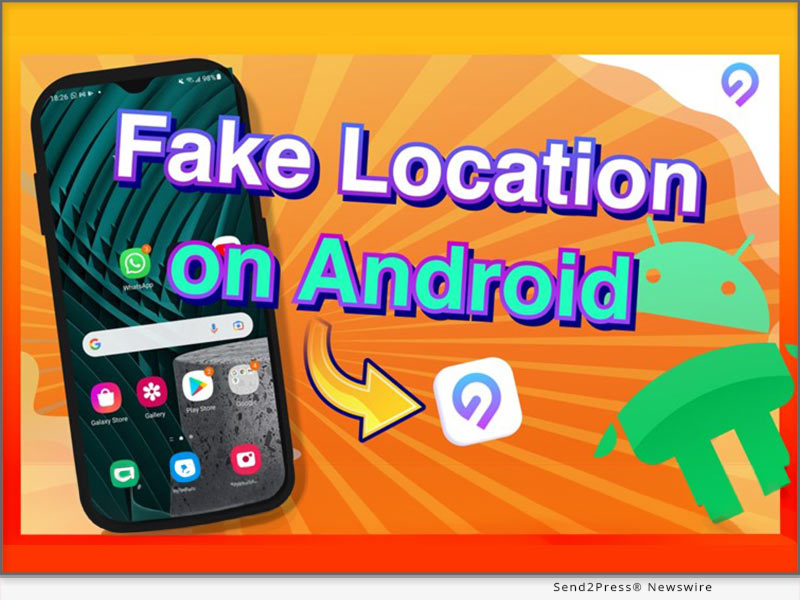
The Best Way To Fake Location On Android Without Computer: iAnyGo Android APP

NEW YORK, N.Y. /ScoopCloud/ -- The latest version (2.6.5) of the iAnyGo Android APP by Tenorshare is now available on Google Play, offering users an enhanced experience with minor functional adjustments. This powerful GPS location spoofer is designed to meet various needs, such as using fake GPS for games like Pokémon Go, enhancing privacy on WhatsApp, and more.

Scenarios for Using Fake GPS

Fake GPS can be incredibly useful in numerous scenarios:

* Gaming: Change your location in Pokémon Go to catch region-specific Pokémon.

* Privacy: Use a different location on WhatsApp to protect your real whereabouts.

* Travel Apps: Test location-based apps without physically being there.

* Social Media: Share different locations on social media to protect your privacy or add an element of fun.

About iAnyGo Android APP

iAnyGo Android APP is a versatile tool that allows users to fake their GPS location on Android phones without needing a computer. Its main functions include joystick movement, changing GPS location, and Multi-Spot movement, providing a comprehensive solution for location spoofing.

How to Fake Your Location on Android Without a Computer?

VIDEO: https://www.youtube.com/watch?v=3AJtouuHCUs

iAnyGo Android App Download Guide

1. Go to Google Play and install the iAnyGo app.

2. Open the iAnyGo app and agree to the "Service Agreement and Privacy Policy."

3. Set iAnyGo as a mock location app via the given popup on the screen.

4. Open Settings and enable Developer options. Search for "Select Mock Location App."

5. Choose iAnyGo as the mock location app. Once set, you're ready to explore the advanced features.

Key Features of iAnyGo

Change GPS Location

1. Open the iAnyGo app and choose a location on the map or enter an address.

2. Select the "Target location" icon.

3. Your GPS location is now successfully modified.

Multi-Spot Movement

1. Click the Multi-Spot Movement button at the right.

2. Select or search for coordinates to customize the movement route and click on "Start Moving."

3. Use the undo or reset function to adjust the route as needed.

4. Adjust the speed at any time during movement (1km/h to 30km/h).

5. Notification appears once the destination is reached.

Pokémon GO Game Modes

1. Click on the Pokémon Go game mode.

2. Download the custom mod of the game via the app's redirect.

3. After installation, enjoy spoofing in Pokémon Go.

Joystick Movement

1. Click on the joystick option.

2. Drag the center control point in any direction for virtual movement.

Real-time virtual movement is displayed on the screen, with adjustable joystick control panel size and location. Speed and destination can be changed at any time.

For further information, please download and experience.

Free Download iAnyGo: https://ianygofakegps.onelink.me/sQfH/id91vhat

Facebook: https://www.facebook.com/profile.php?id=61554896956540

Website: https://www.ianygo.com/

News from Tenorshare Co. Ltd.

The latest version (2.6.5) of the iAnyGo Android APP by Tenorshare is now available on Google Play, offering users an enhanced experience with minor functional adjustments. This powerful GPS location spoofer is designed to meet various needs, such as using fake GPS for games like Pokémon Go, enhancing privacy on WhatsApp, and more.

Related link: https://www.tenorshare.com/

This version of news story was published on ScoopCloud™ (ScoopCloud.com) - part of and © the Neotrope® News Network - all rights reserved.
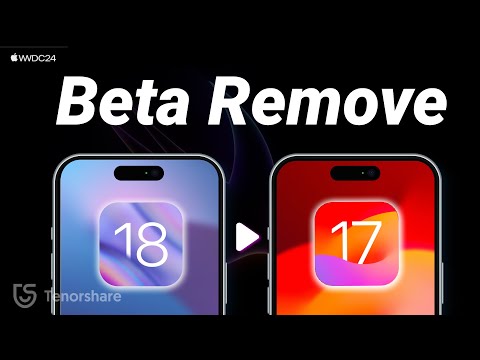
How to Downgrade from iOS 18 Beta to iOS 17 Without Losing Data

NEW YORK, N.Y. /ScoopCloud/ -- Want to know how to downgrade iOS 18 beta to 17? WWDC is kicking off on June 10 and the first iOS 18 Beta is expected to be released soon after. It will feature new accessibility options, app updates, RCS support, and a more customizable Home screen. However, as with all Beta versions, iOS 18 might have bugs, making it necessary to downgrade it. "Most downgrade methods that are available in market result in data loss. But Tenorshare ReiBoot can downgrade iOS 18 beta to iOS 17 without losing data," says a Tenorshare spokesperson. So, let's find out how to revert back to iOS 17 with Tenorshare ReiBoot.

VIDEO (YouTube): https://www.youtube.com/watch?v=j45IjXP563g

Can You Go Back to iOS 17 From 18 Beta?

Yes, it's attainable to downgrade iOS 18 beta to 17 if iOS 17 version is still being signed. But this is only possible for a few days after iOS 18 Beta is released. However, downgrading will wipe your iDevice.

Another way to keep iOS 17 is to make a copy before update using Finder on a Mac or iTunes on a PC. But this will reinstall new iOS. If you're a member of Apple Beta Software Program you can go back to iOS 17 without iTunes, but it also erases your iDevice. So, how to downgrade iOS 18 Beta to 17 without data loss?

How to Downgrade iOS 18 Beta to 17 Without Losing Data?

If you really want to find out how to go back to iOS 17 from 18 beta without losing data, ReiBoot iOS Repair Tool offers a way to do that. It's a powerful tool that can both downgrade and upgrade iOS for latest iDevices without data loss. But that's not the end of its abilities. It offers to:

* Repair 150+ iOS issues including stuck on Apple logo and black screen.

* Easily fix common iPhone and iTunes errors.

* Enter/Exit Recovery Mode with one click.

Here's how to downgrade iOS 18 to 17 with help of Tenorshare ReiBoot:

Step 1: Install and run ReiBoot on your computer and connect your iDevice with your PC. Choose "iOS Upgrade/Downgrade."

Step 2: Select "Downgrade" option and hit "Downgrade" button.

Step 3: Allow firmware package to download. Then, let downgrading process to completed.

Is It Possible to Downgrade iOS 18 Beta to 17 Without Computer?

Yes, it's possible to downgrade iOS 18 beta to 17 without computer, but it can be challenging as this method might not work for your iDevice. What you'll need to do is search for "iOS 17 IPSW" firmware for your specific iPhone/iPad model on Google and download it. Then, remove your Beta iOS 18 profile and install iOS 17 IPSW firmware on your iDevice.

About Tenorshare

If you're looking for a way to learn how to remove iOS 18 beta from iPhone/iPad without data loss, Tenorshare ReiBoot can do that. Renowned for solving iOS and Android issues with high success, Tenorshare is best choice for common device problems.

Learn more:

https://www.tenorshare.com/products/reiboot.html

https://www.tenorshare.com/ios-18/how-to-downgrade-ios-18-to-17.html

News from Tenorshare Co. Ltd.

Want to know how to downgrade iOS 18 beta to 17? WWDC is kicking off on June 10 and the first iOS 18 Beta is expected to be released soon after. It will feature new accessibility options, app updates, RCS support, and a more customizable Home screen. However, as with all Beta versions, iOS 18 might have bugs, making it necessary to downgrade it. "Most downgrade methods that are available in market result in data loss. But Tenorshare ReiBoot can downgrade iOS 18 beta to iOS 17 without losing data," says a Tenorshare spokesperson.

Related link: https://www.tenorshare.com/

This version of news story was published on ScoopCloud™ (ScoopCloud.com) - part of and © the Neotrope® News Network - all rights reserved.
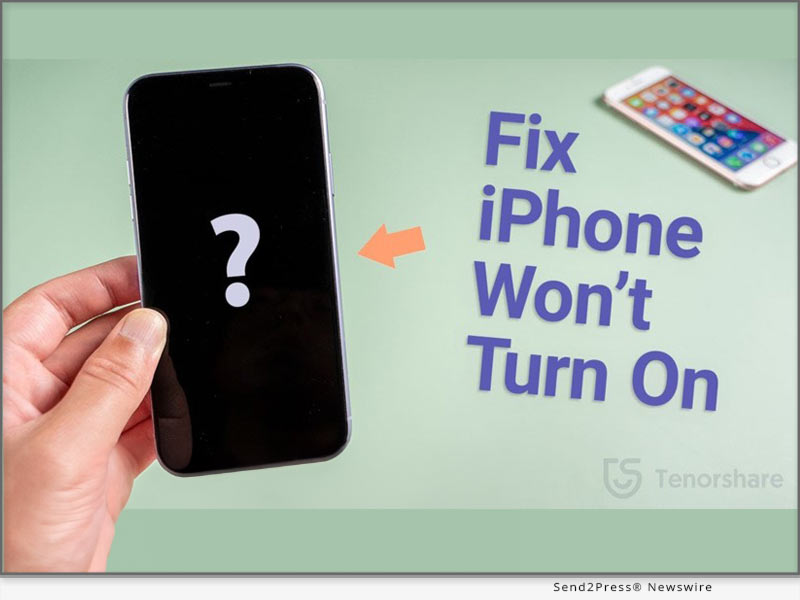
iPhone Won’t Turn On or Charge? Here is The Fix

NEW YORK, N.Y. /ScoopCloud/ -- If your iPhone won't turn on or charge, you're not alone. Many users find themselves asking, "Why will my iPhone not turn on?" or "Why is my iPhone not switching on?" Fortunately, Tenorshare CEO Mike Lee assures users that their worries can be resolved. "With Tenorshare ReiBoot, you can easily fix an iPhone won't turn on problem," says Lee. "Our software allows you to easily repair your device without data loss."

WHY WON'T MY IPHONE TURN ON OR CHARGE?

There are several reasons why your iPhone 15 / 14 won't turn on or charge.

Battery Drain: Your iPhone's battery might be completely drained.

Software Issues: Sometimes, an update can cause your iPhone to freeze or not turn on.

Hardware Problems: Damage to your iPhone's hardware, such as a broken screen or internal components, can prevent it from turning on.

Charging Accessories: Faulty charging cables or adapters can also be the culprit.

HOW TO FIX IPHONE WON'T TURN ON WITHOUT DATA LOSS

Tenorshare ReiBoot offers several dedicated features to fix an iPhone won't turn on or charge:

* Enter Recovery Mode with one click and exit just as easily whenever needed.

* Repair over 150 iOS, iPadOS, tvOS, and macOS system issues, such as being stuck on the Apple logo or a black screen of death, without losing data.

* Reset iOS, iPadOS, and macOS devices without passcodes, iTunes, or Finder.

* Support the latest iOS, iPadOS, and macOS downgrades & upgrades, including Betas.

HOW TO USE REIBOOT TO FIX IPHONE WON'T TURN ON

Step 1: Simply download and launch it on your computer. Connect iPhone to computer.

Step 2: First, try clicking 'Enter Recovery Mode', which will successfully boot your iPhone into Recovery Mode in a few seconds.

Step 3: Then, in the interface, click 'Exit Recovery Mode'. After the process is completed, your iPhone will exit recovery mode and return to normal.

Step 4: If entering/exiting recovery mode does not resolve the issue of your iPhone not turning on, attempt Standard Repair to repair your iOS system without losing data.

Step 5: Now click 'Download' to access the most recent firmware package. Then, click Start Standard Repair to begin repairing your device.

Learn more: https://www.tenorshare.com/products/reiboot.html

TIPS TO AVOID IPHONE WON'T TURN ON PROBLEMS

* To avoid software issues, update your iOS regularly.

* Use authorized charging accessories to avoid hardware damage.

* Do not expose your iPhone to high temperatures.

VIDEO: https://www.youtube.com/watch?v=6UxBUP8jcqU

About Tenorshare:

Tenorshare is a well-known professional software solutions supplier that specializes in data recovery, system repair, and other services. ReiBoot iOS system repair tool is widely recommended for its ability to fix iPhone won't turn on. Tenorshare provides trustworthy and user-friendly tools to keep your devices functioning properly.

More information: https://www.tenorshare.com/

Facebook: https://www.facebook.com/TenorshareOfficial/

X/Twitter: https://twitter.com/Tenorshare_Inc

YouTube: https://www.youtube.com/user/TenorshareOfficial/videos

TikTok: https://www.tiktok.com/@tenorshare_tech_tips

News from Tenorshare Co. Ltd.

If your iPhone won't turn on or charge, you're not alone. Many users find themselves asking, "Why will my iPhone not turn on?" or "Why is my iPhone not switching on?" Fortunately, Tenorshare CEO Mike Lee assures users that their worries can be resolved. "With Tenorshare ReiBoot, you can easily fix an iPhone won't turn on problem," says Lee. "Our software allows you to easily repair your device without data loss."

Related link: https://www.tenorshare.com/

This version of news story was published on ScoopCloud™ (ScoopCloud.com) - part of and © the Neotrope® News Network - all rights reserved.
Cleanup Pro iOS App Launched: AI-Powered to Delete Duplicate Photos and Clean iPhone’s Storage

NEW YORK, N.Y. /ScoopCloud/ -- Tenorshare, the leading software provider for iOS system repairs and data management, has released a new Cleanup Pro iOS App. With the launch of this new iOS app, iPhone users can now clean up their phone's storage with AI-powered enhancement.

Tenorshare Cleanup Pro App - AI-Powered Cleaner

Cleanup Pro App is a feature-rich iOS app that provides AI-powered cleaning of your iPhone's storage. It can:

* Delete Duplicate Photos: Intelligently scan and clean up duplicate photos, including all photos in albums such as GIF and Live.

* Filter Photos: AI-powered smartly filter and clean up similar photos, oversized photos/videos, blurry photos, screenshots, burst photos, GIFs, and live photos.

* Compress Photos/Videos: Filter oversized photos/videos and compress them to free up space. You can freely choose the size of the compression.

* Manage Photos: Sort all the unorganized photos in your albums with a single tap.

* Manage Contacts: Delete duplicate contacts or contacts with no information. Merge contacts with the same phone number.

* Organize Calendar: List all calendar events and clean them up.

* Try Premium for Free: Unlock all premium features with a 3-day free trial. Experience enhanced functionality and exclusive content - all at no cost. Tap here to start your free trial now: https://tenorshare.onelink.me/jPbu/810b76iu

In short, the Tenorshare Cleanup Pro iOS App is an all-in-one AI cleaner that seamlessly cleans up your iPhone storage.

Learn more: https://tenorshare.onelink.me/jPbu/810b76iu

Other Popular Apps in Tenorshare

Tenorshare iCareFone Transfer App

Tenorshare iCareFone Transfer App can transfer WhatsApp and WhatsApp Business between Android and iPhone without PC. It can transfer all WhatsApp chats and attachments with ultra-fast transfer speed and no data loss. And download WhatsApp video

Tenorshare iAnyGo App

Tenorshare iAnyGo App is a free virtual location changer for iOS and Android. It can change the GPS location anywhere without jailbreak/root and provides the GPS joystick to control the direction of movement in games.

Tenorshare UltData Android App

Tenorshare UltData Android App is an Android data recovery app that can recover deleted photos, videos, documents, audio, and WhatsApp files from internal and SD card storage. It can conduct deep scans and then provide preview-based data recovery.

Tenorshare iCareFone for LINE App

Tenorshare iCareFone for LINE App can transfer LINE between Android and iPhone using a USB-C to lightning cable. It can transfer text, photos, documents, audio, and more with high speed and data security.

About Tenorshare

Tenorshare is a highly reputed, award-winning, and widely used software company that develops top-notch software solutions for Windows, Mac, iOS, and Android platforms. It is renowned for its leading software solutions in data recovery, data transfer, data cleaning, password recovery, system repair, and more. Overall, Tenorshare offers feature-rich and modernized software solutions that millions of users use worldwide.

More information: https://www.tenorshare.com/

Facebook: https://www.facebook.com/TenorshareOfficial/

X/Twitter: https://twitter.com/Tenorshare_Inc

YouTube: https://www.youtube.com/user/TenorshareOfficial/videos

News from Tenorshare Co. Ltd.

Tenorshare, the leading software provider for iOS system repairs and data management, has released a new Cleanup Pro iOS App. With the launch of this new iOS app, iPhone users can now clean up their phone's storage with AI-powered enhancement.

Related link: https://www.tenorshare.com/

This version of news story was published on ScoopCloud™ (ScoopCloud.com) - part of and © the Neotrope® News Network - all rights reserved.

How to Play Pokémon Go Without Moving or Walking: View The 2024 Full Guide

NEW YORK, N.Y. /ScoopCloud/ -- As Pokémon Go continues to captivate players worldwide, not everyone has the time or ability to physically traverse the outdoors to enjoy the game, says Tenorshare. This comprehensive guide explores how to play Pokémon Go without moving, perfect for those with busy schedules, mobility issues, or who simply prefer playing from the comfort of their home.

Can You Play Pokémon Go Without Moving in 2024?

Yes, you can! The solution lies in using location spoofing apps like Tenorshare iAnyGo, which tricks Pokémon Go into believing you're in a different location. This method is ideal for those looking for how to play Pokémon Go without moving.

Steps to Play Pokémon Go Without Moving Using Tenorshare iAnyGo:

1. Download iAnyGo: Visit Tenorshare's official website for a Free Download of the Tenorshare iAnyGo software suitable for your Mac or PC.

2. Connect Your Phone: Use a USB cable to connect your phone to your computer. iAnyGo operates without the need for jailbreaking or rooting.

3. Choose Your Virtual Exploration Method:

- Instant Teleportation: Open iAnyGo, browse the map, select your desired location, and click "Start to modify" to teleport instantly.

- Auto-Movement Routes: Create routes with multiple stops to simulate walking. Choose from single-spot movement for nearby exploration or multi-spot movement for extensive travel without moving.

- GPS Joystick: Use the in-app joystick to control your avatar's movements manually.

These methods allow you to know how to play Pokemom Go without moving, making it easy to catch Pokémon, hatch eggs, and explore different regions virtually.

VIRTUAL MOVEMENT OPTIONS EXPLAINED:

* Instant Teleportation: Quickly teleport to new locations for fresh Pokémon encounters.

* Auto-Movement Routes: Create routes with multiple stops to simulate movement and hatch eggs.

* GPS Joystick: Take full control of your avatar's movements with an intuitive joystick interface.

Special Offer: Enjoy a 20% discount on Tenorshare iAnyGo with the promo code TSWOW20OFF-a limited-time offer!

Why Choose Tenorshare iAnyGo?

Tenorshare iAnyGo stands out as the a virtual location changer for both iOS and Android devices. You can use it if you are looking for how to play Pokémon Go without moving. It offers features like:

Pros and Cons of Using Tenorshare iAnyGo:

* Pros:

- Flexibility in game strategy and increased efficiency.

- Useful for other location-based games like Monster Hunter.

* Cons:

- Risk of violating Pokémon Go's terms of service, which may lead to a ban.

Final Thoughts: Tenorshare iAnyGo provides a reliable and versatile solution of how to play pokemon go from home. It's also effective for other digital needs like data recovery and accessing geo-restricted content.

LEARN MORE: https://www.tenorshare.com/products/ianygo-change-gps-location-iphone.html

Stay Connected:

* Facebook - Tenorshare https://www.facebook.com/TenorshareOfficial/

* Twitter - Tenorshare https://twitter.com/Tenorshare_Inc

* YouTube - Tenorshare https://www.youtube.com/user/TenorshareOfficial/videos

Whether you're a seasoned trainer or new to the world of Pokémon, Tenorshare iAnyGo offers the tools you need to spoof Pokemon Go in new and exciting ways-all from your chosen location. Enjoy your virtual Pokémon adventures with iAnyGo and catch them all without stepping outside!

Note: Always consider the potential risks associated with location spoofing, and play responsibly.

News from Tenorshare Co. Ltd.

As Pokémon Go continues to captivate players worldwide, not everyone has the time or ability to physically traverse the outdoors to enjoy the game, says Tenorshare. This comprehensive guide explores how to play Pokémon Go without moving, perfect for those with busy schedules, mobility issues, or who simply prefer playing from the comfort of their home.

Related link: https://www.tenorshare.com/

This version of news story was published on ScoopCloud™ (ScoopCloud.com) - part of and © the Neotrope® News Network - all rights reserved.

How to Sign Out of Apple ID Without Password in 3 Simple Ways

NEW YORK, N.Y. /ScoopCloud/ -- "Apple takes security very seriously and requires a password to sign out of an Apple ID," says Tenorshare. "However, if you forget your password, you may need to sign out of your Apple ID without one. Therefore, it's a good idea to know alternative ways how to sign out of Apple ID without password."

In this guide, we will discuss 3 ways how to log out of Apple ID without password.

:: How to Sign Out of Apple ID Without Password or Phone Number? [Easy]

If you're looking for a safe and reliable way to sign out of Apple ID without entering password, we recommend using a third-party app like Tenorshare 4uKey.

Why? Because it's the first-ever software that helps you sign out of your Apple ID without a password. The best part is that 4uKey doesn't fully reset your device; therefore, your data remains safe. This method works on Windows and Macs, so compatibility is not an issue.

Here are the simple steps on how to sign out of Apple ID without password on Mac or Windows using 4uKey:

* Download and install Tenorshare 4uKey on your PC and click "Remove Apple ID" on the interface.

* Connect your iPad or iPhone to your PC, and click "Next."

* After a few seconds, 4uKey will successfully remove the Apple ID without losing data from your device.

Learn more: https://www.tenorshare.com/products/4ukey-unlocker.html

:: How to Sign Out of Apple ID Without Password Free?

Another way how to sign out of Apple ID on iPhone or iPad is from the official Apple website.

Here's what to do:

* Go to the Apple website, enter your Apple ID, and click "Forgotten Your Password."

* Enter your recovery email or phone number.

* Next, you will receive instructions on your device on how to reset your password.

However, for this method to work:

* Your device must be switched on.

* Your recovery phone number must be active.

* You need to remember your recovery email address.

And that's how to sign out of Apple ID without password on iPad or iPhone free via Apple's website.

:: How to Sign Out of Apple ID Without Password or Email?

How to remove Apple ID without password if you don't remember your email? With iTunes, of course!

* Go to the "Settings" on your device and go to "iTunes and App Store."

* Now tap on your Apple ID and select "Sign Out."

This will sign you out of your Apple ID without entering the password or email. However, you'll need to do this for each app separately, which is a bit time consuming.

About Tenorshare:

Tenorshare is a tech company that creates tools for data recovery, password recovery, system fixes, and data management for iOS and Android devices.

So, if you're looking for a way how to sign out of Apple ID without password, no worries, Tenorshare 4uKey is the solution.

YouTube: https://www.youtube.com/@TenorshareOfficial

Facebook: https://www.facebook.com/TenorshareOfficial/

LEARN MORE:

https://www.4ukey.com/products/4ukey-iphone-unlocker.html

https://www.tenorshare.com/apple-id/how-to-sign-out-of-apple-id-without-password.html

News from Tenorshare Co. Ltd.

"Apple takes security very seriously and requires a password to sign out of an Apple ID," says Tenorshare. "However, if you forget your password, you may need to sign out of your Apple ID without one. Therefore, it's a good idea to know alternative ways how to sign out of Apple ID without password." In this guide, we will discuss 3 ways how to log out of Apple ID without password.

Related link: https://www.tenorshare.com/

This version of news story was published on ScoopCloud™ (ScoopCloud.com) - part of and © the Neotrope® News Network - all rights reserved.
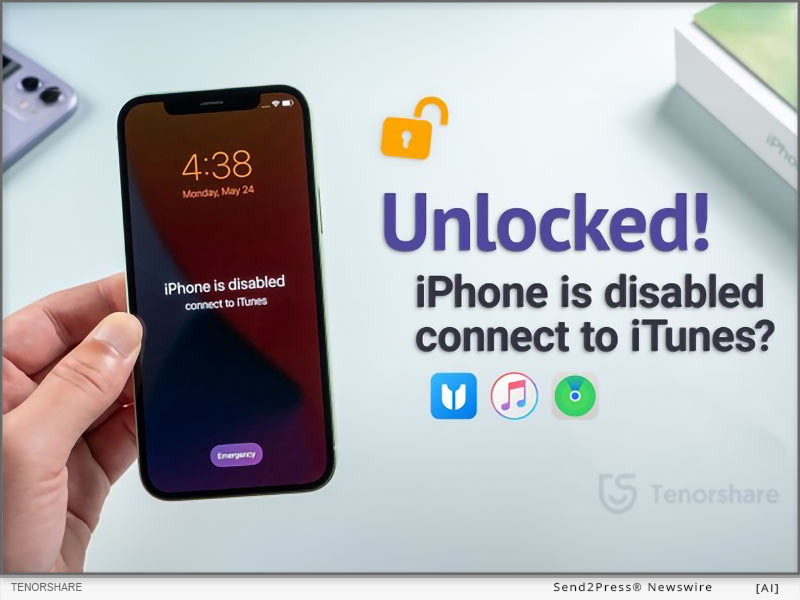
How to Factory Reset an iPad without Apple ID Password (Easy)

NEW YORK, N.Y. /ScoopCloud/ -- For iPad users, the need to reset without an Apple ID password arises from common issues like forgotten credentials or lost access, highlighting the demand for iOS device management solutions, says Tenorshare.

In this guide, we will explore 3 effective strategies for factory reset iPad without Apple ID password, empowering users to regain control of their devices easily.

How to Factory Reset iPad Without Apple ID Password and Computer?

If you have forgotten your Apple ID credentials and are looking for a way to reset iPad without Apple ID password, no computer, you can do it via hard reset.

So, how to factory reset iPad with buttons without computer? By using the volume and power buttons to hard reset your device. This method fixes all known and unknown underlying system issues.

However, before you go for an iPad factory reset without Apple ID via hard reset, create a backup of your device, as it will erase all your settings.

How to Factory Reset iPad Without Apple ID Password or Passcode?

If you're looking for a safe and reliable method how to reset Apple iPad without Apple ID, we suggest trying out Tenorshare 4uKey. It is a passcode removal tool that helps with iPad reset factory settings without jailbreaking your device.

Let's look at the key features of Tenorshare 4uKey:

* You can factory reset your iPad without an Apple ID.

* It enables you to change your Apple ID without a password and losing data.

* The unlock process is quick and 100% successful.

* The best part is that you can use this tool even if you have no prior experience.

* Whether you have the latest iPad Pro with iOS 17 or one of the earlier models with an older iOS version, 4uKey works for all.

Here are the steps to factory reset iPad without Apple ID password free:

* Download and install 4uKey on your PC.

* Connect your iPad to your PC and put it in DFU Mode following the instructions available on-screen.

* Download the firmware package specific to your iPad model.

* Then, 4uKey will start removing the lock screen passcode, after which you can reset your iPad easily.

How to Factory Reset iPad Without Apple ID Password Using iTunes?

Another way how to factory reset iPad without Apple ID password or passcode is via iTunes. Simply connect your device to a computer with iTunes installed. Put the iPad into recovery mode, then select the "Restore" option in iTunes to reset the device to factory settings.

Keep in mind that following the operation steps precisely is crucial to avoid potential bricking issues.

Learn more: https://www.tenorshare.com/products/4ukey-unlocker.html

About Tenorshare

Tenorshare is a software company that deals in tools that focus on various smartphone solutions for iPhones and Androids.

So, if you're looking for a way how to factory reset iPad without Apple ID password, Tenorshare has the solution!

Learn more: https://www.tenorshare.com/iphone-tips/how-to-factory-reset-ipad-without-apple-id-password.html

YouTube: https://www.youtube.com/@TenorshareOfficial

Facebook: https://www.facebook.com/TenorshareOfficial/

News from Tenorshare Co. Ltd.

For iPad users, the need to reset without an Apple ID password arises from common issues like forgotten credentials or lost access, highlighting the demand for iOS device management solutions, says Tenorshare. In this guide, we will explore 3 effective strategies for factory reset iPad without Apple ID password, empowering users to regain control of their devices easily.

Related link: https://www.tenorshare.com/

This version of news story was published on ScoopCloud™ (ScoopCloud.com) - part of and © the Neotrope® News Network - all rights reserved.
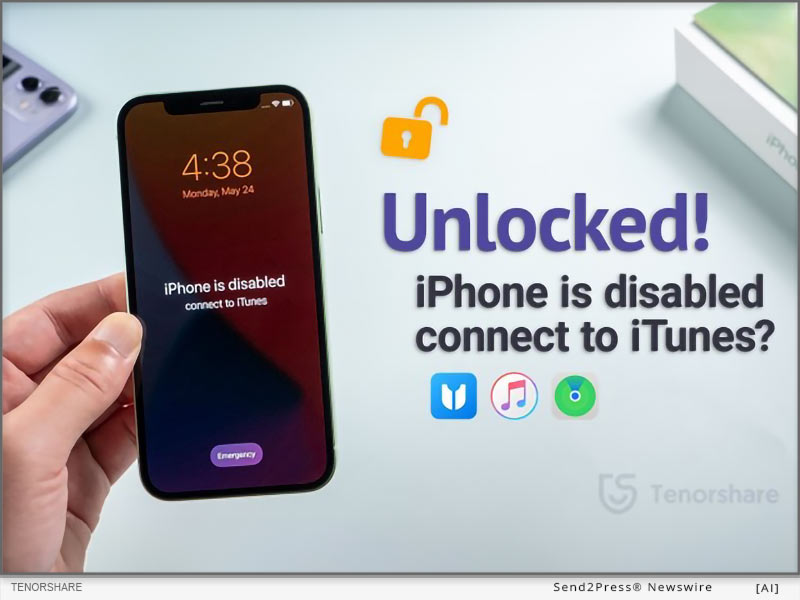
How to Convert Apple Music to MP3 via iCareFone [2024 Latest]

NEW YORK, N.Y. /ScoopCloud/ -- Are you wondering, "How do I convert Apple Music to MP3?" Recently, Tenorshare has released a new version of iCareFone that lets you know how to change iTunes songs to MP3 format. Besides, it can also convert Apple Music to FLAC files. And the best part? iCareFone works on both Windows and Mac systems. So, let's find out how to convert Apple Music to MP3 with this tool's help!

Video: https://www.youtube.com/watch?v=zurxMXmveRo

Why Can I Not Convert Apple Music to MP3?

You can only listen to Apple Music songs on devices that have an Apple Music subscription. Moreover, Apple Music songs come with DRM, which is why you can't convert Apple Music to MP3 for free. But with Tenorshare iCareFone, you've got a way around it.

Apple Music to MP3 Converter Free Online

Tenorshare iCareFone is the best Apple Music to MP3 converter for free to convert Apple Music to MP3 on iPhone and other iOS devices online.

But why it's the best, you may ask? Here's why:

* Personalize Audio Settings - It gives you freedom to personalize your output settings, including how to convert Apple Music m4p to MP3. This means you can tailor converted MP3s to exactly how you want them, whether it's adjusting bitrate or choosing specific audio settings.

* Fast Conversion Process - It boasts exceptional conversion speed, especially when Apple Music m4p to MP3 converter is involved.

* High Performance - It offers high efficiency and more stable performance compared to other converters out there, making it the best software to convert m4p to MP3 from Apple Music.

How to Convert Apple Music to MP3?

Here's how to convert music from Apple Music to MP3 with help of Tenorshare iCareFone:

Step 1: Visit Tenorshare iCareFone, an Apple Music to MP3 converter online, and connect your phone to your computer. Click "Convert to MP3" on

Step 2: Log in to your Apple Music account and add playlists, artists, albums, etc., to task list.

Step 3: Select music you want to convert and click "Start Conversion." (It converts to MP3 by default, but you can change it to FLAC in settings.)

Step 4: Once conversion is done, your music is saved on your computer.

How Can You Convert Apple Music to MP3 for Free?

We've already established above that Tenorshare iCareFone is the best app to convert Apple Music to MP3. But is it free to use? Well, the app offers to convert three songs for free but you must have an Apple Music subscription to use it.

Learn more: https://www.tenorshare.com/products/icarefone.html

About Tenorshare

If you're looking for a way to make Apple Music convert to MP3, bad news is Apple doesn't support it. However, Tenorshare has recently launched a new version of iCareFone with a cool feature to convert Apple Music to MP3 without any problems. As a leader in smartphone solutions, Tenorshare innovates to solve Apple and Android users' problems.

YouTube: https://www.youtube.com/@TenorshareOfficial

Facebook: https://www.facebook.com/TenorshareOfficial/

News from Tenorshare Co. Ltd.

Are you wondering, "How do I convert Apple Music to MP3?" Recently, Tenorshare has released a new version of iCareFone that lets you know how to change iTunes songs to MP3 format. Besides, it can also convert Apple Music to FLAC files. And the best part? iCareFone works on both Windows and Mac systems. So, let's find out how to convert Apple Music to MP3 with this tool's help!

Related link: https://www.tenorshare.com/

This version of news story was published on ScoopCloud™ (ScoopCloud.com) - part of and © the Neotrope® News Network - all rights reserved.

How to Play Pokemon Go without Moving? Try the iAnyGo iOS App

NEW YORK, N.Y. /ScoopCloud/ -- Are you wandering aimlessly, hoping to chance upon that elusive Pokemon in Pokemon GO? Exciting news for all fans! The iAnyGo iOS App from Tenorshare has undergone a major update, enabling players to effortlessly locate any Pokemon or raid without the need to move. With the iAnyGo iOS App, you can play Pokemon Go without physically moving.

"After the release of the new features in the iAnyGo iOS App, Pokemon GO fans can effortlessly pinpoint any Pokemon and raid in-game with unparalleled ease and convenience. Catching Pokemon has never been easier! The users can effortlessly play Pokemon Go without moving," said Tenorshare's CEO, while introducing the new features.

HOW TO PLAY POKEMON GO WITHOUT MOVING?

Installing iAnyGo iOS App only takes a few minutes:

Step 1: Install the iAnyGo iOS assistant on your computer.

Step 2: Open the iAnyGo iOS assistant, log in with your Apple account, and click the "Install iAnyGo iOS app" button.

Step 3: Wait a few minutes, and you'll find the iAnyGo iOS app installed on your iPhone.

Here are the simple steps to search for Pokemon and raids using the iAnyGo iOS app:

Searching for Pokemon

Step 1: Open the iAnyGo iOS App on your iPhone and tap on the "Poke Raid" option in the upper right corner.

Step 2: Enter the name or number of the Pokemon you want to find. Click the Pokemon information and click the "Go" button. It will switch to the iAnyGo iOS App main interface. Just tap on the first button at the bottom right labeled "Change Location". Your location will be successfully modified, allowing you to swiftly catch the Pokemon.

Searching for Raids

Step 1: Open iAnyGo iOS App and select the "Poke Raid" feature. Tap on "Raid Battle."

Step 2: Choose any raid from the list to view its location. Then, proceed to the specific location to join the raid using the iAnyGo iOS app feature "Change Location."

That's it! The iAnyGo iOS App offers a simple and efficient method to play Pokemon Go without physically moving.

Learn more: https://www.tenorshare.com/products/ianygo-change-gps-location-iphone.html

Pricing and Availability

Pricing for iAnyGo iOS App starts at just $14.99.

* 1 Month/1 Device: $14.99

* 1 Quarter/1 Device: $39.99

* 1 Year/1 Device: $79.99

* Lifetime/1 Device: $99.99

About Tenorshare

Tenorshare specializes in iOS, Android, Windows, and Mac platforms, focusing on core technology research. It is a highly-reputed and leading software provider with millions of users that use its tools and services related to data transfer, data recovery, system repair, unlocking phones, and many more.

More information: https://www.tenorshare.com/

Facebook: https://www.facebook.com/TenorshareOfficial/

X/Twitter: https://twitter.com/Tenorshare_Inc

YouTube: https://www.youtube.com/user/TenorshareOfficial/videos

TikTok: https://www.tiktok.com/@tenorshare_tech_tips

News from Tenorshare Co. Ltd.

Are you wandering aimlessly, hoping to chance upon that elusive Pokemon in Pokemon GO? Exciting news for all fans! The iAnyGo iOS App from Tenorshare has undergone a major update, enabling players to effortlessly locate any Pokemon or raid without the need to move. With the iAnyGo iOS App, you can play Pokemon Go without physically moving.

Related link: https://www.tenorshare.com/

This version of news story was published on ScoopCloud™ (ScoopCloud.com) - part of and © the Neotrope® News Network - all rights reserved.

How to Fix an iPhone Stuck in Recovery Mode 2024

NEW YORK, N.Y. /ScoopCloud/ -- NEW YORK, N.Y., April 29, 2024 (SEND2PRESS NEWSWIRE) -- How to get my iPhone out of Recovery Mode? Many iPhone users often ask this question. Often, this situation arises when users try to revert their iPhone to a previous iOS version and the iOS 17 update doesn't work. But there could be other reasons as well. "The real issue is that most solutions to fix 'iPhone won't restore in Recovery Mode' problem could result in losing your data. However, Tenorshare ReiBoot is different. It's a tool designed specifically to fix iOS issues, without causing any data loss," says a Tenorshare spokesperson.

So, how to fix iPhone Recovery Mode not working with Tenorshare ReiBoot? Find out below!

WHY IS MY IPHONE STUCK IN RECOVERY MODE WITHOUT RESTORE?

When iPhone gets stuck in Recovery Mode and won't restore it could be because of following reasons:

1. There's an issue after updating iOS or your battery dies during update.

2. Something goes wrong during a factory reset.

3. Incorrect steps during jailbreaking, or a failed jailbreak attempt.

HOW TO FIX IPHONE STUCK IN RECOVERY MODE WITHOUT DATA LOSS?

Unlike other solutions, Tenorshare ReiBoot can fix iPhone stuck in Recovery Mode without data loss. It is designed to repair 150+ iOS issues and can enter/exit Recovery Mode with one click. But that's not all and here's what this tool can do:

1. Repair iOS problems including black screen of death, iPhone stuck on Apple logo etc.

2. Fix iPhone and iTunes errors and upgrade or downgrade iOS including Betas.

3. Reset iOS devices without Finder, iTunes, iCloud ,and passcode.

4. Erase data permanently before selling or giving away iOS devices.

HERE'S HOW TO FIX IPHONE STUCK IN RESTORE MODE WITH REIBOOT IOS REPAIR TOOL:

Step 1: Download and install Tenorshare ReiBoot on your computer, launch it and connect your iPhone to your PC.

Step 2: The tool will detect your device in Recovery Mode. Click "Exit" on interface and your iPhone will reboot to normal within a minute.

https://www.youtube.com/watch?v=5jBL_ab1yHE

WHAT TO DO IF IPHONE IS STUCK ON RECOVERING DATA?

If your iPhone is Stuck on Recovering Data, besides utilizing ReiBoot, there are a few alternative methods that you can attempt. Nevertheless, it is important to note that their success rates are relatively low.

1. Force Restart - Hold down power button and either volume up or down button based on your iPhone's model until you see Apple logo.

2. Use iTunes or Finder - Connect to your computer, open iTunes or Finder, and update or restore your iPhone.

3. Restore from iCloud Backup - If you have a backup, erase your iPhone and restore it from iCloud during setup.

About Tenorshare:

Many users can't access their iDevice after their iPhone gets stuck in Recovery Mode, often after updates or resets. Tenorshare ReiBoot offers the best fix for this problem as it can safely exit Recovery Mode without data loss. The brains behind this tool, Tenorshare is committed to improving smartphone users' lives with their effective solutions.

More information: https://www.tenorshare.com/

Facebook: https://www.facebook.com/TenorshareOfficial/

X/Twitter: https://twitter.com/Tenorshare_Inc

YouTube: https://www.youtube.com/user/TenorshareOfficial/videos

TikTok: https://www.tiktok.com/@tenorshare_tech_tips

News from Tenorshare Co. Ltd.

How to get my iPhone out of Recovery Mode? Many iPhone users often ask this question. Often, this situation arises when users try to revert their iPhone to a previous iOS version and the iOS 17 update doesn't work. The real issue is that most solutions to fix 'iPhone won't restore in Recovery Mode' problem could result in losing your data. However, Tenorshare ReiBoot is different.

Related link: https://www.tenorshare.com/

This version of news story was published on ScoopCloud™ (ScoopCloud.com) - part of and © the Neotrope® News Network - all rights reserved.

How to Unlock a Nokia Phone without Password in Minutes

NEW YORK, N.Y. /ScoopCloud/ -- "Whether you have forgotten your Nokia phone's screen lock password or have it carrier-locked to a network, there are several foolproof ways to help unlock it," says Tenorshare. In this guide, we will discuss how to unlock Nokia phone using alternative 3 ways.

So read on for detailed guidance on unlocking your Nokia phone.

WHEN DO YOU NEED TO UNLOCK NOKIA PHONE WITHOUT PASSWORD?

Before we demonstrate how to bypass screen lock on Nokia phone, let's consider some common scenarios where this may be necessary:

* If you have forgotten your lock screen password.

* If your Nokia phone has a SIM lock on it, and you need to switch carriers or are traveling.

HOW TO UNLOCK A NOKIA PHONE WITHOUT PASSWORD EASILY IN MINUTES?

If you're looking for a reliable way how to decode a Nokia phone, we suggest using a Nokia hard reset tool like Tenorshare 4uKey for Android. Here are its key features:

* Removes all sorts of screen locks, like passwords, patterns, PINs, and face and fingerprint IDs.

* Easily factory resets your device without the password.

* It is easy to use with a high success rate.

* Compatible with almost all Android phones, including Samsung, Vivo, Huawei, Sony,Realme, Tecno and more.

Here's how to unlock a Nokia mobile phone:

* Launch Tenorshare 4uKey for Android and select "Remove Screen Lock."

* This will initiate the screen lock removal process.

* Next, follow the on-screen instructions to put your device in Recovery Mode for factory reset.

* Your Nokia phone is now ready to use without a password.

Learn more: https://www.tenorshare.com/products/android-password-reset-tool.html

HOW TO UNLOCK NOKIA PHONE PIN CODE WITHOUT PC?

Method 1: Use the Code

If you want to unlock a Nokia phone without a PC, you can use the unlock code method.

But what is the master code to unlock Nokia phone? To get the code, you can contact your carrier and request them for it.

However, this method may take 2 or 3 days, as the customer service representative will first verify your information, forward your request, and then send the code.

Method 2: Use IMEI Number

The next method is to unlock Nokia phone with IMEI number free. If you don't want to use a Nokia pattern unlock tool, you can contact an online unlocking service, enter your IMEI number, region, Nokia model and other details. Once your request is processed, you will receive an unlock code via email.

While this unlock Nokia phone free method is widely used by people, the success rate can vary, and there's a chance that the unlock might not work for your specific device.

About Tenorshare:

Tenorshare is a software company that offers tools to help with various system and data management issues in iPhones and Androids.

So, if you're looking for ways how to factory reset Nokia phone when locked or how to unlock Nokia phone from your carrier, Tenorshare 4uKey can help.

Learn more: https://www.tenorshare.com/unlock-android/how-to-reset-nokia-phone.html

YouTube: https://www.youtube.com/@TenorshareOfficial

Facebook: https://www.facebook.com/TenorshareOfficial/

News from Tenorshare Co. Ltd.

"Whether you have forgotten your Nokia phone's screen lock password or have it carrier-locked to a network, there are several foolproof ways to help unlock it," says Tenorshare. In this guide, we will discuss how to unlock Nokia phone using alternative 3 ways.

Related link: https://www.tenorshare.com/

This version of news story was published on ScoopCloud™ (ScoopCloud.com) - part of and © the Neotrope® News Network - all rights reserved.

4DDiG Data Recovery Free V10.0.4 Released: Now Recover Up to 2GB Data for Free

NEW YORK, N.Y. /ScoopCloud/ -- Recently, 4DDiG, a leading software company (a unit of Tenorshare), announced the release of 4DDiG Data Recovery Free V10.0.4, which enables Windows users to recover up to 2GB of data at no cost. Although the tool is already a popular name in data recovery solutions, expanding the free recovery limit to 2GB will make it even more appealing among users and provide greater value.

WHY CHOOSE 4DDIG DATA RECOVERY FREE?

Most of the reliable data recovery tools come with a heavy price. Even when there are free versions available for download, the data recovery they offer typically comes with very low limits. For users with limited budgets, 4DDiG Data Recovery Free is the ideal solution. Users can recover up to 2GB of data without paying a dime. When faced with larger and more severe data loss situations, you don't need to worry about additional costs. If you wish to recover unlimited data, then you can simply upgrade to a Pro version.

Tenorshare 4DDiG is now more than just a data recovery tool. A newly added Discovery section within the software provides users with more innovative solutions, including iOS data recovery, duplicate file removal, AI enhancement, and more.

KEY FEATURES OF 4DDIG DATA RECOVERY FREE

In addition to the generous free data recovery allowance, 4DDiG Data Recovery Free also boasts several other key features. Here are some of them:

* User-Friendly Interface: Thanks to its straightforward design, this tool ensures a seamless data recovery experience for both novice and experienced users.

* High Recovery Success Rate: 4DDiG Data Recovery Free utilizes advanced algorithms to scan storage devices thoroughly and retrieve lost data effectively.

* Versatile Data Recovery: Whether it's a computer hard drive, external hard disk, USB drive, SD card, or other storage media, 4DDiG Data Recovery Free supports a wide range of devices, making it versatile for various data recovery scenarios.

* Quick Scan and Deep Scan: The software offers both quick and deep scanning modes. The quick scan option swiftly identifies recently deleted files, while the deep scan thoroughly searches for lost files that may be hidden or fragmented on the storage device.

* Preview Before Recovery: In order to save time and effort, 4DDiG Data Recovery Free allow users to preview recoverable files to select specific items they want to restore.

HOW TO GET FREE DATA RECOVERY ALLOWANCE?

By downloading the software, users automatically receive a complimentary 500MB data recovery limit. Here is how to get an extra 1.5 GB of data recovery for free:

Step 1: Launch the software and click the share button in the top right corner of the interface.

Step 2: Choose to share a post about 4DDiG Data Recovery on Facebook or Twitter.

Step 3: After sharing, your free recovery capacity will increase from the default 500MB to 2GB.

Learn more: https://4ddig.tenorshare.com/free-data-recovery.html

Follow on Social:

Facebook: https://www.facebook.com/4DDiG/

X/Twitter: https://twitter.com/Tenorshare4DDiG

YouTube: https://www.youtube.com/@Tenorshare4DDiGDataRecovery/featured

News from Tenorshare Co. Ltd.

Recently, 4DDiG, a leading software company (a unit of Tenorshare), announced the release of 4DDiG Data Recovery Free V10.0.4, which enables Windows users to recover up to 2GB of data at no cost. Although the tool is already a popular name in data recovery solutions, expanding the free recovery limit to 2GB will make it even more appealing among users and provide greater value.

Related link: https://www.tenorshare.com/

This version of news story was published on ScoopCloud™ (ScoopCloud.com) - part of and © the Neotrope® News Network - all rights reserved.
Easy Way to Remove Apple ID from iPhone without Password – Guide from Tenorshare

NEW YORK, N.Y. /ScoopCloud/ -- One of the most common questions on Reddit is, "How to remove Apple ID from iPhone without password?" We understand that this poses a challenge for many users, says Tenorshare. Therefore, we're here to introduce some simple and practical solutions for you, whether after restoration or using a computer, so please read on to find the answer.

Can I Remove Apple ID From iPhone Without Password?

Yes, you can remove Apple ID from iPhone without password using various methods, including iTunes and third-party unlocker tools.

You may need to remove an Apple ID from your iPhone because:

* You're selling it

* You're switching from iOS to Android

* You've bought a preloved iPhone with the previous owner's ID still synced

However, before you opt for any method to remove the Apple ID, make sure your device is backed-up to prevent data loss. Also, if you're using a third-party app, ensure it doesn't jailbreak your device in the process.

How to Remove Apple ID From iPhone Without Password After Restore?

One of the go-to ways how to remove previous owner Apple ID without password is using iTunes. This method restores your iPhone to its factory version, removing all accounts, passwords, and data synced with it.

However, you must use iTunes to restore your iPhone carefully; it may brick your device if not carried out correctly.

If you're looking for a safe and error-free method how to remove Apple ID from iPhone without password after factory reset, we suggest going for some reliable third-party tools.

How to Remove Apple ID From iPhone Without Password Using Computer?

If you are looking to remove Apple ID from iPhone without password software, we hands-down recommend using Tenorshare 4uKey. It is an iOS unlocker and passcode remover that can also helperase iphone without apple id password.

Some standout features of 4uKey include:

* Compatible With Various Lock Screens: It can unlock passcodes, face IDs, and fingerprint IDs.

* Simple Steps with Guaranteed Success: With 3 easy steps, you can remove Apple ID from your iPhone with 100% success rate.

* No Experience or Skills Required: User-friendly interface makes it ideal for users with no technical expertise.

* Supports iOS 17 and Earlier: 4uKey is compatible with all iOS versions, including iOS 17/16 and earlier.

Remove Previous Owner Apple ID Without Password using Tenorshare 4uKey:

* Download and install 4uKey on your PC and connect your iPhone.

* Follow on-screen instructions to put your device in Recovery/DFU Mode.

* 4uKey will download the firmware specific to your iPhone model and iOS version.

* Once downloaded, 4uKey will remove Apple ID from iPhone without password.

Video Guide: https://www.youtube.com/watch?v=FfSkaBft5SY

About Tenorshare

Tenorshare is a tech company that deals in data recovery, password recovery, system fix, and data management tools; compatible with iOS, Android, Windows, and Mac. Its products have simplified the lives of 10 million users worldwide.

YouTube: https://www.youtube.com/@TenorshareOfficial

Facebook: https://www.facebook.com/TenorshareOfficial/

News from Tenorshare Co. Ltd.

One of the most common questions on Reddit is, "How to remove Apple ID from iPhone without password?" We understand that this poses a challenge for many users, says Tenorshare. Therefore, we're here to introduce some simple and practical solutions for you, whether after restoration or using a computer, so please read on to find the answer.

Related link: https://www.tenorshare.com/

This version of news story was published on ScoopCloud™ (ScoopCloud.com) - part of and © the Neotrope® News Network - all rights reserved.
4DDiG Partition Manager Version 2.9.0 Released with New Features for Personal Disk Management

NEW YORK, N.Y. /ScoopCloud/ -- Recently, 4DDiG (a unit of Tenorshare) launched version 2.9.0 of its highly acclaimed 4DDiG Partition Manager. This latest release not only allows users to repair and clone disks from a dead computer but also enables them to remove recovery partitions in just a few clicks. With its simplicity and versatile functionality, 4DDiG Partition Manager V2.9.0 has become the go-to choice for personal disk management.

What Are New Features of 4DDiG Partition Manager?

* Clone or Repair Disk from Non-Bootable Computer: As a USB bootable disk cloning software, 4DDiG Partition Manager can assist you in easily accessing the dead computer and cloning the hard disk drive. Therefore, you don't have to worry about any data loss due to Windows boot issues.

* Remove Recovery Partition: Recovery partitions can occupy a significant amount of disk space, particularly on smaller SSDs or laptops. If you are desperate for additional disk space, 4DDiG Partition Manager can help you delete them with just one click. Prior to deletion, this tool also offers disk cloning feature to ensure the safety of important data.

"While there are various methods to accomplish these tasks, the advantage of using 4DDiG Partition Manager is that it greatly simplifies the process," said Terrance, the Marketing Director at 4DDiG. "Whether you're a tech enthusiast or a computer novice, our software is designed to meet your disk management requirements effectively and efficiently."

The Whole Functions of 4DDiG Partition Manager

4DDiG Partition Manager continues to offer a comprehensive set of features, including:

* Comprehensive Partition Management: Resize, split, create, delete, and format partitions to optimize disk space usage.

* Create Bootable USB: Burn the in-built program or any other ISO image file to USB.

* MBR to GPT Conversion: Prepare for Windows 11 upgrade by converting MBR-partitioned disks to GPT format without data loss.

* Efficient Whole Hard Drive Cloning: Effortlessly clone entire hard drives for secure data backup and transfer.

* One-click Windows OS Migration to SSD: Seamlessly migrate Windows operating systems to solid-state drives without the hassle of reinstalling the system.

* Partition Repair and Recovery: Powerful tools to repair, recover, and restore partitions from various storage devices.

Price and Availability

Three pricing plans, based on your needs:

* $12.95 for a one-month license

* $40.95 for a one-year license

* $59.95 for a lifetime license

During the spring promotion, you can enjoy an additional 30% discount when purchasing 4DDiG Partition Manager. Learn more: https://4ddig.tenorshare.com/4ddig-partition-manager.html

About 4DDiG

Over the past decade, 4DDiG has been committed to providing innovative software solutions to global users. Originally focused on data recovery, 4DDiG later expanded into areas such as disk management, AI enhancement, and file repair. As an industry leader, 4DDiG has always prioritized user satisfaction.

For more information, please visit: https://4ddig.tenorshare.com/

Follow on Social:

Facebook: https://www.facebook.com/4DDiG/

X/Twitter: https://twitter.com/Tenorshare4DDiG

YouTube: https://www.youtube.com/@Tenorshare4DDiGDataRecovery/featured

News from Tenorshare Co. Ltd.

Recently, 4DDiG (a unit of Tenorshare) launched version 2.9.0 of its highly acclaimed 4DDiG Partition Manager. This latest release not only allows users to repair and clone disks from a dead computer but also enables them to remove recovery partitions in just a few clicks. With its simplicity and versatile functionality, 4DDiG Partition Manager V2.9.0 has become the go-to choice for personal disk management.

Related link: https://www.tenorshare.com/

This version of news story was published on ScoopCloud™ (ScoopCloud.com) - part of and © the Neotrope® News Network - all rights reserved.
iPad Unavailable Screen? Here is How to Fix it Easily with Tenorshare 4uKey

NEW YORK, N.Y. /ScoopCloud/ -- "iPad unavailable" screen refers to a message indicating that the iPad is either not currently accessible or disabled, says Tenorshare. While traditional fixes like erasing iPad or using iTunes may be suggested, they don't always guarantee success and can be complex for many users.

In this guide, we'll introduce a simpler, more effective method to fix iPad unavailable screen.

Why My iPad Says iPad Unavailable?

Many people wonder what does iPad unavailable mean. Here's the answer:

If your iPad say unavailable, it could mean one thing: Multiple wrong passcode attempts.

Guessing the wrong code five times in a row will lock you out for a minute, with an iPad unavailable message. After each incorrect guess, the lockout time gets longer.

Eventually, if you keep making mistakes in typing the code, the iPad will get locked completely and stop accepting any passcode. That's when things get tough; you'll need to erase everything and start fresh on your iPad.

How to Fix iPad Unavailable Screen Easily?

If you get the iPad unavailable no erase option, you can still fix the issue with Tenorshare 4uKey.

It is an iOS unlocker and passcode remover to help you get your phone up and running again in no time!

Let's have a look at the key features of Tenorshare 4uKey:

* Helps Unlock All Types of Lock Screens: It can disable all sorts of lock screens, including passcodes, Face IDs, and fingerprint IDs.

* Quick Unlock Process with Guaranteed Success: If you're wondering for an iPad unavailable fix, this iOS unlocker requires 3 simple steps to unlock your device with a 100% success rate.

* No Technical Know-How Required: You can use it for iPad unavailable how to reset without any technical know-how or prior experience.

iPad Unavailable How to Fix with Tenorshare 4uKey:

* Download 4uKey on your PC and connect your iPad.

* Follow the on-screen instructions to put your device in Recovery Mode.

* Download firmware specific to your iPad model.

* Once downloaded, 4uKey will remove lock screen in just a few minutes.

Prevention of iPad Unavailable Press Home to Unlock

Here are some preventive measures to consider after you unlock your iPad:

* Write down your passcode somewhere for easy access.

* Create a backup of your device because resetting your iPad can erase all data and settings from your device.

* Only reset or erase your iPad if you have a backup; otherwise, you will lose all your data.

Learn more: https://www.tenorshare.com/products/4ukey-unlocker.html

About Tenorshare

Tenorshare is a tech company that makes software for phones, tablets, and computers. It offers data recovery tools and software to unlock forgotten passwords when you wondering how to fix iPad unavailable.

These tools are specifically for iOS, Android, Windows, and Mac, with over 10 million people using their products worldwide.

Tenorshare is a major player in keeping smartphones running smoothly and recovering data if something goes wrong.

YouTube: https://www.youtube.com/@TenorshareOfficial

Facebook: https://www.facebook.com/TenorshareOfficial/

News from Tenorshare Co. Ltd.

"iPad unavailable" screen refers to a message indicating that the iPad is either not currently accessible or disabled, says Tenorshare. While traditional fixes like erasing iPad or using iTunes may be suggested, they don't always guarantee success and can be complex for many users.

Related link: https://www.tenorshare.com/

This version of news story was published on ScoopCloud™ (ScoopCloud.com) - part of and © the Neotrope® News Network - all rights reserved.
Updated Monster Hunter Now Spoofing Method from Tenorshare iAnyGo for 2024

NEW YORK, N.Y. /ScoopCloud/ -- Attention Monster Hunter Now enthusiasts! The recent challenges in Monster Hunter Now spoofing have been a thorn in the side of many gamers. But worry no more, as Tenorshare iAnyGo has unveiled a revolutionary solution to bypass these obstacles and elevate your gaming experience to new heights.

VIDEO: https://www.youtube.com/watch?v=RstG-YiKdts

Since February 22nd, a significant update in Monster Hunter Now (MHN) has left all third-party software grappling with 'Searching for GPS signal' issue when trying to modify location on MHN iOS. To date, no resolution has been seen... until now. The iAnygo team, after burning the midnight oil for over a month, has finally cracked the code! Get ready to experience the unmatched solution with our MHN Wizard. Stay tuned for an easy-to-follow guide!" says a Tenorshare spokesperson.

Monster Hunter Now spoofing can be a game-changer. That's where Tenorshare iAnyGo comes in as the premier solution for 2024. This innovative tool empowers you to seamlessly use a Monster Hunter Now spoof, no longer confining you in your location and opening up a world of possibilities in your gaming experience.

Pros & Cons:

* Pros:

- No jailbreak or root required, preserving the security and integrity of your device.

- Effectively resolves the 'Searching for GPS Signal' issue, ensuring uninterrupted gameplay.

- Frequent updates to keep pace with the latest game and iOS updates.

* Cons:

- Requires a stable internet connection for optimal performance.

- Limited to iOS devices, not available for Android users.

STEPS: Here is a detailed guide with step-by-step instructions for Tenorshare iAnyGo:

Change GPS Location:

1. Launch Tenorshare iAnyGo on your computer.

2. Connect your iPhone/Android to the computer via USB or Wi-Fi.

3. Select "Change Location" mode in iAnyGo.

4. Enter the desired location in the search box and click "Start to Modify."

5. Your location is now changed in all location-based apps on your device.

Simulate GPS Movement:

1. Choose "Single-Spot" or "Multi-Spot Movement" mode in iAnyGo.

2. Plan your route on the map, setting the starting point, destination(s), and movement speed.

3. Click "Start to Move" to begin the simulated movement.

Unlock the full potential of Tenorshare iAnyGo Spoofer with an exclusive 20% discount! Use the promo code TSWOW20OFF at checkout to avail this special offer. Don't miss out on this limited-time opportunity to enhance your Monster Hunter Now adventure. Claim your discount of iAnyGo 20% off.

Learn more: https://www.tenorshare.com/products/ianygo-change-gps-location-iphone.html

About Tenorshare:

Tenorshare is a renowned software company committed to delivering innovative solutions for smartphone users across the globe. From recovering lost data to repairing system issues and spoofing locations, Tenorshare provides a wide range of tools to meet your needs. Notably, Tenorshare iAnyGo is recognized as the best Monster Hunter Now spoofer, offering gamers an unparalleled experience in location-based gaming.

More information: Tenorshare Official Website - https://www.tenorshare.com/

Connect with us on Social Media:

* Facebook - https://www.facebook.com/TenorshareOfficial/

* X/Twitter - https://twitter.com/Tenorshare_Inc

* YouTube - https://www.youtube.com/user/TenorshareOfficial/videos

News from Tenorshare Co. Ltd.

Attention Monster Hunter Now enthusiasts! The recent challenges in Monster Hunter Now spoofing have been a thorn in the side of many gamers. But worry no more, as Tenorshare iAnyGo has unveiled a revolutionary solution to bypass these obstacles and elevate your gaming experience to new heights.

Related link: https://www.tenorshare.com/

This version of news story was published on ScoopCloud™ (ScoopCloud.com) - part of and © the Neotrope® News Network - all rights reserved.
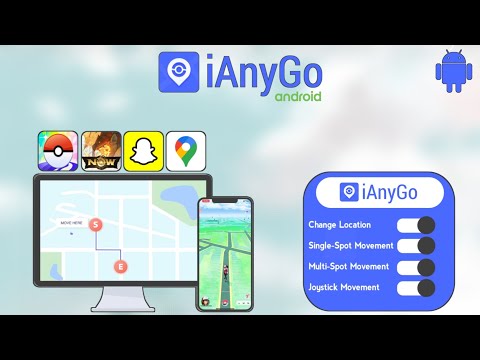
How to Spoof Location on Pokemon Go in 2024 with Tenorshare iAnyGo – No Jailbreak

NEW YORK, N.Y. /ScoopCloud/ -- In the ever-evolving world of Pokemon Go, the desire to discover new regions and participate in activities knows no bounds. However, for a lot of players, geographical and physical limits can make it difficult for them to engage themselves in the game to the fullest. Thanks to the introduction of Tenorshare iAnyGo, people can now revel in the pleasure of changing their vicinity while not having to jailbreak their gadgets.

"With iAnyGo, we aim to enhance the gaming experience by eliminating geographical limitations," says a Tenorshare spokesperson, highlighting the transformative capabilities of the iAnyGo spoofer to revolutionize gameplay.

VIDEO: https://www.youtube.com/watch?v=Ygh9a8-iEM8

Best way to spoof location on Pokemon Go in 2024

With Tenorshare iAnyGo, players can easily manipulate their GPS location to explore new territories and encounter diverse Pokemon, all from the comfort of their own homes.

Features of iAnyGo:

1. Instant Teleportation: Seamlessly transport yourself to any location worldwide with just one click, effortlessly capturing region-exclusive Pokémon.

2. Singular Point Movement: Enhance your gameplay by simulating movement at variable speeds, adding depth to your Pokémon hunting experience.

3. Multi-Point Movement: Plan intricate routes across diverse locales, crafting exhilarating journeys to track down Pokémon.

4. Joystick Navigation: Utilize a joystick for precise maneuvering, enabling you to capture elusive Pokémon with accuracy.

Pros and cons of iAnyGo:

Pros:

* Compatibility with iOS 17: iAnyGo spoofer ensures seamless operation on the latest iOS 17.

* No Jailbreak, No Rooting Required: Unlike many other fake GPS solutions, iAnyGo doesn't necessitate jailbreaking for iOS devices or rooting for Android, guaranteeing a secure and straightforward experience.

Cons:

* Risk of Terms of Service Violation: While iAnyGo aims for compliance with app policies, there's a potential risk of breaking Pokemon Go's terms of service.

Using iAnyGo is straightforward, let us look at a step-by-step guide on how to use it seamlessly.

1. Launch iAnyGo and Connect Your Device: Begin by connecting your iOS device to your computer.

2. Select Location: Simply choose your desired location, and iAnyGo will adjust the GPS coordinates accordingly.

3. Start Spoofing: With the location set, iAnyGo will simulate your device's GPS location to match the selected location. This means any apps or websites that rely on GPS will believe you're at the new location.

Enjoy Tenorshare iAnyGo Spoofer 20% Off! To make the most of your Pokemon Go Unlock the full potential of your Pokemon Go adventures with Tenorshare's groundbreaking technology, Best Pokemon Go Spoofer. For a limited time, Tenorshare is delighted to offer an exclusive iAnyGo 20% off, the Best Pokemon Go Spoofer ios in the market. Don't miss out on this opportunity!

Learn more: https://www.tenorshare.com/products/ianygo-change-gps-location-iphone.html

About Tenorshare:

Tenorshare stands at the forefront of the software industry, offering innovative solutions designed to tackle digital hurdles and redefine digital experiences continually. Our commitment to customer satisfaction and cutting-edge technology drives us to excel.

Contact Information: For more information about Tenorshare iAnyGo, please visit Tenorshare's official website - https://www.tenorshare.com/.

You can also connect with us on the following social media platforms:

* Facebook - https://www.facebook.com/TenorshareOfficial/

* X/Twitter - https://twitter.com/Tenorshare_Inc

* YouTube - https://www.youtube.com/user/TenorshareOfficial/videos

News from Tenorshare Co. Ltd.
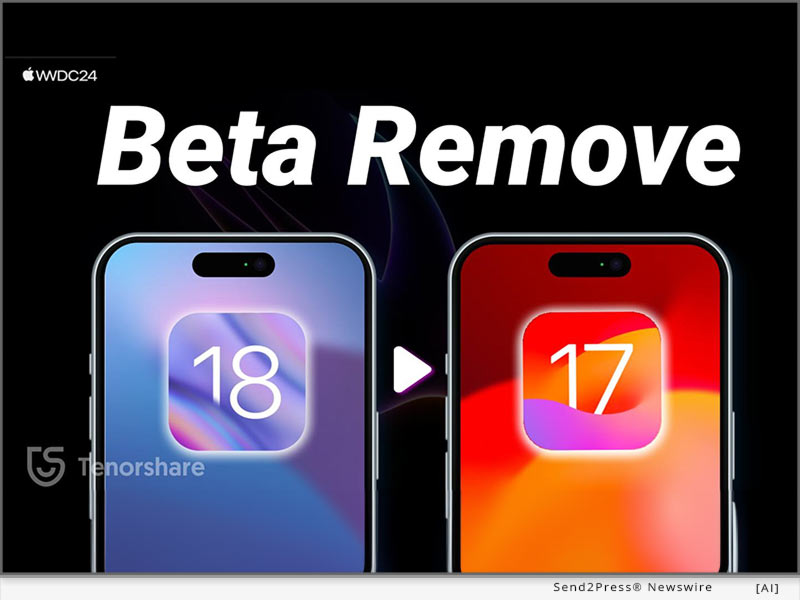
In the ever-evolving world of Pokemon Go, the desire to discover new regions and participate in activities knows no bounds. However, for a lot of players, geographical and physical limits can make it difficult for them to engage themselves in the game to the fullest. Thanks to the introduction of Tenorshare iAnyGo, people can now revel in the pleasure of changing their vicinity while not having to jailbreak their gadgets.
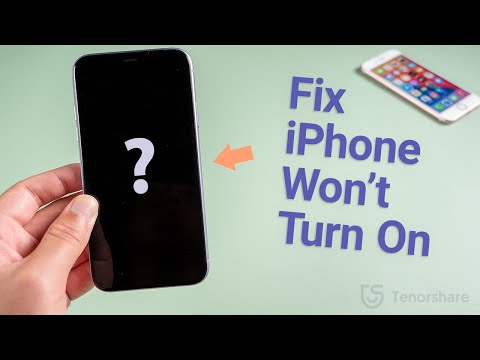
Related link: https://www.tenorshare.com/

This version of news story was published on ScoopCloud™ (ScoopCloud.com) - part of and © the Neotrope® News Network - all rights reserved.