Tag Archives: Apple Mac and iOS

Updated Guide: Best Way to Change Pokémon GO Location Safely on iOS 18 Without A Computer

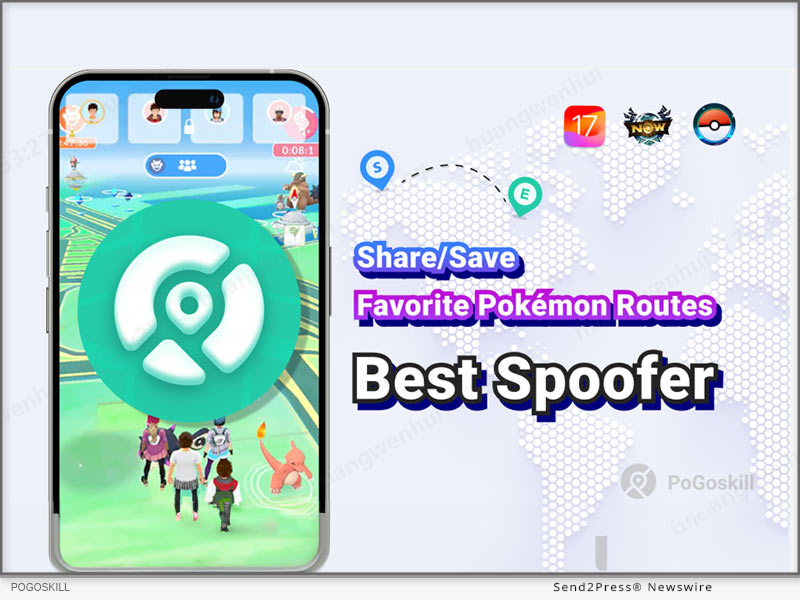
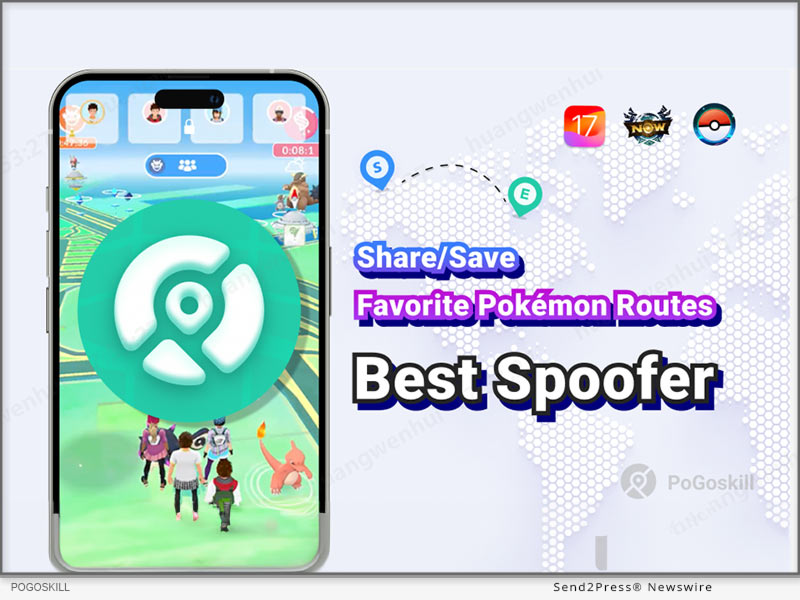
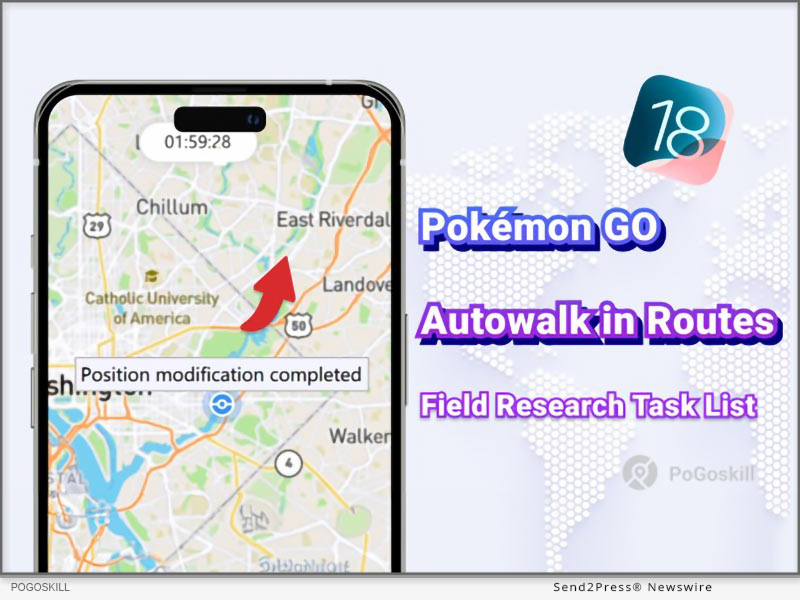
NEW YORK, N.Y., Oct. 11, 2024 (SEND2PRESS NEWSWIRE) — PoGoskill, the leading GPS spoofing tool, releases iOS App version 2.10.0. Pokémon GO players can now auto-walk official Routes to explore new regions with ease. Quickly view Taiwan Field Research tasks and earn Buddy Candy faster.

Best Way To Change Pokemon GO Location Safely on iOS 18 Without A Computer
Image caption: Best Way To Change Pokemon GO Location Safely on iOS 18 Without A Computer.

WHAT’S NEW IN POGOSKILL IOS APP 2.10.0?

  • Autowalk in Routes

It supports players to autowalk all official Pokémon GO Route, skipping the import/export process of GPX files. Effortlessly collect Zygarde Cells without walking.

  • Field Research Task List

Easily view all Field Research tasks and rewards, and select tasks to accept instantly with one tap. This feature is now limited to the Taiwan map.

  • Updated User Interface

With a revamped UI homepage layout, the app now offers a streamlined and straightforward design that enhances user-friendliness and simplifies operations.

FEATURE OVERVIEW

  • Pokémon GO GPS location spoofing is now supported on iOS 18.
  • Save and share custom routes using unique codes for easy access.
  • Navigate freely with the GPS joystick, adjusting your direction as you play.
  • Available on Windows, Android, Mac, and iOS for a seamless cross-platform experience.

HOW TO CHANGE POKÉMON GO LOCATION?

  • Launch the PoGoskill iOS App and choose the Pokémon Go Game mode.
  • Select any two spots on the map to generate a route. Adjust your speed settings and start your spoofing adventure in Pokémon Go.

PRICE OF POGOSKILL IOS APP

Though packed with new features, this GPS spoofing app is still priced at an unbeatable rate.

  • PoGoskill iOS App – 1 Month/1 Device: $14.99
  • PoGoskill iOS App – 1 Quarter/1 Device: $39.99
  • PoGoskill iOS App – 1 Year/1 Device: $79.99
  • PoGoskill iOS App – Lifetime/1 Device: $99

About PoGoskill:

PoGoskill is a pioneering software company offering top-tier GPS spoofing tools for iOS and Android platforms. Known for its user-friendly features and security, PoGoskill is relied upon by millions to enhance AR gaming and location-based services with precision and ease. Opt for PoGoskill for seamless GPS spoofing that you can count on.

More information: https://www.pogoskill.com/

YouTube: https://www.youtube.com/@PoGoskill

https://www.youtube.com/@PoGoskillJapan

https://www.youtube.com/@Pogoskill-TW

X/Twitter: https://x.com/PoGoskill_Inc

Facebook: https://www.facebook.com/PoGoskillOfficial

NEWS SOURCE: PoGoskill


This press release was issued on behalf of the news source (PoGoskill), who is solely responsible for its accuracy, by Send2Press Newswire. Image, if any, was provided by the news source and not this website or the wire service. Information is believed accurate, as provided by the news source, but is not guaranteed.

To view the original story, visit: https://www.send2press.com/wire/updated-guide-best-way-to-change-pokemon-go-location-safely-on-ios-18-without-a-computer/

Copr. © 2024 Send2Press® Newswire, Calif., USA. -- REF: S2P STORY ID: S2P121440 NOREL-3B
 

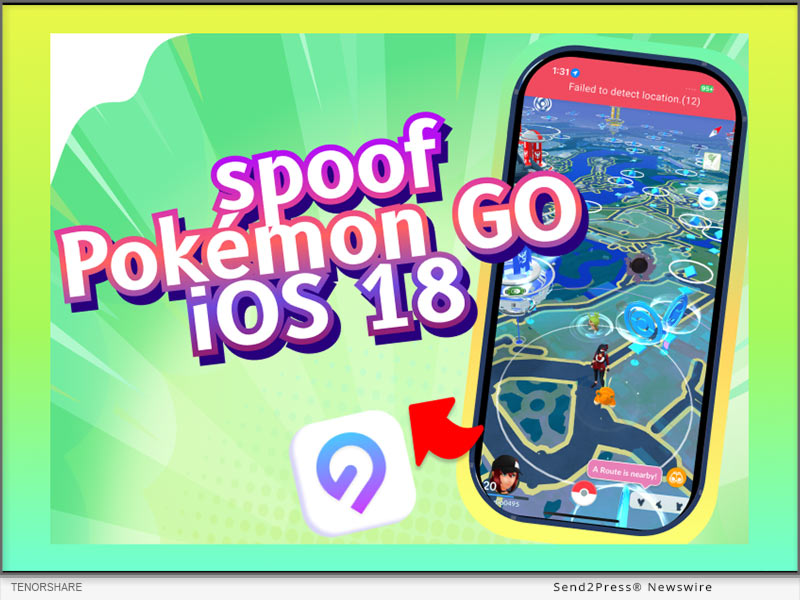
How to Spoof Pokémon GO on an iPhone Without a PC? (iOS 18 Supported)

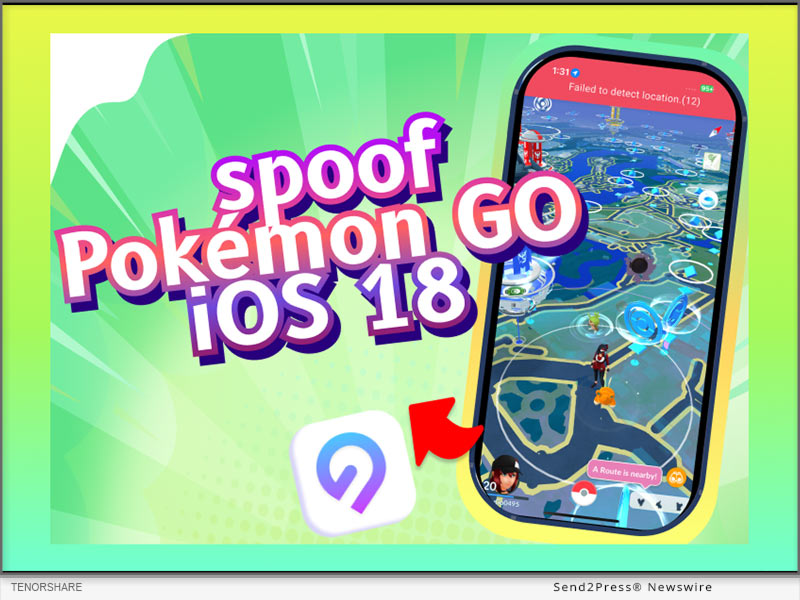
NEW YORK, N.Y., Oct. 11, 2024 (SEND2PRESS NEWSWIRE) — Tenorshare is excited to announce the release of version 2.10.0 of their widely-used iAnyGo iOS app. This update brings significant enhancements designed to improve game user experience, allowing players to spoof Pokémon GO on iOS 18 without a computer.

How to Spoof Pokémon GO on iPhone Without PC? (iOS 18 Supported)
Image caption: How to Spoof Pokémon GO on iPhone Without.

“With iAnyGo iOS App version 2.10.0, these major updates offer a better experience in Pokémon GO. Users can now instantly access Field Research tasks with just one click, easily locate nearby Pokémon GO routes, and customize the number of PokéStops on their routes. Try iAnyGo iOS App, the players can play Pokémon GO without physically moving,” said Tenorshare’s CEO when discussing the new features.

WHAT’S NEW IN IANYGO 2.10.0?

  • A Fresh Look for iAnyGo iOS App
    iAnyGo App 10.0 brings a complete UI overhaul, featuring a sleek and modern design. The newly revamped interface ensures that users can easily navigate the app and enjoy a more streamlined, user-friendly experience.
  • Easily Find Pokémon Go Routes Near Me
    iAnyGo iOS App now offers Pokémon Go Routes Feature. As we all know, the official task routes are pre-existing routes in Pokémon. The users can easily find Pokémon GO routes near them and obtain Zygarde Cells, which are used to upgrade special Pokémon.
  • Customize PokéStops Route Numbers
    In response to user feedback, iAnyGo App 10.0 now supports customized PokéStops route numbers, allowing users to adjust the number of PokéStops on a route. This feature reduces the time it takes to generate a route, giving users greater control over how they explore their environment.
  • Access to Field Research Tasks
    One of the standout new features is the ability to instantly view and accept Field Research task lists. It simplifies the process of identifying nearby tasks, making it easier for users to stay on top of in-game objectives. The data for the Field Research feature is only available in Taiwan.

HOW TO SPOOF POKÉMON GO ON IPHONE WITHOUT PC

Using the iAnyGo iOS app is simple, even for first-time users. Just follow these three steps. Get iAnyGo iOS App now!

Step 1: Download the iAnyGo iOS app. When installing it for the first time, you’ll need a computer. After that, you can reset the app’s validity every seven days. You won’t need a computer after the initial setup.

Step 2: Open the iAnyGo app, choose “Change Location,” enter your desired coordinates, and and simulate movement to easily find nearby Pokémon GO routes, allowing you to spoof Pokémon GO on iPhone without PC.

Learn more: https://www.tenorshare.com/purchase/buy-ianygo-ios-app.html

PRICING FOR IANYGO IOS APP

1 Month/1 Device: $14.99

1 Quarter/1 Device: $39.99

1 Year/1 Device: $79.99

Lifetime/1 Device: $99.99

About Tenorshare:

Tenorshare specializes in iOS, Android, Windows, and Mac platforms, focusing on core technology research. It is a leading software provider with millions of users that use its tools related to data transfer, data recovery, system repair, unlocking phones, and many more.

More information: https://www.tenorshare.com/

https://www.facebook.com/TenorshareOfficial/

https://x.com/Tenorshare_Inc

https://www.youtube.com/user/TenorshareOfficial/videos

https://www.tiktok.com/@tenorshare_tech_tips

NEWS SOURCE: Tenorshare Co. Ltd.


This press release was issued on behalf of the news source (Tenorshare Co. Ltd.), who is solely responsible for its accuracy, by Send2Press Newswire. Image, if any, was provided by the news source and not this website or the wire service. Information is believed accurate, as provided by the news source, but is not guaranteed.

To view the original story, visit: https://www.send2press.com/wire/how-to-spoof-pokemon-go-on-an-iphone-without-a-pc-ios-18-supported/

Copr. © 2024 Send2Press® Newswire, Calif., USA. -- REF: S2P STORY ID: S2P121435 NOREL-3B
 

Tenorshare Leads the Way with All Products Now Supporting iOS 18

NEW YORK, N.Y., Oct. 9, 2024 (SEND2PRESS NEWSWIRE) — Since its release, iOS 18 has excited users around world with a range of new features and improvements like redesigned Photos app and Apple Intelligence. Millions of users have already upgraded to test out latest functionalities. Tenorshare, a top provider of iOS solutions, has quickly adapted to iOS 18.

Tenorshare Leads the Way: All Products Now Support iOS 18
Image caption: Tenorshare Leads the Way: All Products Now Support iOS 18.

All of Tenorshare’s products now fully support the new operating system, allowing users to get the most out of their devices.

According to a Tenorshare spokesperson: “We’re focused on offering advanced solutions that meet changing needs of iOS users. Our support for iOS 18 shows our ongoing commitment to giving users tools they need to make most of their new experience.”

INTRODUCING TENORSHARE’S TOP PRODUCT: UNLEASHING EXCELLENCE

Here are the primary functions of top 5 most popular products from Tenorshare’s line of iOS solutions explained in detail:

  1. Tenorshare ReiBoot – It can fix 150+ system issues, reset devices, and erase data securely before selling. Moreover, it can easily upgrade/downgrade between iOS 18 and iOS 17 without jailbreak or iTunes.
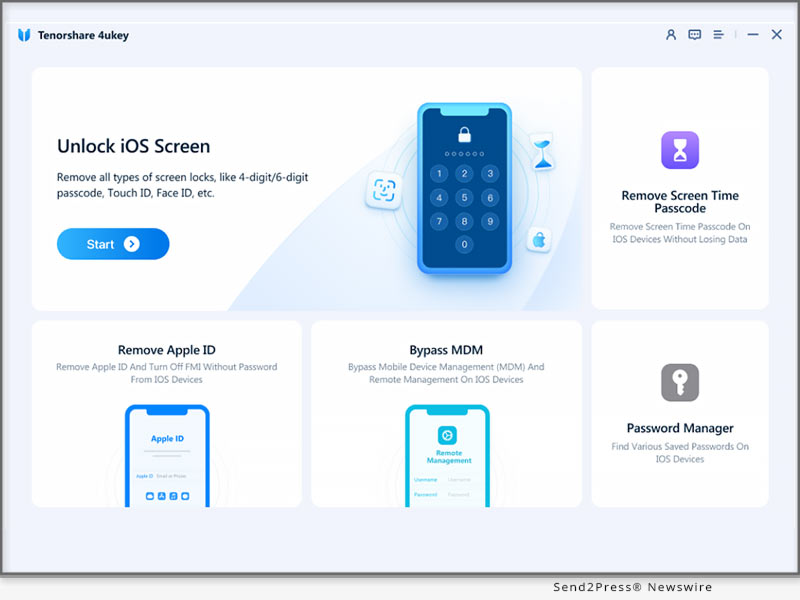
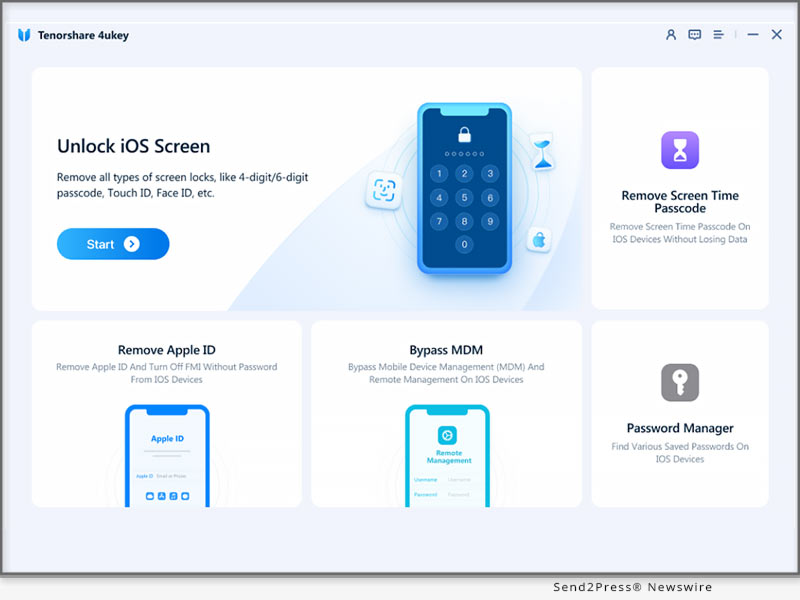
  2. Tenorshare 4uKey – It can unlock iPhone/iPad without a passcode or Face/Touch ID, and remove iCloud activation lock or Apple ID without a password. Moreover, it can bypass MDM lock and access stored passwords like Apple ID and WiFi.
  3. Tenorshare iAnyGo – Allows you to change your GPS location without jailbreak and control movement with a joystick in games. Works with all location-based apps and supports Pokémon GO, Monster Hunter Now, and more, resolving location errors.
  4. Tenorshare 4uKey For Android – It can unlock Android devices by removing passwords, PINs, patterns, fingerprints, and Face ID. Use it to bypass FRP on major brands like Samsung, Xiaomi, and Huawei without a password. It’s compatible with 6000+ Android devices
  5. Tenorshare iCareFone – It can transfer photos, contacts, music, and more between iPhone and PC/Mac. Use it to backup/restore your iPhone, convert Apple Music to MP3, and download region-locked apps like TikTok.

Learn more: https://www.tenorshare.com/products/reiboot.html

EXCITING OFFERS FROM TENORSHARE: IOS 18 & IPHONE 16 DISCOUNTS AWAIT!

Tenorshare, the smartphone solutions provider, is holding a Giveaway Event to celebrate release of iOS 18. Users will earn significant chances at winning an iPhone 16, and various gifts and getting Tenorshare products at up to 70% discount. Pick any tool like ReiBoot to solve software update problems in a few minutes and make your iOS 18 experience enjoyful.

Learn more: https://www.tenorshare.com/ios18-iphone16-giveaway.html?type=4&sid=137

About Tenorshare

As iOS 18 impresses users with new features, Tenorshare leads the way with solutions that completely support iOS. The company is known for creating products that solve software issues, including iOS 18 for improving iPhone users’ experience. With latest Giveaway Event by Tenorshare, users can enter it to win iPhone 16 and enjoy iOS 18 compatible products to help them adapt to new iOS quickly. Learn more: https://www.tenorshare.com/

NEWS SOURCE: Tenorshare Co. Ltd.


This press release was issued on behalf of the news source (Tenorshare Co. Ltd.), who is solely responsible for its accuracy, by Send2Press Newswire. Image, if any, was provided by the news source and not this website or the wire service. Information is believed accurate, as provided by the news source, but is not guaranteed.

To view the original story, visit: https://www.send2press.com/wire/tenorshare-leads-the-way-with-all-products-now-supporting-ios-18/

Copr. © 2024 Send2Press® Newswire, Calif., USA. -- REF: S2P STORY ID: S2P121386 NOREL-3B
 

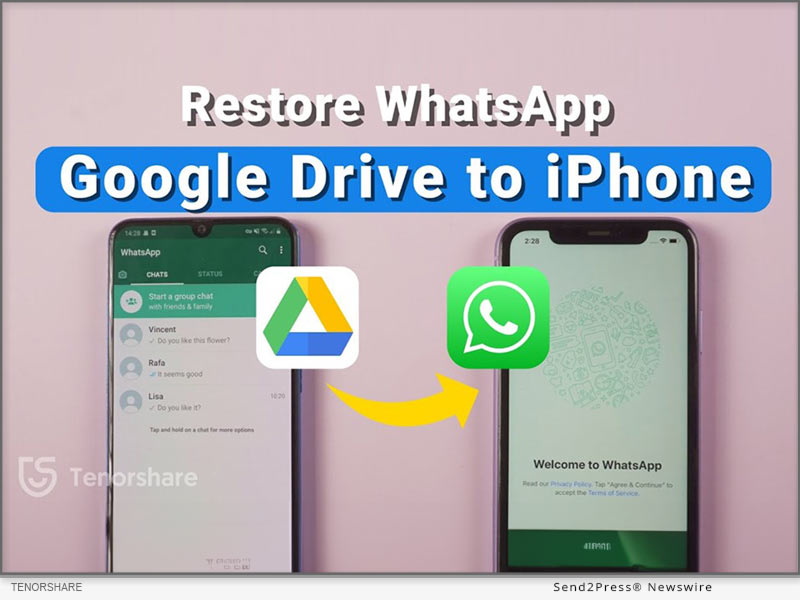
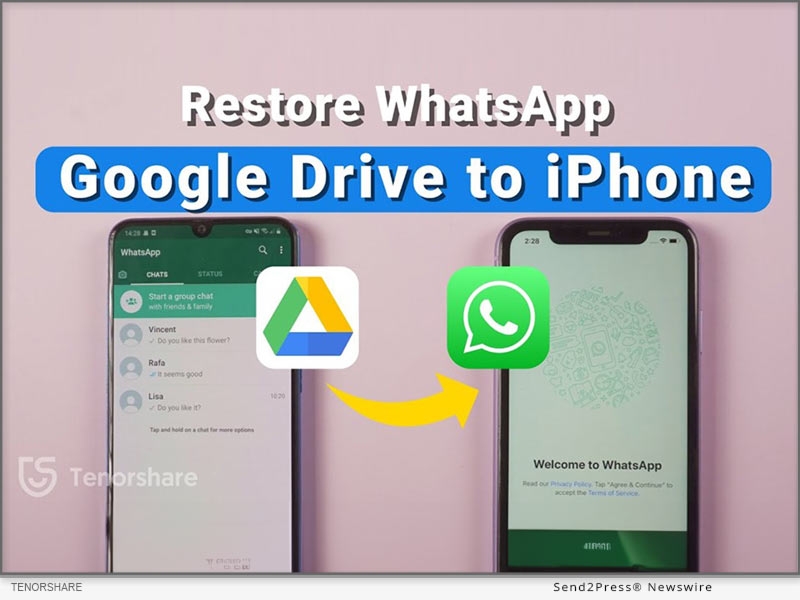
How to Restore Whatsapp Backup From Google Drive to iPhone [Easily]

NEW YORK, N.Y., Oct. 2, 2024 (SEND2PRESS NEWSWIRE) — Migrating WhatsApp backups from Google Drive to iPhone can be particularly difficult for Android users. This difficulty arises from the differing encryption protocols and storage systems used by Google Drive and iCloud, which prevents direct transfers, says Tenorshare.

Restore Whatsapp Backup from Google Drive to iPhone
Image caption: Restore Whatsapp Backup from Google Drive to iPhone.

To address these issues, this guide will provide two different methods for effectively WhatsApp restore backup from Google Drive to iPhone.

PART 1: CAN I RESTORE WHATSAPP BACKUP FROM GOOGLE DRIVE TO IPHONE?

Yes. You can restore Google Drive WhatsApp backup to iPhone from Android. But not directly from Google Drive to iPhone. Besides, most methods to move WhatsApp backup from Google Drive to iPhone require you to reset it. However, that’s not the case with Tenorshare iCareFone Transfer.

PART 2: HOW TO RESTORE WHATSAPP BACKUP FROM GOOGLE DRIVE TO IPHONE IN MINUTES? [EASY]

Tenorshare iCareFone Transfer offers to restore WhatsApp backup from Google Drive to iPhone without resetting your iDevice and erasing its data.

Here’s what this tool provides:

  • Fast Transfer Speed – Can transfer WhatsApp with attachments and media to your iPhone within a few minutes.
  • Selective Data Transfer – Allows you to pick what files types to move to your iPhone.
  • Comprehensive Restore – Move WhatsApp files from Google Drive to iPhone and from iCloud to Android.
  • Support for Multiple Devices – Supports latest iOS, iPhone 16 and eariler models.
  • Merge WhatsApp Data – Combine old WhatsApp files with new one on your iPhone.

Follow steps below to download WhatsApp backup from Google Drive to iPhone with Tenorshare iCareFone Transfer:

Step 1: Install and run “iCareFone Transfer” on your computer. Select “Backup” and log into Google Drive.

Step 2: Choose the WhatsApp backup you want to restore, and iCareFone will download it. Verify your WhatsApp account.

Step 3: iCareFone will prepare your selected backup data from Google Drive.

Step 4: Connect your iPhone to the same PC to restore the backup. Log into WhatsApp, verify your account, and skip the iCloud restore.

PART 3: HOW TO RESTORE WHATSAPP BACKUP FROM GOOGLE DRIVE TO IPHONE FREE?

If you want to know how to restore WhatsApp backup from Google Drive to iPhone without PC for free, then use official WhatsApp method. However, you can only move WhatsApp chat minus media to your iPhone with this method. Here’s how to use it:

Download WhatsApp on your Android, sign in, and restore the backup. Then, go to Settings > Chat History, export the chat, and email it to your iPhone.

On your iPhone, open the chat as a text file. It won’t restore in WhatsApp, but you’ll have a record.

About Tenorshare

Tenorshare, a smartphone solutions brand founded since 2007, focuses on software innovations to create adaptable solutions for making life easier for Android and iOS users. With iCareFone Transfer, you can restore WhatsApp backup from Google Drive to iPhone without resetting your iDevice.

Learn more: https://www.tenorshare.com/whatsapp-transfer-backup-restore.html

YouTube: https://www.youtube.com/@TenorshareOfficial

Facebook: https://www.facebook.com/TenorshareOfficial/

NEWS SOURCE: Tenorshare Co. Ltd.


This press release was issued on behalf of the news source (Tenorshare Co. Ltd.), who is solely responsible for its accuracy, by Send2Press Newswire. Image, if any, was provided by the news source and not this website or the wire service. Information is believed accurate, as provided by the news source, but is not guaranteed.

To view the original story, visit: https://www.send2press.com/wire/how-to-restore-whatsapp-backup-from-google-drive-to-iphone-easily/

Copr. © 2024 Send2Press® Newswire, Calif., USA. -- REF: S2P STORY ID: S2P121251 NOREL-3B

 

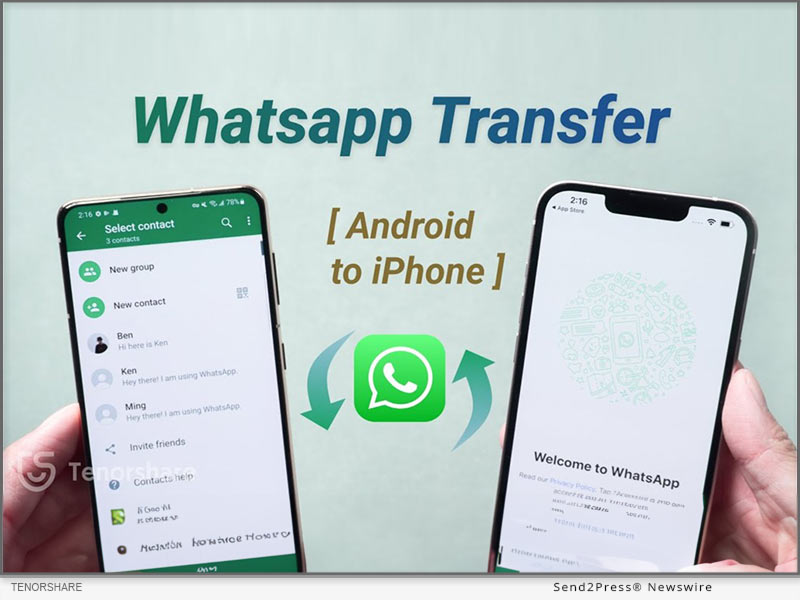
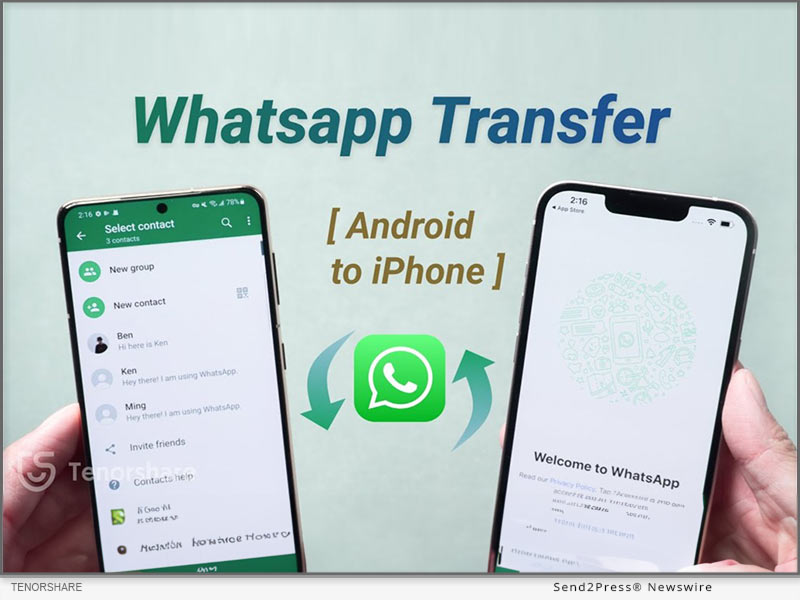
How to Transfer Whatsapp Messages from Android to iPhone Free and Easy

NEW YORK, N.Y., Oct. 1, 2024 (SEND2PRESS NEWSWIRE) — As users eagerly await the new iPhone 16, the demand for a easy way to transfer WhatsApp messages from Android to iPhone free has reached a new level. Traditionally, this process has been fraught with challenges due to the differences between the two operating systems, says Tenorshare.

How to Transfer Whatsapp Messages From Android to iPhone Free
Image caption: How to Transfer Whatsapp Messages From Android to iPhone Free.

In this guide, we’ll introduce three effective ways, including how iCareFone Transfer makes this possible.

PART 1: HOW TO TRANSFER WHATSAPP MESSAGES FROM ANDROID TO IPHONE WITH PC? [EASY]

Tenorshare iCareFone Transfer is a powerful tool designed to simplify the migration of WhatsApp messages between devices with ease. You won’t need to reset it for migration purposes.

Here are this tool’s key benefits:

  • High-Speed Transfer – Move entire WhatsApp/GB WhatsApp including media and attachments from Android to iPhone within a few minutes.
  • Secure and Private – Merge old WhatsApp on Android with new WhatsApp on iPhone successfully.
  • Comprehensive Restore – Restore Whatsapp backup from google drive to iphone. You can also choose specific file types for migration.
  • Support Latest iOS & iPhone Models – Compatible with iOS 18 and latest iPhone 16 to former iPhone 9.

Here’s how to transfer WhatsApp messages from Android to new iPhone with help of iCareFone Transfer:

  • Download iCareFone Transfer on a computer, then, connect Android and iPhone to a PC.
  • Next, back up WhatsApp on Android, select data to transfer and log in to restore it on iPhone.

PART 2: HOW TO TRANSFER WHATSAPP MESSAGES FROM ANDROID TO IPHONE FREE WITHOUT PC?

You can transfer WhatsApp messages from Android to iPhone using WhatsApp’s built-in migration feature during the iPhone setup. However, be aware that it transfers all messages without allowing selective transfer and maintain a stable Wi-Fi connection.

Hers is how to use it to WhatsApp transfer from iPhone to Android for free:

Backup on Android: Go to Settings > Chats > Chat Backup and back up to Google Drive.

Prepare iPhone: Reset to factory settings and install WhatsApp.

Initiate Transfer: Start setup on iPhone, select transfer, and scan the QR code.

PART 3: HOW TO TRANSFER WHATSAPP MESSAGES FROM ANDROID TO IPHONE FREE WITHOUT RESET?

If you want to know how to transfer WhatsApp chats from Android to iPhone without cable, then use “Email Chat” feature in WhatsApp. However, this method only moves chat. To transfer WhatsApp chats from Android to iPhone for free, follow steps below:

Open WhatsApp on Android, head to Settings > Chats > Chat History > Email chat. Then, select chats, and send them to your logged-in WhatsApp on your iPhone.

Learn more: https://www.tenorshare.com/whatsapp-transfer-backup-restore.html

About Tenorshare

Tenorshare iCareFone Transfer makes it easy to transfer WhatsApp messages from Android to iPhone without resetting with a PC & mobile app. The smartphone solutions brand, Tenorshare is hosting a iPhone 16 Giveaway where users can win an iPhone 16 and other prizes.

YouTube: https://www.youtube.com/@TenorshareOfficial

Facebook: https://www.facebook.com/TenorshareOfficial/

NEWS SOURCE: Tenorshare Co. Ltd.


This press release was issued on behalf of the news source (Tenorshare Co. Ltd.), who is solely responsible for its accuracy, by Send2Press Newswire. Image, if any, was provided by the news source and not this website or the wire service. Information is believed accurate, as provided by the news source, but is not guaranteed.

To view the original story, visit: https://www.send2press.com/wire/how-to-transfer-whatsapp-messages-from-android-to-iphone-free-and-easy/

Copr. © 2024 Send2Press® Newswire, Calif., USA. -- REF: S2P STORY ID: S2P121224 NOREL-3B

 

HitPaw Edimakor Mac 3.2.4 Released with Updates for Advanced AI Avatar and AI Vocal Remover

NEW YORK, N.Y., Sept. 26, 2024 (SEND2PRESS NEWSWIRE) — HitPaw Edimakor Mac 3.2.4 is a powerful update, including exciting features such as AI Avatar with talking photo lip-sync and AI Vocal Remover. The new version further extends its video editing possibilities to enable users to create professional-looking videos with less effort. Whether one is a content creator, marketer, or educator, the array of new features opens creative freedom and will make creating stunning videos easy as never before.

HitPaw Edimakor Mac 3.2.4 Released
Image caption: HitPaw Edimakor Mac 3.2.4 Released.

AI AVATAR

AI Avatar helps users create and shape up talking non-static images. It animates people’s photos by synchronizing the lip motions with the spoken text. This tool applies especially to social media content, tutorial videos, and marketing videos, which usually require more and more engagement.

AI VOCAL REMOVER

AI Vocal Remover provides the ability to extract vocals from anything in audio or video format and, therefore, makes the isolation of voiceovers or the removal of unwanted background music quite easier.

The precision with which AI Vocal Remover does this offers quality retention of the remaining audio, something that is really useful both for professionals and hobbyists.

WHAT’S MORE IN THE NEW VERSION?

The HitPaw Edimakor Mac 3.2.4 update isn’t just about AI Avatars and Vocal Remover; it comes packed with several additional features:

  • AI Video Cutout Function: Automatically detects and removes backgrounds from videos. It is highly useful for scene changes or chroma keying.
  • AI Beat Detection: Analyzes the music track and syncs it to video clips in order to simplify creating rhythm-based videos.
  • Optimized AI Audio Noise Reduction: Reduces background noise effectively and gives a clearer, more professional rendition of audio.
  • Enhanced Cropping: Crop directly in the player, making editing tasks easier.
  • Expanded Special Effects: Includes stroke effects, background glow, and portrait segmentation, allowing for more creative editing.
  • Stretchable Shapes: Basic shapes such as circles, rectangles, triangles, and hearts, with color stroke, and stretch capability.
  • Custom Text and Subtitle Presets: Customize your own text styles and save them for future reuse so that editing subtitles can be speedier and more efficient.

These additional features make the software an extensive solution in video editing to meet a wide range of creative needs.

PRICING & AVAILABILITY

HitPaw Edimakor Mac 3.2.4 is available on the official website; meanwhile, there are different pricing plans corresponding to user needs.

  • 1 Month ($19.95)
  • 1 Year ($49.95)
  • Perpetual ($69.95)

SUMMARY

The HitPaw Edimakor Mac 3.2.4 update brings a sea change in video editing with its advanced features such as AI Avatar and Vocal Remover, along with a host of other enhancements to make the learning curve as flat as possible. This update makes video creation accessible and efficient, whether you’re a beginner or a professional.

About Edimakor

HitPaw Edimakor is a state-of-the-art video treatment facility that uses AI to lighten the creative process. Among its many features, you can find an AI Subtitle Translator that automatically translates the subtitles of a video into multiple languages, a Text-to-Speech function that creates realistic voiceovers for one’s videos, and an AI Video Background Remover to change video backgrounds as quickly and easily as desired.

If you want professional-quality videos without having to invest much in terms of editing skills or resources, this platform actuates perfection.

For more information about HitPaw Edimakor Mac3.2.4 and its features, visit https://edimakor.hitpaw.com/

Follow on social:

Facebook: https://www.facebook.com/EdimakorOfficial

X/Twitter: https://x.com/HitpawEdimakor

YouTube: https://www.youtube.com/@HitPawEdimakorOfficial

VIDEO (YouTube): https://youtu.be/kvsWzGFlV9o?si=5t7fivrAa433l37s

NEWS SOURCE: HitPaw


This press release was issued on behalf of the news source (HitPaw), who is solely responsible for its accuracy, by Send2Press Newswire. Image, if any, was provided by the news source and not this website or the wire service. Information is believed accurate, as provided by the news source, but is not guaranteed.

To view the original story, visit: https://www.send2press.com/wire/hitpaw-edimakor-mac-3-2-4-released-with-updates-for-advanced-ai-avatar-and-ai-vocal-remover/

Copr. © 2024 Send2Press® Newswire, Calif., USA. -- REF: S2P STORY ID: S2P121193 NOREL-3B

 

How to Transfer Data from Android to iPhone 16 [Quickly]

NEW YORK, N.Y. /ScoopCloud/ -- The iPhone 16's launch has generated excitement, with users eager to experience its advanced Apple Intelligence and 48MP Fusion Camera. As more people upgrade, the need to transfer essential data-like contacts, photos, and messages-from Android devices to the iPhone 16 has become increasingly important, says Tenorshare.

In response, this guide presents 3 different methods, providing users with a range of options to easily transfer to new iPhone 16.

PART 1: HOW TO TRANSFER DATA FROM ANDROID TO IPHONE 16 AFTER SETUP?

Transferring data from an Android device to the iPhone 16 after setup is made easy with Tenorshare iCareFone iTransGo. This tool allows users to transfer data without resetting the device or losing any existing settings. Here are some top features:
* Easy to Use and Quick - One-click automatic transfer makes moving data between Android and iPhone fast.
* Safe With No Data Loss - Transfer without resetting your iPhone or overwriting existing data.
* Supports All Types of Data and Selective Transfer - Choose only specific file types to move.
* Wide compatibility - Supports 8,000+ Android devices and all major iPhone models, including latest iOS and Android versions.

Bonus Tips

Like iCareFone iTransGo, Tenorshare also offers a simple iCareFone to selectively backup data to a computer and restore it to your iPhone 16 without resetting. So, that's another choice for iPhone 16 data transfer.

HOW TO TRANSFER DATA FROM ANDROID TO IPHONE USING CABLE VIA ITRANSGO:

Step 1: Launch iCareFone iTransGo on your computer. Then, plug in your Android and iPhone to same PC. Enable necessary permissions and click "Start."

Step 2: Select data, scan, and transfer data to iPhone 16.

PART 2: HOW TO TRANSFER DATA FROM ANDROID TO IPHONE 16 WITHOUT CABLE?

If you want to know how to transfer contacts from Android to iPhone 16 via Bluetooth, meaning without cable, Apple doesn't allow that. However, you can use WiFi for migration. But it's time-consuming and requires resetting iPhone. Here's how to transfer data from Android to iPhone via WiFi:

Step 1: Launch Move to iOS on your Android, and enter code from your iPhone 16.

Step 2: Join a temporary WiFi network on your iPhone. Then, select data on Android, and move it to iPhone 16.

PART 3: HOW TO TRANSFER DATA FROM ANDROID TO IPHONE 16 FOR FREE?

Another way to transfer to iPhone 16 from Android for free is through iCloud. But this method is time-consuming. Here's how to transfer data from Android to iPhone 16 via iCloud:

Step 1: Download files from Android to PC, then from PC to iCloud.com.

Step 2: Next, enable iCloud syncing on your iPhone to access data.

About Tenorshare:

Tenorshare prioritizes innovation, safety, and high-quality software to help users achieve their goals efficiently. With iCareFone iTransGo, you can easily transfer data from an Android device to the iPhone 16 without the need for a reset.

Learn more: https://www.tenorshare.com/products/icarefone-itransgo.html

YouTube: https://www.youtube.com/@TenorshareOfficial

Facebook: https://www.facebook.com/TenorshareOfficial/

News from Tenorshare Co. Ltd.

The iPhone 16's launch has generated excitement, with users eager to experience its advanced Apple Intelligence and 48MP Fusion Camera. As more people upgrade, the need to transfer essential data-like contacts, photos, and messages-from Android devices to the iPhone 16 has become increasingly important, says Tenorshare.

Related link: https://www.tenorshare.com/

This version of news story was published on ScoopCloud™ (ScoopCloud.com) - part of and © the Neotrope® News Network - all rights reserved.

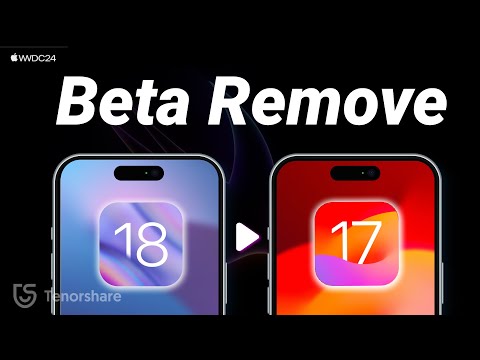
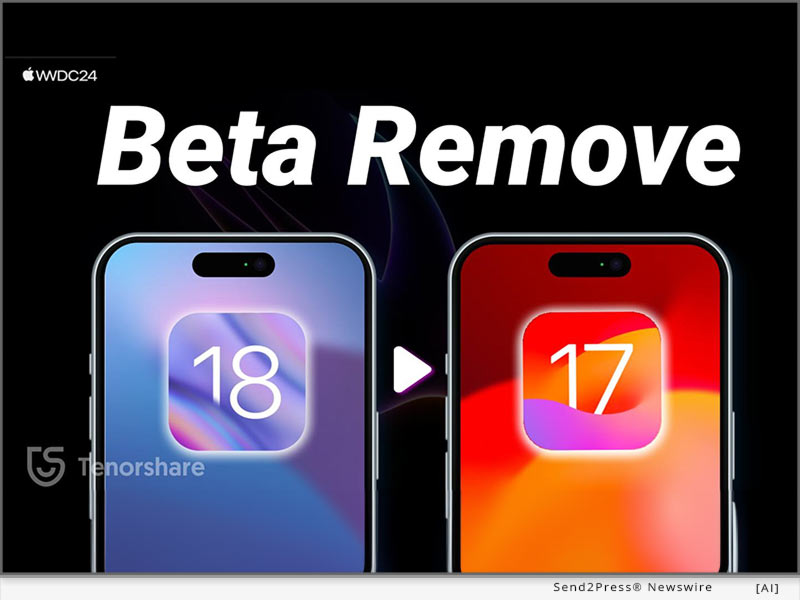
How to Downgrade from iOS 18 to iOS 17? Full Guide 2024

NEW YORK, N.Y. /ScoopCloud/ -- After the initial release of iOS 18, upgrading has been received with a mix of excitement and exasperation. Many iOS users face issues like battery drain and software glitches like stuck on Recovery Mode while updating. Those unhappy with iOS 18, are now asking, "How to downgrade from iOS 18 to 17." "First of all it's no easy feat; secondly it can risk losing data. Rather than taking risks, Tenorshare ReiBoot can help you safely downgrade iOS 18 to iOS 17 without losing your valuable data," says a Tenorshare spokesperson.

CAN YOU DOWNGRADE IOS 18 TO IOS 17 ON IPHONE/IPAD?

So, if you're thinking, "Can I go back to iOS 17 from 18," it depends on certain factors. Apple usually discourages downgrading to older iOS versions and often removes older firmware files, making them hard to find.

But if it still supports the version you want, you'll need an IPSW file for iOS 17. You can also use iTunes to restore your iDevice if you've got an old iOS 17 backup. Be aware this process will erase your data. Thus, if you want to learn how to go back to iOS 17 from 18 without data loss, Tenorshare ReiBoot is your best bet.

HOW TO DOWNGRADE IOS 18 TO 17 FOR IPHONE & IPAD IN 5 MINUTES?

ReiBoot iOS repair is an iOS management and repair tool that can not only downgrade iOS but can also upgrade, including Beta versions without data loss.

Here's what it offers:
* Fix 150+ iOS issues like being stuck on Recovery Mode, restart loop, Apple logo, white & black screen of death, and many more.
* Repair iTunes errors such as 1110, 4013, etc.
* Reset iDevices without passcode & iTunes.
* Erase iDevices permanently for giving them away.
* Enables you to enter/exit Recovery Mode with a click.
* Supports latest iOS versions and iDevices.

HERE'S HOW TO REVERT IPHONE BACK TO IOS 17 WITH HELP OF REIBOOT:

Step 1: Install ReiBoot on your computer then, attach your iDevice to same PC. Press "iOS Upgrade/Downgrade."

Step 2: Tap "Downgrade." Then, click "Download" to get latest firmware package.

Step 3: Afterward, ReiBoot will start downgrading your iDevice from iOS 18 to iOS 17.

Video Guide (YouTube): https://www.youtube.com/watch?v=RWnearLqwBs

BIG TENORSHARE DEALS ON IOS 18 & IPHONE 16!

Tenorshare is holding a Giveaway Event to celebrate release of iOS 18. Users will get a huge chance at winning shiny new iPhone 16, Amazon gift cards, and more than 70% discount on 6 helping products to make your iOS 18 journey easier.

About Tenorshare:

Learning how to downgrade from iOS 18 to iOS 17 is a risky process that comes with potential data loss. However, Tenorshare ReiBoot offers a safe way to downgrade without losing your data. Founded in 2007, Tenorshare is a well-known software company with a strong reputation for creating user-friendly solutions for iOS and Android that has earned them various accolades.

News from Tenorshare Co. Ltd.

After the initial release of iOS 18, upgrading has been received with a mix of excitement and exasperation. Those unhappy with iOS 18, are now asking, "How to downgrade from iOS 18 to 17." "First of all it's no easy feat; secondly it can risk losing data. Rather than taking risks, Tenorshare ReiBoot can help you safely downgrade iOS 18 to iOS 17 without losing your valuable data," says a Tenorshare spokesperson.

Related link: https://www.tenorshare.com/

This version of news story was published on ScoopCloud™ (ScoopCloud.com) - part of and © the Neotrope® News Network - all rights reserved.

How to Play Pokemon GO without Moving? Try iWhereGo iOS 18 Pokemon GO Spoofer

NEW YORK, N.Y. /ScoopCloud/ -- To all Pokémon Go fans, the thrill of playing should not be limited by mobility or busy schedules. Recognizing this, iWhereGo Genius introduces the ultimate Pokemon GO spoofer for iOS 18, making the entire Pokémon world accessible at your fingertips. You can explore, catch, and battle without ever leaving your seat!

CAN YOU PLAY POKEMON GO ON IPHONE IOS 18 WITHOUT MOVING?

Absolutely! The answer lies in using iWhereGo POGO Genius, a tool specifically designed for PoGo games. It fixes all location issues in Pokemon GO, including Error 12, and works with all location-changing apps by tricking the game into recording a fake virtual location. This lets fans access PokéStops, Gyms, and rare Pokémon without walking.

How to Teleport in Pokemon GO Without Walking

Step 1: Download iWhereGo POGO Genius

Visit iWhereGo's official website and download POGO Genius for free on your PC or Mac.

Step 2: Install POGO

Link your iPhone running iOS 18 to the computer with a USB connection. Uninstall the existing Pokémon Go game and click the POGO option to obtain the modified version.
Step 3: Spoof your Pokémon Go location

You can now use your preferred Pokémon Go spoofing app to modify your location. Below are the steps for using MocPOGO:

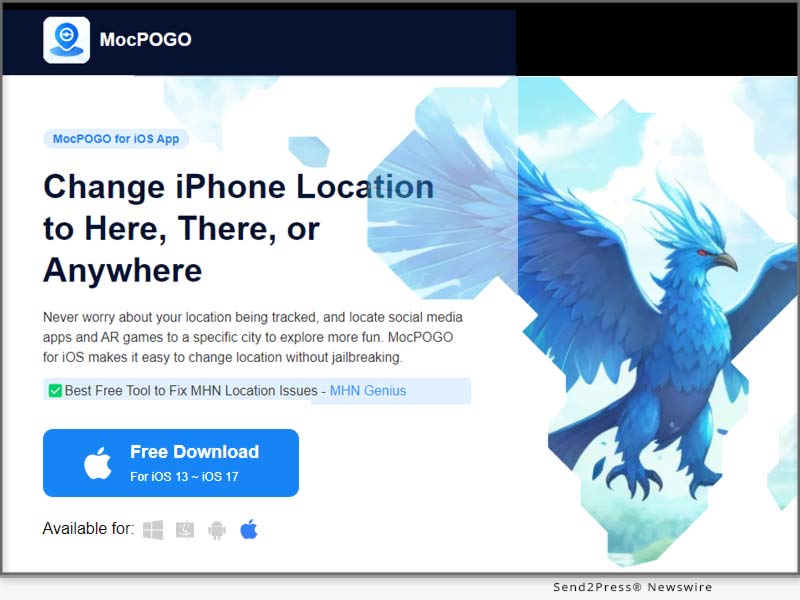
1. Download MocPOGO on your computer.

2. After launching it, click iOS as the operating system of the device you are using.

3. Select a spoofing Mode, Teleport, Two-spot/Multi-spot, or Jump teleport.

4. Enter your new destination's details.

5. Teleport or simulate movement on the mocked location.

Special Offer: Buy MocPOGO for iOS and get iWhereGo for Free! Also, with one purchase of MocPOGO you get up to 5 devices free and an extra 20% OFF coupon if you use the promo code iWhereGo20!

WHY CHOOSE IWHEREGO POGO GENIUS?

iWhereGo POGO Genius stands out for its reliability and performance when spoofing Pokemon GO.

BENEFITS

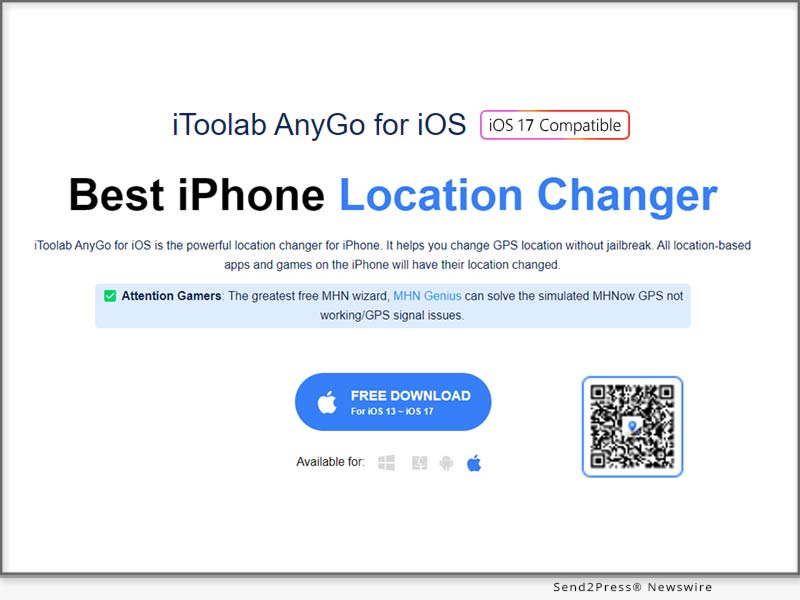
* It is free for partner paid users of MocPOGO, iToolab AnyGo, and FonesGo.

* It is compatible with iOS 18 and works for all location-based games.

* A cooldown timer guides you for fair play.

* An in-app GPS joystick helps to control your avatar intuitively.

* Players can import GPX route files to assist in their gaming.

LIMITATIONS

* Irresponsible spoofing may risk detection or an account ban.

About iWhereGo:

iWhereGo is dedicated to providing simple, effective, and professional solutions for gamers. Our mission is to enhance your gaming experience with innovative tools that make gameplay seamless and enjoyable. From effortless location spoofing to advanced features, iWhereGo ensures you get the most out of every adventure. Elevate your gaming with our cutting-edge solutions today.

For more information, visit the official site of iWhereGo:

iWhereGo POGO Genius: https://iwherego.com/pogo-genius/

iWhereGo MHN Genius: https://iwherego.com/mhn-genius/

News from IWhereGo

To all Pokémon Go fans, the thrill of playing should not be limited by mobility or busy schedules. Recognizing this, iWhereGo Genius introduces the ultimate Pokemon GO spoofer for iOS 18, making the entire Pokémon world accessible at your fingertips. You can explore, catch, and battle without ever leaving your seat!

Related link: https://iwherego.com/

This version of news story was published on ScoopCloud™ (ScoopCloud.com) - part of and © the Neotrope® News Network - all rights reserved.

iToolab Big Sales up to 70% OFF to Celebrate iPhone 16 and iOS 18

NEW YORK, N.Y. /ScoopCloud/ -- iToolab is a Hong Kong-based leading iOS and Android solution provider with a vision to help smartphone users solve various technical issues. Attention Apple fans! iToolab is thrilled to announce a spectacular lineup of discounts up to 70% OFF to celebrate the highly anticipated releases of iOS 18 and the iPhone 16.

Grab the cutting-edge tools at jaw-dropping prices and take your device to the next level.

"iToolab's mega-sale is here, just in time for iOS 18 and iPhone 16. Elevate your Apple experience with our top-notch software at unbeatable prices," said Mia Garcia, CEO at iToolab.

Share to Win More Chances to Get Mystery Gift

iToolab prepared some amazing gift boxes for users, each mystery box is filled with surprises. Limited chances to open the mystery boxes, share this iToolab Big Sales up to 70% event to social to win more chances!

AnyGo Promotion: Buy One, Get Three Free

For those looking to spoof GPS location, iToolab AnyGo Location Changer is available with a fantastic "buy one, get three free" offer. This means you can get AnyGo iOS Location Changer with additional AnyGo Android Location Changer, AnyGo Location Changer for Windows/Mac.

Enjoy the benefits of AnyGo:
1. Fix Pokémon Go failed to detect location error 12
2. Simulate GPS movement along customized routes
3. Change GPS Location on iPhone/Android without jailbreak or root
4. Compatible with Location-Based apps, such as Pokémon Go, MHN, WhatsApp, Tinder, etc.

70% OFF on WatsGo and FixGo

iToolab is offering a remarkable 70% discount on two of its flagship products:

WatsGo: Upgrade to new iPhone 16? This tool allows you to transfer WhatsApp from Android to iPhone 16 without factory reset, making it easier than ever to keep your conversations intact when switching phones.

FixGo: The best iOS system repair software helps to resolve 200+ iOS/iPadOS/tvOS Problems or iOS 18 issues, such as iPhone stuck in Recovery Mode, iPhone stuck on Apple logo, iPhone stuck on loading screen, or unable to check for update etc.

Limited-time Offers on Select Products

You can enjoy extra $10 off on these tools:

UnlockGo iOS: Unlock iPhone/iPad/iPod touch screen and bypass iCloud activation lock without passcode.

RecoverGo iOS: Best iPhone data recovery software to get back permanently deleted data from iPhone/iPad/iPod touch.

UnlockGo Android: Top-notch Android screen unlocker and Samsung FRP bypass tool.

RecoverGo Android: Recover deleted photos, messages, contacts and more from Android devices without backup.

RecoverGo WhatsApp: Recover accidentally deleted WhatsApp chat without any backup

About iToolab:

iToolab company has helped millions of users fix iOS issues and regain access to their iPhones and iPads. Currently, iToolab provides its services in more than 130 countries and has an extensive user base. The creative approach of the developers is the main reason for the high success rate of all iToolab products.

LEARN MORE:

Official Website: https://itoolab.com/

Facebook: https://www.facebook.com/itoolab

X/Twitter: https://x.com/IToolab

YouTube: https://www.youtube.com/@iToolab

News from IToolab Co Ltd

iToolab is a Hong Kong-based leading iOS and Android solution provider with a vision to help smartphone users solve various technical issues. Attention Apple fans! iToolab is thrilled to announce a spectacular lineup of discounts up to 70% OFF to celebrate the highly anticipated releases of iOS 18 and the iPhone 16.

Related link: https://itoolab.com/

This version of news story was published on ScoopCloud™ (ScoopCloud.com) - part of and © the Neotrope® News Network - all rights reserved.

How to Fix an iPad Stuck on the Apple Logo? New 2024 Full Guide

NEW YORK, N.Y. /ScoopCloud/ -- If your mind is whirring with the thought, "Why is my iPad stuck on Apple logo," it could be due to a software or hardware issue. But you'll never be sure which problem out of these two could be the culprit because there are so many types of software and hardware problems. "But rather than resolving 'iPad stuck on Apple logo' yourself with methods that might lead to data loss, why not try Tenorshare ReiBoot. It can fix 150+ iOS issues including 'iPad frozen on Apple logo' problem without data loss," says a Tenorshare spokesperson.

What Causes Your iPad to Get Stuck on the Apple Logo?

As we mentioned before "iPad Apple logo blinking" glitch on your iPad could be divided into software and hardware problems. If your "iPad freezes on Apple logo," here's a list of what types of software and hardware problems might be causing it:

* Software Issues - A damaged iOS system can stop your iPad from booting, incomplete iOS updates can freeze your iPad, and faulty apps or jailbreaking may block startup.
* Hardware Issues - A weak or faulty battery can prevent proper power-up, nearly full storage can slow down startup or any physical damage to iPad or its component can affect hardware.

How to Fix iPad Stuck on Apple Logo in 5 Minutes?

Tenorshare ReiBoot can fix your "iPad stuck on Apple logo" in 5 minutes with high success and without data loss. But that's not all that tool offers. In fact, you get a comprehensive iOS repair and management toolkit in form of ReiBoot which offers following features:

* Fix 150+ iOS issues like iOS devices stuck in a boot loop, Recovery Mode, iPad white screen & black screen, and many more.
* Can upgrade and downgrade iOS including Betas.
* Can factory reset, fix iTunes errors, and erase data permanently before giving away any iDevice.
* Support latest iPadOS 18 and all iPad, iPad Mini, iPad Air, and iPad Pro models.

Here are steps to use Tenorshare ReiBoot to fix "iPad frozen on Apple logo" issue:

Step 1: Download, install, and execute ReiBoot on your computer and choose "Start Repair." Then, attach your iPad which is stuck on Apple logo to same computer and once it's detected choose "Standard Repair."

Step 2: Tap "Download" to get latest firmware and after it's downloaded, select "Standard Repair" again.

Step 3: Wait for ReiBoot to fix your iPad stuck on Apple logo. Afterward, it will reboot normally.

Video Guide: https://www.youtube.com/watch?v=gIRqD8-KDjw

About Tenorshare:

The "iPad stuck on Apple logo" issue can be caused by either software or hardware problems. Rather than trying expensive solutions to fix it consider Tenorshare ReiBoot which can resolve 150+ iOS issues without data loss. The Tenorshare brand focuses on innovation and customer satisfaction all the while making life easier for businesses and individuals alike. https://www.tenorshare.com/

https://www.facebook.com/TenorshareOfficial/

https://x.com/Tenorshare_Inc

https://www.youtube.com/user/TenorshareOfficial/videos

https://www.tiktok.com/@tenorshare_tech_tips

News from Tenorshare Co. Ltd.

If your mind is whirring with the thought, "Why is my iPad stuck on Apple logo," it could be due to a software or hardware issue. "But rather than resolving 'iPad stuck on Apple logo' yourself with methods that might lead to data loss, why not try Tenorshare ReiBoot. It can fix 150+ iOS issues including 'iPad frozen on Apple logo' problem without data loss," says a Tenorshare spokesperson.

Related link: https://www.tenorshare.com/

This version of news story was published on ScoopCloud™ (ScoopCloud.com) - part of and © the Neotrope® News Network - all rights reserved.

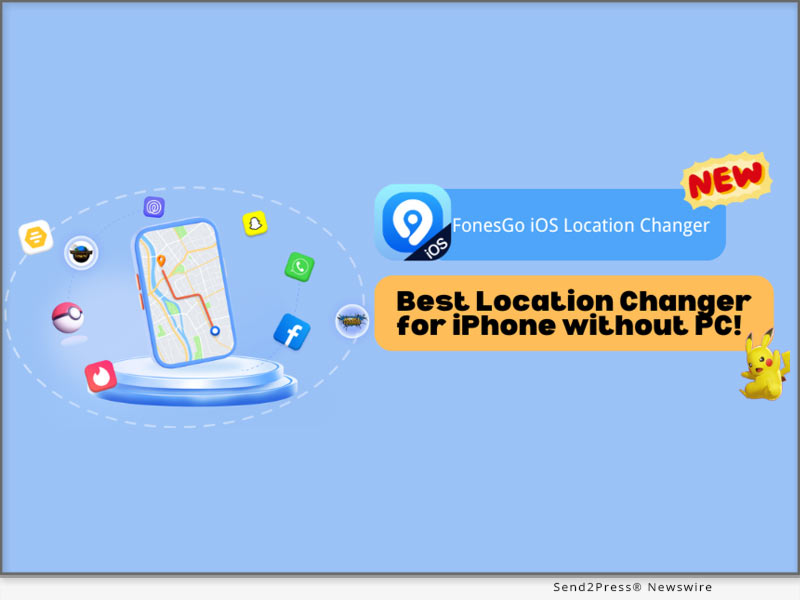
[NEW] Best Location Changer for iPhone without a PC! FonesGo iOS Location Changer

NEW YORK, N.Y. /ScoopCloud/ -- FonesGo Co Ltd announces that FonesGo Location Changer, one of the most popular geo spoofing softwares, is now available as an iOS app. With the release of FonesGo's newest software version, iOS users can effortlessly and safely change the GPS location on their iOS devices without requiring a computer.

"FonesGo iOS Location Changer is set to transform your device experience," states a FonesGo representative. "Now, with the power to modify your GPS location without pc effortlessly, it allows you to jump anywhere in location-based apps and games with only one click." Don't miss this incredible chance to elevate your game and social journey!

BEST IPHONE LOCATION CHANGER FOR GETTING WHERE YOU WANT

With FonesGo iOS Location Changer, you can effortlessly change location from social apps, dating apps, or even games like Pokemon Go, MHN, etc. It also allows you to travel anywhere with a single click.

Moreover, FonesGo iOS Location Changer can fix the "Pokemon Go Error 12: Failed to Detect Location" and "Monster Hunter Now Searching for GPS Signal" issues. Therefore, you can completely enjoy Pokemon Go and Monster Hunter Now without encountering any GPS difficulties, bringing your games to the next level.

Key Features of FonesGo iOS Location Changer:

* Freely change GPS location to anywhere without jailbreak/root.

* GPS joystick to flexibly control the direction of movement in games.

* History Collection for quick access to past locations.

* Speed Justify to mimic natural movement and avoid bans.

HOW TO CHANGE IPHONE LOCATION WITHOUT A COMPUTER?

To utilize the FonesGo iOS Location Changer, simply follow these steps:

1. Once downloaded, install the app on your iPhone device.

2. Type the location or coordinates into the search box.

3. Select the location and click the "Teleport" button on the map.

That is all! Your GPS location will be changed to your chosen destination in a moment.

More info: https://fonesgo.com/guide/how-to-use-location-changer-for-ios/

ENJOY FONESGO LOCATION CHANGER: BUY 1 GET 3 FREE & 20% OFF!

To honor its launch, FonesGo iOS Location Changer is giving a special deal. Users may save 20% on FonesGo by entering the coupon FonesGo20. You may also benefit from the "Buy 1 Get 3 Free" promotion. To take advantage of this limited-time deal, go to the FonesGo Location Changer official website.

About FonesGo:

FonesGo is a leading software development company focusing on mobile phone/computer solutions. We aspire to improve the mobile experience for people all around the world by focusing on innovation and user-friendliness. And provide simple, effective, and professional solutions for Android, iOS, and PC devices.

For more details, please visit:

More information: https://fonesgo.com/iphone-location-changer-app/

Facebook: https://www.facebook.com/fonesgo

YouTube: https://www.youtube.com/@fonesgo

News from FonesGo

FonesGo Co Ltd announces that FonesGo Location Changer, one of the most popular geo spoofing softwares, is now available as an iOS app. With the release of FonesGo's newest software version, iOS users can effortlessly and safely change the GPS location on their iOS devices without requiring a computer.

Related link: https://fonesgo.com/

This version of news story was published on ScoopCloud™ (ScoopCloud.com) - part of and © the Neotrope® News Network - all rights reserved.

Tenorshare Unveils Exclusive iOS 18 and iPhone 16 Special Offers

NEW YORK, N.Y. /ScoopCloud/ -- Tenorshare is holding a giveaway to celebrate the upcoming release of iOS 18 and iPhone 16. The new iOS 18 will have features like Apple Intelligence, redesigned control center, customized Home screen, and many more exciting functions. "Not only do you get to enjoy these features but you also earn a huge chance to win an iPhone 16, great prizes, and significant discounts on Tenorshare's iOS 18 Giveaway Event," says a Tenorshare spokesperson.

Discover the Exciting Ways to Engage With the Event!

By participating in Tenorshare's iOS 18 & iPhone 16 Giveaway Event you'll get an exclusive chance to win an iPhone 16 (128GB), and a $20 Amazon Gift Card X5. Not to mention receiving a 70% discount on 6 popular tools that can help you troubleshoot potential iOS 18 issues and transfer your data to iPhone 16.

To enter the event follow these steps:

1. Follow Tenorshare on Facebook.

2. Share your favorite iOS 18 features using #TenorshareAI.

3. Tag @Tenorshare and two friends.

4. Make your post public.

Giveaway winners will be announced October 15, 2024. Afterward, you'll need to respond within 7 business days to claim your prize.

Learn more: https://www.tenorshare.com/ios18-iphone16-giveaway.html?type=4&sid=137

Tenorshare's Top-Notch Software

Although you'll receive up to 70% Flash Deals for 6 iOS 18 useful tools there are two more that are must-haves to improve your iOS 18 and iPhone 16 experience. Tenorshare is providing discount on monthly registration:

1. Tenorshare ReiBoot For iOS - No.1 Free iOS System Repair & Recovery Software

Tenorshare ReiBoot is an iOS repair tool that makes upgrading and downgrading iOS 18 safer and more efficient. It can also repair iOS issues that come with new iOS updates. For instance, being stuck in a boot loop, or not being able to enter/exit Recovery Mode, etc. Available for as low as $19.95 for monthly registration in this event.

2. iCareFone - All-in-One Free iOS Backup Tool

iCareFone makes it easy to transfer data like photos to your new iPhone 16, convert Apple Music, and manage contacts. It can back up/restore your iPhone, including WhatsApp chats, and help download region-restricted apps. Available for $29.95 for monthly registration in this event.

Explore more AI Tools with Tenorshare

While a complete set of features for Apple Intelligence will be available next year, what's to stop you from enjoying AI-powered tools by Tenorshare for free? The Tenorshare AI Writer features 120+ writing tools to generate unique content. While Tenorshare AI PDF summarizes PDF documents and allows you to chat with them to extract useful content.

About Tenorshare

Tenorshare is celebrating iOS 18 with a giveaway for an iPhone 16, Amazon gift cards, and free AI tools. You'll also get 70% off on useful software to improve your iOS 18 experience. The company is dedicated to creating solutions that adapt well to newer iOS versions and devices and help you manage and troubleshoot them.

More information: https://www.tenorshare.com/

Facebook: https://www.facebook.com/TenorshareOfficial/

X/Twitter: https://x.com/Tenorshare_Inc

YouTube: https://www.youtube.com/user/TenorshareOfficial/videos

TikTok: https://www.tiktok.com/@tenorshare_tech_tips

News from Tenorshare Co. Ltd.

Tenorshare is holding a giveaway to celebrate the upcoming release of iOS 18 and iPhone 16. The new iOS 18 will have features like Apple Intelligence, redesigned control center, customized Home screen, and many more exciting functions. "Not only do you get to enjoy these features but you also earn a huge chance to win an iPhone 16, great prizes, and significant discounts on Tenorshare's iOS 18 Giveaway Event," says a Tenorshare spokesperson.

Related link: https://www.tenorshare.com/

This version of news story was published on ScoopCloud™ (ScoopCloud.com) - part of and © the Neotrope® News Network - all rights reserved.

UltData for iOS V10 Released: Redefining the Standard in iPhone Data Recovery

NEW YORK, N.Y. /ScoopCloud/ -- Tenorshare, a leading software provider, is proud to announce the release of the brand new UltData for iOS V10. This update not only solidifies Tenorshare's leadership in the iPhone data recovery field but also sets a new industry standard.

WHAT'S NEW IN TENORSHARE ULTDATA FOR IOS V10?

One of the most notable improvements in this iPhone data recovery software is its completely redesigned user interface. The design team divide the interface into distinct modules for different recovery options. For instance, have a dedicated area for retrieving files from native apps and another for recovering data from third-party apps like Instagram, with clear descriptions for each section. This is why UltData is easier to navigate compared to other alternatives. You can access and use the features you need with just one click. Once a specific recovery option is selected, the tool provides detailed guidance to help users smoothly complete the data recovery process.

"Our goal with UltData for iOS V10 was to create a tool that not only provide high-quality iPhone data recovery but also exceeds our users' expectations in terms of usability," said Daniel, marketing director at Tenorshare. "We listened to our customers, and their feedback was instrumental in shaping this new version."

KEY FEATURES OF TENORSHARE ULTDATA FOR IOS V10

There are many data recovery software for iPhone in the market, but UltData for iOS is clearly the winner.

Now, let's take a closer look at the highlights of this best iPhone data recovery software:

* Recovers files directly from iOS devices without any backup.

* Selectively restores data from iCloud and iTunes backups without needing to reset your iPhone.

* Supports recovery of over 35 data types, such as photos, messages, contacts, notes, and more.

* Regains lost data from third-party apps, including WhatsApp, Messenger, Instagram, LINE, etc.

* Provides a preview feature to help users verify data Integrity.

* No technical knowledge required; a user-friendly tool for everyone.

* Offers advanced features like system repair and backup & restore.

With a 98% success rate, UltData can be your go-to choice when choosing data recovery software for iPhone.

COMPATIBILITY AND PRICING

Tenorshare UltData for iOS V10 is fully compatible with Windows and macOS. There are three pricing available, with prices ranging from $45.95 to $65.95. Currently, Tenorshare is offering a 20% discount, allowing home users to purchase this iPhone data recovery software at a more affordable price.

For more price checking and information, you can visit: https://www.tenorshare.com/purchase/buy-iphone-data-recovery-win.html

About Tenorshare:

Over the past decade, Ultdata for iOS has consistently been recognized as one of the best iPhone data recovery software in the industry. Tenorshare, the creator behind this powerful tool, has garnered widespread acclaim from millions of users across 150 countries. Apart from iPhone data recovery, Tenorshare also offers a variety of innovative software solutions, including system repair, password recovery, data transfer, and more.

More information: https://www.tenorshare.com/

Facebook: https://www.facebook.com/TenorshareOfficial/

X/Twitter: https://x.com/Tenorshare_Inc

YouTube: https://www.youtube.com/user/TenorshareOfficial/videos

TikTok: https://www.tiktok.com/@tenorshare_tech_tips

News from Tenorshare Co. Ltd.

Tenorshare, a leading software provider, is proud to announce the release of the brand new UltData for iOS V10. This update not only solidifies Tenorshare's leadership in the iPhone data recovery field but also sets a new industry standard.

Related link: https://www.tenorshare.com/

This version of news story was published on ScoopCloud™ (ScoopCloud.com) - part of and © the Neotrope® News Network - all rights reserved.

[NEW] Best Pokémon GO Spoofer for iOS and Android Without a PC in 2024

NEW YORK, N.Y. /ScoopCloud/ -- PoGoskill, the top GPS spoofing software, has launched the iOS App with version 2.9.0. The latest update enables Pokémon GO players to share their favorite routes on social media effortlessly. Save popular routes with one click, explore new areas, and unlock multiple rewards to add even more fun to their adventures.

WHAT'S NEW IN POGOSKILL IOS APP 2.9.0?

Share Favorite Routes

Quickly share your favorite routes to social media, skip the import/export GPX files process, and directly save popular Pokémon Go routes to your social media.

Customize Your Avatar And Nickname

A fun or creative avatar and nickname can enhance social interactions and protect privacy.

FEATURE OVERVIEW

* Change GPS location in Pokémon Go is now compatible with iOS Beta 18.

* GPS Joystick to Freely Mock Location Direction When Playing Pokémon Go

* One-click capture of Pokémon and raid battle entry in the Taiwan map

* Cross-platform availability meets the needs of Windows, Android, Mac, and iOS users

HOW TO SPOOF POKÉMON GO?

* Launch the PoGoskill iOS App and choose the Pokémon Go Game mode.

* Select any two spots on the map to generate a route. Adjust your speed settings and start your spoofing adventure in Pokémon Go.

PRICE OF POGOSKILL IOS APP

Despite the newest features and enhancements, this GPS spoofing app continues to be offered at an unbeatable price.

* PoGoskill iOS App - 1 Month/1 Device: $14.99

* PoGoskill iOS App - 1 Quarter/1 Device: $39.99

* PoGoskill iOS App - 1 Year/1 Device: $79.99

* PoGoskill iOS App - Lifetime/1 Device: $99.99

About PoGoskill:

PoGoskill is a premier software company offering cutting-edge GPS spoofing solutions for iOS and Android platforms. With a user base exceeding 100 million, PoGoskill is dedicated to continuously refining and upgrading its features to enhance the user experience. Known for its reliability and trustworthiness, PoGoskill is the go-to choice for GPS spoofing, especially within AR games.

More information: https://www.pogoskill.com/

YouTube: https://www.youtube.com/@PoGoskill

https://www.youtube.com/@PoGoskillJapan

https://www.youtube.com/@Pogoskill-TW

X/Twitter: https://x.com/PoGoskilloffice

Facebook: https://www.facebook.com/PoGoskillOfficial

News from PoGoskill

PoGoskill, the top GPS spoofing software, has launched the iOS App with version 2.9.0. The latest update enables Pokémon GO players to share their favorite routes on social media effortlessly. Save popular routes with one click, explore new areas, and unlock multiple rewards to add even more fun to their adventures.

Related link: https://www.pogoskill.com/

This version of news story was published on ScoopCloud™ (ScoopCloud.com) - part of and © the Neotrope® News Network - all rights reserved.

[No Computer] How to Easily Find PokéStops Near Me in Minutes

NEW YORK, N.Y. /ScoopCloud/ -- The iAnyGo iOS App 2.8.0 has been released, and Tenorshare, a top software provider, is excited to offer this news. One-click Pokémon capture and a PokéStop mode are just two of the exciting new features.

"After the release of the new features in the iAnyGo iOS App, Pokémon GO fans can easily find PokéStops near them in minutes. Whether you're wondering how to find PokéStops or seeking the best PokéStops near you, this feature has you covered, making your Pokémon GO adventures smoother and more enjoyable," said Tenorshare's CEO, while introducing the new features.

WHAT'S NEW IN IANYGO IOS APP 2.8.0?

Now that version 2.8.0 has been released, iAnyGo has extended the possibilities available to Pokémon GO gamers. Here is a closer look at the new features:

ONE-CLICK TO CAPTURE POKÉMON AND JOIN RAID BATTLES

One of the most anticipated updates in version 2.8.0 is the ability to capture Pokémon and join raid battles with just one click. This feature is specifically available to display Pokémon and raids on the Taiwan map. Gamers can now engage with Pokémon more efficiently and participate in battles, enhancing their overall gameplay experience.

POKÉSTOP MODE: FIND POKÉSTOPS NEAR ME IN MINUTES

Another significant addition is the new PokéStop mode, which allows players to easily find PokéStops near them in just a few minutes. This mode is perfect for gamers looking to locate PokéStops and quickly gather essential items and rewards.

SUPPORT FOR MODIFYING LOCATION ON IOS 18 BETA

The iAnyGo iOS App now supports modifying location on iOS 18 beta to keep up with the latest technology.

HOW TO INSTALL IANYGO IOS APP?

Installing the iAnyGo iOS App is simple. Here's a quick guide to get you started:

* Download and install iAnyGo iOS Assistant on your computer.

* Launch iAnyGo iOS Assistant and install the iAnyGo iOS App.

* Once the installation is done, open the iAnyGo iOS App and start exploring its features.

Learn more: https://www.tenorshare.com/products/ianygo-change-gps-location-iphone.html

HOW TO EASILY FIND POKÉSTOPS NEAR ME IN MINUTES?

Using the new PokéStop mode to find PokéStops near me is straightforward:

1. Open the iAnyGo iOS App and click the PokéStop mode.

2. Choose fast mode or full mode. Then a route will be generated. You can set your speed and start moving to collect items and rewards efficiently.

PRICING

iAnyGo iOS App is available at competitive prices:

* 1 Month/1 Device: $14.99

* 1 Quarter/1 Device: $39.99

* 1 Year/1 Device: $79.99

* Lifetime/1 Device: $99.99

For more information on purchasing the iAnyGo iOS App, please visit our purchase page - https://www.tenorshare.com/purchase/buy-ianygo-ios-app.html

About Tenorshare:

Tenorshare specializes in iOS, Android, Windows, and Mac platforms, focusing on core technology research. It is a highly-reputed and leading software provider with millions of users that use its tools and services related to data transfer, data recovery, system repair, unlocking phones, and many more.

More information: https://www.tenorshare.com/

Facebook: https://www.facebook.com/TenorshareOfficial/

X/Twitter: https://x.com/Tenorshare_Inc

YouTube: https://www.youtube.com/user/TenorshareOfficial/videos

TikTok: https://www.tiktok.com/@tenorshare_tech_tips

News from Tenorshare Co. Ltd.

The iAnyGo iOS App 2.8.0 has been released, and Tenorshare, a top software provider, is excited to offer this news. One-click Pokémon capture and a PokéStop mode are just two of the exciting new features. Now that version 2.8.0 has been released, iAnyGo has extended the possibilities available to Pokémon GO gamers.

Related link: https://www.tenorshare.com/

This version of news story was published on ScoopCloud™ (ScoopCloud.com) - part of and © the Neotrope® News Network - all rights reserved.

Fix Support Apple Com/iPhone/Restore in 5 Minutes – iOS 18 Supported

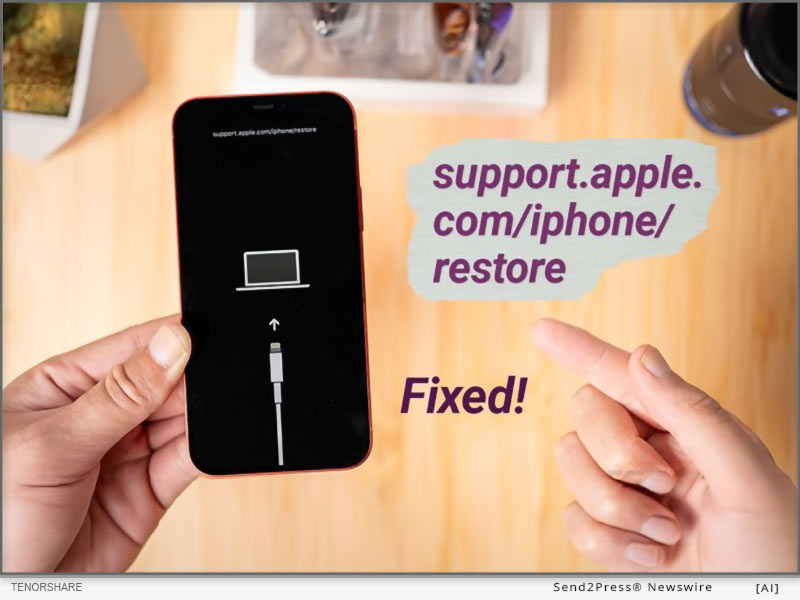
NEW YORK, N.Y. /ScoopCloud/ -- If a "support.apple.com/iphone/restore" message pops up on your iPhone, you'll need to restore your device using a computer. While restarting or doing a hard reset, sometimes, might fix this issue, they don't guarantee success if problem is complex. So, you're left with no alternative except to restore your iOS via iTunes, which can lead to data loss. "However, an iOS repair and management tool like Tenorshare ReiBoot provides a safe and effective way to fix an iPhone stuck on 'support.apple.com/iphone/restore' screen in less time than any other method. Besides, it can do this without data loss, and manual steps," says a Tenorshare spokesperson.

VIDEO (YouTube): https://www.youtube.com/watch?v=SfnIbJBCvhU&t=6s

Why Does My iPhone Say Support.Apple.Com/iPhone/Restore?

If you're speculating about "Why does my iPhone say support.apple.com/iphone/restore," it's because it's in Recovery Mode due to software issues. But the real problem arises when your iPhone gets stuck in Recovery Mode. This can happen because of failed updates, software bugs, a failed iOS upgrade/ downgrade, improper actions like attempting to jailbreak, or, rarely, hardware damage.

How to Fix Support.Apple.Com/iPhone/Restore in 5 Minutes?

ReiBoot iOS Repair tool is a professional tool for repairing iOS issues including your iPhone stuck on "support.apple.com/iphone/restore" screen in 5 minutes. It can fix 150+ iOS issues without jailbreak, iTunes, and data loss.

Here are this tool's main functionalities:

* Repair System Issues - Fix a wide range of iOS problems like being stuck on Apple logo or black screen, or unresponsive or frozen iOS devices without losing data.

* Safe Downgrade/Upgrade - It doesn't require jailbreak or iTunes to upgrade or downgrade iOS.

* Easy Recovery Mode Management - You can enter and exit Recovery Mode with one click.

* iOS 18 Beta Support - It supports all current iOS versions including iOS 17 and iOS 18 Beta.

* Device Reset - Reset iOS devices without a passcode, iTunes, or Finder.

* Data Erasure - Wipes data permanently before selling or gifting your iOS device.

* Fix Errors - Resolve common iTunes errors like 4013 and 1110 easily.

To repair your iPhone stuck on 'support.apple.com/iphone/restore" screen with assistance of Tenorshare Reiboot, follow instructions below:

Step 1: Launch ReiBoot on your computer and connect your iPhone to same PC. Hit "Start Repair."

Step 2: Pick "Standard Repair." Next, press "Download" to get latest firmware package.

Step 3: Then, choose "Standard Repair" again and allow ReiBoot to fix your iPhone stuck on Apple restore screen. Afterward, it will reboot normally.

Learn more: https://www.tenorshare.com/products/reiboot.html

About Tenorshare:

When your iPhone gets stuck on "support.apple.com/iphone/restore" screen this is often because of software issues and fixing them might result in data loss. However, Tenorshare ReiBoot offers a quick solution to repair this problem without jailbreak and data loss in just 5 minutes. Trusted by 142+ million users, Tenorshare, an innovative smartphone solutions provider focuses on safety and quality of its solutions for an improved user experience.

Learn more: https://www.tenorshare.com/

News from Tenorshare Co. Ltd.

If a "support.apple.com/iphone/restore" message pops up on your iPhone, you'll need to restore your device using a computer. "However, an iOS repair and management tool like Tenorshare ReiBoot provides a safe and effective way to fix an iPhone stuck on 'support.apple.com/iphone/restore' screen in less time than any other method. Besides, it can do this without data loss, and manual steps," says a Tenorshare spokesperson.

Related link: https://www.tenorshare.com/

This version of news story was published on ScoopCloud™ (ScoopCloud.com) - part of and © the Neotrope® News Network - all rights reserved.

HitPaw Edimakor for Mac 3.0.0 Released with AI Video Translator and AI Copywriting!

NEW YORK, N.Y. /ScoopCloud/ -- HitPaw, a leading innovator in video editing and multimedia software, announces the launch of HitPaw Edimakor for Mac V3.0.0. This major release incorporates groundbreaking AI technology, including automatic video translation and AI-powered copywriting tools, that will revolutionize video creation workflows. With HitPaw Edimakor 3.0.0, video editors and social media producers can create localized, optimized, engaging video content faster than ever before.

:: AI Video Translator

The AI video translator in HitPaw Edimakor 3.0.0 enables users to automatically translate and add subtitles to their videos with just a few clicks. This creates opportunities for localized marketing videos, global distribution of video content and the ability to watch videos in any native language around the world.

It has very accurate AI translations that preserve the original context and feelings in dialogues or narrations. All that is required from a user is importing a video, choosing the source and target languages then leaving everything else to HitPaw.

How to Use:

1. Add your video files to a new project timeline

2. Use the "subtitle" tool to automatically convert speech into subtitles

3. Translate the subtitles to the target language

4. Customize the AI-generated text as needed

5. Export your final video with subtitles and copy

:: AI Copywriting Assistant

The new AI copywriting capabilities in HitPaw Edimakor 3.0.0 are a gamechanger for crafting compelling video scripts, titles, descriptions, and more. Simply describe your video concept and target audience, and the AI will generate on-brand copy tailored to your needs.

The AI copywriter creates original text that is engaging, persuasive, and optimized for search engines. Whether you need a catchy video title, powerful opening hook, or full video script, the AI can handle it with just a few prompts.

How to Use:

1. Open Edimakor and Click "AI copywriting"

2. Select the video scene you want

3. Describe the video theme and related information

4. Generate the script

:: Pricing and Availability

HitPaw Edimakor 3.0.0 is available now for Mac and can be downloaded from the official HitPaw website. Subscription plans start at just $19.95 per month, while a perpetual license is $69.95 with free lifetime upgrades.

Considering the immense value added by the new AI tools, HitPaw Edimakor remains an extremely cost-effective option for video creators and social media marketers. The software pays for itself in time savings and higher quality results.

:: Summary

In video post-production, HitPaw Edimakor 3.0.0 has been enhanced with AI-powered features that have brought in advanced automation. This launch facilitates quicker production of stunning videos by creators through AI-created captions and copywriting and improved editing functions.

About Edimakor

HitPaw Edimakor 3.0.0 is video editing software packed with cutting-edge AI tools. It can automatically generate scripts, subtitles, and optimized copy using advanced AI. Key features include AI video generator, subtitle generator, text-to-speech, speech-to-text, copywriting and more, revolutionizing the video creation workflow.

LEARN MORE:: https://edimakor.hitpaw.com/

Social Media:

* Facebook: https://www.facebook.com/EdimakorOfficial

* X/Twitter: https://x.com/HitpawEdimakor

* YouTube: https://www.youtube.com/@HitPawEdimakorOfficial

News from HitPaw

HitPaw, a leading innovator in video editing and multimedia software, announces the launch of HitPaw Edimakor for Mac V3.0.0. This major release incorporates groundbreaking AI technology, including automatic video translation and AI-powered copywriting tools, that will revolutionize video creation workflows. With HitPaw Edimakor 3.0.0, video editors and social media producers can create localized, optimized, engaging video content faster than ever before.

Related link: https://www.hitpaw.com/

This version of news story was published on ScoopCloud™ (ScoopCloud.com) - part of and © the Neotrope® News Network - all rights reserved.

[Updated!] Pokemon GO Failed to Detect Location 12 Fixed by using Tenorshare iAnyGo

NEW YORK, N.Y. /ScoopCloud/ -- Early on June 7, Pokemon GO released an update to version 315.2, which led to widespread location detection issues, notably Error 12. Many users encountered a 'failed to detect location 12 Pokemon GO' error when attempting to spoof their location. The good news is that the iAnyGo team at Tenorshare has actively developed a solution that effectively resolves this problem!

"iAnyGo and PoGoSkill were the first to fix failed to detect location 12. We made 4 Betas in a week. The newest one, Beta 4, works perfectly for changing locations in the game, and no one has been banned from using it," says a Tenorshare spokesperson.

EASY TUTORIAL: FIX FAILED TO DETECT LOCATION 12 BY USING TENORSHARE IANYGO + POGO WIZARD

You're also the one facing the "failed to detect location 12 Pokémon GO" error when trying to change your location. Fortunately, the iAnyGo team has found a solution. Tenorshare iAnyGo, combined with PoGo Wizard, can bypass location monitoring and spoof your location on iOS and Android devices without the need for jailbreaking or rooting.

First, the necessary tools are:

* Tenorshare iAnyGo

* PoGo Wizard

Let's see How iAnyGo and PoGo Wizard work together to fix the failed to detect location 12 error

Step 1: On your computer, download and install iAnyGo.

Step 2: Install PoGo Wizard on your PC - Log in using your Apple ID (you can use a different ID if you don't want to use the one that's currently associated with your device) - After selecting "Install PoGo," your device will install Pokemon GO (beta 1). Hold off until the installation is finished.

Step 3: Next, sign in to your device's cracked copy of Pokémon. Launch iAnyGo on your PC. Now that problem 12 has been resolved, you can properly switch the Pokémon GO location.

Video Tutorial:https://www.youtube.com/watch?v=aFaYZ3GeVqA

Get started at: https://www.tenorshare.com/products/ianygo-change-gps-location-iphone.html

Part 3: What is PoGo Wizard?

PoGo Wizard has evolved into a more stable tool after several updates. With the release of PoGo Wizard Beta 4 on June 21, users can enjoy a secure and reliable location spoofing experience without the risk of account bans. They are making PoGo Wizard better and more stable with future updates to fix failed to detect location 12.

About Tenorshare:

Tenorshare is a trusted provider of iOS and Android software solutions. They are dedicated to creating new and improved software that makes its customers around the world happy. They focus on making sure their products are top-notch and keep up with what their users need. They help fix issues like ianygo failed to detect location 12. With Tenorshare iAnyGo, iOS users can easily change their GPS location. This means gamers can now enjoy Pokemon Go without the annoying location error.

More information: https://www.tenorshare.com/

Facebook: https://www.facebook.com/TenorshareOfficial/

X/Twitter: https://x.com/Tenorshare_Inc

YouTube: https://www.youtube.com/user/TenorshareOfficial/videos

News from Tenorshare Co. Ltd.

arly on June 7, Pokemon GO released an update to version 315.2, which led to widespread location detection issues, notably Error 12. Many users encountered a 'failed to detect location 12 Pokemon GO' error when attempting to spoof their location. The good news is that the iAnyGo team at Tenorshare has actively developed a solution that effectively resolves this problem!

Related link: https://www.tenorshare.com/

This version of news story was published on ScoopCloud™ (ScoopCloud.com) - part of and © the Neotrope® News Network - all rights reserved.

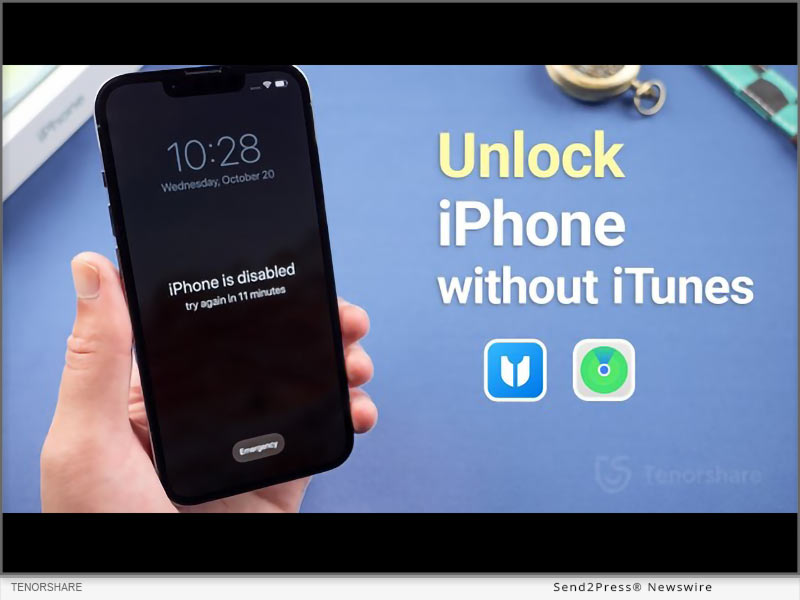
How to Unlock a Disabled iPhone without iTunes? Easy Tips from Tenorshare

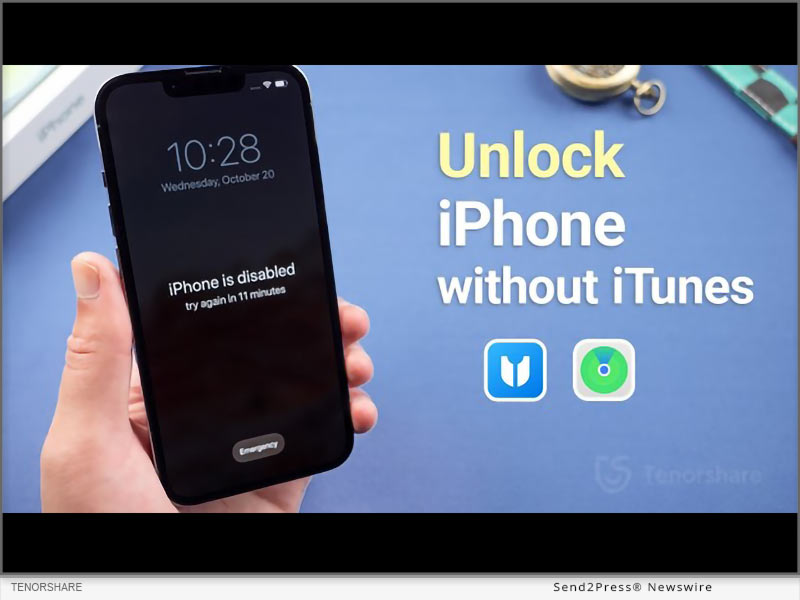
NEW YORK, N.Y. /ScoopCloud/ -- "An iPhone becomes disabled when the wrong passcode is entered multiple times in a row," explains Tenorshare. "This security feature helps protect your data, but it can also lock you out of your own device." In this guide we will provide a comprehensive how-to on how to unlock a disabled iPhone without using iTunes or iCloud.

This is crucial for users who forget their passcode, have children who enter the wrong code repeatedly, inherit a locked device, etc.

How to Unlock a Disabled iPhone without iTunes or Wi-Fi?

If you don't have access to the internet, you can unlock a disabled iPhone without Wi-Fi via Tenorshare 4uKey.

It is an iOS unlocker tool that helps you bypass screen locks, Apple IDs, MDM locks, and iCloud Activation locks.

Features of Tenorshare 4uKey

* Unlocks All Types of Screen Locks: Whether you have a passcode, face ID, or fingerprint ID, 4uKey can unlock all.

* 100% Success Rate: It unlocks your device with guaranteed success. Typically faster than iCloud's erase.

* No Experience Required: You can unlock your device with no prior experience.

* Wide Compatibility: 4uKey works on all iPhone models.

Here are the steps on how to unlock iPhone is disabled without iTunes via 4uKey:

* Download and launch 4uKey.Connect your iPhone to your PC.

* Click "Start" in the "Unlock iOS Screen" tab, after which 4uKey will download the required firmware.

* Click "Start to Remove" to unlock disabled iPhone without restoring it.

How to Unlock a Disabled iPhone Without iTunes or Computer?

Another way to reset passcode on iPhone without iTunes is via iCloud. For this, you need to use another iPhone or iPad to sign into iCloud and erase your device remotely.

However, this method erases all data and settings from your device. To mitigate this, ensure you have backed up your data before proceeding.

Here is how to unlock disabled iPhone without iTunes free via iCloud:

* Use another device to log in to iCloud using your Apple ID and password.

* Click "Find iPhone," and when your disabled iPhone shows up, click "Erase Device."

How to Unlock a Disabled iPhone without iTunes or iCloud or Computer?

If you don't have access to iTunes, iCloud, or a PC, you can use the "Erase iPhone" option directly on your device, provided you remember your Apple ID and password.

This method will reset your device to factory settings, erasing all data, and allows for immediate reset without needing another device.

* On your disabled iPhone, tap "Erase iPhone" at bottom of the screen.

* Enter your Apple ID and password to confirm selection.

About Tenorshare:

Tenorshare is a tech company that offers tools for addressing all issues related to iOS, Android, Windows, and Mac devices.

If your iPhone is disabled, and you're wondering how to unlock a disabled iPhone without iTunes, Tenorshare 4uKey is here to help.

YouTube: https://www.youtube.com/@TenorshareOfficial

Facebook: https://www.facebook.com/TenorshareOfficial/

News from Tenorshare Co. Ltd.

"An iPhone becomes disabled when the wrong passcode is entered multiple times in a row," explains Tenorshare. "This security feature helps protect your data, but it can also lock you out of your own device." In this guide we will provide comprehensive tips on how to unlock a disabled iPhone without using iTunes or iCloud.

Related link: https://www.tenorshare.com/

This version of news story was published on ScoopCloud™ (ScoopCloud.com) - part of and © the Neotrope® News Network - all rights reserved.

iPhone is Disabled Connect to iTunes Error – How to Unlock? Here is the Fix!

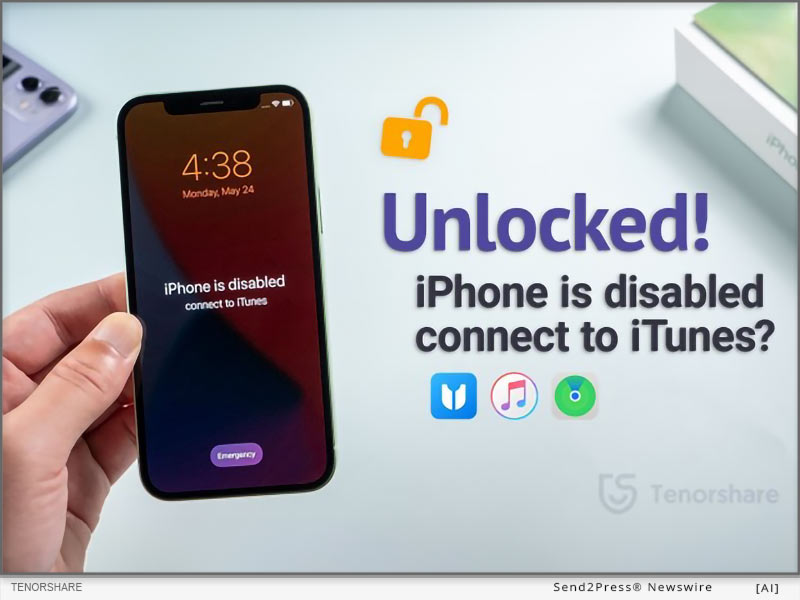
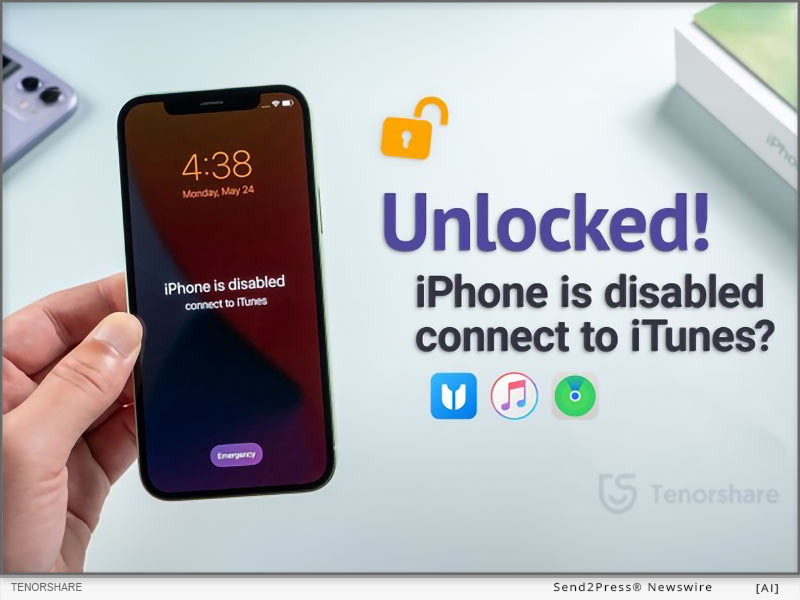
NEW YORK, N.Y. /ScoopCloud/ -- "If you get the 'iPhone is disabled connect to iTunes' message, it indicates that your device has been locked for security reasons," says Tenorshare. But don't worry, there are several ways to resolve this issue. In this guide, we have discussed 3 ways to do so.

Why My iPhone Says Disabled Connect to iTunes?

Before diving into the solutions, it's important to understand why this issue occurs.

When you see the "iPhone deactivated connect to iTunes" message, it is usually when you enter the incorrect passcode too many times on your iPhone. This Apple security feature helps prevent unauthorized access to device.

iPhone is Disabled Connect to iTunes How to Unlock in Seconds?

If you're looking for a safe and reliable iPhone disabled connect to iTunes fix, we recommend using a third-party iOS unlocker tool, Tenorshare 4uKey. It unlocks iPhone/iPad screen locks, and bypasses Apple IDs and MDM locks.

Key features of Tenorshare 4uKey:

* Unlocks Screen Locks: It is great for unlocking iPhone passcodes, face IDs, and fingerprint IDs.

* Easy Steps with Guaranteed Success: You can unlock your iPhone with a 100% success rate in just a few steps.

* No Technical Skills Required: You can use it without any experience or tech skills.

* Compatibility: It is compatible with all iPhone models and iOS versions.

iPhone is Disabled Connect to iTunes How to Unlock with Tenorshare 4uKey:

* Launch 4uKey and click the "Start" button in "Unlock iOS Screen" tab.

* Connect iPhone to the PC, then the tool will download required firmware.

* Click "Start to Remove" to remove the lock screen. And you will resolve the "iPhone locked connect to iTunes" issue

How to Fix iPhone is Disabled Connect to iTunes without Losing Data?

Another way for iPhone is disabled how to unlock it quickly is to use iTunes backup. This method only works if you have a recent backup of your device.

Here's how it works:

* Connect your iPhone to your PC and launch iTunes.

* You will see a message saying "Update" or "Restore" your iPhone.

* Click on "Restore" to restore the last working backup.

How to Fix iPhone is Disabled Connect to iTunes without Computer?

If you're wondering why my iPhone is disabled and won't connect to iTunes, you can fix the issue without a PC, using iCloud. However, this may erase all data from your device and requires stable internet connection.

Here's how:

* When your iPhone says disabled connect to iTunes, use another device to log in to iCloud using your Apple ID and password.

* Click "Find iPhone," and when your locked device shows up, click "Erase Device."

Learn more: https://www.tenorshare.com/products/4ukey-unlocker.html

About Tenorshare

Tenorshare offers data recovery and system repair software for iPhones, Androids, Windows, and Macs. If you're facing the iPhone disabled connect to iTunes not working issue, 4uKey can help you unlock it.

Learn more: https://www.tenorshare.com/iphone-tips/fix-iphone-is-disabled-connect-to-itunes.html

YouTube: https://www.youtube.com/@TenorshareOfficial

Facebook: https://www.facebook.com/TenorshareOfficial/

News from Tenorshare Co. Ltd.

"If you get the 'iPhone is disabled connect to iTunes' message, it indicates that your device has been locked for security reasons," says Tenorshare. But don't worry, there are several ways to resolve this issue. In this guide, we have discussed 3 ways to do so. If you're looking for a safe and reliable iPhone disabled connect to iTunes fix, we recommend using a third-party iOS unlocker tool, Tenorshare 4uKey.

Related link: https://www.tenorshare.com/

This version of news story was published on ScoopCloud™ (ScoopCloud.com) - part of and © the Neotrope® News Network - all rights reserved.

MocPOGO Pokemon GO Hacks Updated: Fixes Failed to Detect Location Error 12

NEW YORK, N.Y. /ScoopCloud/ -- Attention Pokemon GO enthusiasts! Have you tried changing your GPS location but encountered an error saying "failed to detect location 12 Pokemon GO"? The recent June 7th update to version 315.2 is likely the cause. It seems it added advanced location monitoring that could be disrupting Pokemon GO spoofing. Fortunately, a new Pokemon GO hack has emerged! You can now use MocPOGO together with iWhereGO POGO Genius to bypass the Pokemon GO location error 12. This works on Android and iOS without rooting or jailbreaking. But you may ask, how do MocPOGO and iWhereGO POGO Genius work to solve the problem? Let's find out!

MocPOGO Teams Up with iWhereGO POGO Genius to Spoof Pokemon GO Location Easily: The MocPOGO and iWhereGO Genius collaboration is a game-changer in playing and faking Pokemon GO location. It helps to resolve the issue of not detecting the current location 12 signal to ensure smooth gameplay.

However, although iWhereGO POGO Genius supports most flyer software on the market, we recommend you use it in conjunction with MocPOGO for more security. MocPOGO is currently the best Pokemon GO spoofer iOS, making this the safest and most stable combo available.

Learn more: https://mocpogo.com/iphone-location-changer-app/

SIMPLE STEPS TO FIX POKEMON GO ERROR 12 - FAILED TO DETECT LOCATION

Both the MocPOGO Pokemon GO spoofer and iWhereGO POGO Genius are straightforward tools, and any player can use them as follows:

Step 1: Download iWhereGO POGO Genius for free on your computer, log in with your credentials, and connect your device using a USB cable. iWhereGO is safe to install and the onscreen instructions help to complete the installation successfully.

Step 2: Install MocPOGO on your computer and connect your device for instant GPS spoofing on Pokemon GO.

* To teleport your Pokemon GO character, search or click on your new location on the map and click "Go." Your game's location will change instantly, bypassing the "failed to detect location 12 Pokemon GO" error.

* To simulate GPS movement, select the two-spot mode, click on the new destination on the map, and click "Go." Your Pokemon GO game avatar will now walk and follow the set route.

Step 3: Enjoy Pokemon GO using the new location. When you're done, restart your device to restore the GPS location changes to your real-time location.

Level up your Pokemon GO experience with the MocPOGO location spoofer. Check it out today and apply promo code MOCPGPRO to take advantage of the exclusive 20% discount!

About MocPOGO:

MocPOGO is a trusted provider of smartphone solutions for GPS location spoofing. When paired with iWhereGO POGO Genius, iOS and Android users can change their GPS location seamlessly. So, gamers frustrated by the "failed to detect location 12" error in Pokemon GO can now rejoice and enjoy more virtual adventures from the comfort of their home.

Visit the MocPOGO official site: https://mocpogo.com/ and check out iWhereGO.

View More Guides on MocPOGO Youtube Channel https://www.youtube.com/watch?v=52u0Ei1AVWU

News from MocPOGO Studio

Attention Pokemon GO enthusiasts! Have you tried changing your GPS location but encountered an error saying "failed to detect location 12 Pokemon GO"? The recent June 7 update to version 315.2 is likely the cause. You can now use MocPOGO together with iWhereGO POGO Genius to bypass the Pokemon GO location error 12. This works on Android and iOS without rooting or jailbreaking.

Related link: https://mocpogo.com/

This version of news story was published on ScoopCloud™ (ScoopCloud.com) - part of and © the Neotrope® News Network - all rights reserved.

[Not Banned] Failed to Detect Location 12 Error Fixed by iToolab AnyGo Pokémon GO Spoofing App

NEW YORK, N.Y. /ScoopCloud/ -- Pokémon GO enthusiasts, rejoice! If you've been facing the frustrating "Failed to Detect Location 12" error while trying to spoof your GPS location, we have great news. The latest updates in June 2024 have introduced advanced location monitoring, making it difficult to spoof locations. However, with the powerful combination of iToolab AnyGo and iWhereGo Genius, you can now bypass this error seamlessly on both Android and iOS devices, without the need for rooting or jailbreaking.

iToolab AnyGo and iWhereGo Genius: The Ultimate Duo for Pokémon GO Spoofing: The collaboration between iToolab AnyGo and iWhereGo Genius is dedicated to resolving the "Failed to Detect Location 12" error, ensuring a smooth and enjoyable Pokémon GO experience.

These tools are especially designed to help players spoof their GPS location on iPhone effectively, enabling them to explore new territories and catch rare Pokémon from the comfort of their homes. iWhereGo Genius is also free and safe.

HOW TO FIX "FAILED TO DETECT LOCATION 12" IN POKÉMON GO

Here's a step-by-step guide on how to use iToolab AnyGo and iWhereGo Genius to fix the location error and enjoy uninterrupted Pokémon GO gameplay:

Step 1: Install iToolab AnyGo and iWhereGo Genius

First, log in to your Apple account and install both iToolab AnyGo and iWhereGo Genius on your iOS device. Follow the onscreen instructions to set your iPhone to developer mode. This setup is crucial for enabling the advanced spoofing features.

Step 2: Connect Your Device

Open iToolab AnyGo on your computer and connect your iOS or Android device using a USB cable. The software will detect your device and prepare it for location spoofing.

Step 3: Teleport to a New Location with iWhereGo Genius

Launch iWhereGo Genius and enter the desired location or coordinates in the search box. This will allow you to teleport to the new location instantly. Click "Go" to change your location within Pokémon GO, effectively bypassing the "Failed to Detect Location 12" error.

Step 4: Simulate GPS Movement

Use iToolab AnyGo to simulate GPS movement at custom speeds. You can use the two-spot mode for basic location changes or the multi-spot mode for more complex routes. This feature is perfect for exploring different areas in Pokémon GO without moving from your location.

Step 5: Enjoy Your Game

With your location set, enjoy exploring new areas and catching Pokémon in Pokémon GO. When you're done, simply restart your device to revert to your real-time location.

Learn more: https://itoolab.com/gps-location-changer/ and https://iwherego.com/pogo-genius/

ENHANCE YOUR POKÉMON GO GAMEPLAY

iToolab AnyGo and iWhereGo Genius offer a range of features that make spoofing your GPS location in Pokémon GO easy and effective. These include:

* Instant teleportation to any location

* Simulation of GPS movement with custom speeds

* Multi-spot routes for comprehensive exploration

* Joystick control for better in-game navigation

About iToolab AnyGo:

iToolab AnyGo is a leading provider of GPS location spoofing solutions for smartphones. It allows both iOS and Android users to change their GPS location effortlessly, making it easier to explore new areas in location-based games like Pokémon GO. Combined with iWhereGo Genius, players can say goodbye to the "Failed to Detect Location 12" error and enjoy more virtual adventures.

For more details, visit the iToolab official website: https://itoolab.com/ and Youtube Guide https://youtu.be/BFMwXO0ozT4?si=T9x2w3GSNLjbc4Ds

News from IToolab Co Ltd

Pokémon GO enthusiasts, rejoice! If you've been facing the frustrating "Failed to Detect Location 12" error while trying to spoof your GPS location, we have great news. The latest updates in June 2024 have introduced advanced location monitoring, making it difficult to spoof locations. However, with the powerful combination of iToolab AnyGo and iWhereGo Genius, you can now bypass this error seamlessly on both Android and iOS devices, without the need for rooting or jailbreaking.

Related link: https://itoolab.com/

This version of news story was published on ScoopCloud™ (ScoopCloud.com) - part of and © the Neotrope® News Network - all rights reserved.

Super Incubator: Hatching Pokémon Eggs without Walking or Moving at the Pokemon GO Fest 2024

NEW YORK, N.Y. /ScoopCloud/ -- PoGoskill, the leading GPS location spoofer software, has released the iOS App with version 2.7.0. The new version features innovative "Round Trip" and "Loops Movement" functionalities, allowing users to hatch Pokémon eggs without walking or moving.

Players can now enjoy a more comfortable and convenient way to engage in the event, maximizing their egg-hatching efficiency. This update especially benefits players during the upcoming Pokemon GO Fest 2024, scheduled for July 13-14.

What's New in PoGoskill iOS App 2.7.0?

* Round Trip and Loops Movement: Set round trip mode or loop route mode during single spot movement. You can customize the speed and use this feature to easily hatch eggs at Pokémon GO Fest 2024 and complete game missions quickly.

* Reset the app without a computer: Sign in to your Apple ID and reset the apps on your device every 7 days. It no longer requires a computer except to install the app.

How to Hatch Pokémon Eggs Without Walking or Moving at Pokemon GO Fest 2024?

Use these PoGoskill features during Pokemon GO Fest 2024:

1. Change GPS Location: With one click to change the location to the event venue, you can easily catch shiny Pokémon without tickets.

2. Round Trip: Use the feature in Single Spot Movement to have your avatar automatically make an unlimited number of round trips between the start and end points on a customized route.

3. Loop Movement: Create loop movement routes, your avatar will loop as you set the number of times. Set customized speeds to speed up completing hatching eggs. Efficiently and easily complete game missions for rewards.

Feature Highlights:

* Jump Teleport: Seamlessly jump between different locations or set up automatic jumps after cooldown periods.

* GPX File Import/Export: Easily import and export GPX files to view and initiate custom routes on a map.

* Restore Real Location: Revert to your real location with a simple tap.

* Cross-Platform Availability: Now available on Windows, Mac, and Android platforms to meet a wide range of user needs.

About PoGoskill:

PoGoskill is a renowned software company providing top-notch GPS spoofing solutions for the iOS and Android platforms. With more than 100 million users, PoGoskill is constantly upgrading its features to ensure an improved user experience, making it a trusted and reliable provider of GPS spoofing software, especially for AR games.

More information: https://www.pogoskill.com/

YouTube: https://www.youtube.com/@PoGoskill

https://www.youtube.com/@PoGoskillJapan

https://www.youtube.com/@Pogoskill-TW

X/Twitter: https://x.com/PoGoskilloffice

Facebook: https://www.facebook.com/profile.php?id=61557934072895

News from PoGoskill

PoGoskill, the leading GPS location spoofer software, has released the iOS App with version 2.7.0. The new version features innovative "Round Trip" and "Loops Movement" functionalities, allowing users to hatch Pokémon eggs without walking or moving.

Related link: https://www.pogoskill.com/

This version of news story was published on ScoopCloud™ (ScoopCloud.com) - part of and © the Neotrope® News Network - all rights reserved.

Best Way to Hatch Eggs without Moving or Walking at Pokemon GO Fest 2024

NEW YORK, N.Y. /ScoopCloud/ -- Tenorshare has released a new version of its iAnyGo iOS App just in time to capture the Pokemon GO Fest 2024 event. The new version, 2.7.0, enable players auto walk, so they can effortlessly hatch eggs without walking or moving at Pokemon GO Fest 2024.

"After the release of the new features in the iAnyGo iOS App, Pokemon GO fans can easily hatch eggs in Pokemon GO without walking. Users can play Pokemon Go Fest 2024 without physically moving. And no computer is required," said Tenorshare's CEO, while introducing the new features.

What's New in iAnyGo iOS App 2.7.0?

The iAnyGo iOS App has received significant updates, making it an indispensable tool for Pokemon GO enthusiasts. The new features include:

1. Installation Made Easier: First-time users must install the iAnyGo iOS Assistant on their computer and use it to install the iAnyGo iOS App. After installation, users can log in using their Apple ID to reset the app's validity for seven days. This step is only required once, and the iAnyGo iOS Assistant or computer will not be needed again.

2. Returns or Loops Movement: This feature allows gamers to enable auto walk, so they can effortlessly hatch eggs in Pokemon GO without physically walking. With Returns Movement, players can create a path for their avatar to follow repeatedly, simulating walking without manual effort.

How to Hatch Eggs without Walking or Moving at Pokemon GO Fest 2024

Users can play Pokemon Go Fest 2024 without computer, just use these iAnyGo iOS App features during Pokemon GO Fest 2024:

1. Change Location: Use the change location feature to virtually travel to Pokemon GO Fest 2024 and catch Pokemon without being there physically.

2. Single or Multi-Point Movement: Employ the Returns Movement feature for single or multi-point paths, allowing your avatar to move continuously in a loop.

3. Loop Movement: Create a loop movement path to hatch special 7 km eggs efficiently, saving time and effort while still achieving your goals at Pokemon GO Fest 2024.

For a complete guide on using these features, visit the user guide - https://www.tenorshare.com/ianygo-ios-app-users-guide.html

Pricing

iAnyGo iOS App is available at competitive prices:

* 1 Month/1 Device: $14.99

* 1 Quarter/1 Device: $39.99

* 1 Year/1 Device: $79.99

* Lifetime/1 Device: $99.99

For more information on purchasing the iAnyGo iOS App, please visit our purchase page - https://www.tenorshare.com/purchase/buy-ianygo-ios-app.html

About Tenorshare

Tenorshare specializes in iOS, Android, Windows, and Mac platforms, focusing on core technology research. It is a highly-reputed and leading software provider with millions of users that use its tools and services related to data transfer, data recovery, system repair, unlocking phones, and many more.

More information: https://www.tenorshare.com/

Facebook: https://www.facebook.com/TenorshareOfficial/

X/Twitter: https://twitter.com/Tenorshare_Inc

YouTube: https://www.youtube.com/user/TenorshareOfficial/videos

TikTok: https://www.tiktok.com/@tenorshare_tech_tips

News from Tenorshare Co. Ltd.

Tenorshare has released a new version of its iAnyGo iOS App just in time to capture the Pokemon GO Fest 2024 event. The new version, 2.7.0, enable players auto walk, so they can effortlessly hatch eggs without walking or moving at Pokemon GO Fest 2024.

Related link: https://www.tenorshare.com/

This version of news story was published on ScoopCloud™ (ScoopCloud.com) - part of and © the Neotrope® News Network - all rights reserved.

How to Record Phone Calls on iPhone in 2024? – iCarefone Recorder iOS APP

NEW YORK, N.Y. /ScoopCloud/ -- Tenorshare, a renowned leader in software solutions, proudly announces the launch of iCareFone Recorder: Call Record, a groundbreaking iOS app designed to transform how users record and manage phone calls. Available in multiple languages, iCareFone Recorder is poised to become an indispensable tool for professionals and everyday users alike.

iCareFone Recorder: Call Record stands out by offering a discreet and seamless call recording experience, enabling users to record both incoming and outgoing calls without notifying the other party. This feature is invaluable for journalists, legal professionals, customer service agents, and anyone needing to maintain precise records of their conversations.

Key Features:

* Versatile Recording Options: The app supports recording incoming and outgoing calls, making it a versatile tool for various scenarios.

* Voice Recording: Record audio with clarity and ease.

* Customizable Labels: To enhance organization, the iCareFone Recorder App incorporates the ability to create and assign custom labels to recordings. This feature simplifies file management, making it easy to categorize and locate specific recordings as needed.

* Multi-Language Support: Catering to a global audience, iCareFone Recorder App is available in multiple languages, ensuring accessibility for users worldwide.

Unlock all premium features with a 3-day free trial. Experience enhanced functionality and exclusive content - all at no cost. Tap here to start your free trial now: iCareFone Recorder: Call Record - https://apps.apple.com/us/app/icarefone-recorder-call-record/id6502814868?mt=8

In short, iCareFone Recorder: Call Record is set to redefine how users manage their call recordings and audio files, combining simplicity with powerful functionality.

OTHER POPULAR APPS IN TENORSHARE

Tenorshare iCareFone iOS App

Tenorshare iCareFone: Phone Transfer&Clean can transfer data between iPhone and PC wirelessly. And smart cleaning, one-tap quick scan of your phone to help quickly clean up your iPhone.

Tenorshare iAnyGo App

Tenorshare iAnyGo App is a free virtual location changer for iOS and Android. It can change the GPS location anywhere without jailbreak/root and provides the GPS joystick to control the direction of movement in games.

Tenorshare UltData Android App

Tenorshare UltData Android App is an Android data recovery app that can recover deleted photos, videos, documents, audio, and WhatsApp files from internal and SD card storage. It can conduct deep scans and then provide preview-based data recovery.

Tenorshare iCareFone for LINE App

Tenorshare iCareFone for LINE App can transfer LINE between Android and iPhone using a USB-C to lightning cable. It can transfer text, photos, documents, audio, and more with high speed and data security.

About Tenorshare:

Tenorshare is a leading software development company specializing in data recovery, system repair, and mobile solutions. With a commitment to innovation and user satisfaction, Tenorshare delivers high-quality software products designed to meet the evolving needs of its global customer base.

More information: https://www.tenorshare.com/

Facebook: https://www.facebook.com/TenorshareOfficial/

X/Twitter: https://twitter.com/Tenorshare_Inc

YouTube: https://www.youtube.com/user/TenorshareOfficial/videos

News from Tenorshare Co. Ltd.

Tenorshare, a renowned leader in software solutions, proudly announces the launch of iCareFone Recorder: Call Record, a groundbreaking iOS app designed to transform how users record and manage phone calls. Available in multiple languages, iCareFone Recorder is poised to become an indispensable tool for professionals and everyday users alike.

Related link: https://www.tenorshare.com/

This version of news story was published on ScoopCloud™ (ScoopCloud.com) - part of and © the Neotrope® News Network - all rights reserved.

How to Download and Install the iOS 18 Beta for Free in 2024

NEW YORK, N.Y. /ScoopCloud/ -- Don't know how to get iOS 18 Beta profile download for free? Apple released iOS 18 Beta on June 10, 2024, featuring updates to Photos app, more customization options, and generative AI features. "But you might feel left out if you're unable to download and install iOS 18 Beta on your iPhone. However, don't worry, as you can upgrade to iOS 18 Beta easily, using Tenorshare ReiBoot.

"This tool also lets you downgrade without data loss if you encounter issues with Beta program in future," says a Tenorshare spokesperson.

So, how to download iOS 18 Beta update with Tenorshare ReiBoot? Read below to find out!

VIDEO: https://www.youtube.com/watch?v=8JCz0znxNyA

Why Can't You Upgrade to iOS 18?

There are many reasons you might not be able to download iOS 18 Beta on your iPhone. Here they are:

* You don't have a Developer account.

* You can't see iOS 18 Beta in your iPhone Settings as it may take some time to be available for all compatible devices.

* Older iPhones might not support iOS 18.

* You're using an older iOS version.

How to Download & Install iOS 18 Beta Profile [Quick and Safe]

Tenorshare ReiBoot can help you get iOS 18 Beta profile download and install it without jailbreaking your iPhone. Moreover, it can also downgrade iOS including Betas without needing iTunes. But that's not all and this tool offers to:

* Fix 150+ iOS problems such as stuck on Apple logo, black screen of death, etc.

* Erase data on iOS devices before selling or giving them away.

* Fix iTunes errors, and reset iOS devices without Finder/iTunes and passcode.

* Enables you to enter/exit Recovery mode in a single click.

Here's how to install iOS 18 Beta with assistance of Tenorshare ReiBoot:

Step 1: Run ReiBoot on your computer and connect your iPhone with it. Tap "iOS Upgrade/Downgrade" on ReiBoot.

Step 2: Click "Upgrade." Then press "Download" to get iOS 18 Beta download for your iPhone.

Step 3: Click "Initiating upgrade," once Beta firmware is downloaded. Tap "Continue" to proceed with installing iOS 18 Beta process.

Tips Before You Download and Install iOS 18 Beta

Before you get iOS 18 Beta IPSW download for your iPhone, here are some tips you must follow to install it successfully:

1. Make sure you're using latest iOS version (currently 17.5.1) or iOS 16.4.

2. Make sure you're using an iPhone XS or a later model.

3. Before updating, back up your phone in case you need to revert to iOS 17.

About Tenorshare

If you're unable to get iOS 18 Beta profile download for your iPhone, try ReiBoot repair tool. It lets you upgrade to Beta program and downgrade if needed without data loss. Tenorshare, the top smartphone solutions provider employs best developers to create cutting-edge software solutions for Android and Apple users. The company is constantly striving to develop tools that empower individuals and businesses.

Learn more:

https://www.tenorshare.com/products/reiboot.html

https://www.tenorshare.com/ios-18/ios-18-download-and-install-free.html

News from Tenorshare Co. Ltd.

Don't know how to get iOS 18 Beta profile download for free? Apple released iOS 18 Beta on June 10, 2024, featuring updates to Photos app, more customization options, and generative AI features. But you might feel left out if you're unable to download and install iOS 18 Beta on your iPhone. However, don't worry, as you can upgrade to iOS 18 Beta easily, using Tenorshare ReiBoot.

Related link: https://www.tenorshare.com/

This version of news story was published on ScoopCloud™ (ScoopCloud.com) - part of and © the Neotrope® News Network - all rights reserved.

Monster Hunter Now Spoofing Enhanced by iToolab AnyGo’s Latest Gaming Innovation

NEW YORK, N.Y. /ScoopCloud/ -- In a bid to excite Monster Hunter Now enthusiasts, the best location changer tool iToolab AnyGo has introduced a groundbreaking solution designed to transform your gaming experience. With the advanced capabilities of Monster Hunter Now Spoofing,players can now effortlessly spoof their location and overcome previous obstacles.

Following the substantial February 22nd update to Monster Hunter Now (MHN), iOS gamers have contended with persistent 'Searching for GPS signal' challenges when attempting to modify their in-game location. Previous third-party tools have fallen short, frustrating players. However, after months of dedicated development, the iToolab AnyGo team has engineered a robust and dependable solution. This integration with MHN Genius directly confronts these issues.

With iToolab AnyGo's latest iOS monster hunter now spoofing solution, players can now enjoy enhanced spoofing capabilities that elevate their gameplay to new heights. By manipulating their GPS location with pinpoint accuracy, gamers can traverse the Monster Hunter universe with ease, accessing rare creatures, resources, and quests previously out of reach.

"We are thrilled to unveil this significant upgrade to iToolab AnyGo, specifically tailored for Monster Hunter enthusiasts," said Mia, CEO at iToolab. "Our team has worked tirelessly to integrate cutting-edge technology that not only meets but exceeds the expectations of our users."

PROS & CONS OF ITOOLAB ANYGO WITH MHN GENIUS:

Pros

* Players can customize movement speed in Monster Hunter Now for strategic advantage.

* Not jailbreaking your iOS device, ensuring a hassle-free and secure experience.

* Players can spoof their location in Monster Hunter Now safely, enhancing gameplay risk-free.

* iToolab AnyGO integration MHN Genius can fix the simulated MHNow GPS issues effectively

* iToolab AnyGo supports iOS 17, ensuring compatibility and reliability with the latest OS features.

Cons

* For the best performance, ensure your internet connection remains stable.

STEPS TO USE ITOOLAB ANYGO WITH MHN GENIUS:

Step 1: Download MHN Genius to your computer and sign in with your Apple ID on

Step 2: Install MHN Genius to your device. Download either AnyGo or MocPOGO Location Changer.

Step 3: Choose a location on the map and begin modifying.

Read more instruction details from this guide: https://iwherego.com/guide/how-to-use-mhn-genius/.

Unlock the Full Potential of iToolab AnyGo with an Exclusive 20% Discount!

Use the promo code LABR8F at checkout to avail of this special offer. Don't miss out on this limited-time opportunity to enhance your Monster Hunter Now adventure. Claim your discount and elevate your gaming experience with iAnyGo.

About iToolab AnyGo

iToolab AnyGo is a leading location spoofer for iOS devices, allowing users to change their GPS location without jailbreak. It supports a wide range of location-based apps and games, making it a versatile tool for various purposes, including gaming, social apps, and privacy protection. With its user-friendly interface and reliable performance, iToolab AnyGo is the preferred choice for many users looking to modify their location seamlessly.

Visit iToolab's website https://www.itoolab.com/ and follow us on Youtube Channel for latest updates and promotions.

News from IToolab Co Ltd

In a bid to excite Monster Hunter Now enthusiasts, the best location changer tool iToolab AnyGo has introduced a groundbreaking solution designed to transform your gaming experience. With the advanced capabilities of Monster Hunter Now Spoofing,players can now effortlessly spoof their location and overcome previous obstacles.

Related link: https://itoolab.com/

This version of news story was published on ScoopCloud™ (ScoopCloud.com) - part of and © the Neotrope® News Network - all rights reserved.

Explore Monster Hunter Now GPS Spoofing: MocPOGO Launches an Innovative 2024 Update

NEW YORK, N.Y. /ScoopCloud/ -- Attention all Monster Hunter Now (MHN) fans! Struggling to spoof your location on MHN iOS since the February 22 update? Say goodbye to the frustrating "Searching for GPS signal" error! There is now a groundbreaking solution to bypass these restrictions and take your MHN experience to the next level.

Location spoofing has been a nightmare for all third-party developers and players alike, and no solution has been available. But fret no more! The MocPOGO team have cracked the code with Monster Hunter Now spoofing function that works with MHN Genius to save the day.

Spoofing on Monster Hunter Now on iOS opens a world of possibilities. Tools like MocPOGO let you seamlessly spoof your iOS GPS location. They free you from geographic limitations and maximizing your MHN experience.

PROS AND CONS OF USING MOCPOGO TO SPOOF MONSTER HUNTER NOW

Pros:

* The MocPOGO and MHN Genius combination is the most effective fix to the "Searching for GPS Signal" issue on iOS.

* No jailbreak is needed, which keeps your iOS device protected from potential security risks without voiding its warranty.

* MocPOGO receives regular updates to keep it compatible with the latest Monster Hunter Now and iOS versions, including iOS 17.

* User-friendly controls make MHN location spoofing effortless.

Cons:

* Your internet connection must be stable for optimal performance.

STEPS FOR USING MOCPOGO TO SPOOF MONSTER HUNTER NOW

The first step is downloading the MHN Genius tool to your PC or laptop. It is free and can be used with MocPOGO and other location changer tools. Sign in to MHN Genius with Apple credentials and install it. Install MocPOGO from the official website and follow the steps below:

Change GPS location:

1. Install and launch the MocPOGO app on your computer.

2. Connect your iOS device via Wi-Fi or USB.

3. Click "Teleport" mode.

4. Enter the desired address or coordinates in the search box and click "Teleport".

5. Your iOS device now detects the new location, which applies to all location-based apps, including Monster Hunter Now.

Simulate GPS movement:

1. After you launch the MocPOGO app, choose "Walk" mode.

2. Plan your MHN route. Click the starting and ending points on the map. You can also customize the simulated movement speed.

3. Click "Walk" to begin simulating GPS movement.

4. Click "Pause" or "Stop" as you wish.

Level up your Monster Hunter Now experience with the MocPOGO iOS location spoofer. Use promo code MOCPGPRO to get 20% discount. Take advantage of this limited opportunity and elevate your MHN experience!

Learn more at: https://mocpogo.com/iphone-location-changer-app/

About MocPOGO:

MocPOGO is a prominent company that delivers innovative GPS spoofing solutions for smartphone users globally. It allows changing iPhone's GPS location without physically moving. This can be useful for various purposes, including modifying the location for AR games like Monster Hunter Now.

MocPOGO official site: https://mocpogo.com/

Check out MHN Genius at https://iwherego.com/guide/how-to-use-mhn-genius/

View More Guides on MocPOGO Youtube Channel at: https://www.youtube.com/@MocPOGO

News from MocPOGO Studio

Attention all Monster Hunter Now (MHN) fans! Struggling to spoof your location on MHN iOS since the February 22 update? Say goodbye to the frustrating "Searching for GPS signal" error! There is now a groundbreaking solution to bypass these restrictions and take your MHN experience to the next level.

Related link: https://mocpogo.com/

This version of news story was published on ScoopCloud™ (ScoopCloud.com) - part of and © the Neotrope® News Network - all rights reserved.

How to Downgrade from iOS 18 Beta to iOS 17 Without Losing Data

NEW YORK, N.Y. /ScoopCloud/ -- Want to know how to downgrade iOS 18 beta to 17? WWDC is kicking off on June 10 and the first iOS 18 Beta is expected to be released soon after. It will feature new accessibility options, app updates, RCS support, and a more customizable Home screen. However, as with all Beta versions, iOS 18 might have bugs, making it necessary to downgrade it. "Most downgrade methods that are available in market result in data loss. But Tenorshare ReiBoot can downgrade iOS 18 beta to iOS 17 without losing data," says a Tenorshare spokesperson. So, let's find out how to revert back to iOS 17 with Tenorshare ReiBoot.

VIDEO (YouTube): https://www.youtube.com/watch?v=j45IjXP563g

Can You Go Back to iOS 17 From 18 Beta?

Yes, it's attainable to downgrade iOS 18 beta to 17 if iOS 17 version is still being signed. But this is only possible for a few days after iOS 18 Beta is released. However, downgrading will wipe your iDevice.

Another way to keep iOS 17 is to make a copy before update using Finder on a Mac or iTunes on a PC. But this will reinstall new iOS. If you're a member of Apple Beta Software Program you can go back to iOS 17 without iTunes, but it also erases your iDevice. So, how to downgrade iOS 18 Beta to 17 without data loss?

How to Downgrade iOS 18 Beta to 17 Without Losing Data?

If you really want to find out how to go back to iOS 17 from 18 beta without losing data, ReiBoot iOS Repair Tool offers a way to do that. It's a powerful tool that can both downgrade and upgrade iOS for latest iDevices without data loss. But that's not the end of its abilities. It offers to:

* Repair 150+ iOS issues including stuck on Apple logo and black screen.

* Easily fix common iPhone and iTunes errors.

* Enter/Exit Recovery Mode with one click.

Here's how to downgrade iOS 18 to 17 with help of Tenorshare ReiBoot:

Step 1: Install and run ReiBoot on your computer and connect your iDevice with your PC. Choose "iOS Upgrade/Downgrade."

Step 2: Select "Downgrade" option and hit "Downgrade" button.

Step 3: Allow firmware package to download. Then, let downgrading process to completed.

Is It Possible to Downgrade iOS 18 Beta to 17 Without Computer?

Yes, it's possible to downgrade iOS 18 beta to 17 without computer, but it can be challenging as this method might not work for your iDevice. What you'll need to do is search for "iOS 17 IPSW" firmware for your specific iPhone/iPad model on Google and download it. Then, remove your Beta iOS 18 profile and install iOS 17 IPSW firmware on your iDevice.

About Tenorshare

If you're looking for a way to learn how to remove iOS 18 beta from iPhone/iPad without data loss, Tenorshare ReiBoot can do that. Renowned for solving iOS and Android issues with high success, Tenorshare is best choice for common device problems.

Learn more:

https://www.tenorshare.com/products/reiboot.html

https://www.tenorshare.com/ios-18/how-to-downgrade-ios-18-to-17.html

News from Tenorshare Co. Ltd.

Want to know how to downgrade iOS 18 beta to 17? WWDC is kicking off on June 10 and the first iOS 18 Beta is expected to be released soon after. It will feature new accessibility options, app updates, RCS support, and a more customizable Home screen. However, as with all Beta versions, iOS 18 might have bugs, making it necessary to downgrade it. "Most downgrade methods that are available in market result in data loss. But Tenorshare ReiBoot can downgrade iOS 18 beta to iOS 17 without losing data," says a Tenorshare spokesperson.

Related link: https://www.tenorshare.com/

This version of news story was published on ScoopCloud™ (ScoopCloud.com) - part of and © the Neotrope® News Network - all rights reserved.

iPhone Won’t Turn On or Charge? Here is The Fix

NEW YORK, N.Y. /ScoopCloud/ -- If your iPhone won't turn on or charge, you're not alone. Many users find themselves asking, "Why will my iPhone not turn on?" or "Why is my iPhone not switching on?" Fortunately, Tenorshare CEO Mike Lee assures users that their worries can be resolved. "With Tenorshare ReiBoot, you can easily fix an iPhone won't turn on problem," says Lee. "Our software allows you to easily repair your device without data loss."

WHY WON'T MY IPHONE TURN ON OR CHARGE?

There are several reasons why your iPhone 15 / 14 won't turn on or charge.

Battery Drain: Your iPhone's battery might be completely drained.

Software Issues: Sometimes, an update can cause your iPhone to freeze or not turn on.

Hardware Problems: Damage to your iPhone's hardware, such as a broken screen or internal components, can prevent it from turning on.

Charging Accessories: Faulty charging cables or adapters can also be the culprit.

HOW TO FIX IPHONE WON'T TURN ON WITHOUT DATA LOSS

Tenorshare ReiBoot offers several dedicated features to fix an iPhone won't turn on or charge:

* Enter Recovery Mode with one click and exit just as easily whenever needed.

* Repair over 150 iOS, iPadOS, tvOS, and macOS system issues, such as being stuck on the Apple logo or a black screen of death, without losing data.

* Reset iOS, iPadOS, and macOS devices without passcodes, iTunes, or Finder.

* Support the latest iOS, iPadOS, and macOS downgrades & upgrades, including Betas.

HOW TO USE REIBOOT TO FIX IPHONE WON'T TURN ON

Step 1: Simply download and launch it on your computer. Connect iPhone to computer.

Step 2: First, try clicking 'Enter Recovery Mode', which will successfully boot your iPhone into Recovery Mode in a few seconds.

Step 3: Then, in the interface, click 'Exit Recovery Mode'. After the process is completed, your iPhone will exit recovery mode and return to normal.

Step 4: If entering/exiting recovery mode does not resolve the issue of your iPhone not turning on, attempt Standard Repair to repair your iOS system without losing data.

Step 5: Now click 'Download' to access the most recent firmware package. Then, click Start Standard Repair to begin repairing your device.

Learn more: https://www.tenorshare.com/products/reiboot.html

TIPS TO AVOID IPHONE WON'T TURN ON PROBLEMS

* To avoid software issues, update your iOS regularly.

* Use authorized charging accessories to avoid hardware damage.

* Do not expose your iPhone to high temperatures.

VIDEO: https://www.youtube.com/watch?v=6UxBUP8jcqU

About Tenorshare:

Tenorshare is a well-known professional software solutions supplier that specializes in data recovery, system repair, and other services. ReiBoot iOS system repair tool is widely recommended for its ability to fix iPhone won't turn on. Tenorshare provides trustworthy and user-friendly tools to keep your devices functioning properly.

More information: https://www.tenorshare.com/

Facebook: https://www.facebook.com/TenorshareOfficial/

X/Twitter: https://twitter.com/Tenorshare_Inc

YouTube: https://www.youtube.com/user/TenorshareOfficial/videos

TikTok: https://www.tiktok.com/@tenorshare_tech_tips

News from Tenorshare Co. Ltd.

If your iPhone won't turn on or charge, you're not alone. Many users find themselves asking, "Why will my iPhone not turn on?" or "Why is my iPhone not switching on?" Fortunately, Tenorshare CEO Mike Lee assures users that their worries can be resolved. "With Tenorshare ReiBoot, you can easily fix an iPhone won't turn on problem," says Lee. "Our software allows you to easily repair your device without data loss."

Related link: https://www.tenorshare.com/

This version of news story was published on ScoopCloud™ (ScoopCloud.com) - part of and © the Neotrope® News Network - all rights reserved.

UniFab All-In-One software launches latest update to comprehensively improve audio and video processing experience

NEW YORK, N.Y. /ScoopCloud/ -- UniFab announced the release of its latest version. The new function UniFab Vocal Remover AI is launched in the latest version. This function supports intelligent separation of vocals and background music in a variety of video and audio files, and the launch of the UniFab All-In-One version for Mac systems, including 4 AI video processing modules and video format converter.

UniFab All-In-One software has always been committed to providing users with the highest quality audio and video processing experience. The latest update further improves the functionality and performance of the software, bringing users more convenient and efficient processing methods.

First, UniFab All-In-One adds a new function module, UniFab Vocal Remover AI. This function supports intelligent separation of vocals and background music in a variety of video and audio files. Users can adjust the output file format according to their own needs, providing more choices. The addition of this function makes audio processing more convenient and meets user needs for different audio elements.

Secondly, UniFab has launched the UniFab All-In-One version for Mac systems, which includes 4 AI video processing modules and a video format converter.

UniFab Video Converter supports the conversion of multiple video formats and is perfectly compatible with different devices, allowing users to enjoy high-definition videos anytime and anywhere.

UniFab Denoise AI uses AI technology to remove noise in videos while restoring details and improving video quality.

UniFab Video Upscaler AI can upscale video resolution to 4K, enhancing video clarity and quality.

UniFab Smoother AI increases the video frame rate to 120FPS to achieve smooth motion effects.

UniFab Deinterlace AI can remove interlacing from videos, eliminate motion artifacts and edge blur, and improve the video viewing experience.

UNIFAB ALL-IN-ONE FUNCTIONS AND FEATURES

1. Upscale videos to HDR and Dolby Vision for superior video quality.

2. Improve the quality of every type of video without changing the resolution, such as low-resolution TV series, black and white movies, homemade videos or animations.

3. Eliminate video noise caused by low-light conditions, camera malfunctions, signal interference during transmission and compression algorithms.

4. Use AI technology to smoothly upgrade SDR to the HDR10 standard to achieve more realistic and vivid color presentation.

5. Upscale video resolution to 4K for ultra-sharp images. It seamlessly upscales video resolutions to 720p, 1080p and 4K Ultra HD

6. Audio is mixed to DTS 7.1 and EAC3 5.1 via AI for superior surround sound quality, enhancing the user's viewing experience and providing an immersive audio environment.

7. Increases frame rate to 120 fps to reduce judder and judder, delivering more natural results for the ultimate viewing experience.

8. Use AI to deinterlace videos for playback on the latest devices and improve your viewing experience using advanced AI technology.

9. Losslessly convert videos to more than 1,000 formats including MP4, MKV, AVI, WMV, and more for device compatibility and support without losing quality.

10. Compress video and audio while retaining original quality for sharing on social media platforms.

11. Edit videos professionally with tools like split, crop, rotate, flip and mirror, set duration and adjust video speed to create special effects.

The R&D team of UniFab software stated that they will continue to iteratively update the software, add more convenient and practical functions, and provide users with more complete video editing tools.

For more information please visit the official website:

English: https://unifab.ai/

Japan: https://ja.unifab.ai/

MULTIMEDIA:

VIDEO (YouTube): https://www.youtube.com/watch?v=8tNAW22a0ug

News from UniFab

UniFab announced the release of its latest version. The new function UniFab Vocal Remover AI is launched in the latest version. This function supports intelligent separation of vocals and background music in a variety of video and audio files, and the launch of the UniFab All-In-One version for Mac systems, including 4 AI video processing modules and video format converter.

Related link: https://unifab.ai/

This version of news story was published on ScoopCloud™ (ScoopCloud.com) - part of and © the Neotrope® News Network - all rights reserved.

Cleanup Pro iOS App Launched: AI-Powered to Delete Duplicate Photos and Clean iPhone’s Storage

NEW YORK, N.Y. /ScoopCloud/ -- Tenorshare, the leading software provider for iOS system repairs and data management, has released a new Cleanup Pro iOS App. With the launch of this new iOS app, iPhone users can now clean up their phone's storage with AI-powered enhancement.

Tenorshare Cleanup Pro App - AI-Powered Cleaner

Cleanup Pro App is a feature-rich iOS app that provides AI-powered cleaning of your iPhone's storage. It can:

* Delete Duplicate Photos: Intelligently scan and clean up duplicate photos, including all photos in albums such as GIF and Live.

* Filter Photos: AI-powered smartly filter and clean up similar photos, oversized photos/videos, blurry photos, screenshots, burst photos, GIFs, and live photos.

* Compress Photos/Videos: Filter oversized photos/videos and compress them to free up space. You can freely choose the size of the compression.

* Manage Photos: Sort all the unorganized photos in your albums with a single tap.

* Manage Contacts: Delete duplicate contacts or contacts with no information. Merge contacts with the same phone number.

* Organize Calendar: List all calendar events and clean them up.

* Try Premium for Free: Unlock all premium features with a 3-day free trial. Experience enhanced functionality and exclusive content - all at no cost. Tap here to start your free trial now: https://tenorshare.onelink.me/jPbu/810b76iu

In short, the Tenorshare Cleanup Pro iOS App is an all-in-one AI cleaner that seamlessly cleans up your iPhone storage.

Learn more: https://tenorshare.onelink.me/jPbu/810b76iu

Other Popular Apps in Tenorshare

Tenorshare iCareFone Transfer App

Tenorshare iCareFone Transfer App can transfer WhatsApp and WhatsApp Business between Android and iPhone without PC. It can transfer all WhatsApp chats and attachments with ultra-fast transfer speed and no data loss. And download WhatsApp video

Tenorshare iAnyGo App

Tenorshare iAnyGo App is a free virtual location changer for iOS and Android. It can change the GPS location anywhere without jailbreak/root and provides the GPS joystick to control the direction of movement in games.

Tenorshare UltData Android App

Tenorshare UltData Android App is an Android data recovery app that can recover deleted photos, videos, documents, audio, and WhatsApp files from internal and SD card storage. It can conduct deep scans and then provide preview-based data recovery.

Tenorshare iCareFone for LINE App

Tenorshare iCareFone for LINE App can transfer LINE between Android and iPhone using a USB-C to lightning cable. It can transfer text, photos, documents, audio, and more with high speed and data security.

About Tenorshare

Tenorshare is a highly reputed, award-winning, and widely used software company that develops top-notch software solutions for Windows, Mac, iOS, and Android platforms. It is renowned for its leading software solutions in data recovery, data transfer, data cleaning, password recovery, system repair, and more. Overall, Tenorshare offers feature-rich and modernized software solutions that millions of users use worldwide.

More information: https://www.tenorshare.com/

Facebook: https://www.facebook.com/TenorshareOfficial/

X/Twitter: https://twitter.com/Tenorshare_Inc

YouTube: https://www.youtube.com/user/TenorshareOfficial/videos

News from Tenorshare Co. Ltd.

Tenorshare, the leading software provider for iOS system repairs and data management, has released a new Cleanup Pro iOS App. With the launch of this new iOS app, iPhone users can now clean up their phone's storage with AI-powered enhancement.

Related link: https://www.tenorshare.com/

This version of news story was published on ScoopCloud™ (ScoopCloud.com) - part of and © the Neotrope® News Network - all rights reserved.

How to Sign Out of Apple ID Without Password in 3 Simple Ways

NEW YORK, N.Y. /ScoopCloud/ -- "Apple takes security very seriously and requires a password to sign out of an Apple ID," says Tenorshare. "However, if you forget your password, you may need to sign out of your Apple ID without one. Therefore, it's a good idea to know alternative ways how to sign out of Apple ID without password."

In this guide, we will discuss 3 ways how to log out of Apple ID without password.

:: How to Sign Out of Apple ID Without Password or Phone Number? [Easy]

If you're looking for a safe and reliable way to sign out of Apple ID without entering password, we recommend using a third-party app like Tenorshare 4uKey.

Why? Because it's the first-ever software that helps you sign out of your Apple ID without a password. The best part is that 4uKey doesn't fully reset your device; therefore, your data remains safe. This method works on Windows and Macs, so compatibility is not an issue.

Here are the simple steps on how to sign out of Apple ID without password on Mac or Windows using 4uKey:

* Download and install Tenorshare 4uKey on your PC and click "Remove Apple ID" on the interface.

* Connect your iPad or iPhone to your PC, and click "Next."

* After a few seconds, 4uKey will successfully remove the Apple ID without losing data from your device.

Learn more: https://www.tenorshare.com/products/4ukey-unlocker.html

:: How to Sign Out of Apple ID Without Password Free?

Another way how to sign out of Apple ID on iPhone or iPad is from the official Apple website.

Here's what to do:

* Go to the Apple website, enter your Apple ID, and click "Forgotten Your Password."

* Enter your recovery email or phone number.

* Next, you will receive instructions on your device on how to reset your password.

However, for this method to work:

* Your device must be switched on.

* Your recovery phone number must be active.

* You need to remember your recovery email address.

And that's how to sign out of Apple ID without password on iPad or iPhone free via Apple's website.

:: How to Sign Out of Apple ID Without Password or Email?

How to remove Apple ID without password if you don't remember your email? With iTunes, of course!

* Go to the "Settings" on your device and go to "iTunes and App Store."

* Now tap on your Apple ID and select "Sign Out."

This will sign you out of your Apple ID without entering the password or email. However, you'll need to do this for each app separately, which is a bit time consuming.

About Tenorshare:

Tenorshare is a tech company that creates tools for data recovery, password recovery, system fixes, and data management for iOS and Android devices.

So, if you're looking for a way how to sign out of Apple ID without password, no worries, Tenorshare 4uKey is the solution.

YouTube: https://www.youtube.com/@TenorshareOfficial

Facebook: https://www.facebook.com/TenorshareOfficial/

LEARN MORE:

https://www.4ukey.com/products/4ukey-iphone-unlocker.html

https://www.tenorshare.com/apple-id/how-to-sign-out-of-apple-id-without-password.html

News from Tenorshare Co. Ltd.

"Apple takes security very seriously and requires a password to sign out of an Apple ID," says Tenorshare. "However, if you forget your password, you may need to sign out of your Apple ID without one. Therefore, it's a good idea to know alternative ways how to sign out of Apple ID without password." In this guide, we will discuss 3 ways how to log out of Apple ID without password.

Related link: https://www.tenorshare.com/

This version of news story was published on ScoopCloud™ (ScoopCloud.com) - part of and © the Neotrope® News Network - all rights reserved.

How to Factory Reset an iPad without Apple ID Password (Easy)

NEW YORK, N.Y. /ScoopCloud/ -- For iPad users, the need to reset without an Apple ID password arises from common issues like forgotten credentials or lost access, highlighting the demand for iOS device management solutions, says Tenorshare.

In this guide, we will explore 3 effective strategies for factory reset iPad without Apple ID password, empowering users to regain control of their devices easily.

How to Factory Reset iPad Without Apple ID Password and Computer?

If you have forgotten your Apple ID credentials and are looking for a way to reset iPad without Apple ID password, no computer, you can do it via hard reset.

So, how to factory reset iPad with buttons without computer? By using the volume and power buttons to hard reset your device. This method fixes all known and unknown underlying system issues.

However, before you go for an iPad factory reset without Apple ID via hard reset, create a backup of your device, as it will erase all your settings.

How to Factory Reset iPad Without Apple ID Password or Passcode?

If you're looking for a safe and reliable method how to reset Apple iPad without Apple ID, we suggest trying out Tenorshare 4uKey. It is a passcode removal tool that helps with iPad reset factory settings without jailbreaking your device.

Let's look at the key features of Tenorshare 4uKey:

* You can factory reset your iPad without an Apple ID.

* It enables you to change your Apple ID without a password and losing data.

* The unlock process is quick and 100% successful.

* The best part is that you can use this tool even if you have no prior experience.

* Whether you have the latest iPad Pro with iOS 17 or one of the earlier models with an older iOS version, 4uKey works for all.

Here are the steps to factory reset iPad without Apple ID password free:

* Download and install 4uKey on your PC.

* Connect your iPad to your PC and put it in DFU Mode following the instructions available on-screen.

* Download the firmware package specific to your iPad model.

* Then, 4uKey will start removing the lock screen passcode, after which you can reset your iPad easily.

How to Factory Reset iPad Without Apple ID Password Using iTunes?

Another way how to factory reset iPad without Apple ID password or passcode is via iTunes. Simply connect your device to a computer with iTunes installed. Put the iPad into recovery mode, then select the "Restore" option in iTunes to reset the device to factory settings.

Keep in mind that following the operation steps precisely is crucial to avoid potential bricking issues.

Learn more: https://www.tenorshare.com/products/4ukey-unlocker.html

About Tenorshare

Tenorshare is a software company that deals in tools that focus on various smartphone solutions for iPhones and Androids.

So, if you're looking for a way how to factory reset iPad without Apple ID password, Tenorshare has the solution!

Learn more: https://www.tenorshare.com/iphone-tips/how-to-factory-reset-ipad-without-apple-id-password.html

YouTube: https://www.youtube.com/@TenorshareOfficial

Facebook: https://www.facebook.com/TenorshareOfficial/

News from Tenorshare Co. Ltd.

For iPad users, the need to reset without an Apple ID password arises from common issues like forgotten credentials or lost access, highlighting the demand for iOS device management solutions, says Tenorshare. In this guide, we will explore 3 effective strategies for factory reset iPad without Apple ID password, empowering users to regain control of their devices easily.

Related link: https://www.tenorshare.com/

This version of news story was published on ScoopCloud™ (ScoopCloud.com) - part of and © the Neotrope® News Network - all rights reserved.